***
title: Real-Time Booking Node
subtitle: Schedule appointments directly from your conversation flow
slug: configure-real-time-booking-node
description: Learn how to use the Real-Time Booking node to integrate calendar scheduling into your Flow Designer agent.
---------------------
For clean Markdown of any page, append .md to the page URL. For a complete documentation index, see https://docs.synthflow.ai/llms.txt. For full documentation content, see https://docs.synthflow.ai/llms-full.txt.
Real-time booking integrations allow your AI agent to check calendar availability and schedule appointments during phone conversations. The agent can propose available time slots, confirm bookings instantly, and send confirmation details—all without human intervention.
## Overview
Real-time booking actions connect your agent to your calendar system, enabling it to:
* Check real-time availability across multiple calendars
* Propose available time slots to customers
* Create confirmed bookings instantly during calls
* Handle time zone conversions automatically
* Send booking confirmations and reminders
This integration is ideal for businesses that want to automate appointment scheduling while maintaining a conversational, helpful experience for customers.
## Supported Platforms
Synthflow supports real-time booking with the following calendar platforms:
## Prerequisites
* A Cal.com account with at least one published event type (and access to its Event ID).
* Proper availability configured in Cal.com (hosts, time buffers, timezones, and booking windows).
* A Synthflow agent created and accessible to you.
* Access to Synthflow Actions and the [Real‑Time Booking action](/create-a-real-time-booking-action).
## Set up the integration
### Connect your Cal.com account
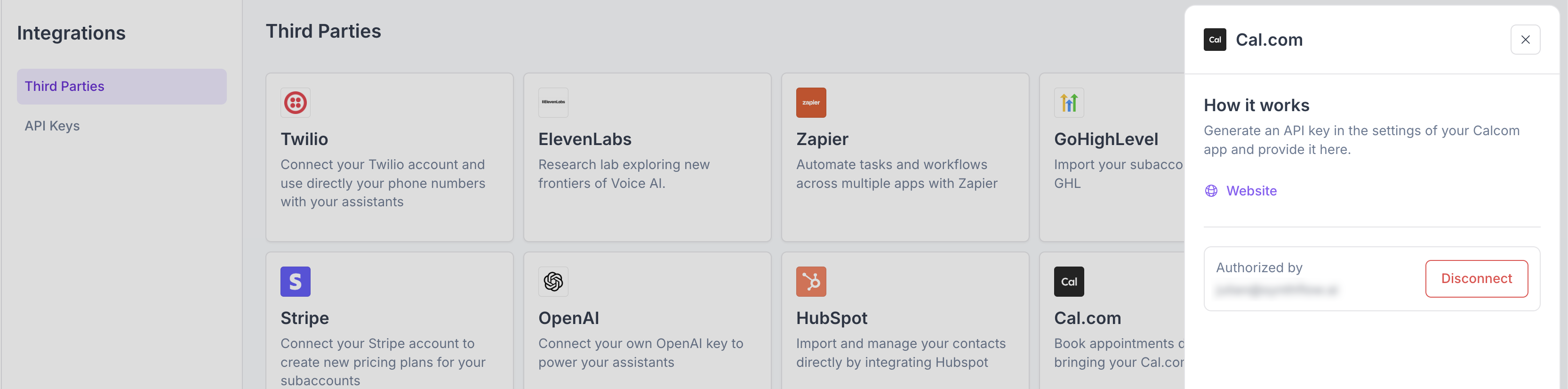
Navigate to **Integrations** > **Cal.com** and provide your Cal.com API key.
The Cal.com API keys are located in your Developer Settings. Make sure your key is saved somewhere safe.
### Link your Calendar Event ID
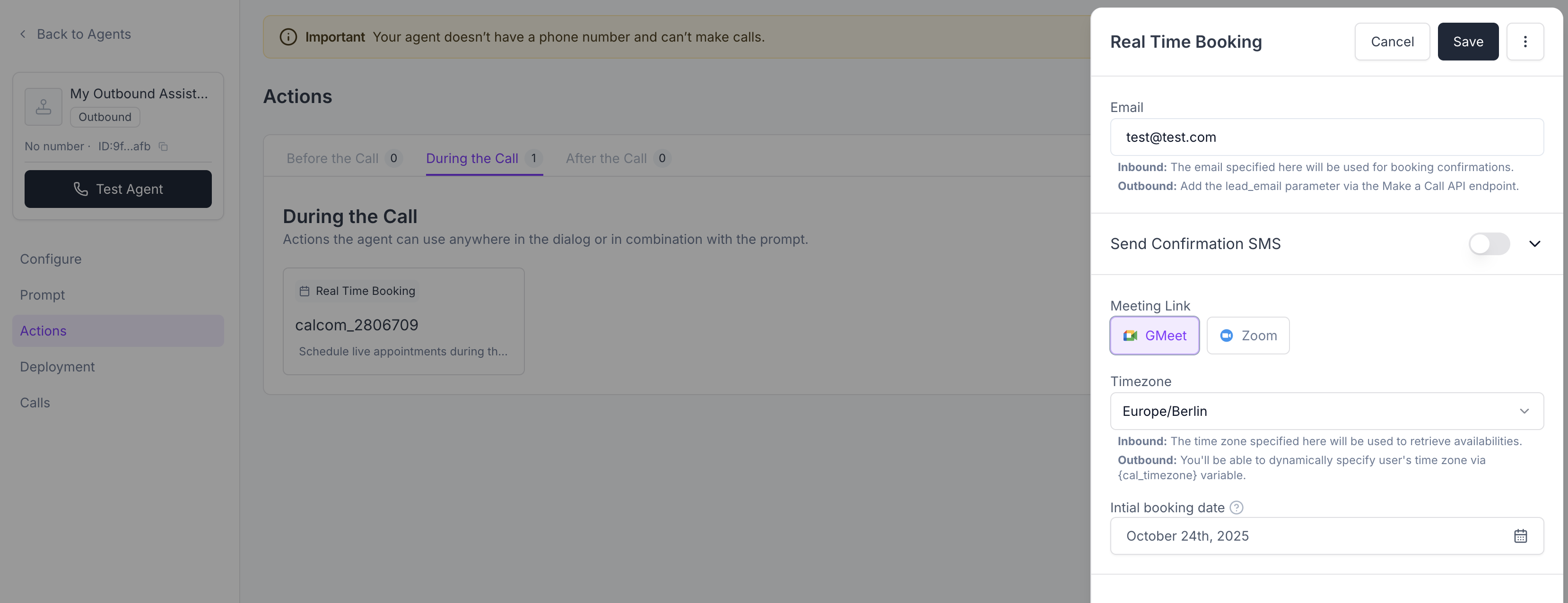
Upon creating a [Real-Time Booking action](/create-a-real-time-booking-action), you will be asked to provide your Cal.com event ID.
1. Within your Cal.com account, navigate to your calendar event.
2. In the URL, you can find a 6-7 numeric character.
3. Copy it, and provide it to your Real-Time Booking action.
4. Press **Next** and configure your action.
***
## Use‑case examples
* **Real‑time booking during calls**: The agent proposes slots, confirms a time, and instantly creates a Cal.com booking.
* [**24/7 AI receptionist**](https://synthflow.ai/ai-receptionist): Outside business hours, your agent still schedules meetings so you never miss a lead.
* **Qualification + scheduling**: Ask a few qualifying questions before offering times, then book with the right host or event.
***
## Troubleshooting
* **Calendar/event not showing**: Verify the Cal.com event is published and that you pasted the correct Event ID. Make sure the event is visible to the host and not restricted by team settings.
* **Booking not created**: Confirm the Real‑Time Booking action is attached to the agent and that your prompt contains a clear instruction to schedule. Check [call logs](/logs#call-logs) for any errors in booking.
* **No availability returned**: Ensure host calendars are connected in Cal.com and that booking windows/buffers don’t block all times.
* **Wrong time zone**: Confirm the caller’s time zone detection and your event’s default time zone in Cal.com.
***
## FAQs
Cal.com checks live availability at booking time. If a slot becomes unavailable, the agent will offer alternative times and attempt a new booking.
The integration uses the caller’s time zone when available; otherwise it falls back to the event/host defaults configured in Cal.com.
Yes. Cal.com’s confirmation emails include manage links. You can also add a follow‑up flow in your agent to retrieve or modify bookings.
Yes—use team or round‑robin events in Cal.com. The agent will book into whichever host Cal.com assigns per your rules.
When adding the Real‑Time Booking action, select Cal.com and paste the Event ID from your Cal.com event settings.
You will be asked to provide your API key once upon connection. Once connected, all actions will require an Event ID.
### Step 1. Connect your GoHighLevel account
In your Synthflow dashboard, select
**Actions**
on the left-hand sidebar.
Click
**Real-time booking**
.
Click
**Create**
.
Select GoHighLevel and click
**Connect**
.
Select your Subaccount. Important: Agency account doesn't have calendars, pick a subaccount.
### Step 2. Create an action
Click
**Create**
under Real-time booking again and select GoHighLevel.
Choose your calendar in the dropdown and click
**Next**
.
Choose a title for this calendar and switch on
**Automatically confirm this appointment**
. Click
**Save**
.
### Step 3. Add the action to your agent
Select
**Assistants**
on the left-hand sidebar.
Select the agent you want to add this action to.
Click the
**Actions**
tab.
Click
**Add**
.
Select the real-time booking action you previously created.
The **Real-Time Booking Node** enables your AI agent to schedule appointments, meetings, and consultations in real-time by checking calendar availability and creating bookings—all within the conversation flow.
***
## Purpose
Use the Real-Time Booking Node when you need to:
* **Schedule appointments** (demos, consultations, support calls)
* **Check calendar availability** in real-time
* **Book confirmed time slots** directly
* **Send confirmation details** to users and internal systems
* **Reduce scheduling friction** (no back-and-forth emails)
***
## How It Works
1. **User expresses interest** in scheduling
2. **AI collects preferences** (date, time, meeting type)
3. **Booking node checks availability** against connected calendar
4. **Available slots presented** to user
5. **User selects a time**
6. **Appointment is confirmed** and created in calendar
7. **Confirmation sent** to user (email, SMS, or spoken)
***
## Prerequisites
Before using the Real-Time Booking Node, ensure you have:
1. **Calendar integration configured** (Cal.com, Google Calendar, or other supported provider)
2. **Booking action created** in your Actions settings
3. **Calendar availability** properly configured (business hours, buffer times)
For setup instructions, see:
* [Create a Real-Time Booking Action](/create-a-real-time-booking-action)
* [Cal.com Integration](/calcom)
***
## Configuration
### Step 1: Add the Node
1. In Flow Designer, click **Add**
2. Select **Real-Time Booking**
3. Name the node descriptively (e.g., "Schedule Demo Call")
### Step 2: Select Booking Action
Choose the booking action you created in your Actions settings:
* Each action corresponds to a specific calendar or event type
* Example: "Sales Demo," "Support Consultation," "Onboarding Call"
### Step 3: Configure Required Variables
The booking node typically requires:
* **Date preference:** `{preferred_date}`
* **Time preference:** `{preferred_time}` or time range
* **Duration:** Automatically determined by event type
* **User details:** `{user_name}`, `{user_email}`, `{user_phone}`
These variables should be collected in **Collect Variables** nodes *before* the booking node.
***
## Typical Flow Pattern
Here's a common pattern for implementing real-time booking:
```
[Greeting]
↓
[Conversation: "Would you like to schedule a demo?"] → {wants_demo}
↓
[Branch: {wants_demo} == "yes"]
↓ (Yes)
[Conversation: "What's your name?"] → {user_name}
↓
[Conversation: "What's your email?"] → {user_email}
↓
[Conversation: "What date works for you?"] → {preferred_date}
↓
[Conversation: "Morning or afternoon?"] → {time_preference}
↓
[Real-Time Booking: Check availability and book]
↓
[Branch: Booking successful?]
↓ (Yes)
[Message: "Perfect! Your demo is scheduled for {booked_date} at {booked_time}."]
↓ (No)
[Message: "I'm sorry, we don't have availability at that time. Let me suggest alternatives..."]
[Jump back to date collection or offer alternatives]
```
***
## Best Practices
### 1. Collect Information Upfront
Gather all required details before attempting to book:
✅ **Correct order:**
1. Collect name
2. Collect email
3. Collect date preference
4. Collect time preference
5. Attempt booking
❌ **Avoid:** Trying to book without complete information, then having to go back and collect missing details.
***
### 2. Offer Flexible Options
| ❌ Don't Do This | ✅ Do This Instead |
| ---------------------------------------------------- | ----------------------------------------------------------------------------------------------------------------------------------------------------------------------------------- |
| "I can only do Tuesday at 2pm. Take it or leave it." | "What day works best for you? I'll check what times are available."
Then present options:
"I have openings at 10am, 2pm, and 4pm on that day. Which works for you?" |
***
### 3. Confirm and Reassure
After booking, confirm the details and explain next steps:
**Example:**
```
"Perfect! Your demo with {agent_name} is confirmed for {date} at {time}. You'll receive a calendar invite at {user_email} with the meeting link. Is there anything else you'd like to know?"
```
***
### 4. Handle Booking Failures Gracefully
Not every booking attempt will succeed. Plan for failures:
```
[Real-Time Booking Node]
↓
[Branch: Did booking succeed?]
↓ (Yes)
[Message: Confirmation message]
↓ (No)
[Message: "I'm sorry, that time isn't available. Let me check other options."]
↓
[Conversation: "Would you prefer an earlier or later time?"]
↓
[Jump back to Real-Time Booking with new preferences]
```
***
### 5. Offer Rescheduling
Allow users to change their mind:
```
[Message: "Your demo is scheduled for {date} at {time}."]
↓
[Conversation: "Does that time work for you?"]
↓
[Branch: Needs rescheduling?]
↓ (Yes) → [Jump back to date collection]
↓ (No) → [Continue]
```
***
## Common Use Cases
### Sales Demo Scheduling
```
[Qualify lead with questions]
↓
[Branch: Qualified?]
↓ (Yes)
[Message: "Great! Let's schedule a personalized demo."]
↓
[Collect contact info and preferences]
↓
[Real-Time Booking: Sales Demo]
↓
[Confirmation]
```
***
### Support Callback Scheduling
```
[Troubleshoot issue with AI]
↓
[Branch: Issue resolved?]
↓ (No)
[Message: "Let me schedule a call with a specialist."]
↓
[Real-Time Booking: Technical Support Call]
↓
[Confirmation with ticket number]
```
***
### Consultation Booking
```
[Collect information about user's needs]
↓
[Branch: Needs consultation?]
↓ (Yes)
[Message: "I'd love to connect you with one of our consultants."]
↓
[Real-Time Booking: Consultation]
↓
[Message: "You're all set! Check your email for details."]
```
***
### Multi-Service Booking
Route to different calendars based on service type:
```
[Conversation: "Which service? Haircut, Coloring, or Styling?"] → {service}
↓
[Branch: {service}]
↓ (Haircut) → [Real-Time Booking: Haircut Calendar]
↓ (Coloring) → [Real-Time Booking: Coloring Calendar]
↓ (Styling) → [Real-Time Booking: Styling Calendar]
```
***
## Advanced Features
### Calendar Pooling
Book across multiple team members' calendars:
* Configure booking action to check multiple calendars
* Agent books with first available team member
* User doesn't need to choose specific person
**Use cases:** Sales teams, support rotations, medical practices
***
### Buffer Times
Add buffer time before/after appointments:
* Prevents back-to-back bookings
* Gives teams time to prepare
* Configure in your booking action settings
**Example:** 15-minute buffer = no bookings within 15 minutes of existing appointments
***
### Custom Fields
Collect and store custom information with bookings:
* Special requests or notes
* Additional attendees
* Equipment needs
Pass these as variables to the booking node.
***
### Time Zone Handling
Ensure correct time zone handling:
* Detect user's time zone (via variable or API)
* Display times in user's local time
* Store appointments in correct time zone
**Example:**
```
"All times are in your local time zone ({user_timezone}). Your appointment is at {time_local}."
```
***
## Integration Options
The Real-Time Booking Node works with:
* **Cal.com** (recommended)
* **Google Calendar**
* **Microsoft Outlook**
* **Custom calendar APIs**
Each requires proper authentication and configuration. See integration-specific guides:
* [Cal.com Setup](/calcom)
* [Real-Time Booking Action](/create-a-real-time-booking-action)
***
## Troubleshooting
### Booking Fails Despite Availability
**Possible causes:**
* Calendar sync issues
* Permissions not properly configured
* Time zone mismatch
* Booking outside of configured business hours
**Solution:** Check your calendar integration settings and business hours configuration.
***
### User Can't Find Suitable Time
**Possible causes:**
* Calendar is heavily booked
* User's availability doesn't match business hours
* Not enough advance notice (bookings require X hours notice)
**Solution:** Offer to add user to waitlist, provide alternative dates, or escalate to human scheduler.
***
### Confirmation Email Not Sent
**Possible causes:**
* Email address not collected or invalid
* Email integration not configured
* Spam filters blocking confirmation
**Solution:** Verify email collection, check integration settings, provide confirmation verbally as backup.
***
## FAQ
No, unless you explicitly configure it. Business hours are set in your booking action configuration. Attempts to book outside these hours will be declined with alternative suggestions.
The first booking succeeds. The second attempt will be told that time is no longer available and offered alternatives. Real-time syncing prevents double-booking.
This depends on your configuration. You can create separate flows for:
* Rescheduling (modify existing appointment)
* Cancellation (delete appointment)
These typically require the user to provide a booking reference or identifier.
This is configured in your booking action settings. Common configurations:
* Minimum notice: 24 hours (prevents last-minute bookings)
* Maximum advance: 90 days (prevents bookings too far out)
Yes, with additional integration. You can:
1. Collect payment information
2. Process payment via Custom Action (Stripe, etc.)
3. Only create booking if payment succeeds
See [Stripe Integration](/stripe-overview) for details.
Yes. Set up separate booking actions for each team member or role, each linked to their individual calendar. Route users to the appropriate action based on their needs.
***
## Next Steps
* [Create a Real-Time Booking Action](/create-a-real-time-booking-action)
* [Cal.com Integration Guide](/calcom)
* [Collect Variables Node](/configure-step-nodes) for gathering booking details
* [Branch Nodes](/configure-branch-nodes) for handling booking outcomes