***
title: Limits & Defaults
slug: limits-and-defaults
---------------------
For clean Markdown of any page, append .md to the page URL. For a complete documentation index, see https://docs.synthflow.ai/llms.txt. For full documentation content, see https://docs.synthflow.ai/llms-full.txt.
TLimits and defaults apply only while a subaccount has no active pricing plan. After a plan is active, plan limits take precedence. To manage your paying customers, visit the
[rebilling page](/set-up-pricing-and-rebilling)
.
The Limits & Defaults page lets you define the default limits and restrictions for newly created subaccounts before they upgrade to a paid plan. These settings ensure consistent usage policies across all subaccounts.
## Parameters
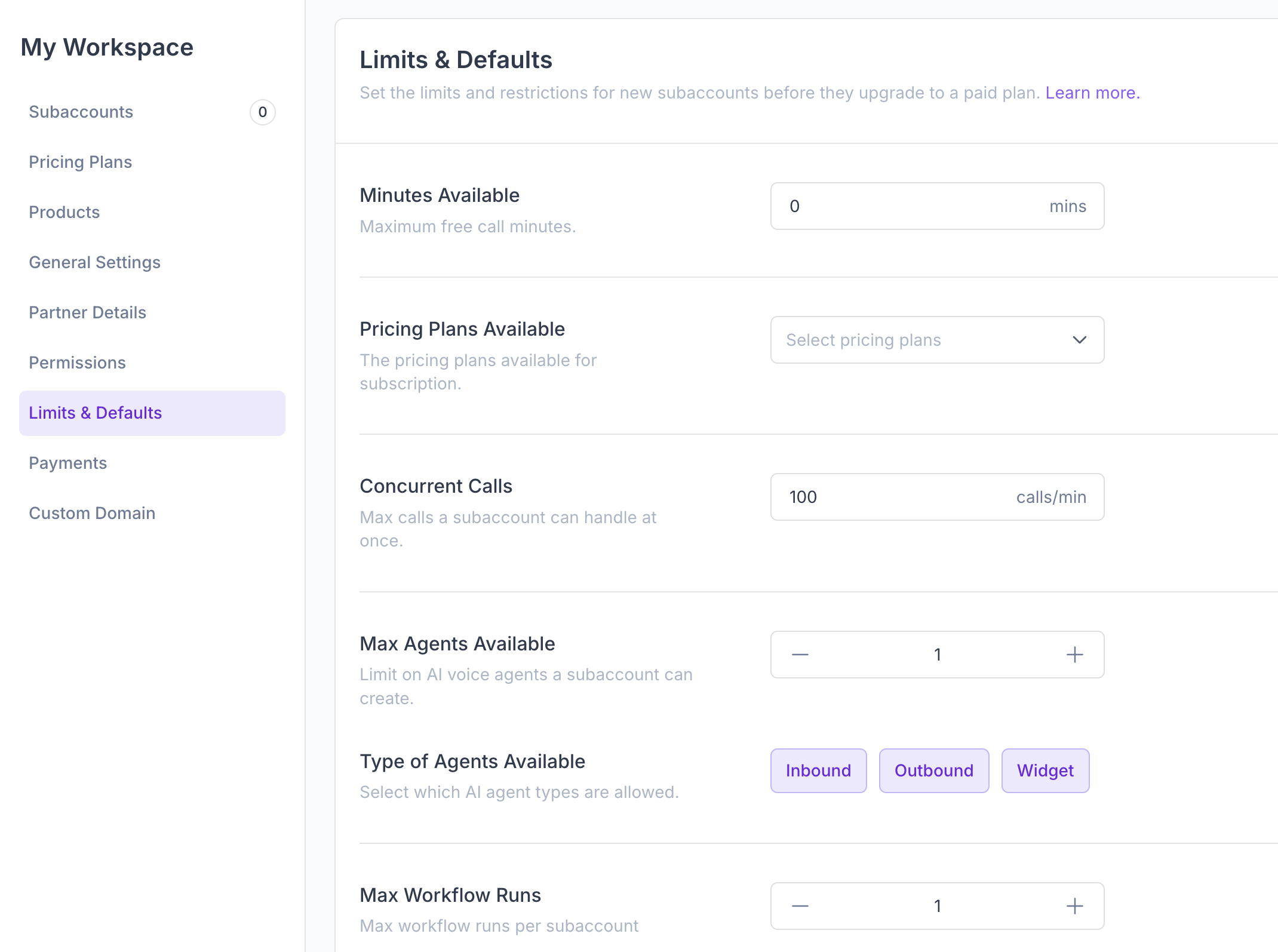
### Maximum Free Minutes
Set the maximum free call minutes for subaccounts without a plan. Example: 0 disables free minutes; 100 allows 100 minutes.
Example: Enter `0` to disable free minutes or specify a number (e.g., `100`) to allow that many free minutes.
### Pricing Plans Available
Select which pricing plans are available for new subaccounts to subscribe to.
### Concurrent Calls
Set the maximum simultaneous active calls (concurrency). Example: 10 allows up to 10 calls at once.
### Max Agents Available
Limit how many AI voice agents a subaccount can create.
### Types of Agents Available
Choose which AI agent types the subaccount is allowed to create.
Available options:
* **Inbound** - Handle incoming calls.
* **Outbound** - Initiates outgoing calls.
* **Widget** - Designed for web widget integrations.
### Max Workflow Runs
Set the maximum number of workflow runs allowed per subaccount.
## Default Permissions
New subaccounts inherit the permissions from the most recently created subaccount.
## Modify limits in bulk
Use the bulk edit feature to manage multiple subaccounts at once. To access it, follow these steps:
On the left-hand sidebar, click on **Subaccounts**.
Select the checkbox of each subaccount you wish to update. To select all, check the box in the table header.
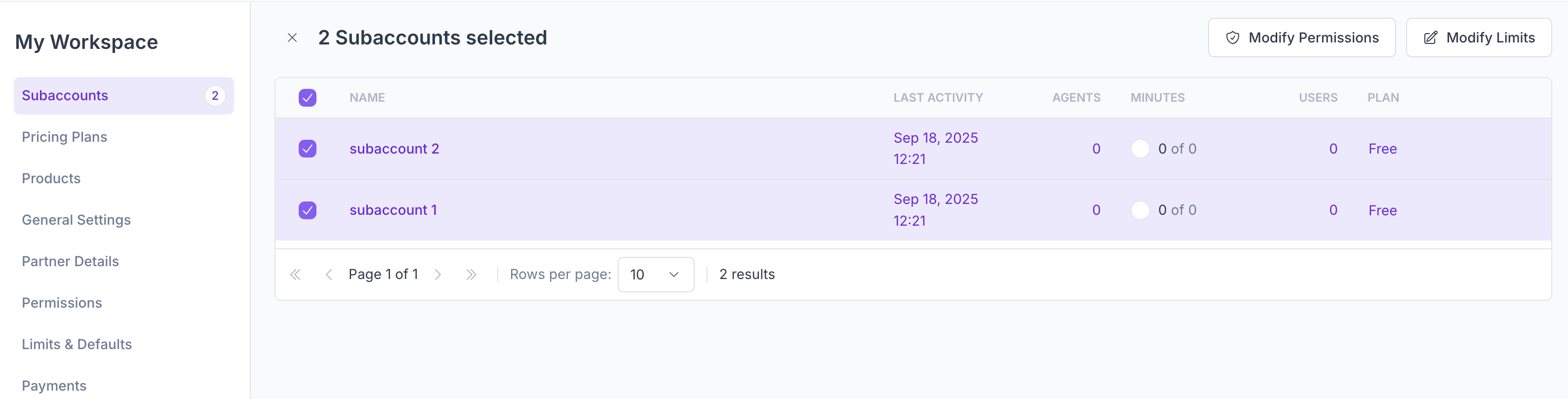
The header of the page shifts into select mode. Depending on the amount of subaccounts selected, you will be able to [import products](/import-a-product), [manage permissions](/manage-subaccount-permissions), and modify limits.
In this section, we will only cover the latter one.
Select **Modify Limits**. A side panel will open with limits and defaults parameters.
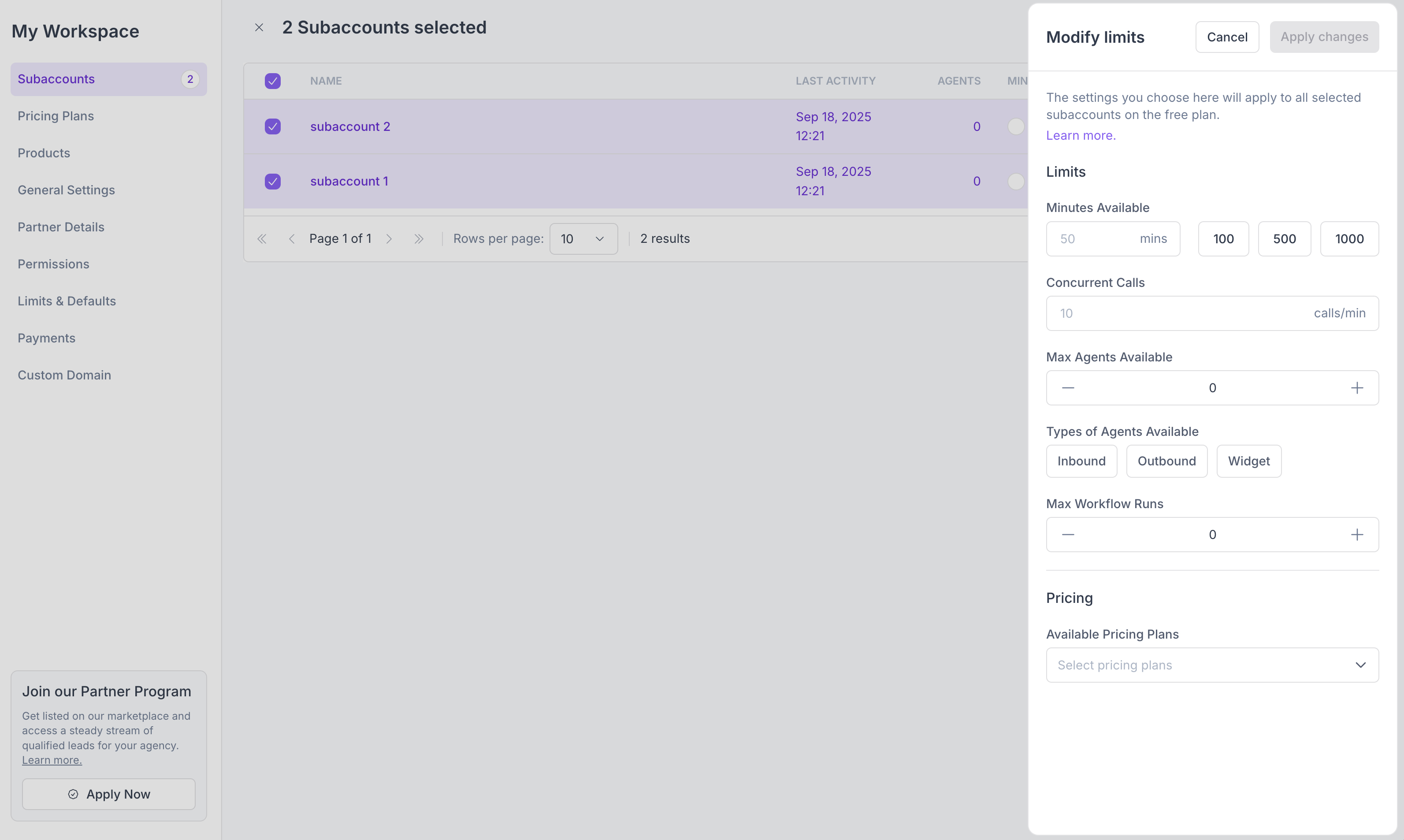
Press the button "Apply Changes". The settings you choose here will apply to all selected subaccounts.
All fields are mandatory, which means you must know what value each parameter must have.