***
title: Logs
subtitle: Complete visibility into your voice agent operations
slug: logs
description: >-
Access detailed logs for calls, API requests, and webhook interactions in one
centralized location.
---------------------
Synthflow provides a unified logging system that gives you complete visibility into all your voice agent operations. Access detailed logs for calls, API requests, and webhook interactions in one centralized location.
## Overview
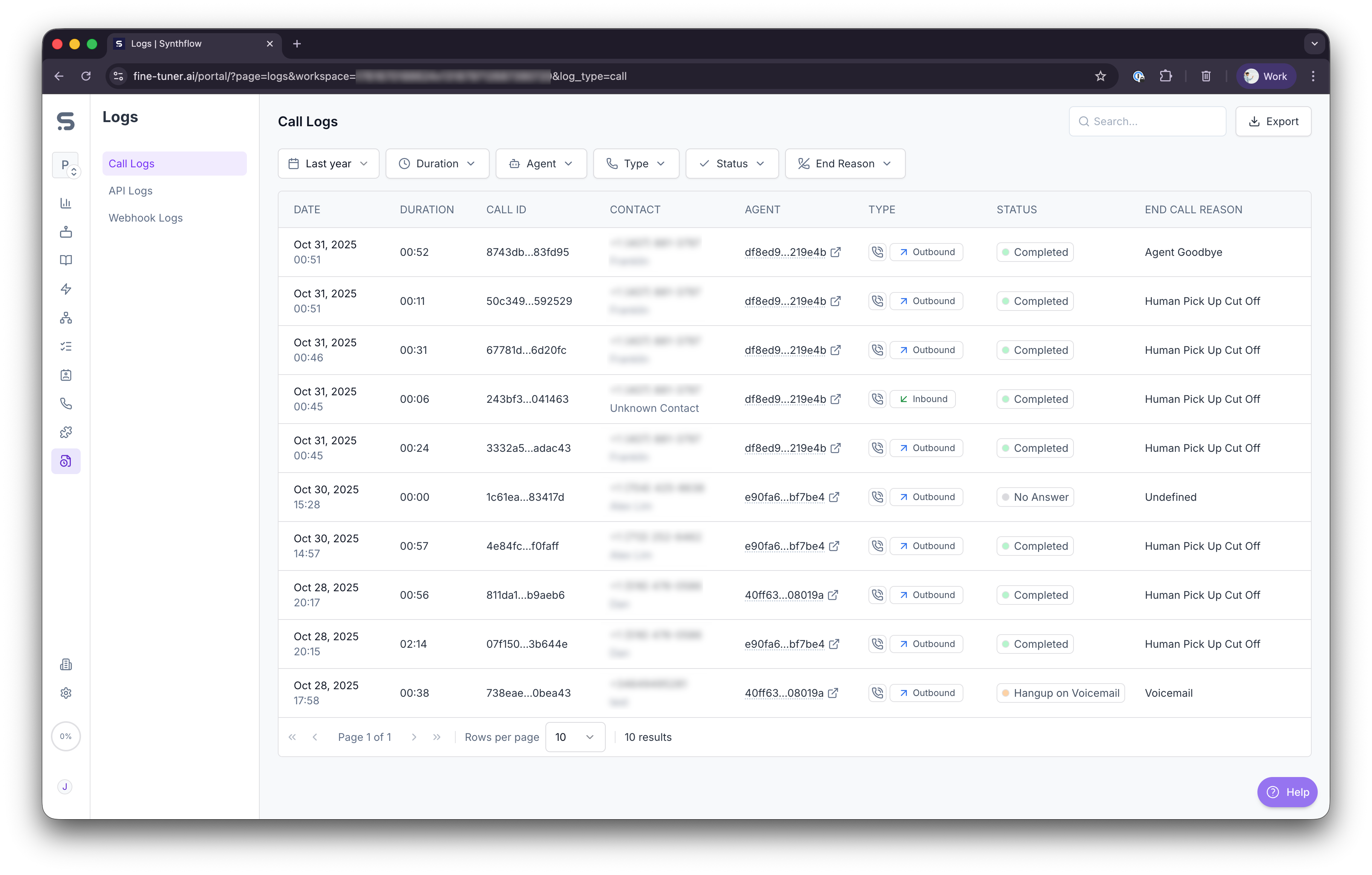
The logging system consists of three main log types that can be accessed from the **Logs** section in your Synthflow dashboard:
* **[Call Logs](#call-logs)**: Complete call history with transcripts and metadata
* **[API Logs](#api-logs)**: Audit trail of all API requests triggered by your agents
* **[Webhook Logs](#webhook-logs)**: Track webhook interactions and delivery status
***
## Call Logs
Call logs provide comprehensive information about every call made through your agents.
### Where to Access Call Logs
Call logs can be accessed in two locations:
* **Agent Page → Calls Tab**: View a detailed list of all calls for a specific agent. Navigate to any agent and click the **Calls** tab to see that agent's call history.
* **Logs Page → Call Logs**: View a complete list of all call logs from all agents in your workspace. This provides a centralized view across your entire organization.
### Viewing Call Logs
The call logs table displays:
* **Contact**: The name or number of the contact involved in the call
* **Date and Time**: When the call occurred
* **Agent**: Which agent handled the call
* **Duration**: Call length
* **Type**: **Live** or **Test**
* **[Status](#call-status)**: The current state or outcome of the call
* **[End Reason](#end-call-reasons)**: Why the call ended
* **Custom Evaluations**: Any custom metrics you've defined
### Filtering and Searching Call Logs
Click on the dropdown menu to filter calls by date.
Click the filter icon to filter calls by status and duration.
Or, search for a call by its ID or contact information.
Available filter options:
* **Date Range**: Filter by specific time periods
* **Agent**: Select specific agents
* **Type**: Filter by Live or Test calls
* **Status**: Filter by call outcome
* **Duration**: Filter by call length
* **Labels**: Filter by assigned labels
### Call Details
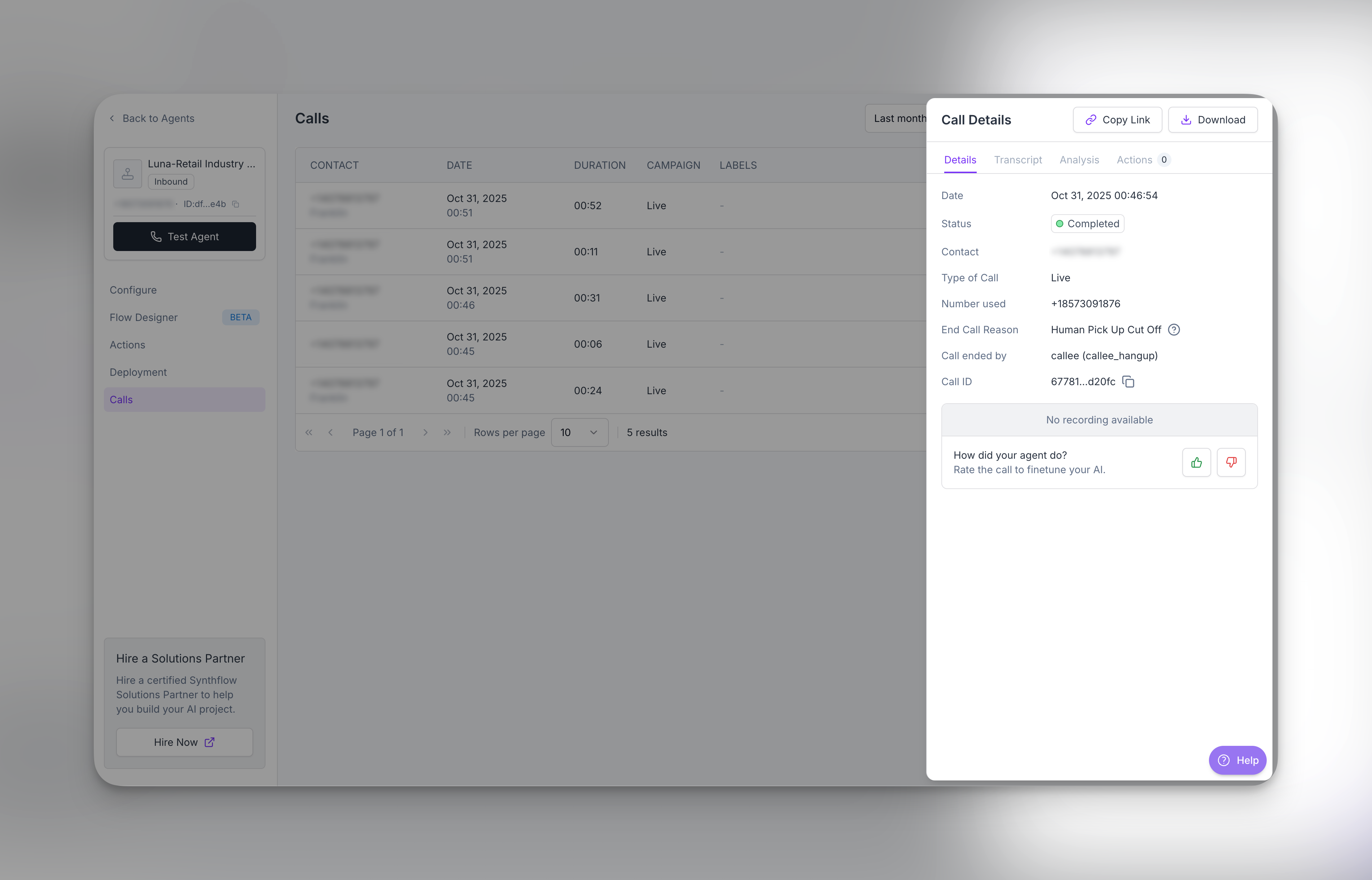
Click on any call to view detailed information in the call details drawer.
#### Details Tab
The **Details** tab includes:
* **Call ID**: The unique identifier assigned to the call
* **Contact**: The name or number involved
* **Number used**: The phone number used by the agent
* **Date and Time**: When the call occurred
* **Duration**: Call duration
* **Status**: Call outcome
* **End Call Reason**: The reason the call ended (see [End Call Reasons](#end-call-reasons))
* **Copy link**: Click to copy a shareable link between members of your workspace
* **Download**: Click to download the recording or transcript
* **Recording**: Full audio recording of the call
The **Duration** shown in the call log reflects the total call duration, which includes all phases of the call such as PBX delay, ringing time, and conversation time. The **Recording**, however, only captures the conversation portion of the call. This means the recording duration will often be shorter than the total duration displayed in the log.
For example, a call with a logged duration of 18 seconds may include a PBX delay (e.g., \~4 seconds), ringing (e.g., \~7 seconds), and actual conversation (e.g., \~7 seconds). In this case, the recording would only be 7 seconds long since it starts when the conversation begins.
#### Transcript Tab
View the complete conversation transcript with:
* Speaker-labeled dialogue (Agent vs. Customer)
* Timestamps for each message
* Timestamps for each action executed during the call
#### Judge Tab
Review [automated quality assessments](/collect-analytics) and [custom evaluations](/create-a-custom-evaluation):
* **Custom Evaluations**: View scores for any custom metrics you've defined
* **Quality Scores**: Automated assessment of call quality
* **Performance Metrics**: Response times and engagement scores
* **Sentiment Analysis**: Overall conversation sentiment
#### Actions Tab
See all actions that were executed during the call:
* **Action Name**: The custom action that was triggered
* **Action ID**: Unique identifier for tracking
* **Timestamp**: When the action was executed
* **Status**: Success or failure
* **Parameters**: Input values used
* **Response**: Output data returned
Learn more about [actions](/actions-overview) and [viewing action logs](#api-logs).
### Call Status
A call can have one of several statuses. For detailed status information and webhook payloads, see the [Post-Call Webhook documentation](/post-call-webhook).
* **Completed**: The call was successful, and the conversation concluded
* **Busy**: The contact's line was occupied, and the Assistant couldn't connect
* **Failed**: The call couldn't be completed due to technical or connection issues
* **Hangup on Voicemail**: The Assistant detected voicemail and ended the call
* **Left Voicemail**: The Assistant detected voicemail and left a voicemail message
* **No Answer**: The call was placed, but no one picked up
* **Paused**: The call was put on hold, either manually or as part of a workflow
* **Queue**: The call is waiting in the queue and will be executed later
* **Initiated**: The call has started but hasn't yet completed
### End Call Reasons
A call can end for several reasons. This information is also available in the [Post-Call Webhook payload](/post-call-webhook).
| Reason | Description |
| --------------------------------- | ----------------------------------------------------------------------------------- |
| `voicemail` | The call was answered by voicemail. |
| `voicemail_message_left` | The agent detected voicemail and left a voicemail message. |
| `agent_goodbye` | The agent ended the conversation. |
| `human_goodbye` | The customer ended the conversation. |
| `max_duration` | The call exceeded the maximum allowed time and was automatically ended. |
| `idle_time_exceeded` | The call exceeded the maximum allowed idle limit time and was automatically ended. |
| `human_pick_up_cut_off` | The customer answered the call but was disconnected before ending the conversation. |
| `user_disconnected` | The customer was disconnected from the call. |
| Request Failed (500) | Something went wrong and the call failed. |
| No International Permission (403) | Check your Twilio account settings to set up international permissions. |
### Exporting Call Data
Export call logs to CSV for detailed analysis:
1. Apply your desired filters to narrow down the data
2. Click the **Export** button
3. Download the CSV file containing all filtered call data
The export includes all rows visible in the call logs table. For large datasets, consider applying date range filters before exporting.
Learn more about [exporting calls](/export-call-data).
## API Logs
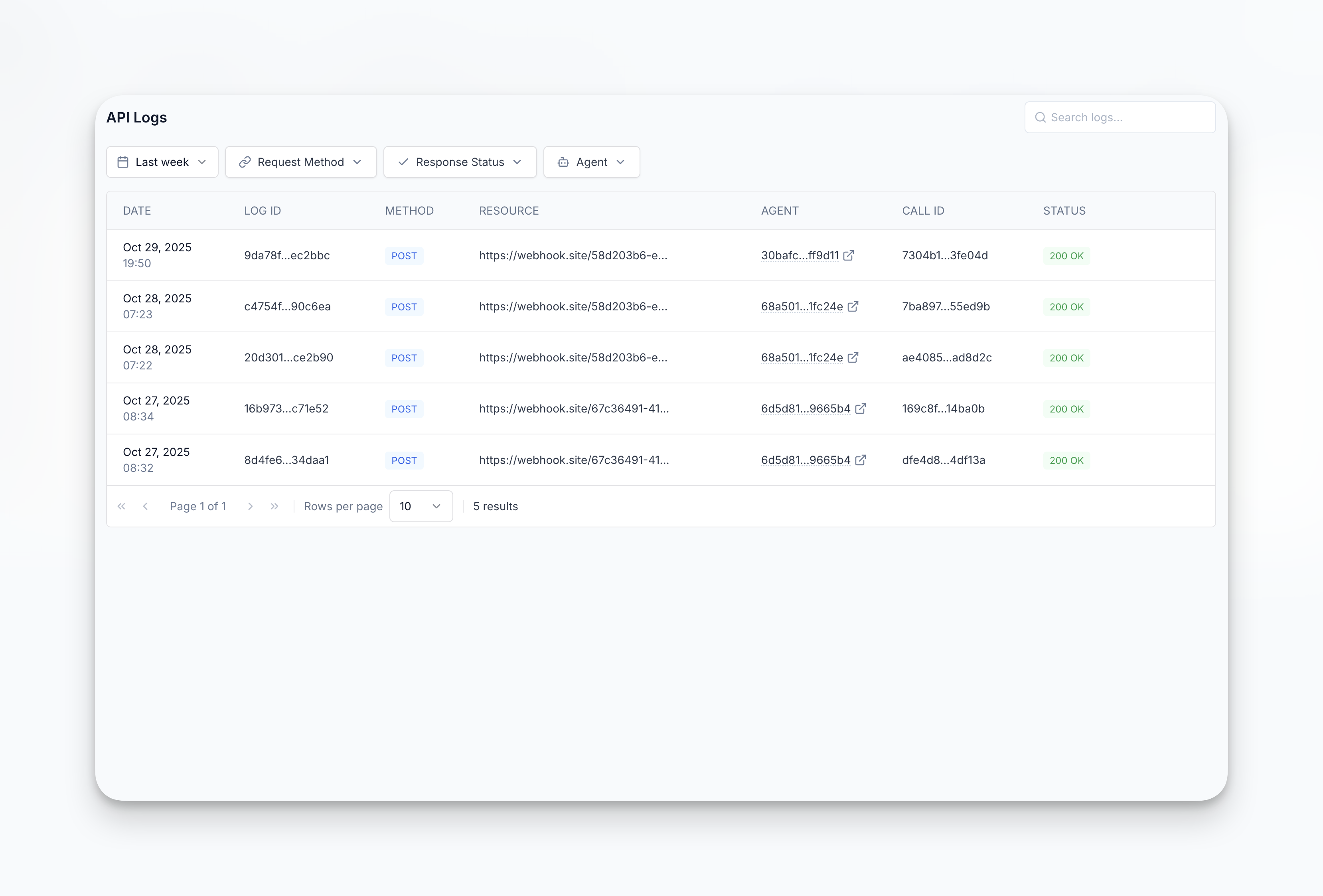
API logs track all outbound API requests made by your agents during calls. This provides a complete audit trail of all [custom actions](/create-a-custom-action) and API interactions.
### Viewing API Logs
The API logs table displays:
* **Date and Time**: When the request was made
* **Method**: HTTP method (GET, POST, PUT, DELETE, etc.)
* **Resource**: API endpoint called
* **Agent**: Which agent triggered the request
* **Status**: Response status code
* **Duration**: Request processing time
* **Call ID**: Associated call identifier (click to view the related call)
### Filtering API Logs
Filter API logs to find specific requests:
* **Time Range**: Filter by specific date periods
* **Method**: Select HTTP methods (supports multi-select: GET, POST, PUT, DELETE, etc.)
* **Agent**: Filter by specific agents
* **Status**: Filter by response status codes (2xx, 4xx, 5xx)
* **Call ID**: Search for API calls from a specific call
* **Duration**: Filter by request processing time
### API Request Details
Click on any API log entry to view comprehensive request and response information:
#### Request Details
* **URL**: Full endpoint URL
* **Method**: HTTP method used
* **Headers**: All request headers sent
* **Query Parameters**: URL query string parameters
* **Request Body**: Full payload sent (formatted JSON/XML)
#### Response Details
* **Status Code**: HTTP response status
* **Response Headers**: All headers received
* **Response Body**: Full response payload (formatted)
* **Timing**: Detailed timing breakdown
* DNS lookup time
* Connection time
* Response time
* Total duration
#### Metadata
* **Trace ID**: Unique identifier for tracking
* **Agent Information**: Agent name and ID
* **Call Context**: Link to the associated call
* **Action Information**: Custom action that triggered the request
* **Timestamp**: Exact execution time
#### Retry Information
If the request failed and was retried:
* **Number of Attempts**: How many times the request was retried
* **Retry Timestamps**: When each attempt occurred
* **Failure Reasons**: Why previous attempts failed
* **Final Outcome**: Whether the request ultimately succeeded
Retry behavior for custom actions can be configured when setting up your custom action. Failed requests are automatically retried based on your configuration.
Learn more about configuring [custom actions](/create-a-custom-action).
***
## Webhook Logs
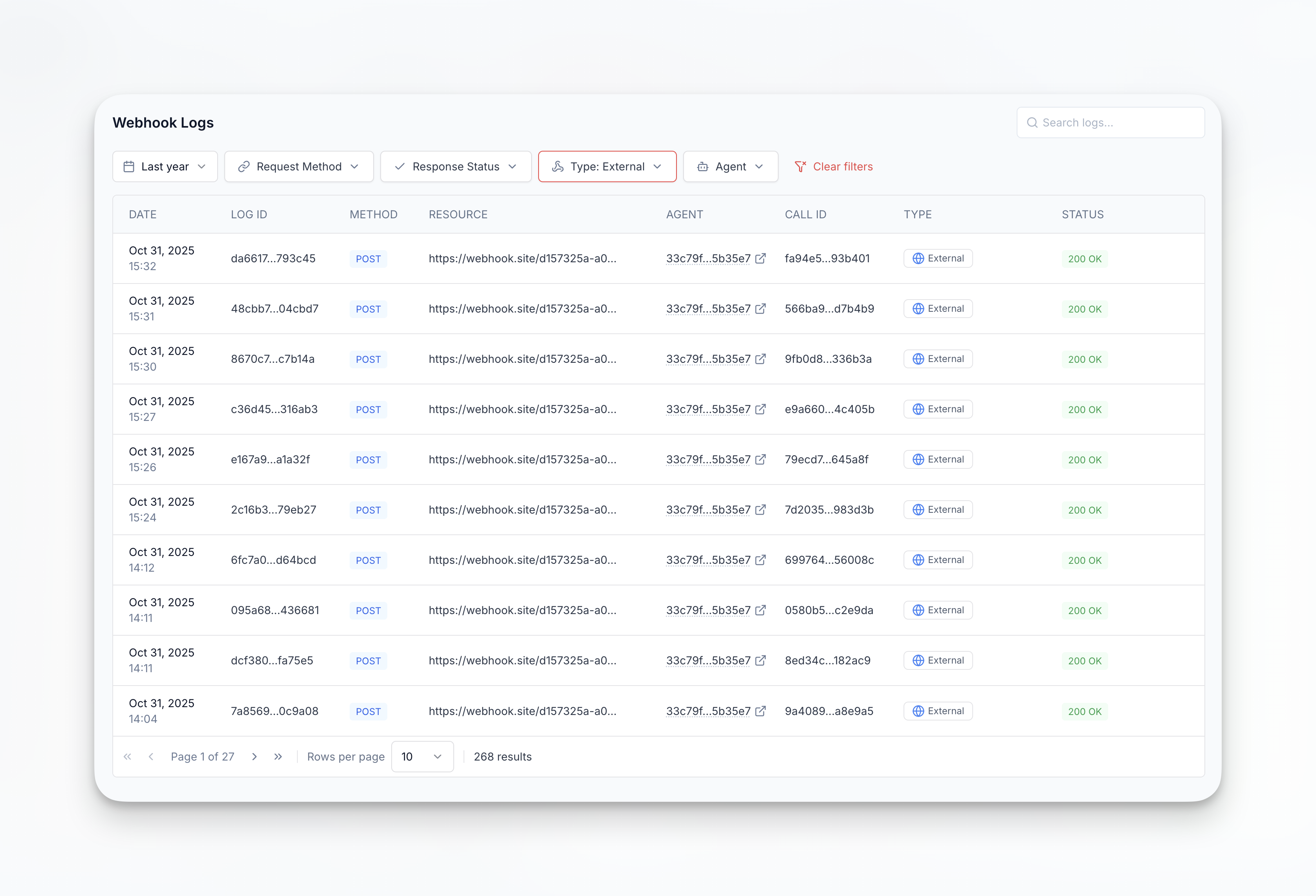
Webhook logs track all webhook interactions and their delivery status. Monitor both [inbound webhooks](/inbound-webhook-api) and [post-call webhooks](/post-call-webhook) in one place.
### Viewing Webhook Logs
The webhook logs table displays:
* **Date and Time**: When the webhook was triggered
* **Webhook Type**: Inbound, Post-Call, or Custom webhook
* **Webhook URL**: Destination endpoint
* **Status**: Delivery status (Delivered, Failed, Retrying, Pending)
* **Agent**: Which agent triggered the webhook (if applicable)
* **Call ID**: Associated call identifier (click to view the related call)
* **Response Time**: How long the webhook took to respond
* **HTTP Status**: Response status code received
### Filtering Webhook Logs
Filter webhook logs to find specific deliveries:
* **Time Range**: Filter by specific date periods
* **Status**: Filter by delivery status
* Delivered: Successfully delivered
* Failed: Delivery failed after all retries
* Retrying: Currently retrying delivery
* Pending: Awaiting delivery
* **Webhook Type**: Filter by webhook type
* **Agent**: Filter by specific agents
* **Call ID**: Search for webhooks from a specific call
* **Webhook URL**: Filter by specific endpoint URLs
* **Response Time**: Filter by webhook response duration
### Webhook Details
Click on any webhook log to view comprehensive delivery information:
#### Request Details
* **Webhook URL**: The destination endpoint
* **Headers**: All headers sent with the webhook
* **Payload**: Complete webhook payload (formatted JSON)
* **Request Size**: Size of the payload in bytes
* **Timestamp**: When the webhook was triggered
#### Response Details
* **HTTP Status Code**: Response status code received
* **Response Headers**: All headers received from your endpoint
* **Response Body**: Response content from your endpoint
* **Response Time**: Time taken for your endpoint to respond
* **Response Size**: Size of the response in bytes
#### Retry Information
View the complete delivery timeline:
* **Delivery Attempts**: Total number of attempts made
* **Attempt Timeline**: Timestamp for each delivery attempt
* **Failure Reasons**: Specific error messages for failed attempts
* Connection timeout
* DNS resolution failed
* HTTP error codes (4xx, 5xx)
* SSL/TLS errors
* **Next Retry**: When the next attempt will be made (for retrying webhooks)
* **Final Status**: Ultimate outcome of the webhook delivery
Synthflow automatically retries failed webhook deliveries with exponential backoff. Monitor the retry information to identify persistent delivery issues that may require endpoint configuration changes.
Learn more about [webhook configuration](/webhooks) and [post-call webhook payloads](/post-call-webhook).
***
## Search and Navigation
### Search Functionality
Use the search box at the top of each log type to find specific entries:
* **Call ID**: Search by unique call identifier
* **Action ID**: Search by custom action identifier
* **Agent Name**: Search by agent name
* **Contact Information**: Search by phone number or contact name
* **Webhook URL**: Search by webhook endpoint
* **Keywords**: Search within transcripts and log data
### Cross-Reference Navigation
Logs are interconnected for easy navigation:
* Click on a **Call ID** in API Logs or Webhook Logs to jump to the full call details
* Click on an **Action ID** to view the complete action execution details
* Click on an **Agent Name** to filter all logs by that agent
* Use breadcrumb navigation to move between log types
Use cross-referencing to trace issues across multiple log types. For example, if you see a failed custom action in Call Logs, click the Action ID to view the detailed API request in API Logs.
***
## Best Practices
### Filtering by timestamp
When querying logs, always include a date range filter to improve performance and reduce the time required to retrieve results. For accounts with large log volumes, querying the entire log history may result in slower response times.
### Using search effectively
Use the search functionality with specific identifiers (Call ID, Action ID, Agent Name) rather than broad keyword searches for faster and more accurate results.
### Exporting data
When exporting large datasets:
1. Apply filters to narrow down the data before exporting
2. Use date range filters to export data in manageable chunks
3. Export data regularly if you need to maintain historical records beyond your plan's retention period
### Monitoring API and webhook logs
Regularly review API and webhook logs for:
* Failed requests that may indicate integration issues
* Unusual response times that may signal performance problems
* Error patterns that could be addressed in your custom actions
* Webhook delivery failures that may require endpoint configuration changes
***
## API Access
Access logs programmatically using the Synthflow API for integration with your analytics tools and monitoring systems.
### Available API Endpoints
* **Call Logs API**: Retrieve call history and details
* **Webhook Logs API**: Access webhook delivery status and payloads
* **API Logs**: Query custom action executions
See the [API Reference](/api-reference/platform-api/webhook-logs/list-webhook-logs) for complete documentation on programmatic log access.
### Use Cases for API Access
* Export data to external analytics platforms
* Build custom dashboards and monitoring tools
* Integrate with incident management systems
* Automate reporting and alerting
* Create custom data pipelines for analysis