***
title: Manage Your Subscription
subtitle: Update billing details, payment methods, and subscription settings
slug: manage-billing
description: Learn how to manage your Synthflow subscription, update billing information, and access invoices.
---------------------
For clean Markdown of any page, append .md to the page URL. For a complete documentation index, see https://docs.synthflow.ai/llms.txt. For full documentation content, see https://docs.synthflow.ai/llms-full.txt.
All subscription and billing management happens in **Settings > Plan & Billing**. From there, you can access the Billing Portal to update your details, view invoices, and manage your subscription.
## Access the Billing Portal
Select **Settings** in the left-hand sidebar.
Select **Plan & Billing**.
Click **Billing Portal** at the top-right corner.
The Billing Portal is powered by Stripe and provides a secure interface for all billing operations.
## Update billing information
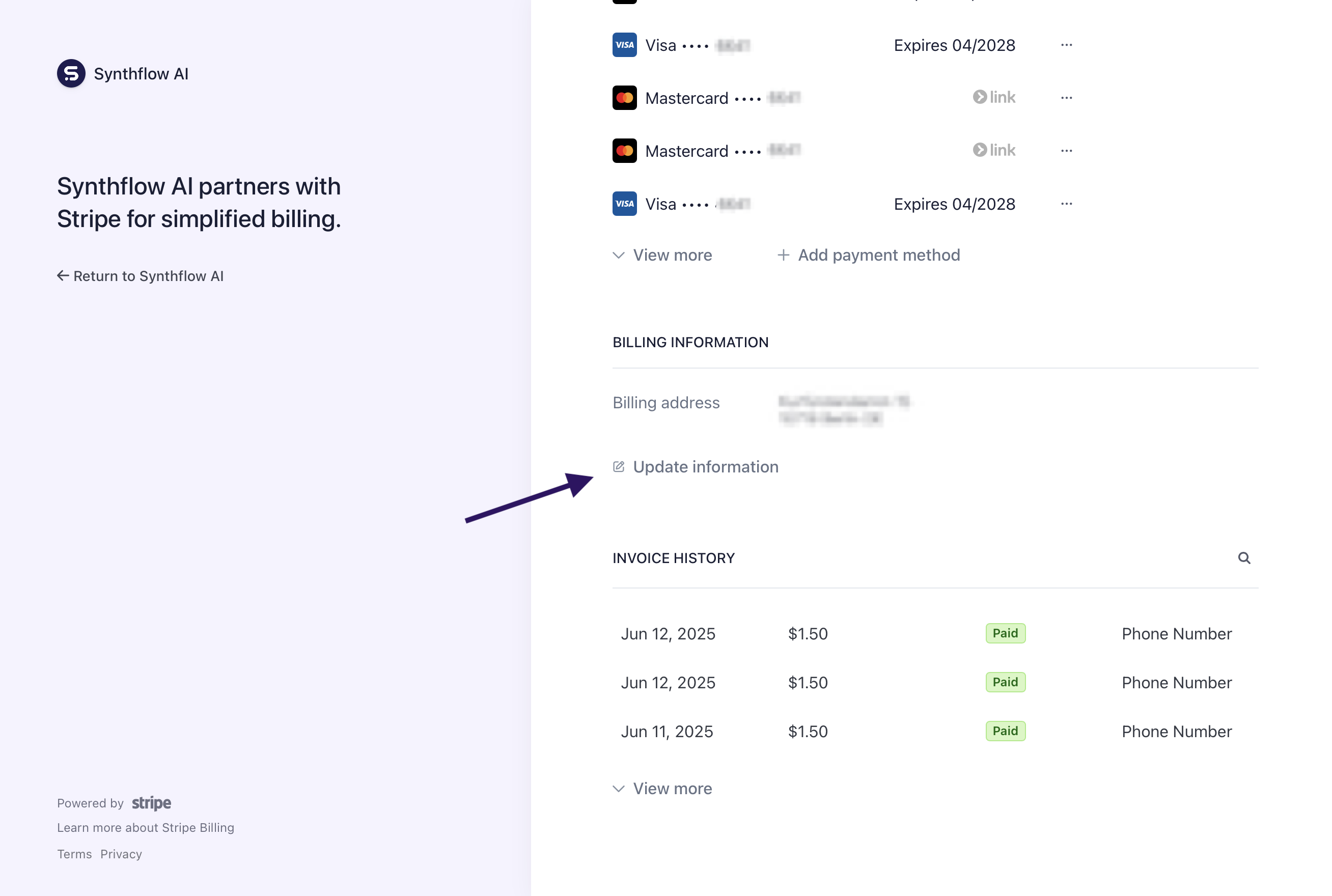
Your billing information includes your company name, address, and tax ID. Keeping this accurate ensures invoices are correctly formatted for your records.
Open the **Billing Portal** from Settings > Plan & Billing.
Scroll to **Billing information** and click **Update information**.
Edit your details:
* Company or individual name
* Billing address
* Phone number
* Tax ID (VAT, GST, etc.)
Click **Save** to apply changes.
### Tax IDs and VAT
If you're based in the European Union, add your VAT number to avoid being charged additional VAT. You can add it in the Billing Portal under Tax ID.
We support tax IDs for multiple regions:
| Region | Tax ID type |
| -------------- | -------------- |
| European Union | VAT number |
| United Kingdom | VAT number |
| Australia | ABN |
| Canada | GST/HST number |
| United States | EIN |
If your region isn't listed, contact support and we'll work with you to accommodate your tax requirements.
## Update payment method
Open the **Billing Portal**.
Under **Payment method**, click **Update** or **Add payment method**.
Enter your new card details and save.
We accept all major credit and debit cards through Stripe.
If a payment fails, you'll receive an email notification. Update your payment method promptly to avoid service interruption.
## View invoices and billing history
All invoices are available in the Billing Portal:
1. Open the **Billing Portal**
2. Scroll to **Invoice history**
3. Click any invoice to view or download as PDF
Invoices include:
* Usage breakdown (minutes, add-ons)
* Taxes applied
* Payment status
* Billing period
## Cancel your subscription
You can cancel your subscription at any time:
Open the **Billing Portal**.
Click **Cancel subscription** or **Cancel plan**.
Confirm cancellation.
Cancellation takes effect at the end of your current billing period. You retain access until then. If you're on an Enterprise plan, contact your account manager to discuss cancellation terms.
### What happens when you cancel
* Your agents and configurations remain saved
* You can continue using the service until the billing period ends
* Reactivate anytime by adding a payment method again
* We do not provide refunds for partial billing periods
## FAQ
All invoices are available in the Billing Portal under Invoice history. You can view them online or download as PDF.
Yes. Update the email address in the Billing Portal under your account settings.
Common reasons include expired cards, insufficient funds, or bank security holds. Update your payment method or contact your bank for details.
Invoice payments and wire transfers are available for Enterprise customers. Contact your account manager or [sales](https://synthflow.ai/talk-to-sales) to set this up.
Update your billing information in the Billing Portal. Changes apply to future invoices—previously issued invoices cannot be modified.
Billing is processed in USD. For Enterprise customers, we may accommodate other currencies—contact sales to discuss.