***
title: Message Node
subtitle: Deliver one-way messages without expecting a response
slug: message-node
description: >-
Learn how to use the Message Node to deliver information, confirmations, and
instructions in your Flow Designer agent.
-----------------------------------------
The **Message Node** allows your agent to deliver a message to the user without waiting for or expecting a response. It's ideal for confirmations, instructions, disclaimers, or any scripted information that needs to be communicated before moving on.
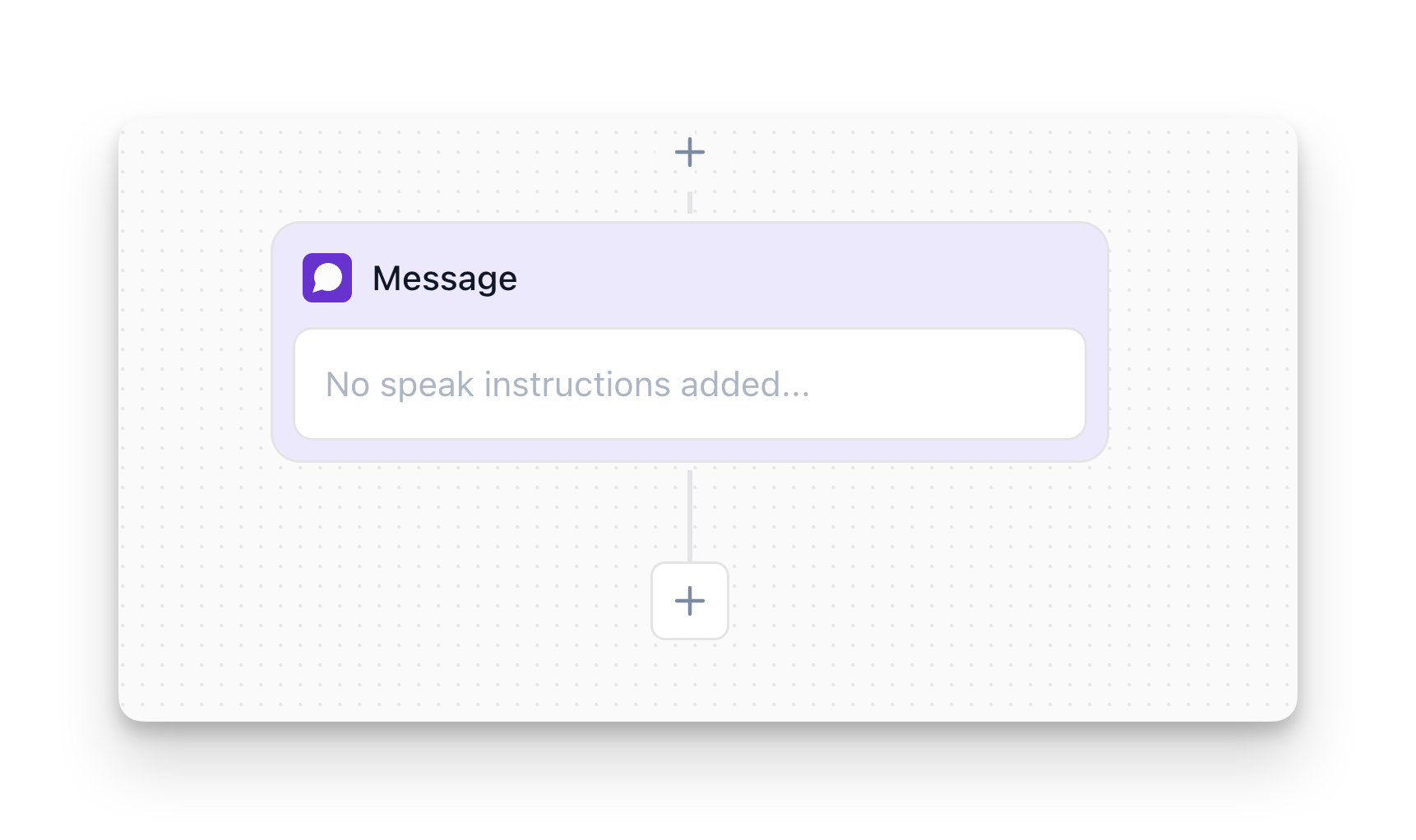
## Overview
The Message Node:
* **Delivers information** without expecting a reply
* **Immediately proceeds** to the next node (doesn't pause)
* **Speaks exactly** as written (exact message mode)
* **Can use variables** to personalize messages
**Important:** The Message Node delivers its message and immediately continues to the next node. It does not pause to wait for user input. If you need to collect information, use a [**Conversation**](/configure-step-nodes) node instead.
## How to Configure
### Step 1: Add the Node
In Flow Designer, click the Plus icon and select **Message**
### Step 2: Enter Your Message
**Name the node** (optional but recommended):
* Enter a descriptive name for the message node (e.g., "Confirm Appointment")
**Enter the message:**
* Type the exact message you want the agent to say
* The agent will speak this **exactly** as written, word-for-word
* Use this for precision, compliance, or when exact wording matters
**Example:**
```
Perfect! We have availability for {party_size} people on {reservation_date} at {reservation_time}.
```
### Step 3: Insert Variables or Action Results
You can reference variables and action results in your message:
* **Click the Variables button** (`{ Variables`): Insert variables collected from Conversation nodes (e.g., `{user_name}`, `{party_size}`)
* **Click the Action Results button** (`< Action Results`): Insert variables returned from Custom Action API calls
**Example with variables:**
```
Perfect! We have availability for {party_size} people on {reservation_date} at {reservation_time}.
```
Variables will be replaced with their actual values when the message is delivered. For more details on variables, see the [Variables documentation](/collect-variables).
## Message Node vs Conversation Node
This is a common point of confusion. Here's the difference:
| Message Node | Conversation Node |
| ----------------------------------- | ----------------------------------------------- |
| Delivers information one-way | Asks questions and waits for responses |
| Immediately continues to next node | Pauses until user provides a response |
| Does not collect or store data | Collects and stores user responses as variables |
| Use for confirmations, instructions | Use when you need information from the user |
**Example - Message Node:**
```mermaid
flowchart TD
A["Message Node
Thanks! I've saved {user_email}."] -->
B["Immediately continues
No pause"]
```
**Example - Conversation Node:**
```mermaid
flowchart TD
A["Conversation Node
What's your email address?"] -->
B["Waits for response
Stores as {user_email}"]
```
## Best Practices
### Keep Messages Concise
Even though the Message Node doesn't wait for a response, long messages can overwhelm users.
| ❌ Too Long | ✅ Concise |
| ----------------------------------------------------------------------------------------------------------------------------------------------------------------------------------------------------------------------------------------------- | ------------------------------------------------------------------------------------ |
| "Thank you so much for providing that information. I really appreciate your time and patience. I've gone ahead and saved all of your details in our system, and I just want to let you know that everything has been processed successfully..." | "Perfect! I've saved your details. You'll get a confirmation email within 24 hours." |
### Use Variables for Personalization
Reference collected variables to make messages feel personalized:
**Examples:**
* `"Thanks, {user_name}! Your order for {product} has been placed."`
* `"Got it, {first_name}. I'll connect you with our {department} team now."`
* `"All set! Your {quantity} tickets for {event_name} are confirmed."`
### Avoid Asking Questions
Since the Message Node doesn't wait for responses, don't ask questions here.
| ❌ Don't Do This | ✅ Do This Instead |
| ---------------------------------------------------------------------------------------------------------------------- | ---------------------------------------------------------------------------------------------------------------- |
| `[Message: "What's your email address?"]`
**Problem:** Agent moves to next node without waiting for answer. | `[Conversation: "What's your email address?"]`
**Why it works:** Waits for and collects the response. |
## Common Use Cases
### Confirmations
Confirm actions or information collected:
```
[Message: "Got it! I've scheduled you for {preferred_date}."]
```
### Instructions
Provide guidance or next steps:
```
[Message: "Please have your account number ready. I'll need it in just a moment."]
```
### Legal Disclaimers
Read required compliance statements:
```
[Message: "This call may be recorded for training and quality assurance purposes."]
```
## FAQ
No. The Message Node delivers a message and immediately continues to the next node without waiting for a response. To ask questions and collect variables, use the **Conversation** node.
If you reference a variable that hasn't been collected or doesn't exist, the system will use an empty value. Always ensure variables are collected before using them in a Message Node. You can view all available variables in the [variable drawer](/collect-variables).
Users may attempt to speak during a Message Node, but the agent will still proceed to the next node after delivering the message. If you need to handle interruptions, keep messages short or use a Conversation node instead.
Use ellipses (`...`) for natural pauses. For example: `"Thanks... I've got all your details."`