***
title: SIP Call Ladder
slug: sip-call-ladder
description: View SIP ladder diagrams and download PCAP files for call analysis
---------------------
For a complete page index, fetch https://docs.synthflow.ai/llms.txt. For full documentation content, fetch https://docs.synthflow.ai/llms-full.txt.
Synthflow AI provides a **SIP Call Ladder** feature, which allows detailed technical analysis of your calls by displaying the SIP signaling flow and allowing you to download packet capture files for deeper investigation.
This tool is useful for:
* **Troubleshooting call failures** by examining the SIP signaling at a glance.
* **Understanding call flow** between different network elements for full transparency on the Synthflow AI network.
* **Debugging connectivity issues** with detailed packet analysis and the ability to download a pcap.
* **Self-service problem resolution** without needing to contact support.
***
## Accessing SIP Call Ladder
Navigate to the **Logs** section in your workspace. For more information about Logs you can [learn more here](/logs)
Select any call from your call logs to view its details.
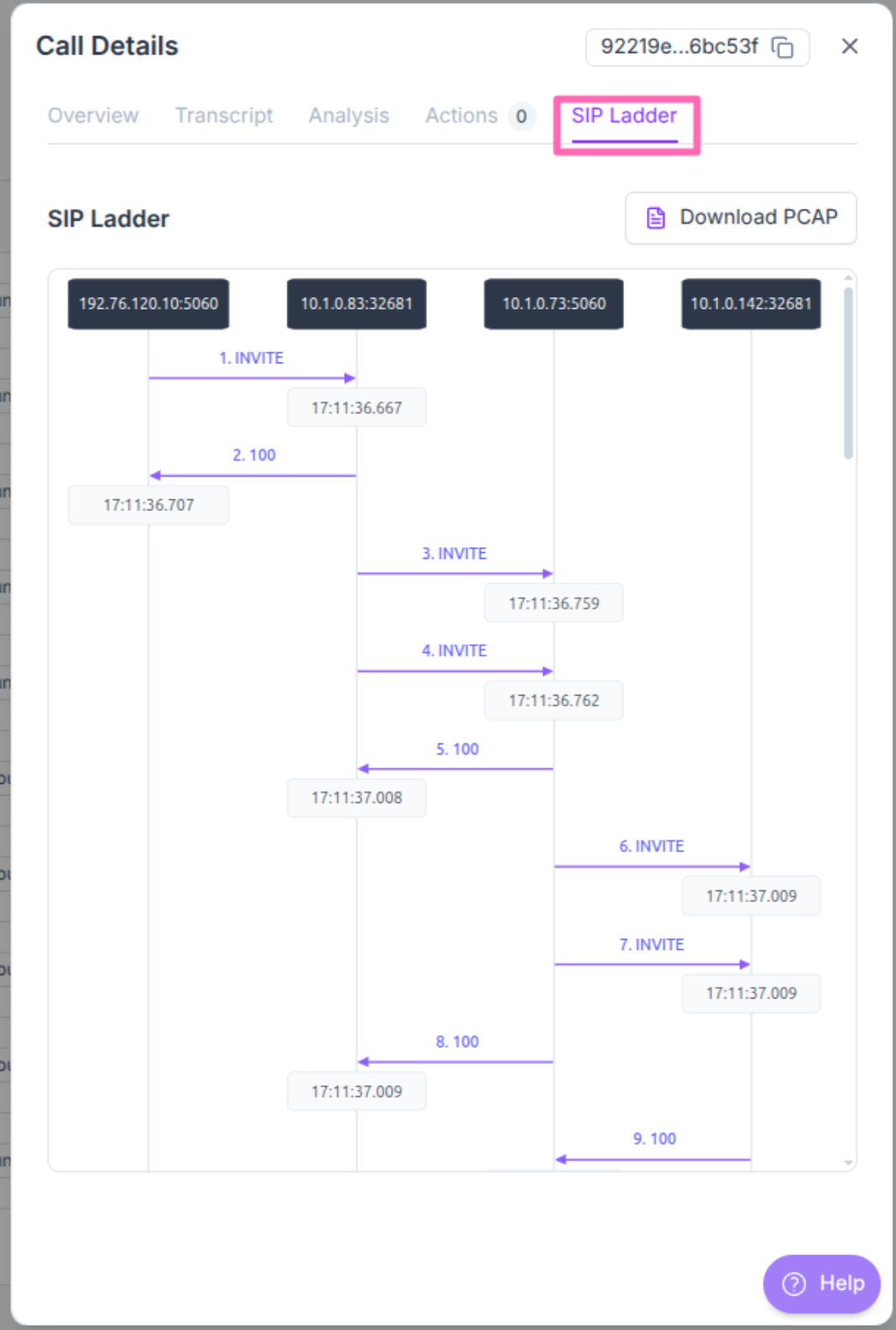
Click on the **SIP Ladder** tab to view the SIP signaling diagram.
***
## Understanding the SIP Ladder Diagram
The SIP ladder diagram shows the complete signaling flow between different network elements involved in your call:
* **Vertical lines** represent different network elements (your agent, our network hops, SIP carrier)
* **Horizontal arrows** show SIP messages flowing between elements
* **Message types** include INVITE, 100 Trying, 180 Ringing, 200 OK, BYE, etc.
* **Timestamps** help you understand the timing of each signaling event
This visual representation should make it easier to view and debug SIP signaling at a glance, for anything else we provide an option to download the SIP pcap file itself.
***
## Downloading PCAP Files
For advanced troubleshooting, you can download the complete packet capture (PCAP) file for any call. Please be aware you will need a program to view .pcap files, we recommend Wireshark for this.
From the **SIP Ladder** tab, locate the **Download PCAP** button.
Click to download the PCAP file to your local machine.
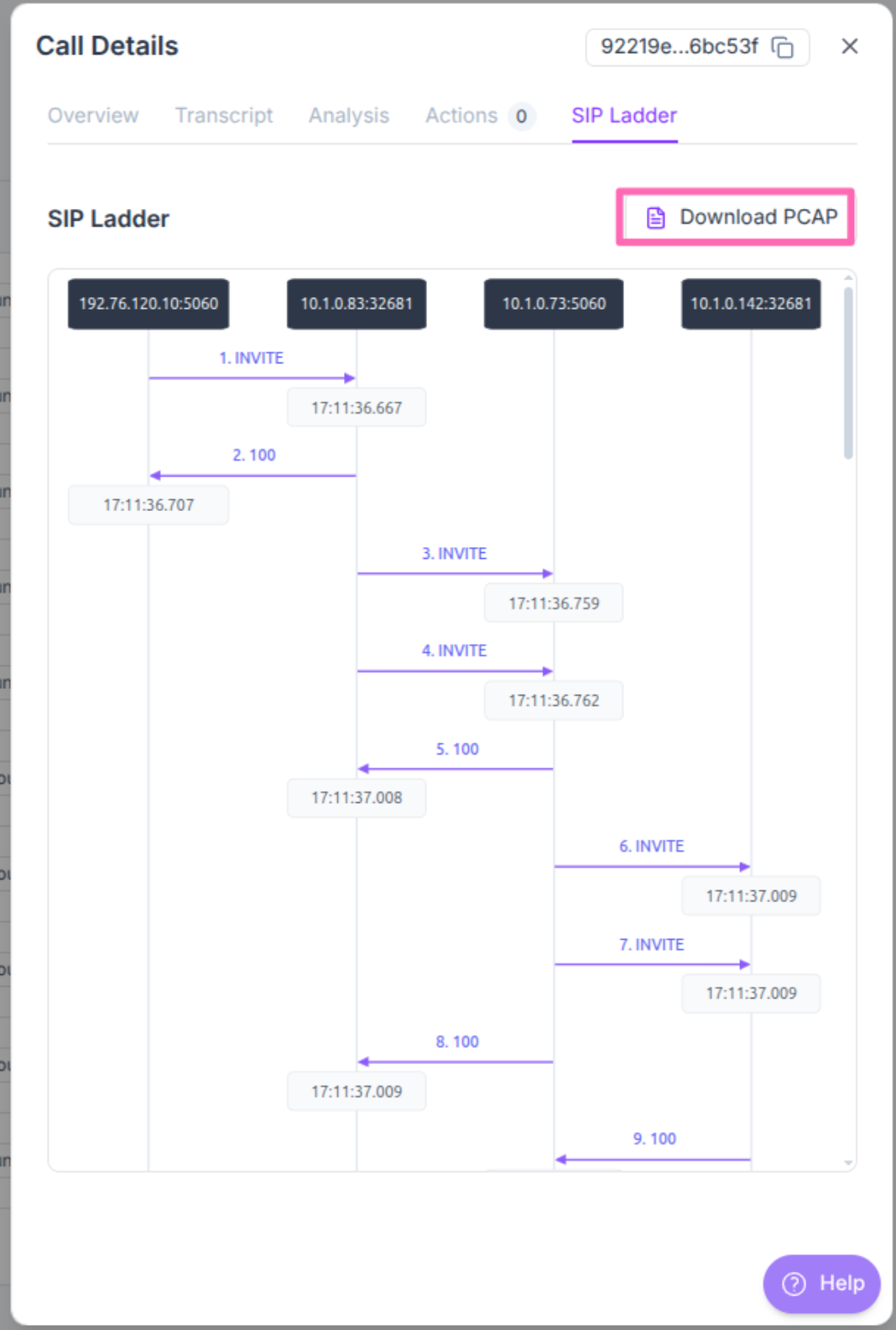
Use tools like **Wireshark** to analyze the packet capture file for detailed network analysis.
***
## Troubleshooting Common Issues
When analyzing SIP ladder diagrams, look for these common patterns:
| Issue | SIP Ladder Pattern | What to Check |
| --------------------------- | ------------------------------ | ----------------------------------------------------------------------------------- |
| **Call Not Connecting** | INVITE sent but no response | Check the agents number, specifically SIP Domain if you add your own numbers. |
| **Call Drops** | Unexpected BYE message | Check for network timeouts or carrier issues |
| **Authentication Failures** | 401 response | Verify SIP credentials and account permissions |
| **Authentication Failures** | 403 responses | Verify SIP credentials and calling permissions |
| **One-Way Audio** | 200 OK received but RTP issues | Verify media codec compatibility, source and destination IP's and firewall settings |
***
## Getting Additional Help
If you're unable to resolve issues using the SIP ladder and PCAP analysis:
1. **Check the [Telephony Errors](/telephony-errors) page** for specific error code explanations.
2. **Review your number configuration** and the call settings for correct formatting.
3. **Contact support** with the PCAP file and SIP ladder screenshot for advanced troubleshooting along with the URL of the agent so we can help.