***
title: SIP integration with RingCentral
subtitle: null
slug: sip-with-ringcentral
description: null
-----------------
**Note**: SIP trunking is only available on the Synthflow Enterprise Plan.
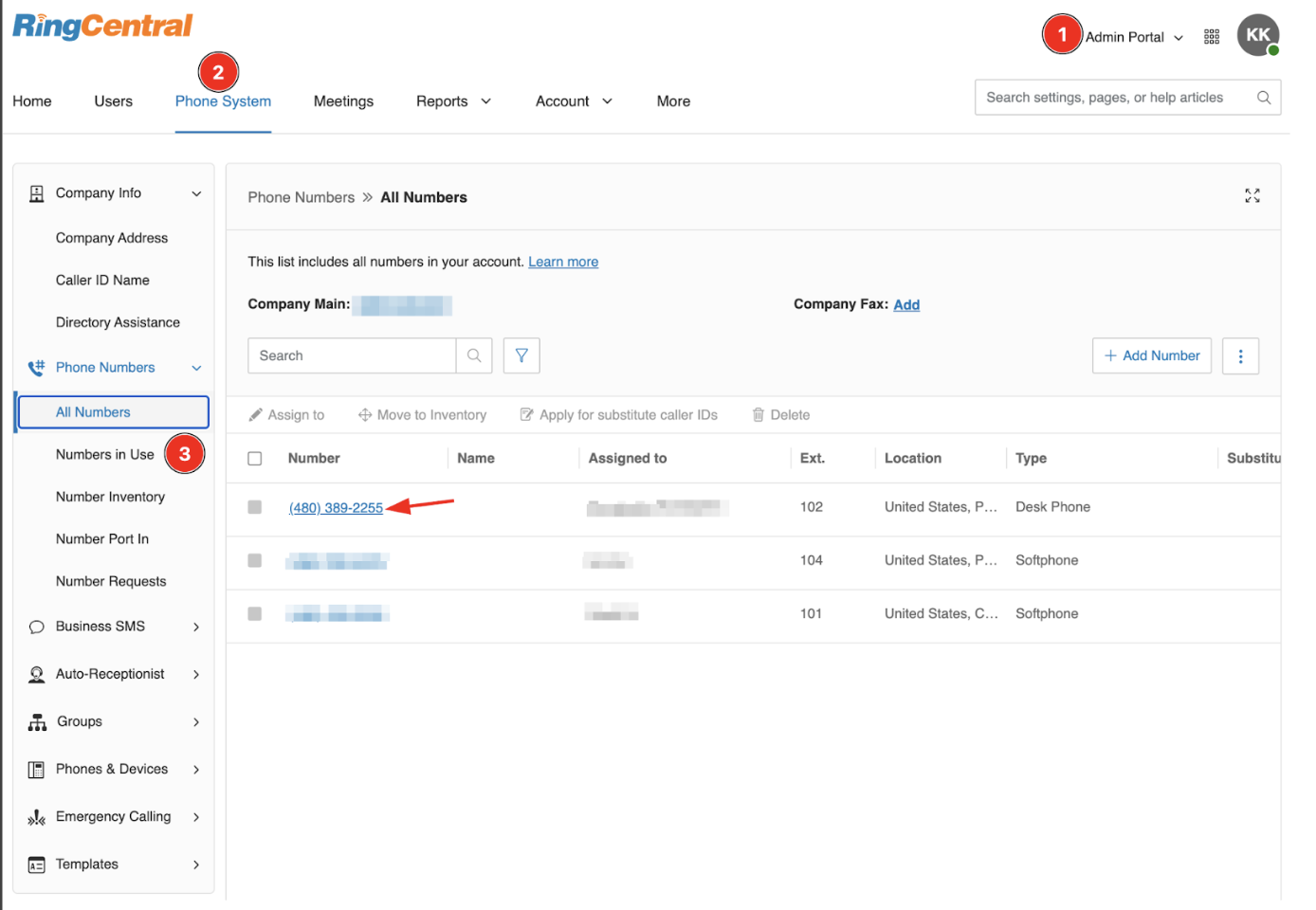
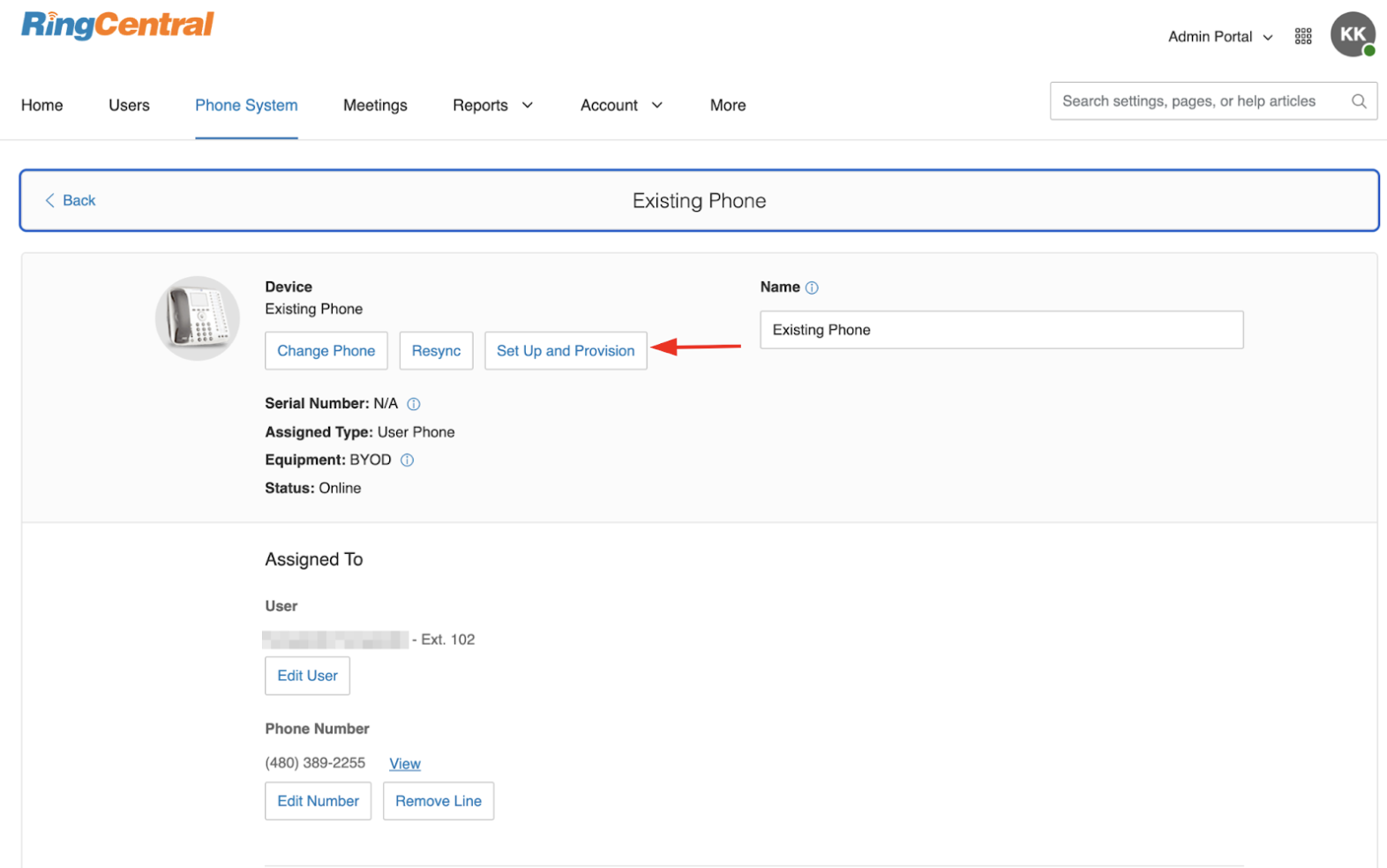
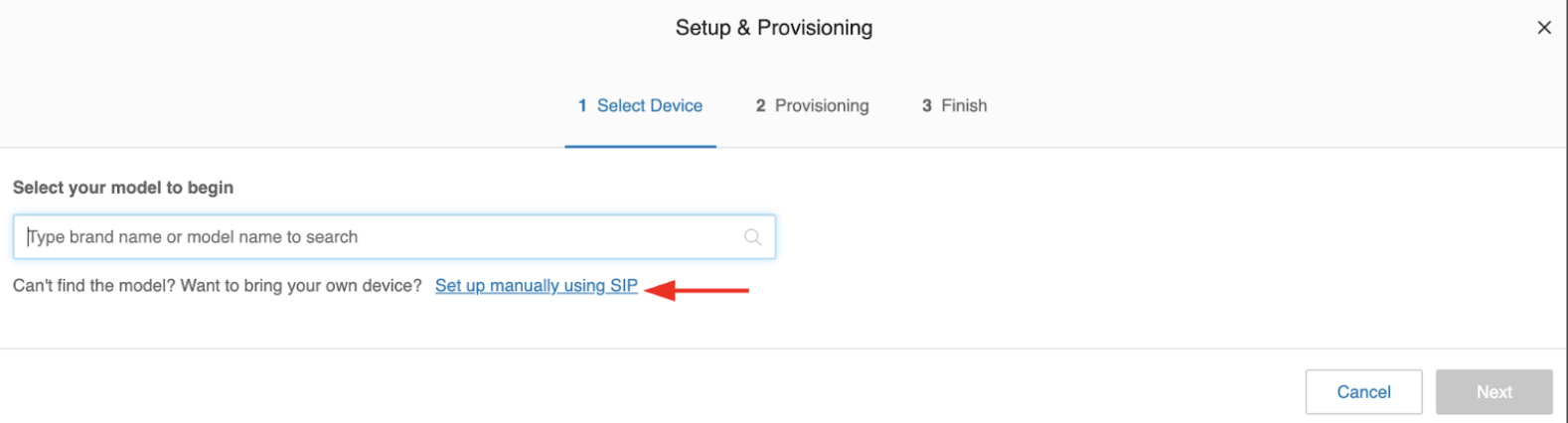
You must obtain the necessary SIP credentials and parameters to connect to a RingCentral account via SIP. In this setup, Synthflow will function as an IP phone. You can retrieve the required parameters from the customer’s account by visiting the [RingCentral Service Portal](https://service.ringcentral.com/application/company/phoneNumbers/allNumbers). Either select an existing generic SIP IP phone or create a new one with manual provisioning.
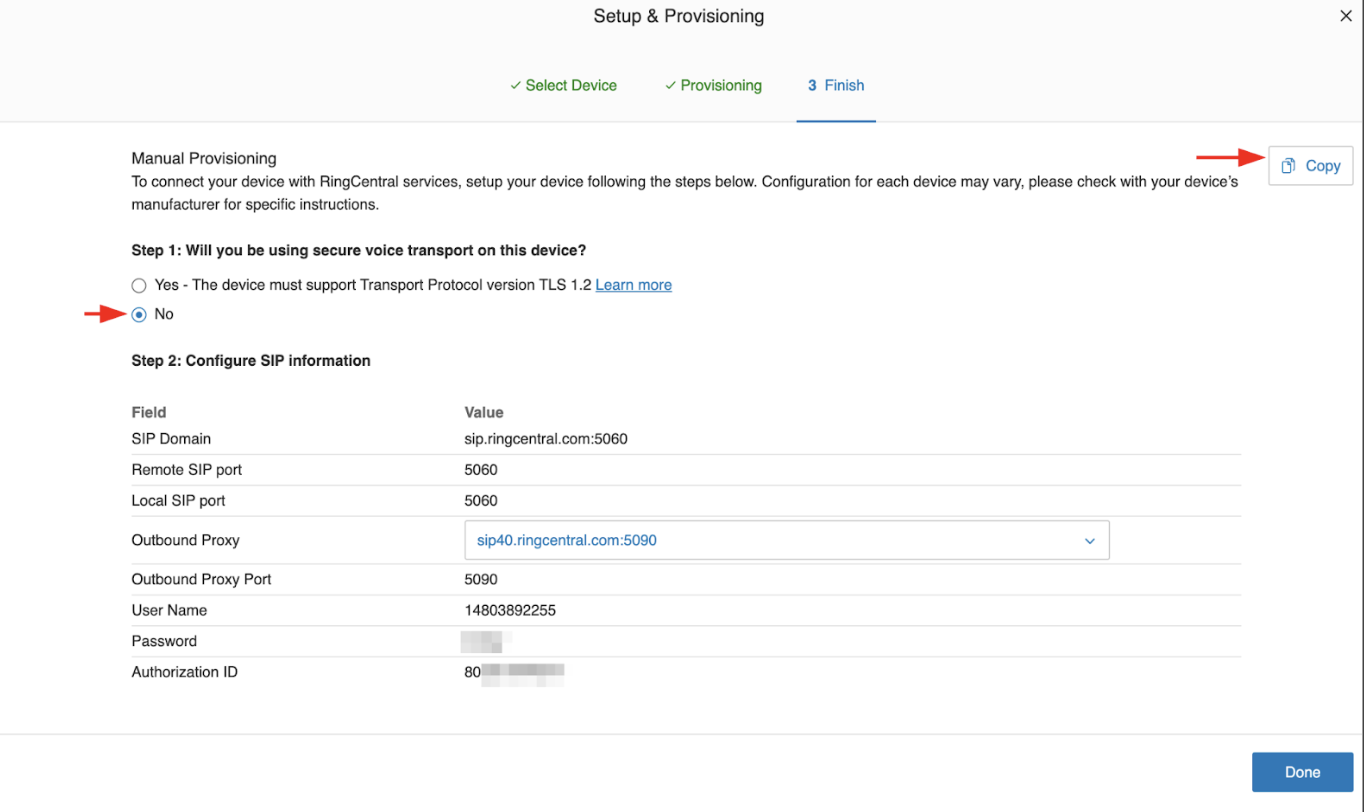
Below is an example of how to obtain the IP phone connection details from RingCentral:
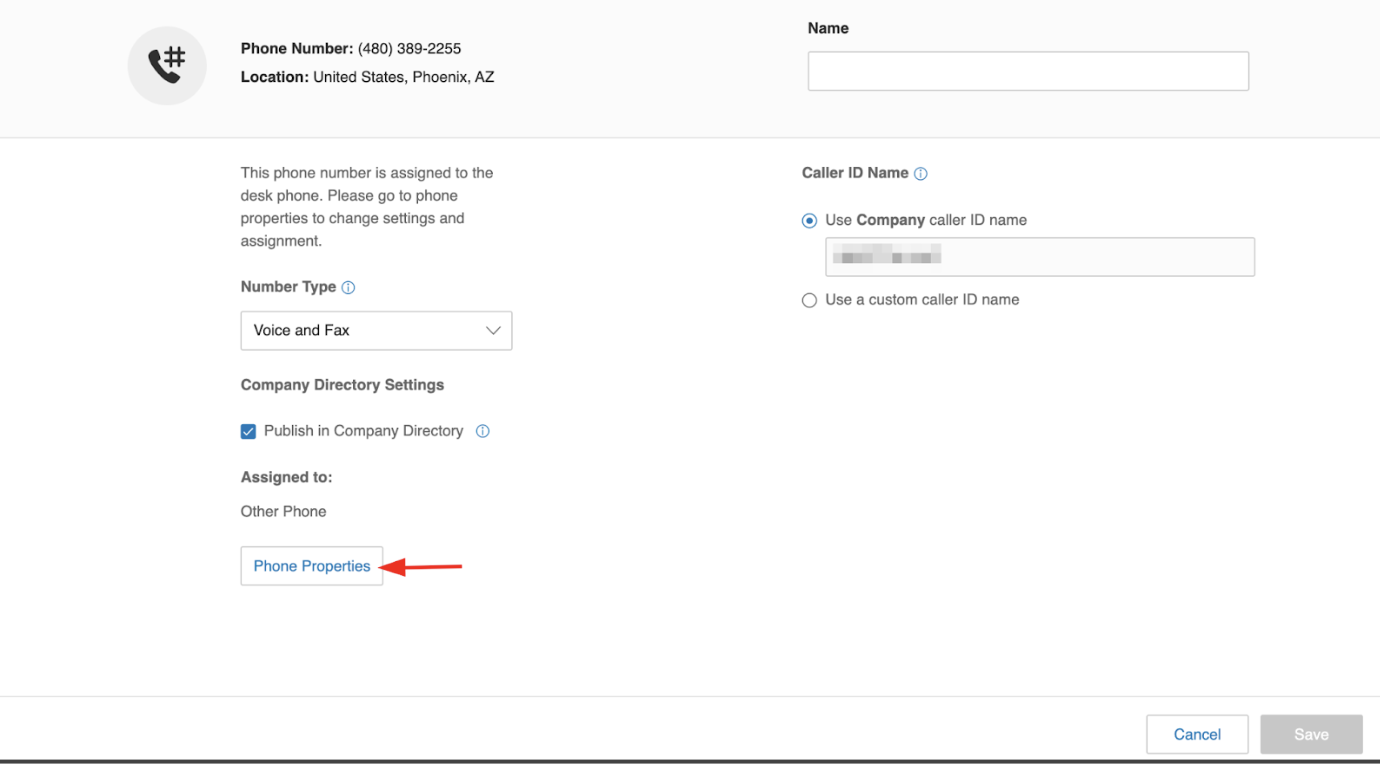
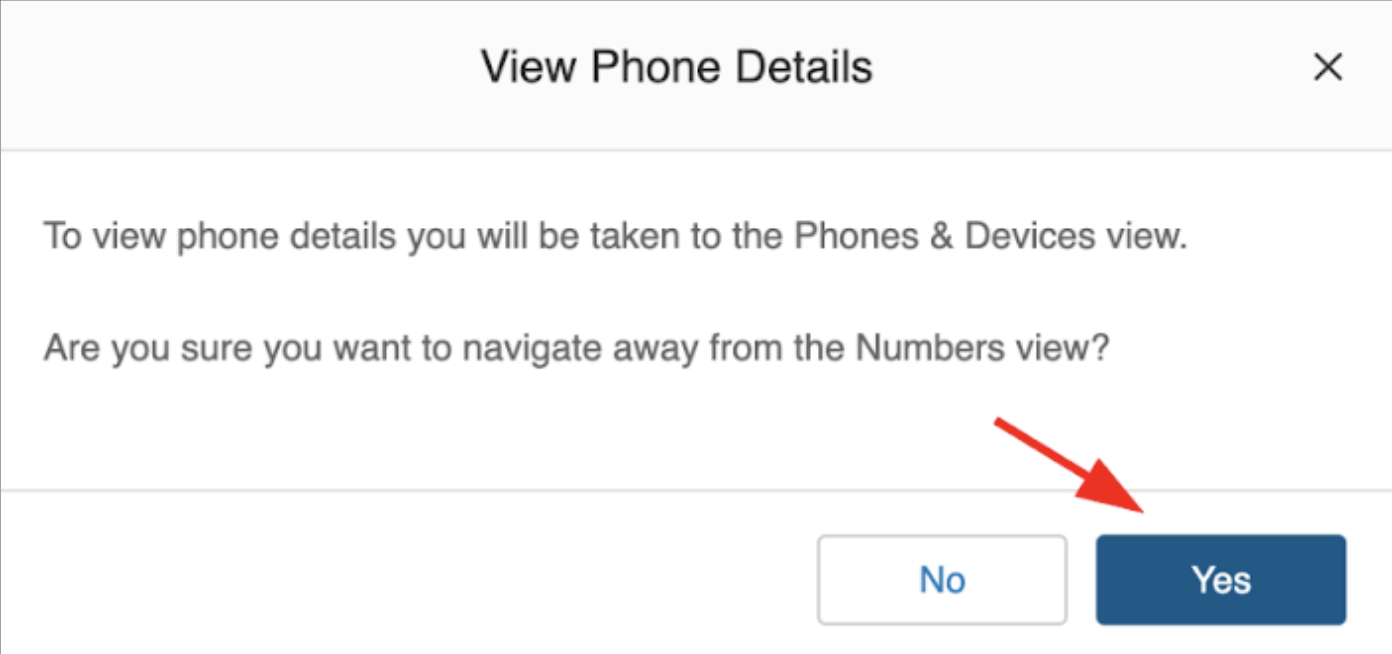
Click **Yes**
Click on **Set UP and Povision**
> 📘 Save the Connection Details for the next steps
> ❗️ To avoid being blocked by RingCentral’s //antiflood logic be precise when copying and //pasting sip details.
***
## SIP-trunk Connection
**Step 1**: Go to the Synthflow phone numbers page and use the SIP information from RingCentral to add the Telephone Number to your Workspace:
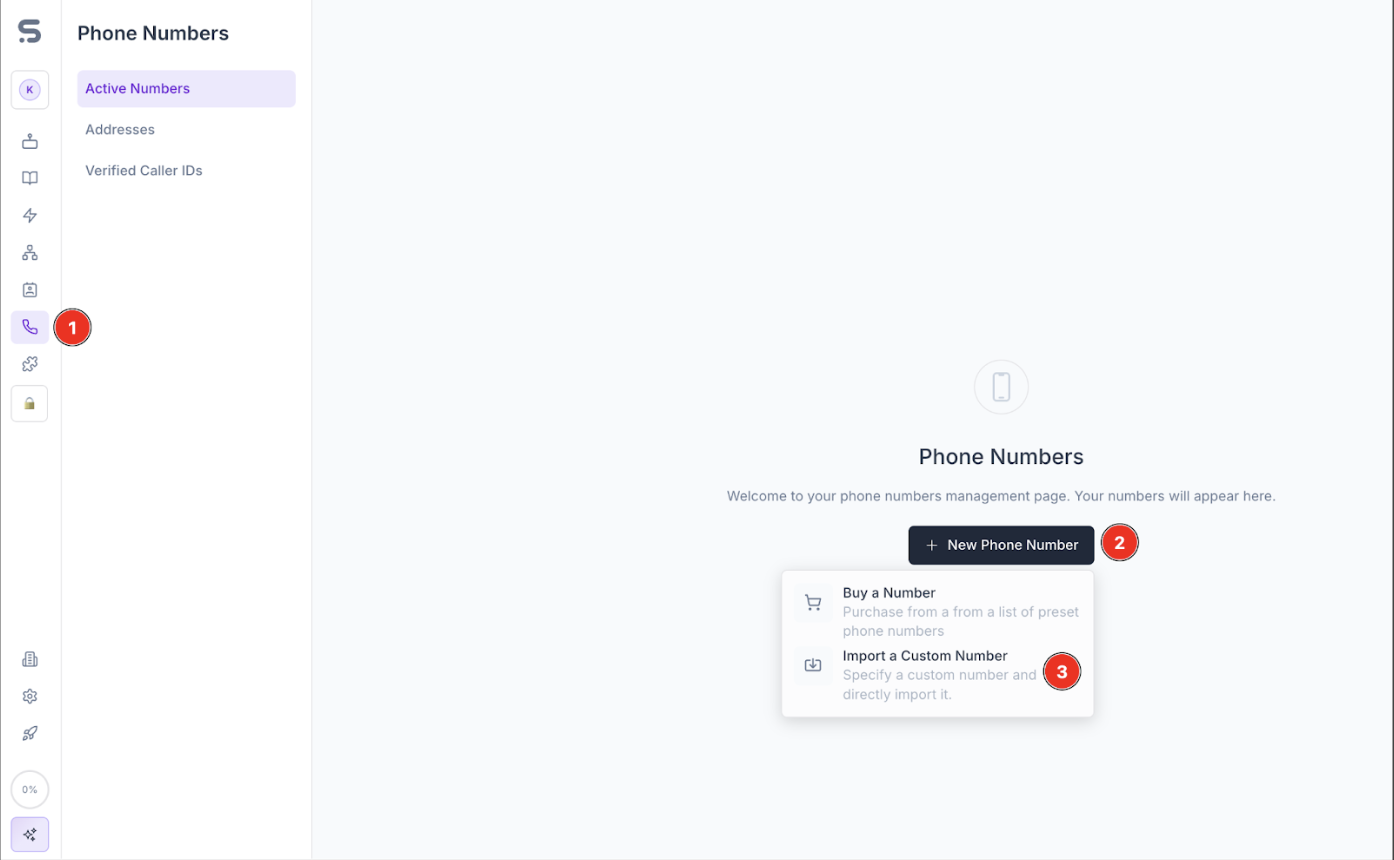
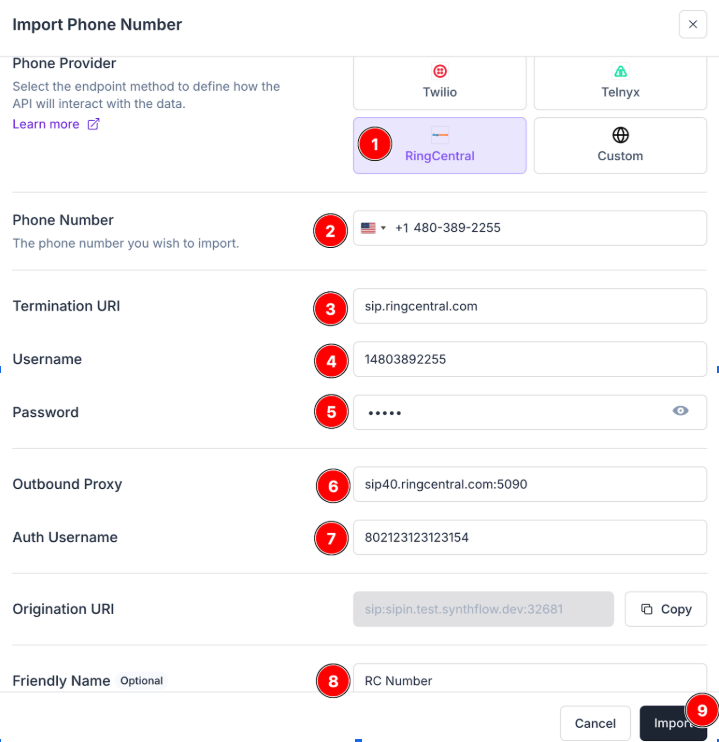
> 📘 Termination URI is your SIP Domain on RingCentral
When configuring your SIP Domain, make sure to use `sip.ringcentral.com` as the Termination URI. If you were previously using `sip12.ringcentral.com`, please update it to `sip.ringcentral.com`.
***
## Attaching to the Assistant
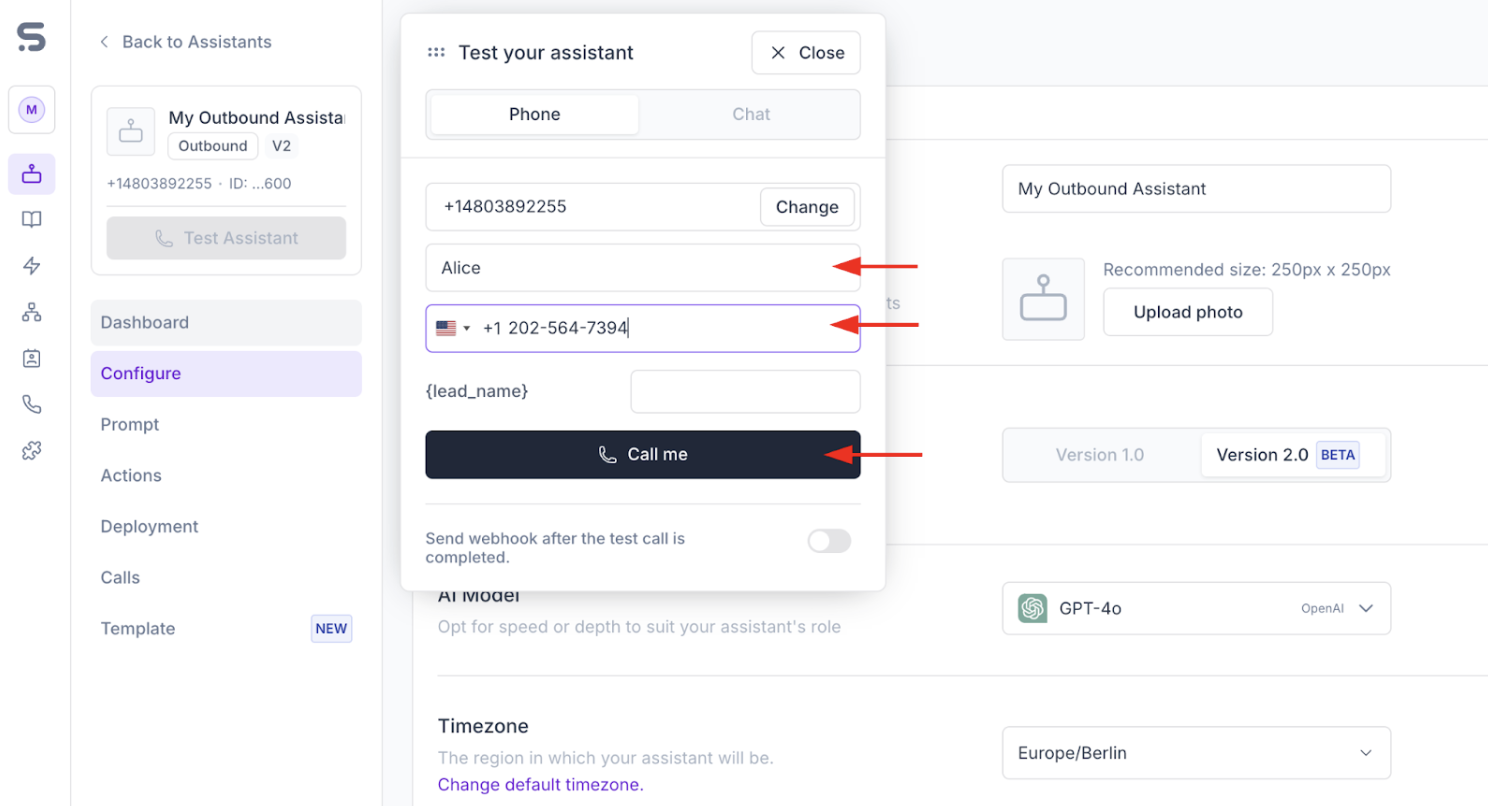
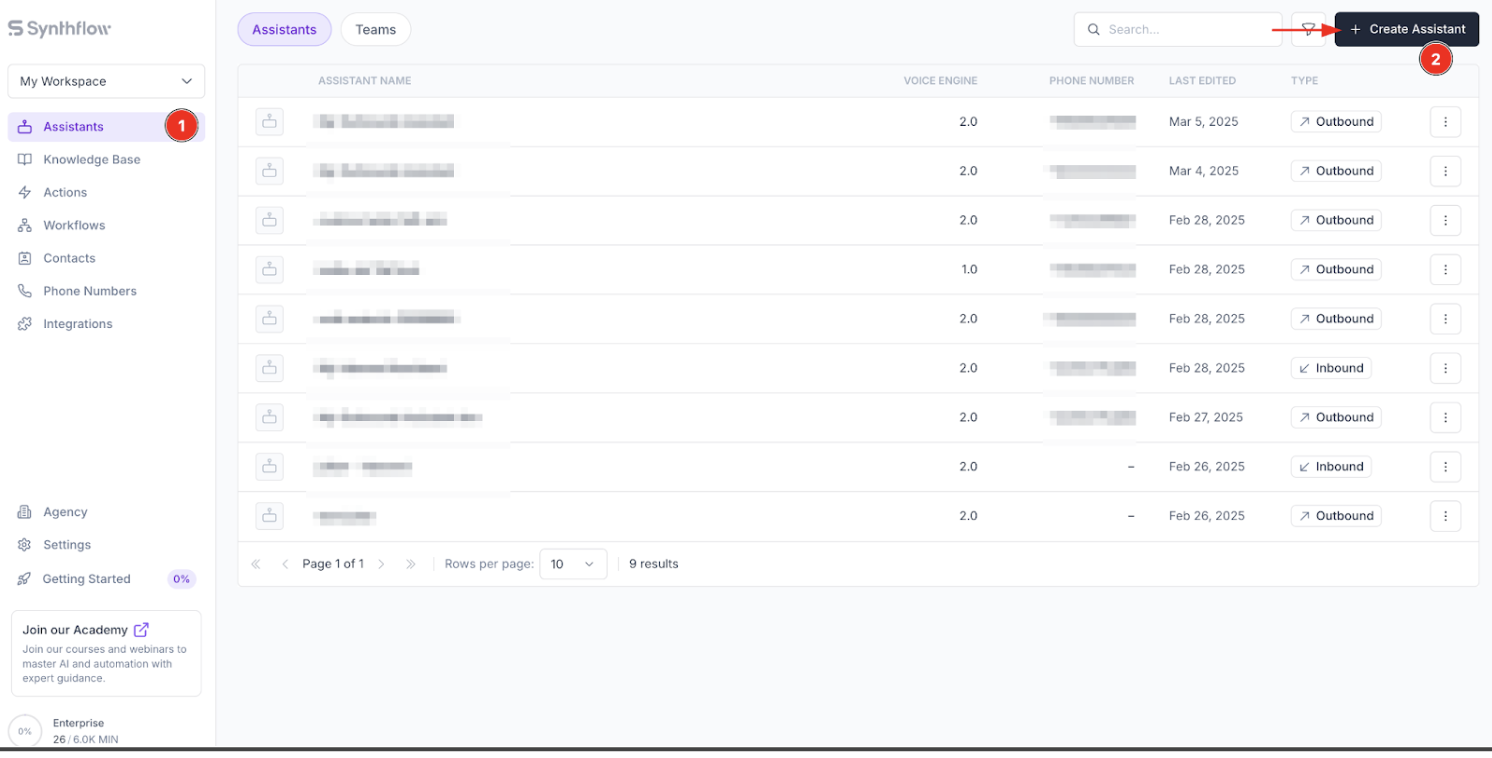
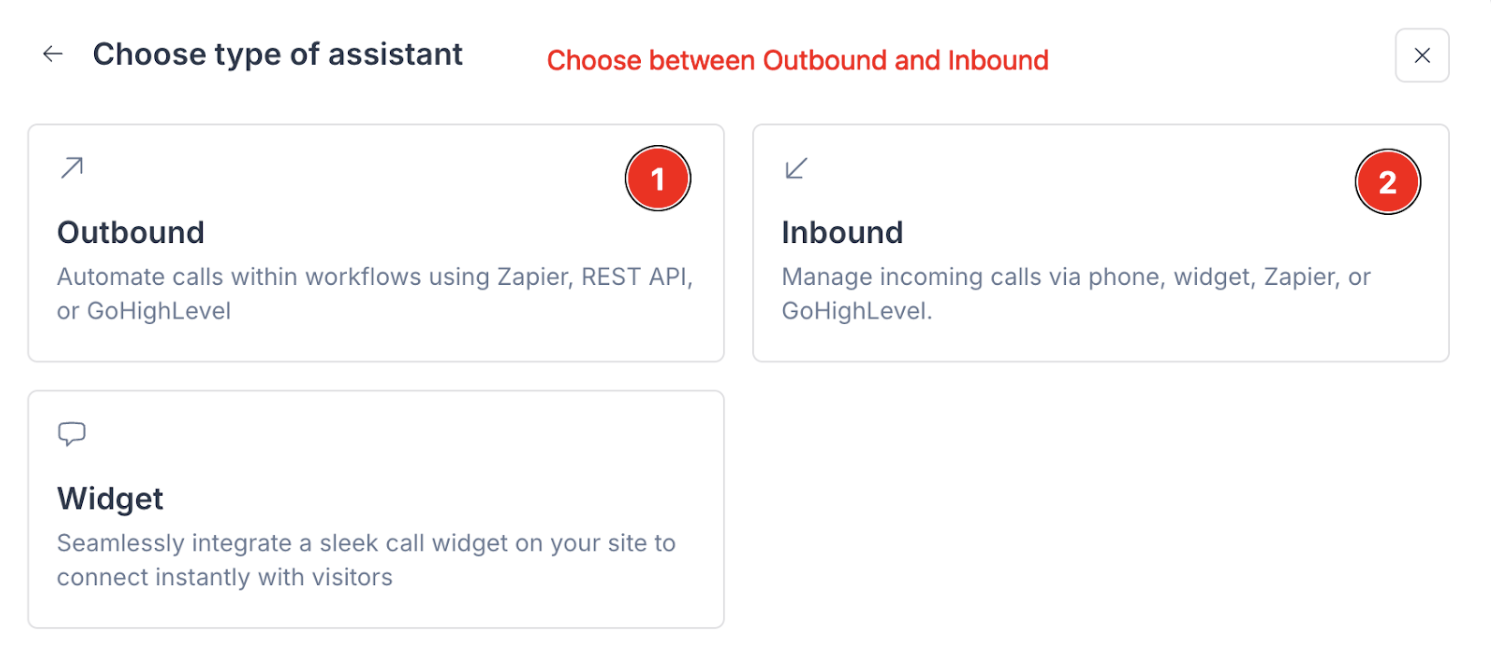
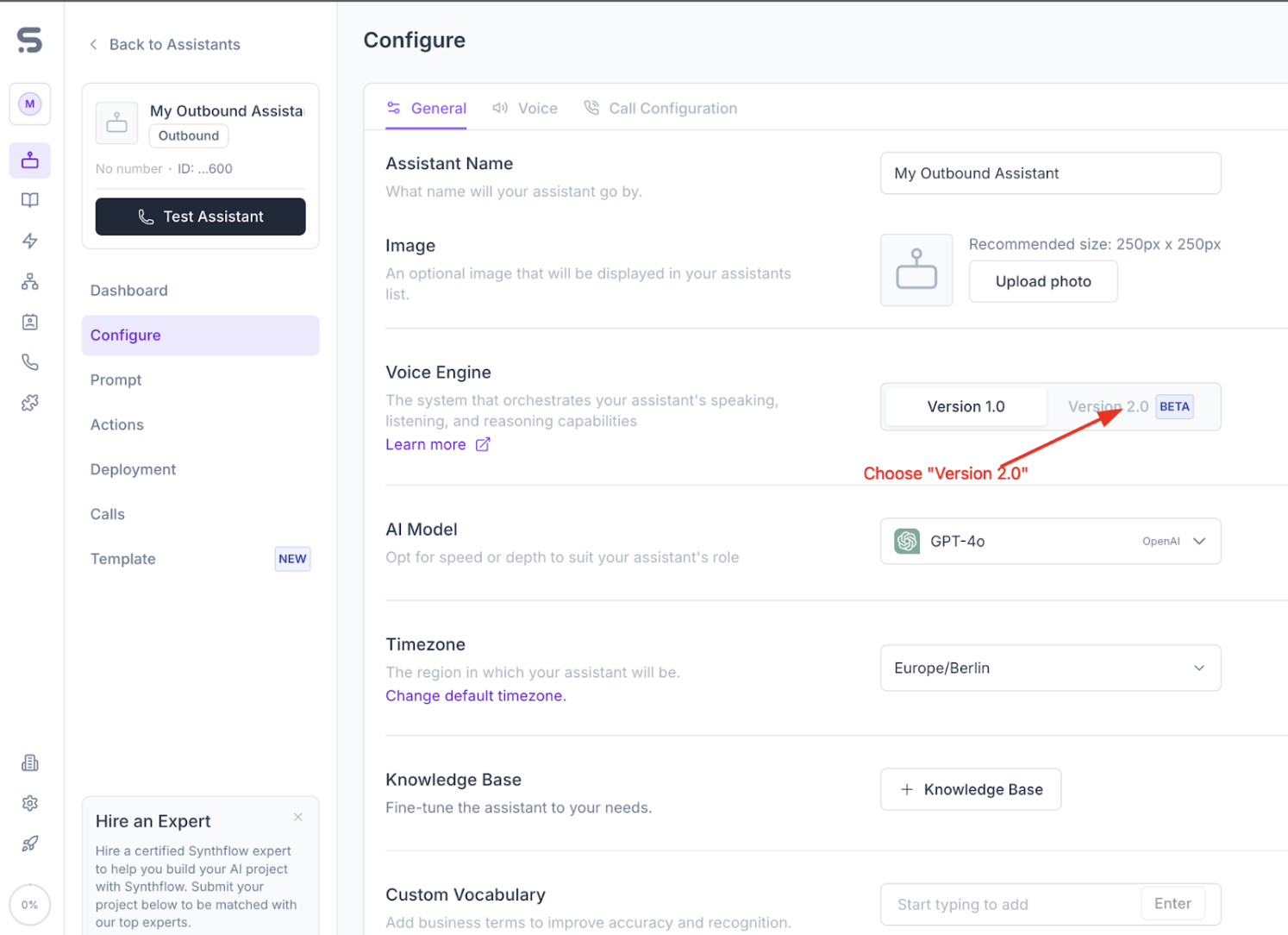
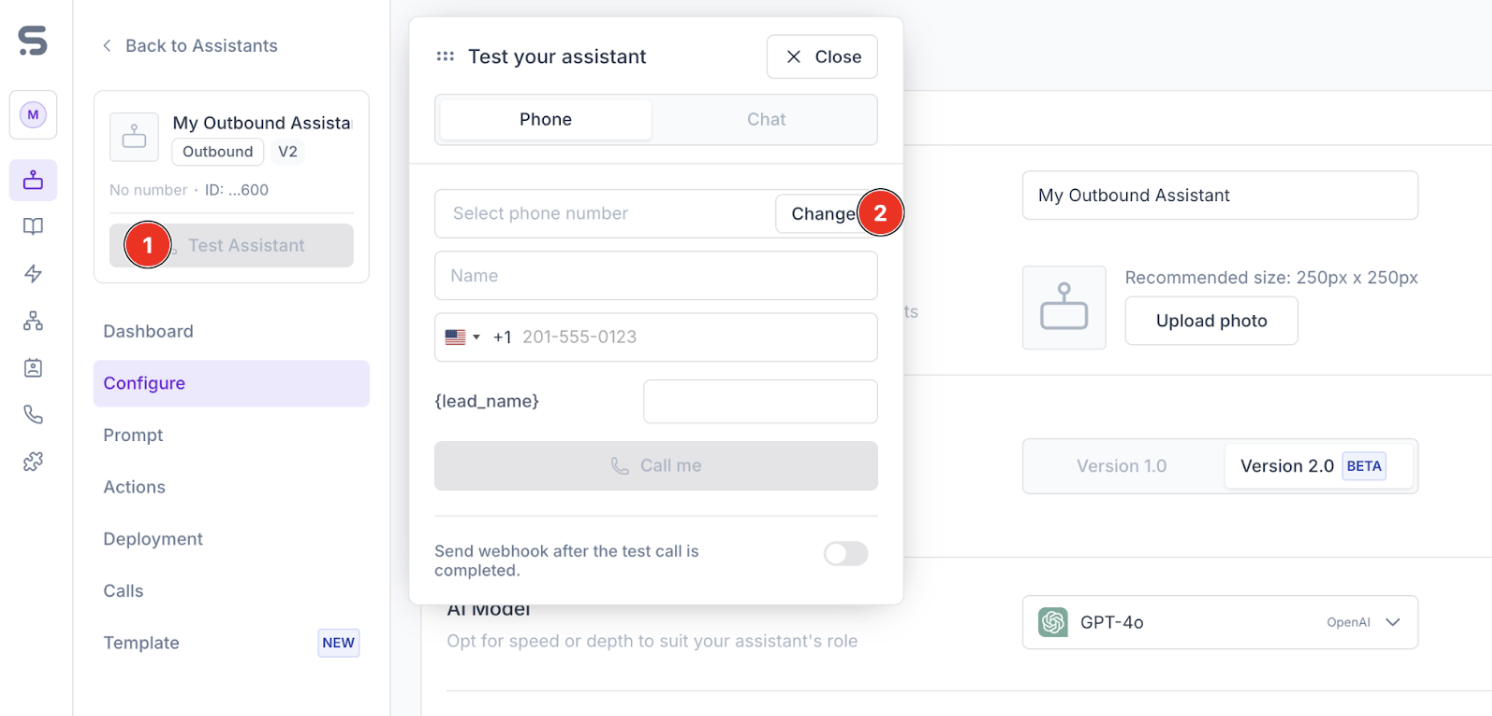
To use your number, please go to Assistants, create a new one and attach the Number:
The agent needs to be on version 2.0

> 📘 The SIP-trunk is created at the moment of attaching the SIP-Number to the assistant.
> 📘 The registration on RingCentral will be processed in one or two minutes, and you can then try to make a call