
Single Sign-On
Single Sign-On
Centralize authentication with your identity provider

Single Sign-On
Single Sign-On (SSO) is available on Enterprise plans only.
Single Sign-On (SSO) lets your team sign in to Synthflow through your existing identity provider instead of managing separate workspace credentials.
For enterprise organizations, SSO provides centralized authentication control, consistent access and security policies across teams, and faster onboarding/offboarding through identity provider lifecycle management.
SSO configuration is available only to Super Admins and Admins. For role details, see roles.
Synthflow uses WorkOS as the SSO infrastructure provider.
Navigate to Settings → Security. To enable SSO, you must provide:
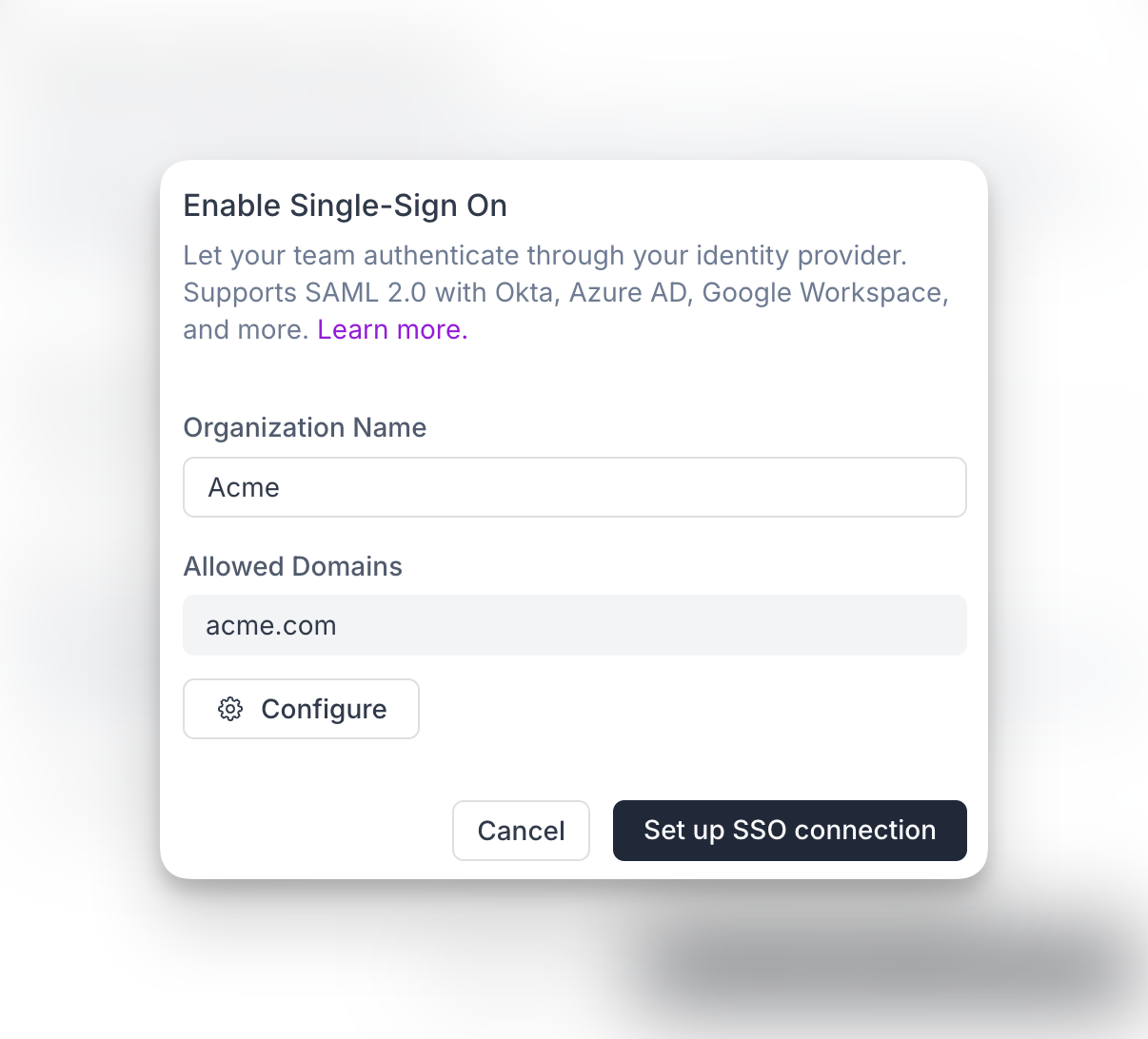
After submitting this form, Synthflow creates an organization in WorkOS and redirects you to the identity provider connection list. You can also continue this setup later if you do not want to complete the provider connection immediately. Until the provider setup is successfully completed, the connection remains pending and inactive.
Available providers:
Each provider has slightly different setup requirements. Read the provider instructions carefully to ensure a successful connection.
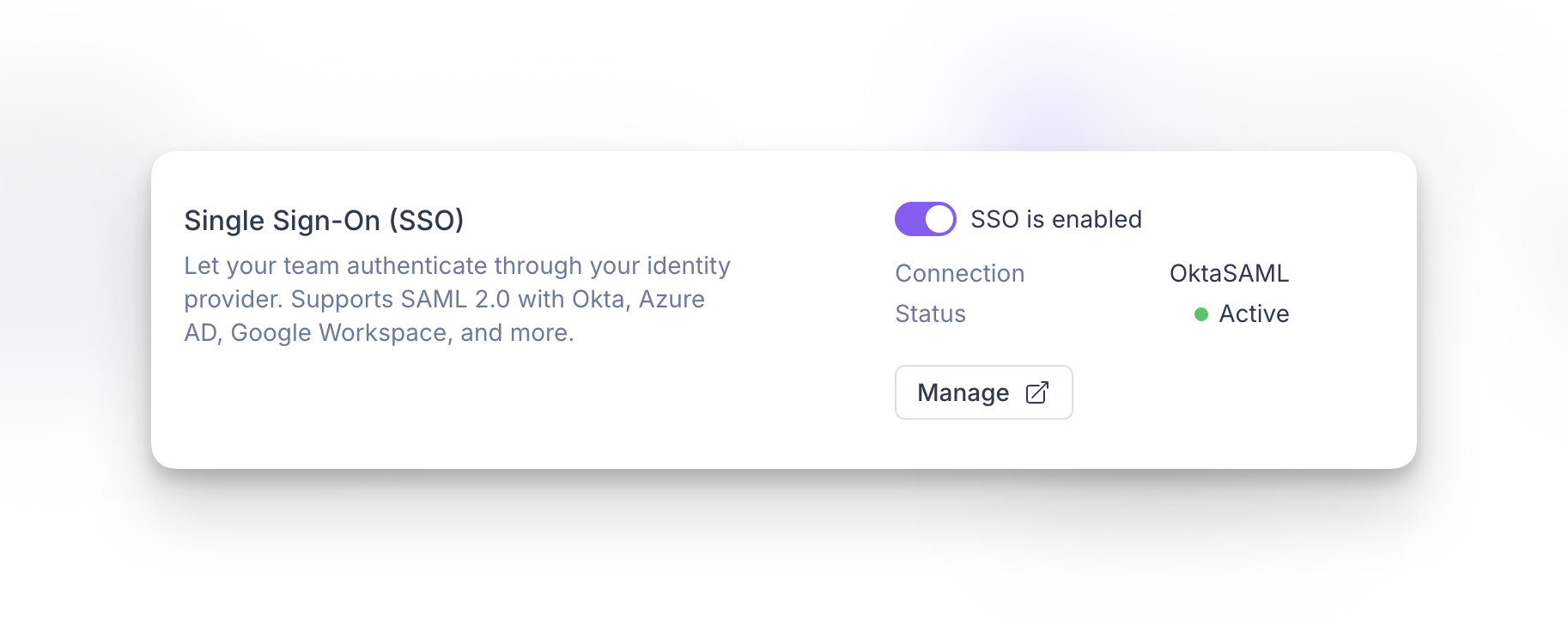
Workspace admins can disable SSO when needed.
Yes. You can configure the same domain policy in multiple workspaces.
Yes. After creating the WorkOS organization, you can return later to complete the identity provider connection. Until setup is completed successfully, the connection remains pending and inactive.
Only Super Admins and Admins can configure and manage SSO settings.
Users who authenticate through SSO will not be able to access the workspace via SSO until it is enabled again. Disabling SSO does not delete the WorkOS organization or external identity provider connection.
Yes. You can update or reconfigure your SSO connection later by managing your identity provider setup from the SSO settings flow.
No. Allowed email domains and SSO complement each other. Allowed domains control invitation policy, while SSO centralizes authentication through your identity provider.