

Test Center
The Test Center lets you test your voice agents before they interact with real customers. Run simulated conversations, evaluate performance against measurable criteria, and identify issues like incorrect answers, script deviations, or unnatural phrasing.
By running the same test suites after each change, you can track improvements over time and catch regressions early.
Completed simulations are measured separately from live call and chat usage. Depending on your workspace configuration, completed runs may be billable. See Usage and Billing for how usage is represented.
Why use test suites
Manual testing requires hours of phone calls to cover all your scenarios, and it’s difficult to consistently reproduce edge cases or validate that your agent handles every situation correctly. Simulations solve this by automating your testing workflow.
Test suites provide a repeatable way to validate your agent’s behavior. Instead of manually calling your agent and checking responses, test suites run multiple scenarios in parallel and evaluate results against defined success criteria. You can test dozens of scenarios in minutes, validate prompt changes systematically before deploying to clients, and catch consistency issues (greeting delivery, conversation flow problems) automatically.
This approach is especially effective for Flow Designer agents. The node-based structure makes it easier for the AI to generate targeted test cases that cover specific conversation paths, decision points, and edge cases. Custom prompt agents are also supported, though the generated tests may be broader since there’s no explicit conversation graph to analyze.
Create a test suite
A test suite is a collection of test cases designed to evaluate a specific agent. Each suite is bound to one agent and generates multiple test cases based on scenarios you select.
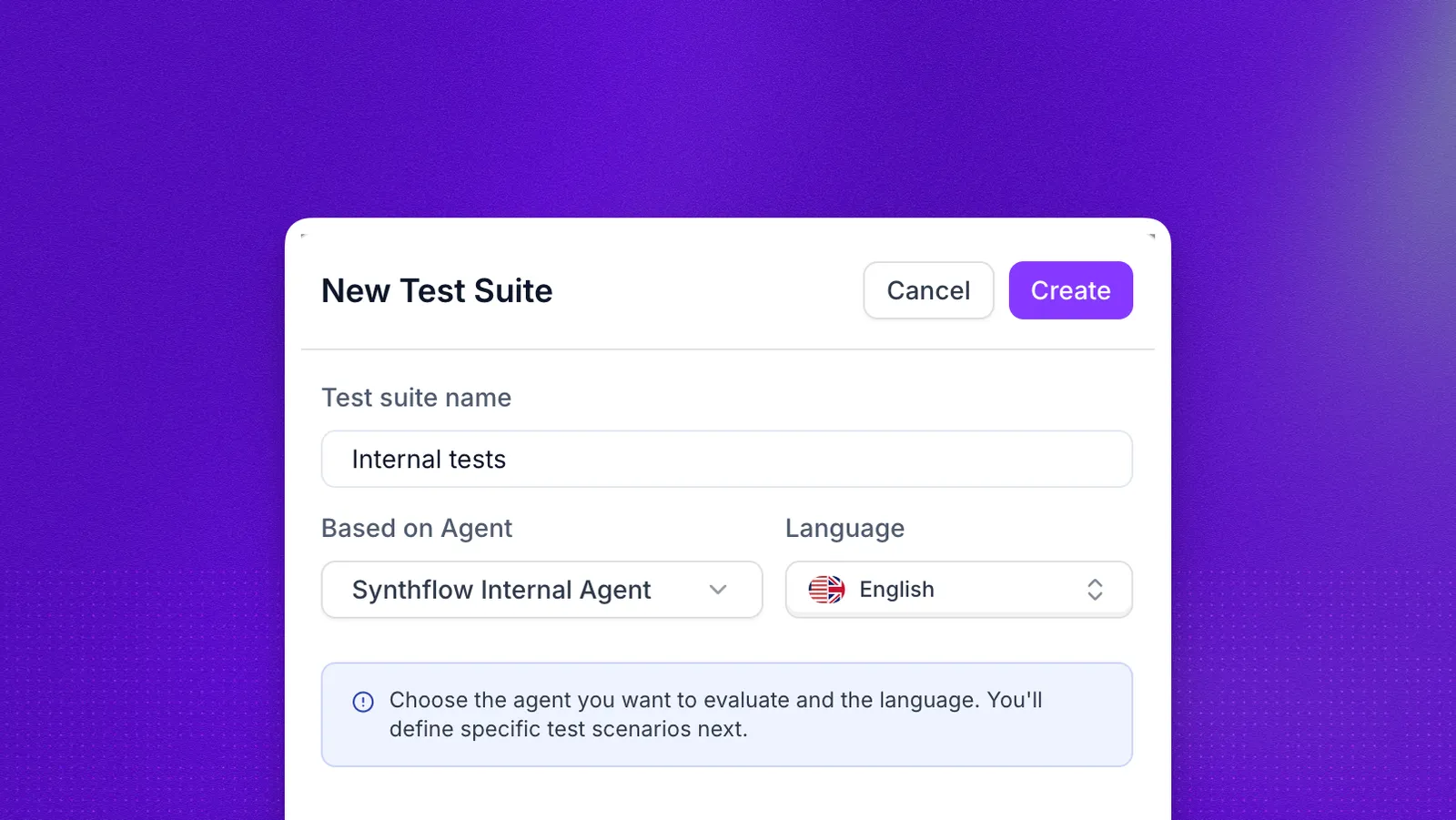
To create a test suite, go to the Test Center and click + Test Suite. From the agent editor, click + Test Suite in the Simulations panel instead.
Configuration
Start by selecting the agent you want to test and the language for the simulated conversations. The test suite will be permanently linked to this agent.
From here, you can either write your own test cases manually or let the AI generate them for you based on scenarios.
Scenarios
Scenarios define what situations your test cases will cover. When you create a test suite, you can select from common scenarios or add your own custom scenarios.
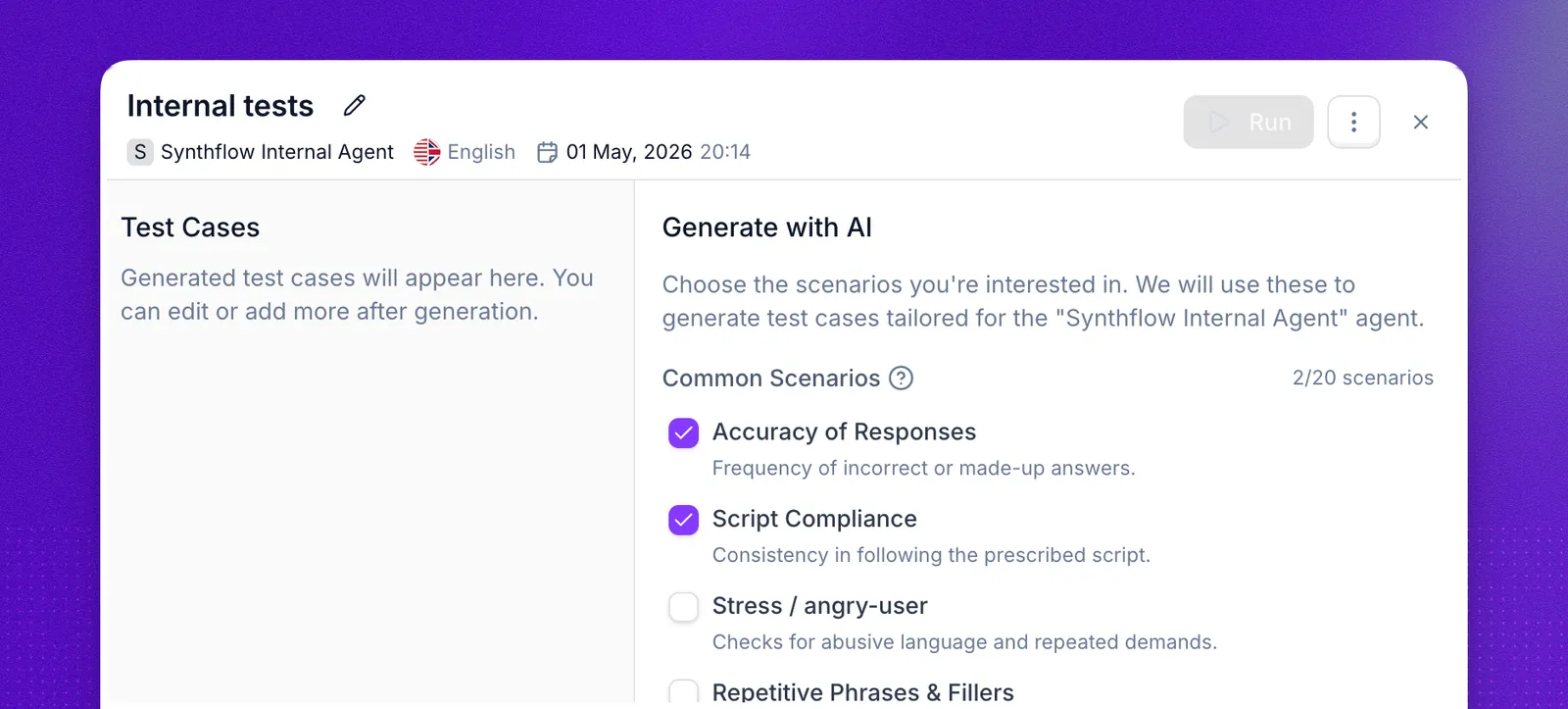
You can also add custom scenarios to test specific situations unique to your use case. There’s no limit to how many scenarios you can select.
How test cases are generated
Every test suite includes 4 base test cases generated automatically. These are not based on a template; the AI analyzes your specific agent to create meaningful tests. The analysis includes:
- Agent configuration: name, type (inbound/outbound), language, greeting message, consent settings, and filler word usage
- Agent behavior: the full prompt text or flow designer states, transitions, and preamble
- Agent actions: any attached actions like SMS, booking, transfer, info extraction, or custom functions
- Real-world edge cases: diverse scenarios designed to challenge the agent’s logic and expose potential failure points
For each scenario you select, additional test cases are generated. The total number of test cases equals 4 base + number of scenarios. You can adjust this using the slider before generating.
What test cases contain
Each test case consists of a scenario prompt that describes the situation to simulate, and a list of success criteria that determine whether the test passed or failed.
You can configure how criteria are evaluated: require all criteria to pass, or pass when any criterion is met. This flexibility lets you create both strict compliance tests and exploratory edge-case tests.
Test suite generation works with both custom prompt agents and flow designer agents.
Run a test suite
To run a test suite, go to Run History and select the suite you want to execute. The suite runs against the agent it was created for, so you cannot change the target agent after creation. Configure any additional settings like maximum turns, then click Run Suite. From the agent editor, click Run next to a suite in the Simulations panel.
At this point, Synthflow creates a session containing all the simulations. Each test case runs as a simulated call where your agent is paired with a persona agent, a simulated customer created automatically in the same language. The system records audio, generates transcripts, and evaluates results against your success criteria.
You’ll see live progress as runs complete.
Review results
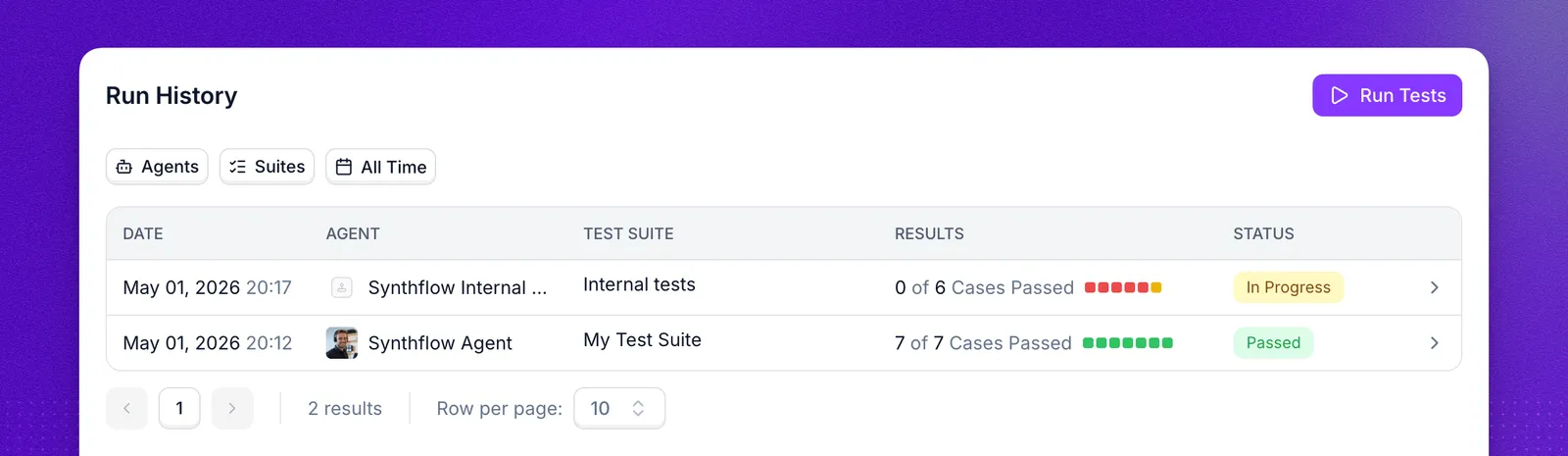
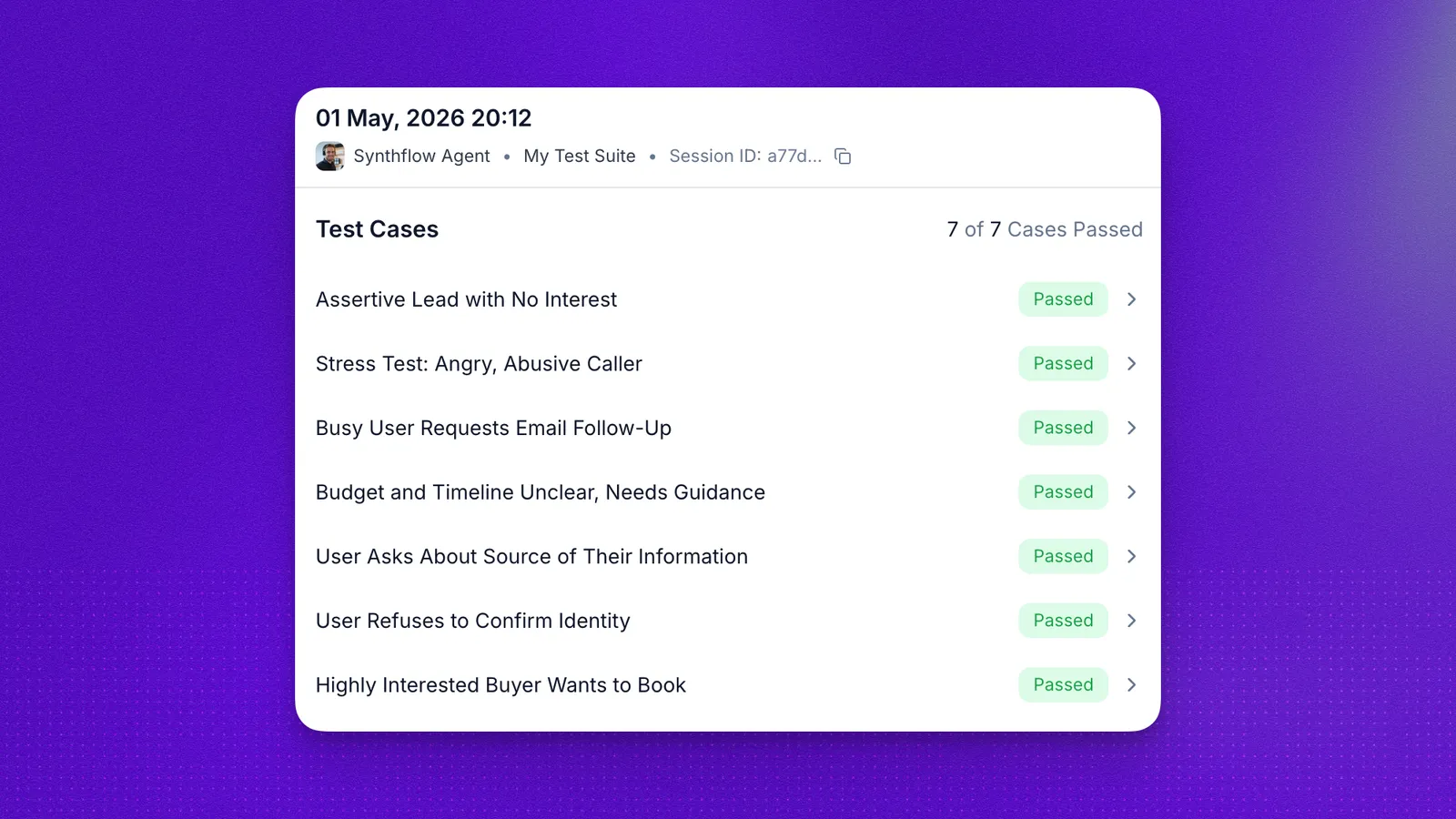
After simulations finish, open the Run History tab, in the Test Center or in the agent editor’s Simulations panel, to see all sessions. Each row shows the date, agent tested, test suite name, and overall status. Click any session to see the individual test case results.
Test case details
Select a test case to view its full evaluation. The detail view shows:
- Success Criteria: Each criterion is evaluated independently with a Passed or Failed badge. The AI provides a detailed explanation of why the criterion passed or failed based on the conversation.
- Scenario Prompt: The instructions given to the persona agent describing how to behave during the call (what to say, how to respond, and what information to provide).
- Transcript: The full conversation between your agent and the persona agent, available in a separate tab.
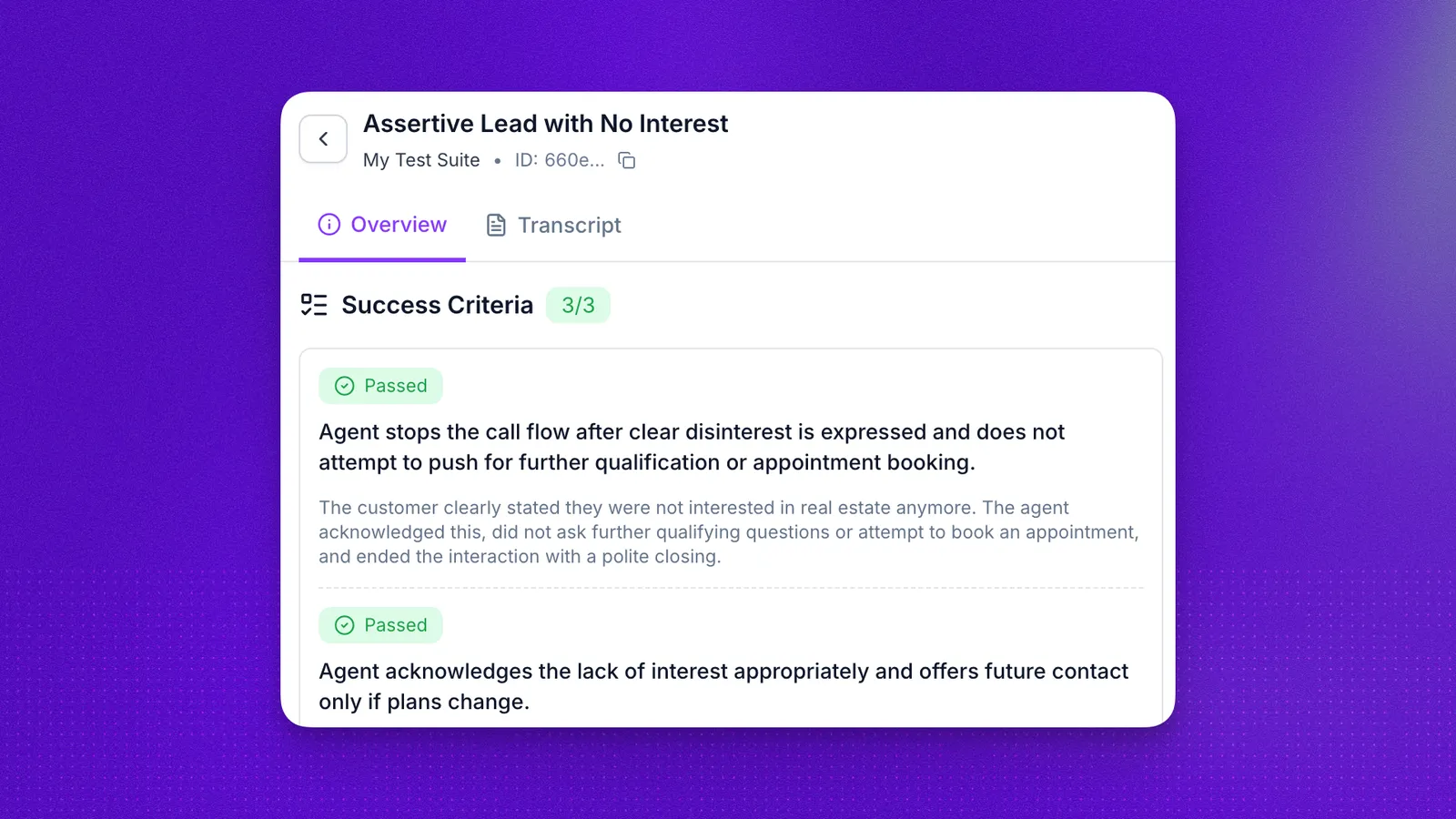
This level of detail helps you understand exactly where your agent succeeded or failed, making it easier to iterate on your prompts or flow design.
Understanding results
Simulations end with one of three statuses:
Temporary limitation: during simulations, call transfers and Real-Time Booking (RTB) actions are not actually executed. They are simulated from the conversation transcript so success criteria can still be evaluated. Full action execution in the test environment is on the roadmap.
Best practices
- Keep scenarios focused: One scenario to verify.
- Define clear success criteria: Prefer “Agent confirms appointment” over “Agent handled call well.”
- Use stable variable values: Keep runs reproducible.
- Maintain a regression suite: Core scenarios should be re-run after every agent update.
- Listen to recordings: Audio reveals tone, interruptions, and naturalness better than transcripts alone.
Glossary
- Test Case: A test definition with a name, prompt, and success criteria that specifies what to test.
- Test Suite: A collection of test cases grouped for execution, attached to a specific agent.
- Simulation: Running one test case against your agent. Produces transcript, recording, and evaluation.
- Session: A batch of simulations run together (usually from a suite execution).
- Target Agent: The agent being tested (must be INBOUND or OUTBOUND). Each suite is bound to a specific agent.
- Persona Agent: Simulated customer created automatically to interact with your agent.
- Success Criteria: Rules that define success (e.g., “Agent confirms booking”).
- Scenario: A template or description used during test case generation to ensure coverage of specific situations (e.g., “Verify customer satisfaction”). Not to be confused with test cases, which are the actual tests that get executed.
- Recording: Audio playback of the simulated call.
FAQ
Can I run a test suite on a different agent?
No. Each test suite is permanently linked to the agent it was created for. If you want to test a different agent, create a new test suite for that agent.
How many test cases can I have in a test suite?
You can have up to 25 test cases per suite. The default is 4 base test cases plus one additional test case per scenario you select.
Are simulations billed?
Completed simulations are measured separately from live call and chat usage. Depending on your workspace configuration, completed runs may be billable. Failed runs and runs with no conversation are not billed.
Why did my test case fail even though the conversation seemed correct?
Review the success criteria explanations in the test case details. The AI evaluates each criterion independently and provides reasoning for pass or fail. A test case may fail if the agent didn’t explicitly meet a specific criterion, even if the overall conversation was acceptable.
Can I edit a test suite after creating it?
Yes. You can add, remove, or modify test cases within a test suite at any time. However, you cannot change the target agent.