

Custom Evaluations
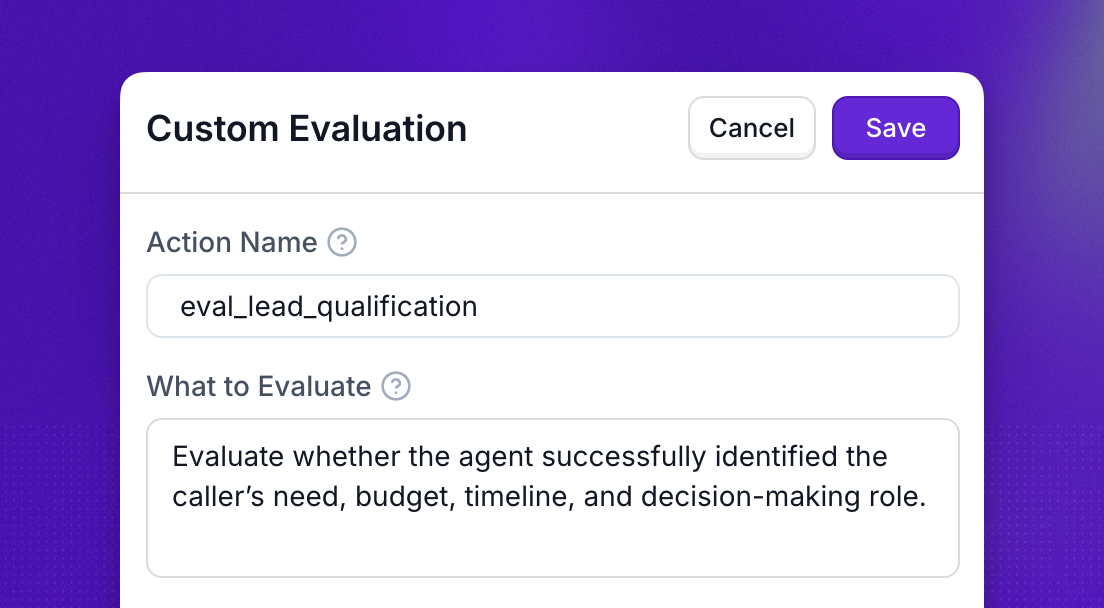
Custom evaluations allow you to define and track your own criteria for what makes a successful call or conversation. Since every business and use case is different, you can set unique success metrics that matter most to you—whether that’s booking an appointment, providing accurate information, or ensuring customer satisfaction. This flexibility means you get actionable insights based on your own definition of success, not a generic standard.
Custom evaluations are ideal if you want to measure AI agent performance against custom goals, your business has unique workflows or compliance needs, or you need to track outcomes that can’t be inferred automatically.
Set up custom evaluations
Step 1. Create a custom evaluation
Fill in the details. Give your evaluation a unique, descriptive name. Write a prompt that describes the evaluation criteria (e.g., “Did the agent greet the caller by name and resolve the issue?”). Choose a category for how you want to score the call—options include Numeric, Descriptive, Likert Scale, or Pass/Fail. Finally, set the expected result based on the category you selected.
Once you’re done, click Save.
Step 2. Attach the evaluation to an agent
What problems does this solve
Custom evaluations eliminate one-size-fits-all metrics by letting you define exactly what success looks like for your business. They make it easier to prove ROI for your specific use case by tracking outcomes that matter to stakeholders. They also support internal quality assurance and compliance requirements by ensuring agents follow the right processes.
Use cases
Usage examples
Appointment Booking (Pass/Fail)
This evaluation checks if the bot successfully booked an appointment. Set the name to Appointment_booked, write a prompt like “Check if the bot successfully booked an appointment”, choose the Pass/Fail category, and set the expected result to True.
User Satisfaction (Numeric)
This evaluation rates overall user satisfaction on a numeric scale. Set the name to User_satisfaction, write a prompt like “Analyze the conversation and rate the user’s overall satisfaction with the call. Consider the tone, language, and resolution”, choose the Numeric category, and set the expected result to 8.
Compliance Check (Descriptive)
This evaluation verifies compliance with privacy requirements. Set the name to Privacy_notice, write a prompt like “Did the agent inform the caller about data privacy and consent requirements at the start of the call?”, choose the Descriptive category, and set the expected result to Excellent.
Customer Experience (Likert Scale)
This evaluation measures overall customer experience using a Likert scale. Set the name to Customer_experience, write a prompt like “The agent was friendly and professional and the user was happy with the interaction”, choose the Likert Scale category, and set the expected result to Strongly Agree.
Best Practices
Write clear and measurable prompts to avoid ambiguity—the more specific your criteria, the more accurate your results. Choose the simplest category that gets the job done: use Pass/Fail for binary outcomes, Numeric for ratings, and Descriptive when you need qualitative feedback. Review evaluation results regularly and refine prompts for accuracy as you learn what works best for your use case.
Troubleshooting
If your evaluation is not appearing, make sure you’ve saved the evaluation and attached it to an agent. If you’re seeing incorrect scoring, double-check that the expected result matches the scoring category. For API errors, ensure your JSON input follows the correct schema and matches the allowed category/result pairs.