

Call Transfers
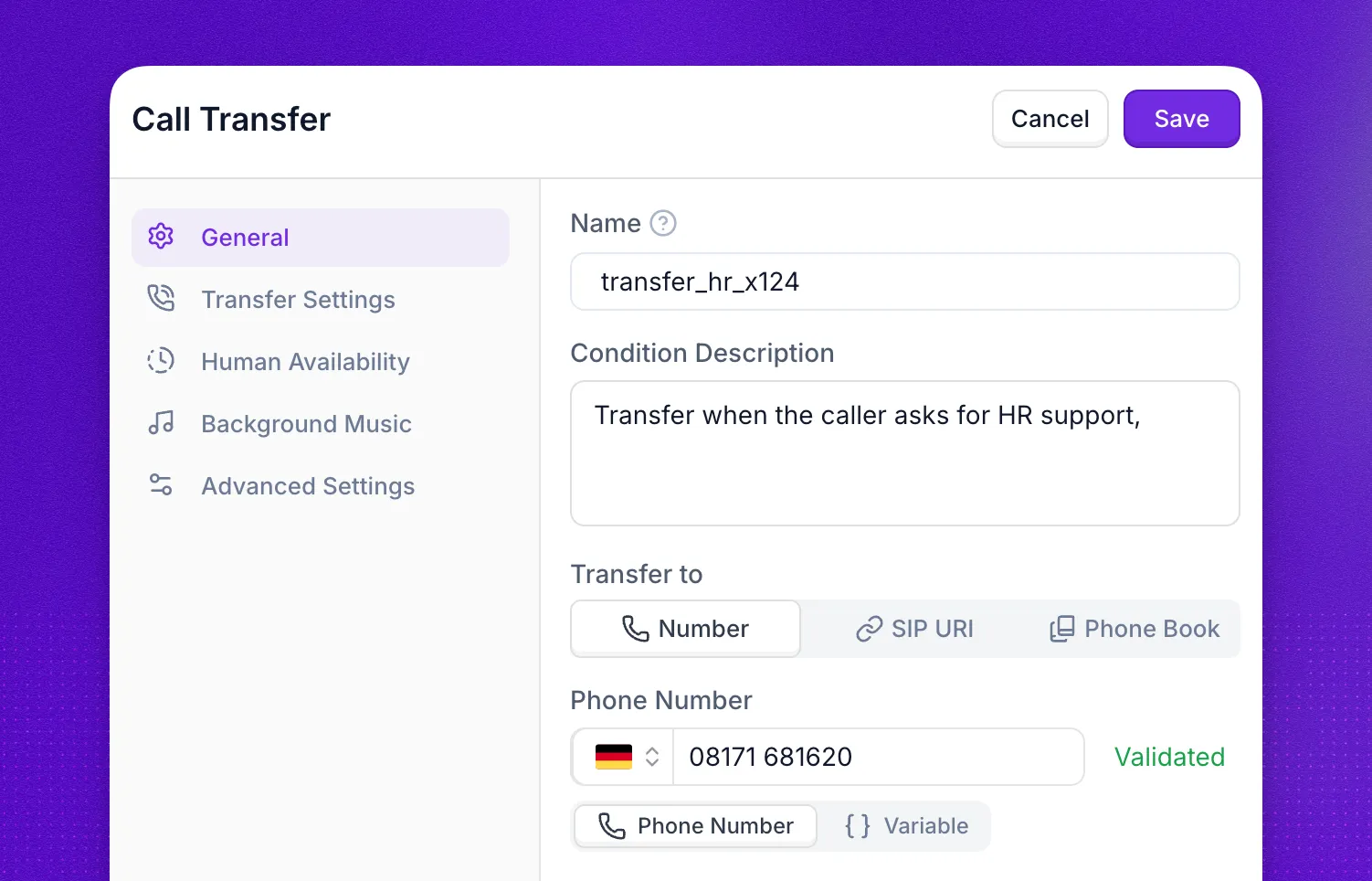
Call transfers hand the live call off to a human or another endpoint. You configure them with the call transfer action, which decides where the call goes, how it gets there, and what the recipient hears when they answer.
Types of Transfers
Synthflow supports four transfer types. The right one depends on where the call needs to land and how the destination is decided.
The settings that control how the transfer behaves once a destination is chosen, such as transfer modes, office hours, hold music, and timing, apply to every transfer type and are documented in the sections that follow.
Phone Number Transfers
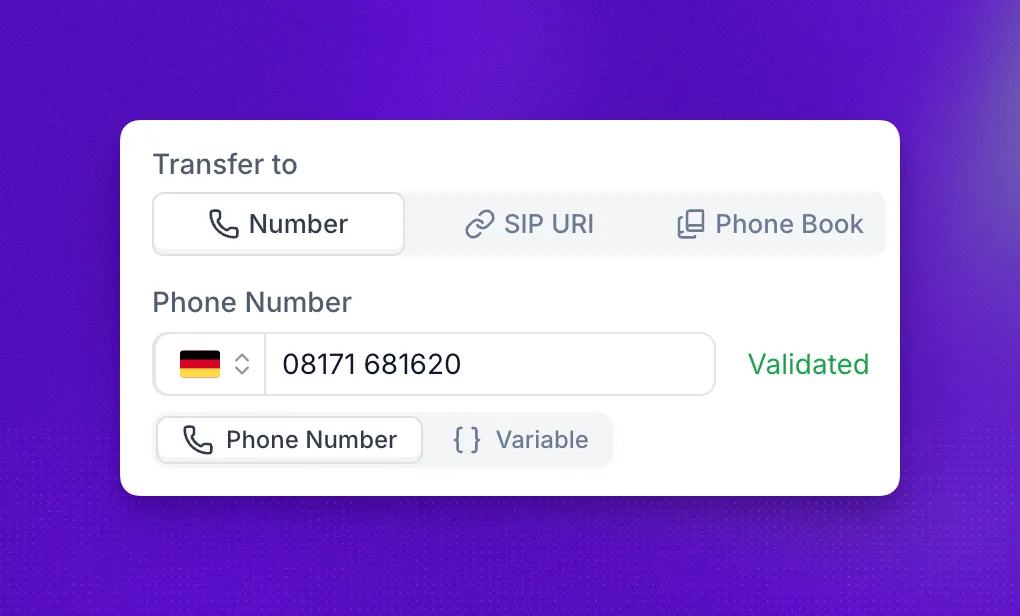
Phone number transfers (or TEL), route the call to a standard phone number in E.164 format. The same action works across any telephony connection, since the destination is just a number.
Phone number transfers are confirmed to work with Twilio and Telnyx. For other carriers or self-hosted PBX setups, use a SIP transfer instead.
SIP Transfers
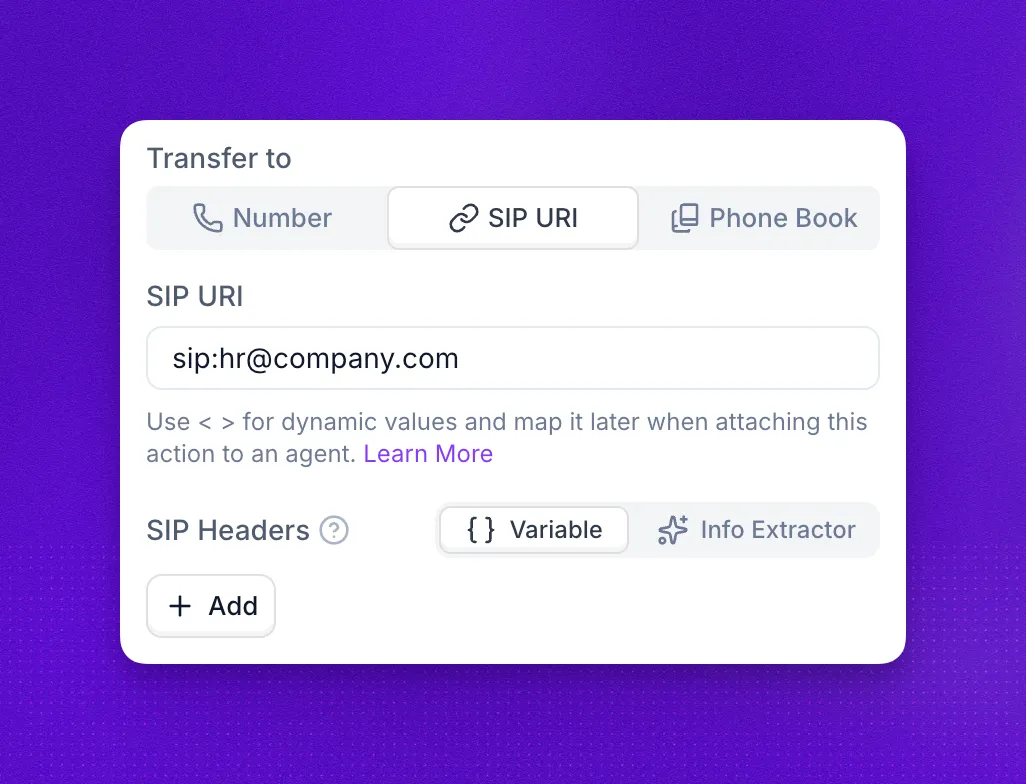
SIP transfers route the call to a SIP URI such as a PBX, softphone, or SIP trunk. They are the right choice when TEL handling is not supported by your carrier or when you need to attach metadata to the transfer leg via custom X-headers. They work with any SIP-compatible endpoint, including Asterisk-based PBX systems such as FreePBX.
For prerequisites, setup, custom X-headers, supported URI formats, and security, see the dedicated SIP transfers page in the Telephony section. For broader telephony context, see our available SIP integrations and how to route SIP calls to an agent.
Dynamic Transfers
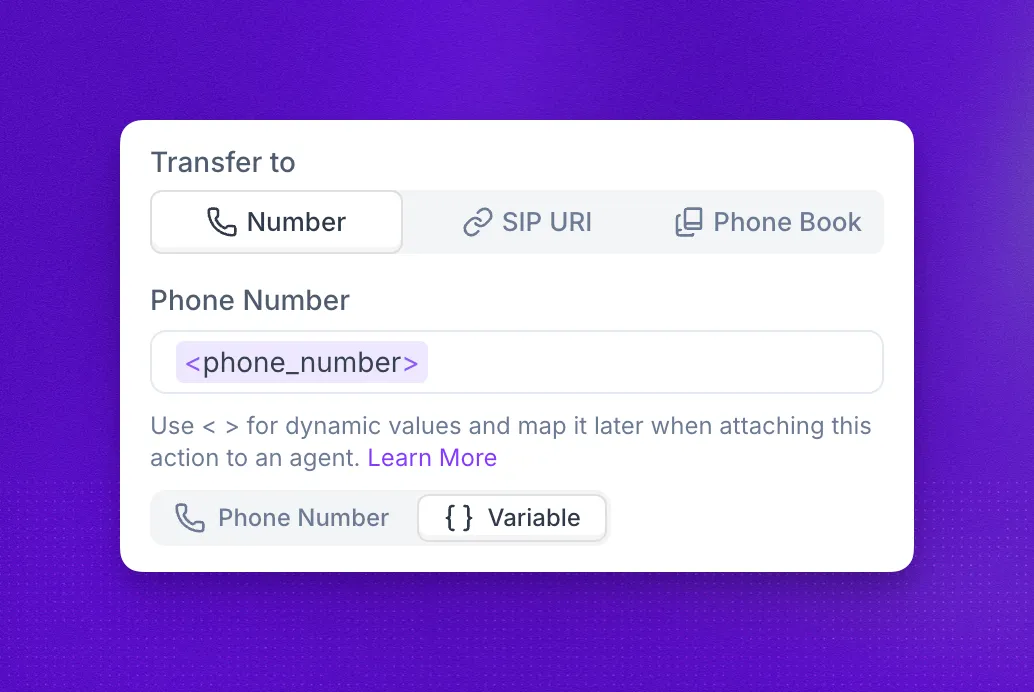
Dynamic transfers resolve the destination at call time from a value that is either injected by a pre-call webhook before the call starts, or returned by a custom action during the call. Use them when the right destination depends on caller input, real-time CRM lookups, or scheduling logic.
How it works
The custom action returns one or more candidate destinations, the agent picks the right one based on the conversation, and the transfer action reads the chosen value via template syntax ({results.data.phone_number}) or a bare variable name (phone_number). The system detects this pattern and configures the transfer as dynamic, extracting and normalizing the phone number at runtime.
The walkthrough below illustrates this flow with a customer support routing example.
Step 1: Custom action endpoint
Step 2: Transfer action
Step 3: How it works
Create a custom action that queries your CRM or routing system for available agents.
Endpoint: https://api.yourcompany.com/get-available-agents
Request:
Response:
In the action settings, enable status, results, and results.data under Available Action Results so the agent can read the response.
Use cases
Handling failures
Your custom action can handle failures gracefully by returning multiple potential destinations, ordered by priority:
The agent attempts transfers in priority order if earlier attempts fail.
- Return an
availableflag on each destination so the agent knows which ones are reachable. - Order destinations by
priorityfor retry behavior. - Use a warm mode so the agent can retry on
transfer-failed-timeout,transfer-failed-destination-busy, or the other recoverable outcomes instead of dropping the call. - Handle the empty-results case in the agent’s prompt (offer to take a message, schedule a callback, or transfer to a general queue). The standard transfer outcome states still apply.
Phone book Transfers
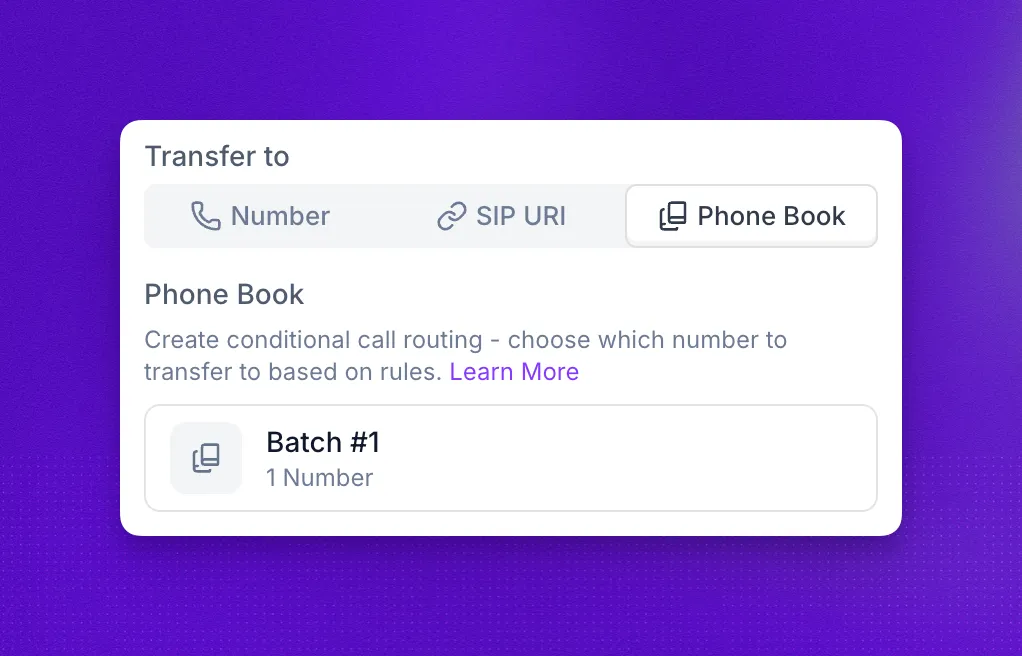
Phone books let you manage multiple potential transfer destinations from one place. The agent picks a destination based on the conditions you configure, so you can change targets without modifying every transfer action that uses them. A phone book can hold up to 50 numbers.
To create one, add each phone number along with the transfer condition that should route to it (for example, “caller asks for billing”).
Transfer Settings
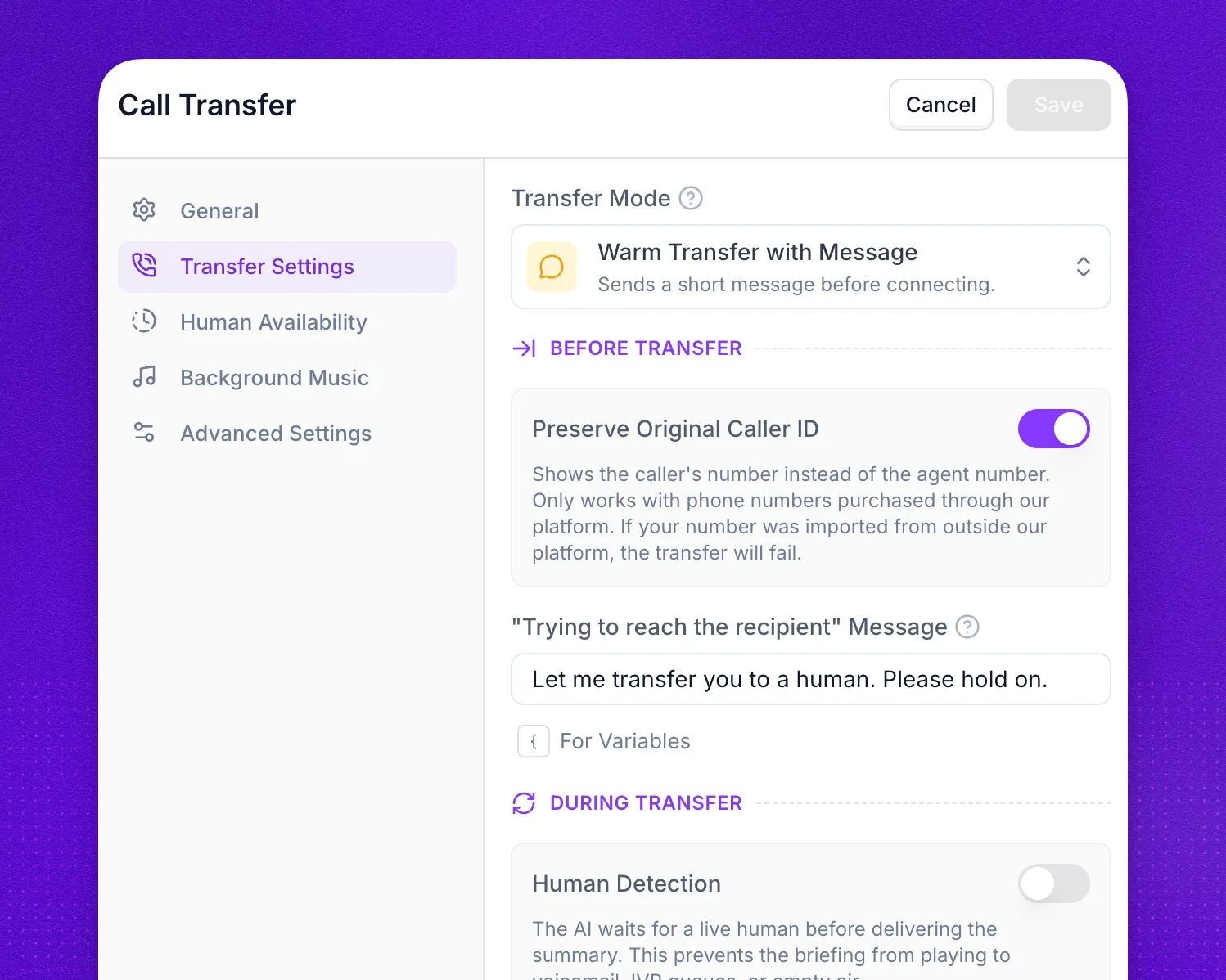
The Transfer Settings tab controls how the handoff feels to the recipient and the caller, and how the transfer recovers when something goes wrong. These settings apply to every transfer type.
Transfer Modes
The controls available for each mode:
Each warm transfer attempt starts a new outbound call, which counts against your account’s CAPS limit. On outbound campaigns with many transfers, this can slow down new campaign calls. See Warm transfers and CAPS.
Human Detection
Waits for a live human to answer before playing the whisper message or summary, so the briefing doesn’t reach voicemail, an IVR, or empty air. The Human Detection Timeout (30 seconds to 30 minutes) sets how long the AI waits; if no human is detected in that time, the fallback behavior is triggered. Silence, no-answer, and hold-queue wait are reported as transfer-failed-timeout with the failed_reason human_detection_timeout. When the answering party is classified as an IVR / auto-attendant, the transfer is marked transfer-failed-ivr with failed_reason ivr_detected. A voicemail greeting is transfer-failed-voicemail with failed_reason voicemail_detected.
Human detection is also what tells the specific failures apart: it reports transfer-failed-voicemail when it hears a voicemail greeting, transfer-failed-ivr when it hears an auto-attendant, and transfer-failed-timeout when the detection window expires without a verdict. Every value is listed under transfer outcome states.
Human detection relies on hearing enough speech to distinguish a live person from silence, a beep, or an IVR menu. If the transfer recipient answers with only a brief “Hello,” the model may not have enough audio context to confirm a human is on the line. Ask your transfer recipients to use a longer greeting, for example “Hello, this is Sarah, how can I help you?” so the detector can classify the response reliably.
Summary Prompt
Controls how the AI summarizes the conversation for the recipient. Auto generates the summary automatically. Custom lets you define a prompt that guides what the summary covers, for example account numbers, issue categories, or caller sentiment.
Recipient Message
The short whisper text the recipient hears before being connected. Supports variables.
Call Screening
Let the recipient ask questions and accept or decline the call before connecting.
Continue recording after the transfer
Keeps recording the call after the handoff. Off by default.
Stage messages and timing
These fields shape what the caller hears during the handoff:
- “Trying to reach the recipient” message plays while the AI is dialing the recipient. Use it to set expectations and keep the caller engaged during the wait.
- “Recipient answered” message plays once the recipient has picked up and is ready to be connected. Keep it brief: the caller is about to be bridged through.
- “Recipient failed/declined to answer” message plays if the recipient doesn’t pick up, is unavailable, or declines (see transfer outcome states). Use it to offer alternatives like continuing the conversation or trying again later.
- Pre-Message Pause and Post-Message Pause are silence buffers before and after each stage message. Default 1 second each in the dashboard. Actions created through the API default to 0 unless you send
pre_message_pauseandpost_message_pause.
Human Availability
The Human Availability schedule restricts transfers to specific days, time ranges, and timezones. When disabled, transfers are attempted at any time. When enabled, you set per-day availability hours, pick a timezone, and provide a “Human not available” message that the agent uses when a caller asks to be transferred outside of those hours, for example “There is no-one available to take your call at the moment. Please try again later.”
Use this when your destination is staffed during business hours only, or when out-of-hours calls should fall back to a message instead of a transfer attempt. This schedule covers the transfer destination alone. To limit when the agent picks up at all, set the agent’s business hours instead.
Background Music
Background music plays while the call is being transferred so the caller hears something other than silence. Toggle Enable Background Music in the action settings and pick a music type from the available options (Classical, Ambient, Modern Jazz). You can preview each option before saving.
Background music is not available during cold transfers.
Advanced Settings
The Advanced Settings tab fine-tunes timing, DTMF behavior, and caller ID on warm transfers.
The Extension field does not work for cold transfers.
Caller ID
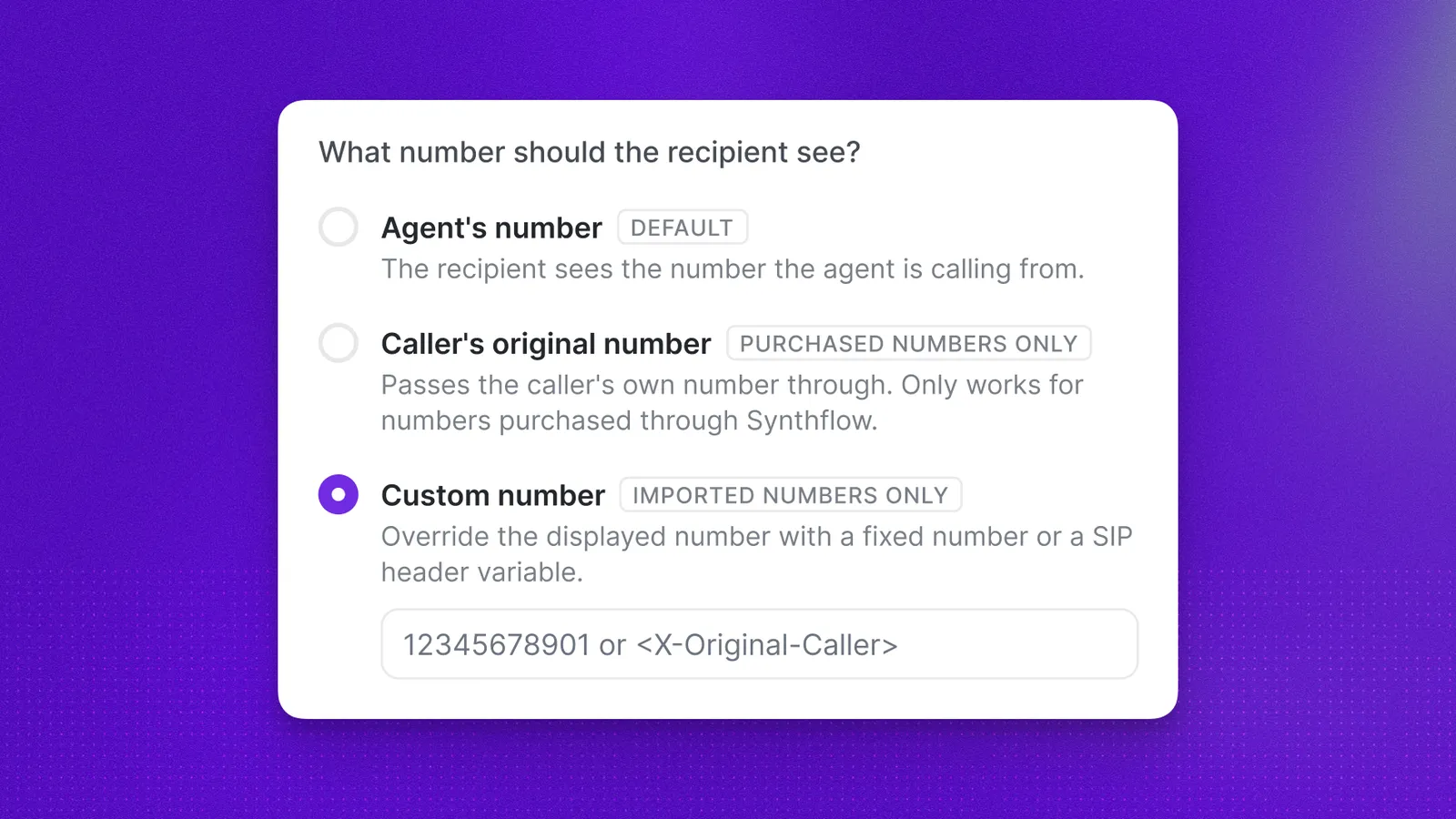
Controls which number the transfer recipient sees when the call arrives. Choose one of three options:
Caller ID options are available on Enterprise plans only.
Caller’s original number only works with numbers purchased directly from the Synthflow dashboard via the Twilio integration. Numbers from your own Twilio account, third-party providers, or custom SIP imports will cause the transfer to fail.
Custom number applies only to imported numbers: your number provider must allow custom caller IDs using P-Preferred-Identity. If the provider blocks custom caller ID, the transfer call will fail.
Which options you can actually use depends on the telephony account behind your Synthflow number. A transfer to a phone number (TEL) places a new outbound leg over that account’s carrier, and the carrier decides which caller IDs it will let you present.
- Your own Twilio numbers added through the Twilio integration can only present a caller ID that account is verified to use. Twilio rejects an arbitrary caller ID unless your account has its “allow any caller ID” capability, which Twilio grants only to established, high-trust accounts. Most bring-your-own-Twilio accounts therefore cannot show the original caller’s number on a phone number transfer, and the transfer fails when they try.
- Other imported numbers work only if the provider accepts a custom caller ID via
P-Preferred-Identity.
A SIP header variable such as {X-8x8-Original-Caller} only resolves when the inbound call actually arrived carrying that header. Use the exact {X-Header-Name} syntax (curly braces, case-sensitive), not angle brackets. If the caller reached you over a carrier that does not send the original number as an X- header (a plain Twilio number, for example), there is no header to read, so use Caller’s original number instead.
Transfer outcome states
Every transfer ends in an outcome state, and failed transfers also carry a failed_reason that names the cause, such as a busy line or an IVR menu. The transfer outcome states reference lists every value, how cold and warm transfers react to each one, and where they appear in the API.
Variables
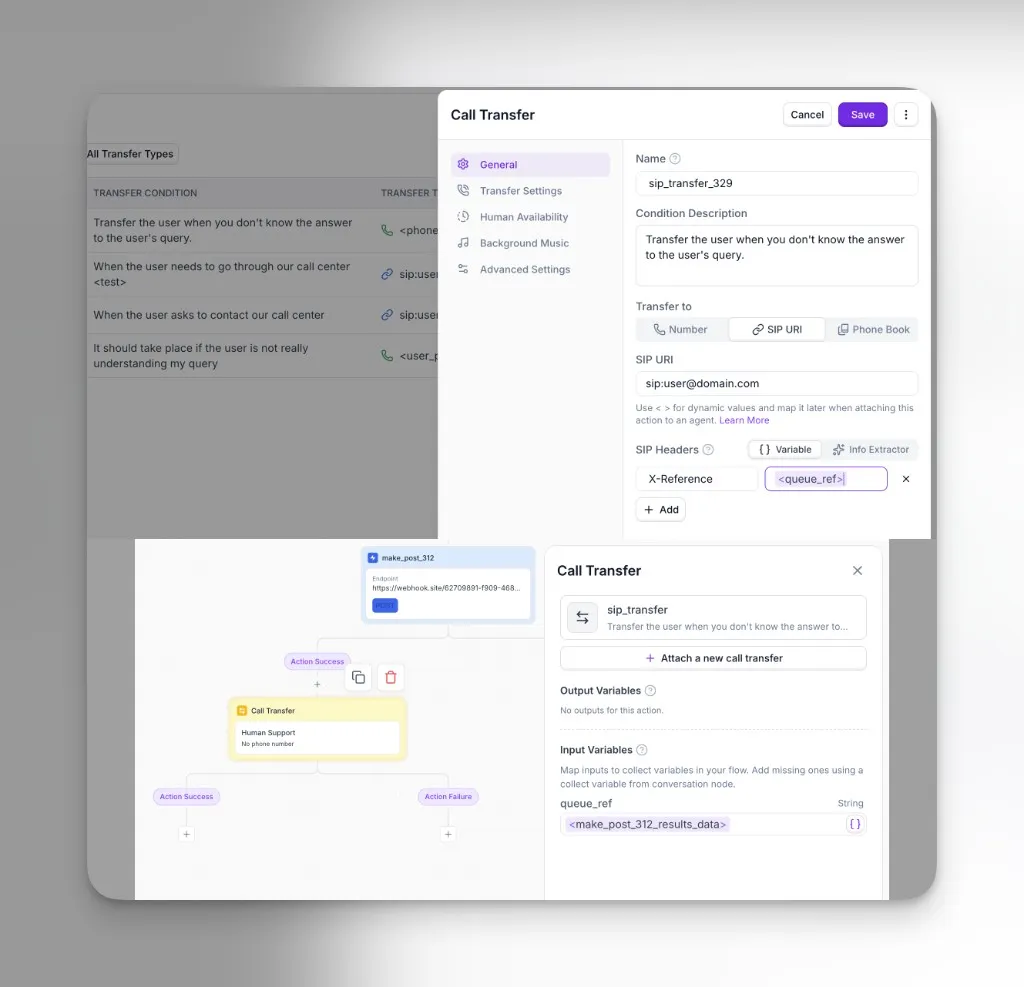
When you configure a call transfer action, you can type placeholders with angle-bracket names, for example <case_id> or <department>, directly in the fields below. Each distinct name becomes an input variable on that transfer action.
After you attach the transfer to an agent, open it from the agent’s Actions tab and map each input: bind it to a fixed value or to any variable your agent or flow already provides (collected during the call, system fields, pre-call data, another action’s results, and so on).
If the phone number or extension is still a <variable> or {variable} when the transfer runs, the transfer is not dialed. The call stays up, the agent speaks the failure message, and the outcome is transfer-configuration-error with failed_reason unresolved_variable.
You can introduce those placeholders here on the transfer action:
- Phone number to transfer
- SIP URI
- Extension
- Warm transfer, contextual summary prompt (the instructions the model uses to summarize the call for the person who answers)
- SIP header values
Example: On a SIP transfer action, the SIP Headers section sets header X-Reference to <queue_ref>. That defines one input variable named queue_ref. After the same transfer is added to a flow, the Input variables panel lists queue_ref. Here it is mapped to data returned by an earlier action result of a custom action, so the receiving side gets a stable correlation id on the SIP leg without hard-coding it in the action template.
FAQ
What's the difference between warm and cold transfers?
A cold transfer connects the caller to the destination immediately without briefing the recipient. A warm transfer first plays a private whisper message or AI-generated summary to the recipient, then connects the caller. Warm transfers also support human detection, retries, and fallback behavior; cold transfers do not.
Will the receiving party see the original caller's number?
Only on cold transfers, which use SIP REFER to pass the caller’s number through. Warm transfers create a new call leg over SIP INVITE, so the receiving party sees the Synthflow agent’s number instead. Caller ID passthrough also depends on your telephony provider supporting SIP REFER.
Why does my warm transfer show the agent's number instead of the caller's?
Warm transfers create a new outbound call leg from Synthflow, so the receiving party sees the agent’s number by default. Use the Caller ID setting to show the caller’s original number or a custom number instead.
I import my own Twilio numbers. Can I keep the original caller's number on a warm transfer?
Usually not on a phone number (TEL) transfer. Twilio only lets an account present a caller ID it has verified, and it grants the “allow any caller ID” capability to established accounts only, so most bring-your-own-Twilio numbers cannot override the caller ID and the transfer fails. To retain the original number, place the transfer from a Synthflow-purchased number, or ask your Twilio contact to enable “allow any caller ID” on your account. See Caller ID for the full breakdown.
Why is my whisper message playing to voicemail?
Enable Human Detection on the warm transfer so the whisper or summary is only delivered when a live human is detected on the line. Use the Human Detection Timeout to control how long the AI waits before marking the transfer as failed.
Can I retry a failed transfer?
Warm transfers can retry or fall back to alternate behavior on any non-success outcome, including transfer-configuration-error, transfer-failed-timeout, transfer-failed-connection-error, transfer-failed-destination-busy, transfer-failed-ivr, transfer-failed-voicemail, transfer-failed-transfer-target-hangup, transfer-cancelled, and transfer-screening-rejected. Cold transfers cannot recover from a failure once the destination has been dialed: if the destination does not answer, the call ends. A phone number or extension that is still an unresolved variable fails before dialing, in both modes, and the call continues. Every outcome is listed under transfer outcome states.
Does Synthflow support SIP transfers with any provider?
Yes for SIP-compatible endpoints (PBX systems, SIP trunks, softphones such as Asterisk and FreePBX). TEL URI transfers are confirmed to work with Twilio and Telnyx; for other carriers or self-hosted PBX setups, use a SIP transfer instead.
My PBX rejects the SIP REFER. What should I do?
Switch the transfer mode to warm so Synthflow uses SIP INVITE instead, or configure your PBX to accept SIP REFER from Synthflow’s IP range. SIP INVITE is universally supported.
Can I authenticate inbound SIP transfers with a username and password?
Not at this time. Use IP-based ACLs against Synthflow’s outbound IP addresses to secure inbound traffic.
Can I use both a pre-call webhook variable and a custom action result?
Yes. Pre-call webhook variables are resolved before the call connects; custom action results are resolved during the call. You can use either (or both) anywhere a transfer field accepts variables.
What's the difference between a dynamic transfer and a phone book?
A phone book is a static list of destinations curated in the Synthflow UI; the agent picks one based on conditions you configure. A dynamic transfer fetches the destination at runtime from your own systems, which is the right choice when the target depends on real-time data such as on-call schedules or CRM ownership.
Can I add the phone number of one of my agents to a phone book?
Yes. Any valid phone number can go into a phone book, including numbers assigned to your other Synthflow agents. This lets you build transfer flows between agents.
How many phone books can I create?
There is no limit on the number of phone books. Each phone book can contain up to 50 phone numbers.
Can I use the same phone number in multiple phone books?
Yes. The same number can appear in multiple phone books with different transfer conditions in each.
What happens if no phone book condition matches?
The agent does not transfer the call and continues the conversation normally.