

Manage Your Subscription
All subscription and billing management happens in Admin → Workspace Settings → Plan & Billing. From there, you can access the Billing Portal to update your details, view invoices, and manage your subscription.
Access the Billing Portal
The Billing Portal is powered by Stripe and provides a secure interface for all billing operations.
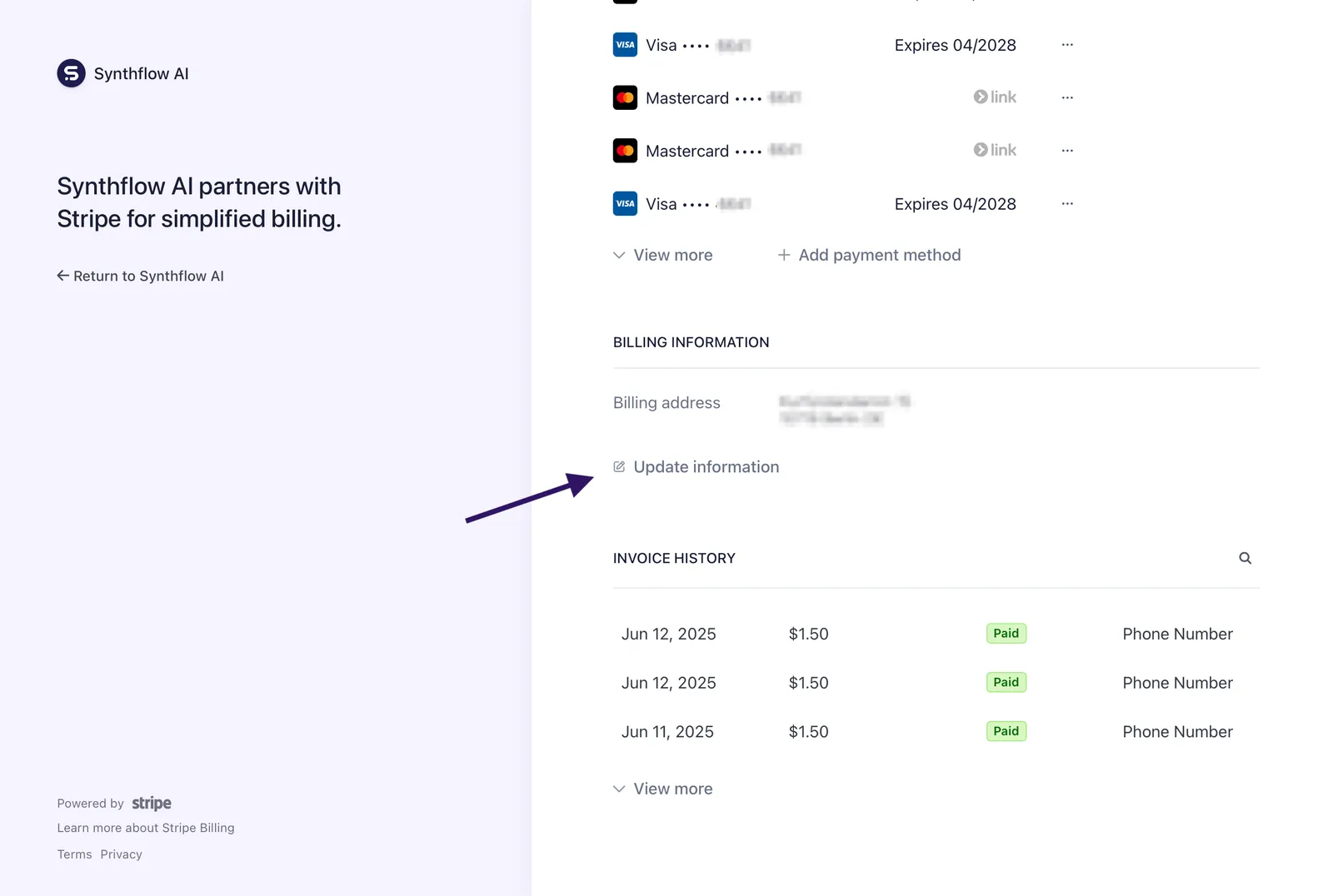
Update billing information
Your billing information includes your company name, address, and tax ID. Keeping this accurate ensures invoices are correctly formatted for your records.
Tax IDs and VAT
If you’re based in the European Union, add your VAT number to avoid being charged additional VAT. You can add it in the Billing Portal under Tax ID.
We support tax IDs for multiple regions:
If your region isn’t listed, contact support and we’ll work with you to accommodate your tax requirements.
Update payment method
We accept all major credit and debit cards through Stripe.
If a payment fails, you’ll receive an email notification. Update your payment method promptly to avoid service interruption.
View invoices and billing history
All invoices are available in the Billing Portal:
- Open the Billing Portal
- Scroll to Invoice history
- Click any invoice to view or download as PDF
Invoices include:
- Usage breakdown (minutes, add-ons)
- Taxes applied
- Payment status
- Billing period
Cancel your subscription
You can cancel your subscription at any time:
Cancellation takes effect at the end of your current billing period. You retain access until then. If you’re on an Enterprise plan, contact your account manager to discuss cancellation terms.
What happens when you cancel
Cancelling stops billing. It does not delete your workspace or anything in it.
- Agents and configurations stay saved in your workspace.
- Access continues until the end of the current billing period.
- Unused minutes follow the carryover terms in your agreement.
- Refunds are not issued for partial billing periods.
- Reactivation works at any time by adding a payment method again. Your saved agents are still there.
To remove your data as well, delete your workspace after you cancel.
Delete your workspace
You can permanently delete your workspace under Admin → Workspace Settings → Preferences, the same tab where you manage the workspace name, timezone, and optional company website. Only Super Admins and Admins can delete a workspace, so if you don’t see the option, ask one of them. See roles.
Before you delete it, keep anything you need. Export your call data, and export each agent to JSON.
FAQ
How do I get a receipt or invoice?
All invoices are available in the Billing Portal under Invoice history. You can view them online or download as PDF.
Can I change my billing email?
Yes. Update the email address in the Billing Portal under your account settings.
Why was my payment declined?
Common reasons include expired cards, insufficient funds, or bank security holds. Update your payment method or contact your bank for details.
Can I pay by invoice or wire transfer?
Invoice payments and wire transfers are available for Enterprise customers. Contact your account manager or sales to set this up.
How do I update my company name on invoices?
Update your billing information in the Billing Portal. Changes apply to future invoices—previously issued invoices cannot be modified.
What currencies do you support?
Billing is processed in USD. For Enterprise customers, we may accommodate other currencies—contact sales to discuss.
How do I delete my workspace and stop billing?
Cancel your subscription to stop billing, then delete your workspace under Admin → Workspace Settings → Preferences. Contract termination terms are described in the Subscriber Terms.
How do I delete my personal account and data?
Your data deletion rights, including the right to erasure under Art. 17 GDPR, are described in the Privacy Policy. To exercise them, contact the Synthflow data protection team at privacy@synthflow.ai.