

Five9
Five9 supports AI agent integrations through the AI Agent Connect program, where Synthflow is a certified AI provider in the VCC platform. Five9 routes calls from a workflow to Synthflow, and your agent handles the conversation. When the agent finishes, the Five9 Handoff action returns the call with X-Headers your workflow routes on.
Prerequisites
- An Enterprise plan, with AI Agent Connect activated by your Synthflow account manager.
- A deployed Synthflow agent.
- A Five9 account with admin access and an active domain. Configuring the integration requires knowledge of the platform and IVR scripting.
- The activation SKUs
548-0132and548-0133added to your Five9 account. Ask your Five9 account team to include them. - AI Agent Connect activated by Five9. Contact your Five9 account team to begin the program. They enable the integration on their side before you can configure call routing.
- A workflow, built with Five9, that routes calls to Synthflow.
Credential exchange
Onboarding is a two-way exchange with your Five9 implementation team. They provision the phone numbers and call routing. You provide the Synthflow credentials they need to reach your agent and retrieve call data.
Five9 provides:
- A range of ten pseudo phone numbers allocated to your account. These numbers only route calls to your agents and are not publicly dialable. You assign one number per agent in Synthflow.
- Call routing for your domain and the VCC configuration. Call routing for the number range is not accessible in VCC. Your connectivity project manager manages it.
You provide:
Five9 uses the API URL and bearer token to retrieve data when a caller hangs up before the agent finishes. Keep the token secret, and rotate it in the Synthflow dashboard if it is ever exposed.
Number import
Import one number from your assigned range for each agent.
- In Synthflow, select Phone Numbers → New Phone Number → Import a Custom Number.
- In the Import Phone Number form, set the fields below.
- Select Import.
- Assign the number to the agent that receives the calls, under Deploy in the agent editor.
Five9 is IP-authenticated, so there are no SIP credentials to enter. Synthflow fills in the SIP domain and outbound proxy from the region your workspace runs in.
Five9 authenticates Synthflow against separate US and EU environments. Configure your Five9 portal in the same region as your Synthflow workspace. Otherwise the authenticating IPs do not match and calls fail. The Global region is not supported, so use US or EU.
Five9 workflow
Your implementation team builds the workflow with you in the Five9 VCC Administrator web console. The workflow routes calls to Synthflow and defines how data flows back when the conversation ends. The team typically:
- Creates a campaign and assigns a test DID.
- Configures the call variables and imports the
Synthflow IVR Transfer Template v1script. - Sets the production API URL and key, and points the transfer-to number at your assigned AI phone number.
The workflow handles two outcomes:
- Graceful end: The caller finishes the conversation normally. The Five9 Handoff action fires and passes collected data back as X-Headers on the SIP BYE. The workflow continues with the returned data.
- Unexpected hangup: The caller disconnects before the agent completes the conversation. The Query module calls the Synthflow API with your bearer token to retrieve the data collected up to that point.
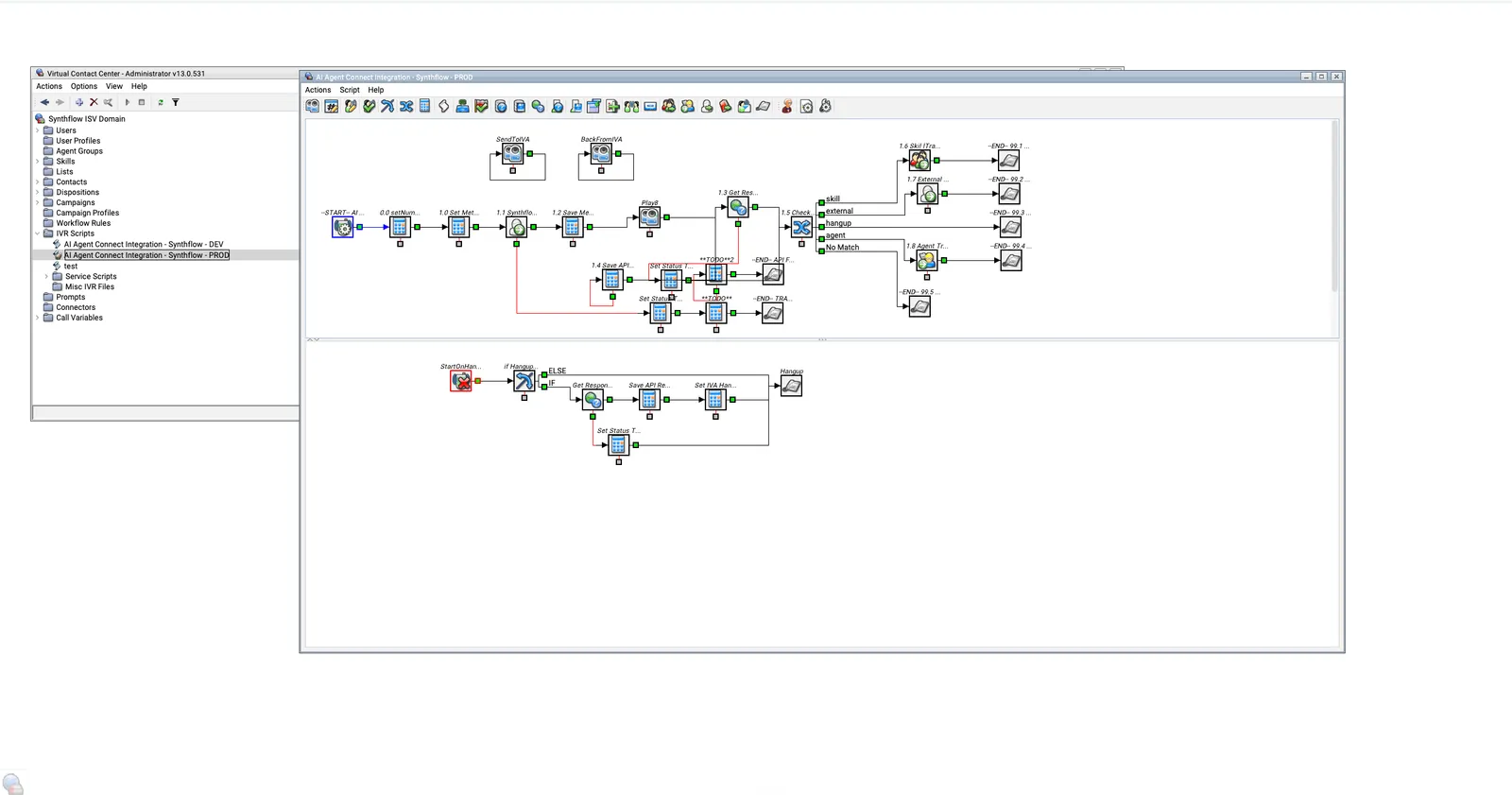
The exact workflow configuration depends on your contact centre setup.
Five9 Handoff action
The Five9 Handoff action ends the Synthflow session and returns the call. When it fires, Synthflow sends a SIP BYE with X-Headers that Five9 maps into call variables (CAVs), so the workflow can route on values like intent.
- In Synthflow, open the agent assigned to your Five9 number.
- Go to the Actions tab and select Add Action.
- Select Five9 Handoff.
- Enter a Name and a Condition Description that tells the agent when to trigger the handoff, for example “When the user wants to end the call”.
- Under X-Headers, select Add Header for each key-value pair to send on the SIP BYE. Set each value as one of these types:
- Static: A fixed value, for example
X-RouteType: skill. - Variable: A value from a conversation variable.
- Extractor: A value the agent extracts from the conversation at runtime, for example
X-RouteReason: Extract the reason for the call.
- Static: A fixed value, for example
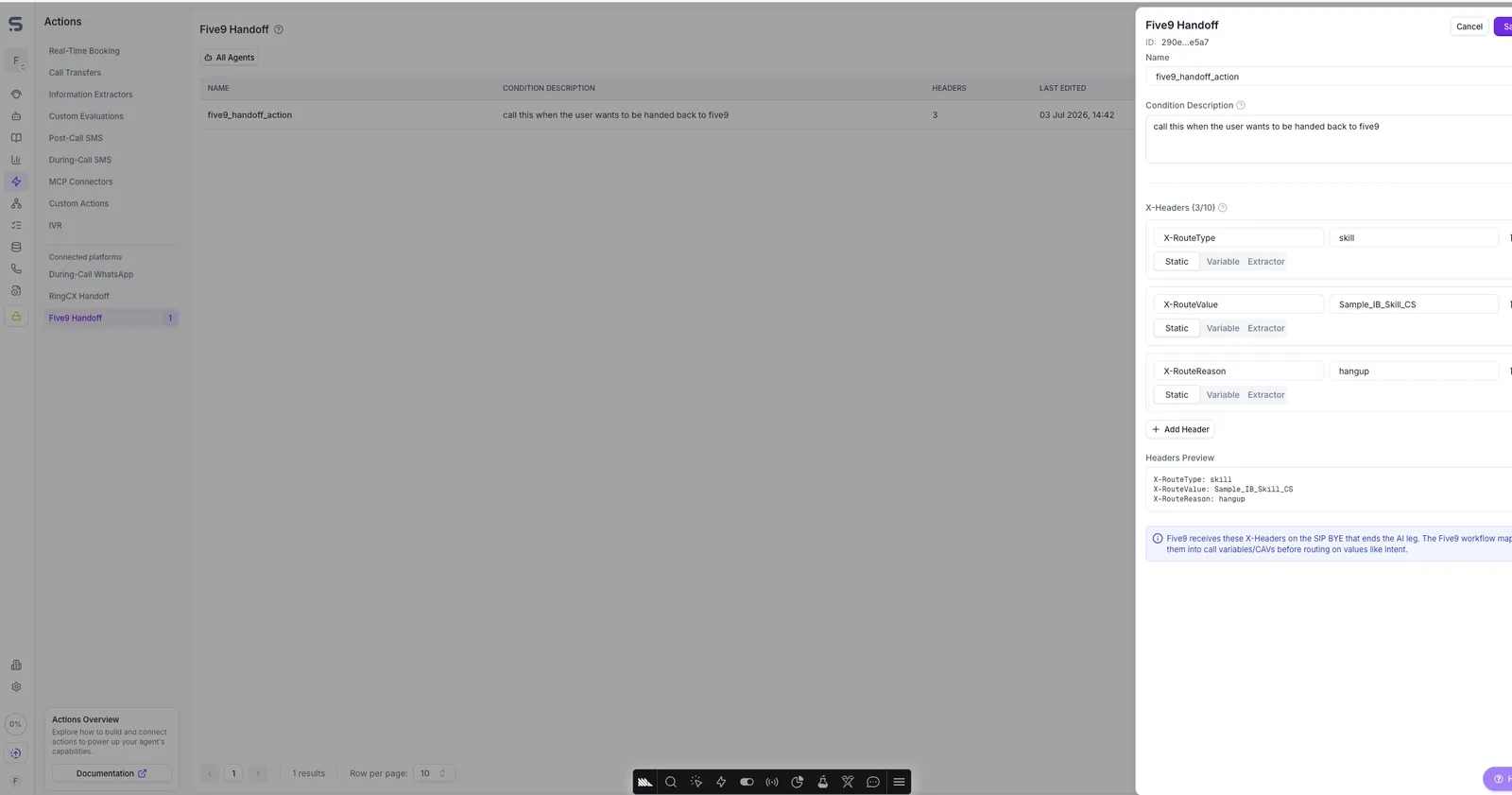
Every handoff must include X-RouteType, X-RouteValue, and X-RouteReason. Five9 needs all three to route the returned call. Any other headers are optional.
Data exchange
Data flows in both directions over SIP X-Headers. Five9 sends call metadata to your agent when the call starts, and Synthflow returns collected data when the Handoff action fires. Limit custom headers to 10 in each direction and about 500 characters in total, to avoid packet fragmentation and call-quality issues.
Metadata sent to Synthflow
These system call variables arrive on the SIP INVITE that Five9 sends. Your implementation team can add more by editing the SetHeaders module.
Data returned to Five9
The Handoff action sends X-Headers on the SIP BYE. Five9 maps each one into a call variable in a <Synthflow> variable group, then routes on the values. Send the three required route headers, plus any custom headers your workflow needs:
You do not need to send call data such as the transcript or end-call reason as headers. Synthflow captures that data on the call, and Five9 can retrieve it from the Synthflow API after the call ends. Prefer short identifiers or summaries over long free-form values, to stay under the 500-character total.
Call transfers
Synthflow cannot transfer calls directly on Five9 trunks. The integration does not let Synthflow start transfers to external numbers or SIP endpoints during a call.
To send a caller to a live agent or another destination, use the Five9 Handoff action to return the call to the workflow. Five9’s routing and queue logic takes it from there, using X-RouteType and X-RouteValue to pick the destination.
FAQ
Do I buy Synthflow through Five9?
No. Five9 does not resell Synthflow. You procure and configure the agent directly with Synthflow, and Five9 activates AI Agent Connect on its side.