

Zoom
Synthflow AI agents answer calls from Zoom Phone and Zoom Contact Centre through Zoom’s Virtual Agent integration. Both products use the same Synthflow AI app from the Zoom Marketplace. The routing step differs: Zoom Phone routes through Auto Receptionists, and Zoom Contact Centre routes through contact centre flows.
Once routing is in place, the agent answers each call, follows its prompt, and runs any actions you attach, such as transfers, booking, or data collection. Recordings and transcripts appear in the agent’s call history, the same as any other Synthflow call.
Zoom numbers support inbound calls only. Agents answer calls that Zoom routes to them, but cannot place outbound calls through a Zoom number.
Prerequisites
- For Zoom Phone, a Zoom Phone license with the Virtual Agents add-on enabled.
- For Zoom Contact Centre, a Zoom Contact Centre license with the Virtual Agents add-on enabled.
- Admin access to the Zoom admin portal.
Installation
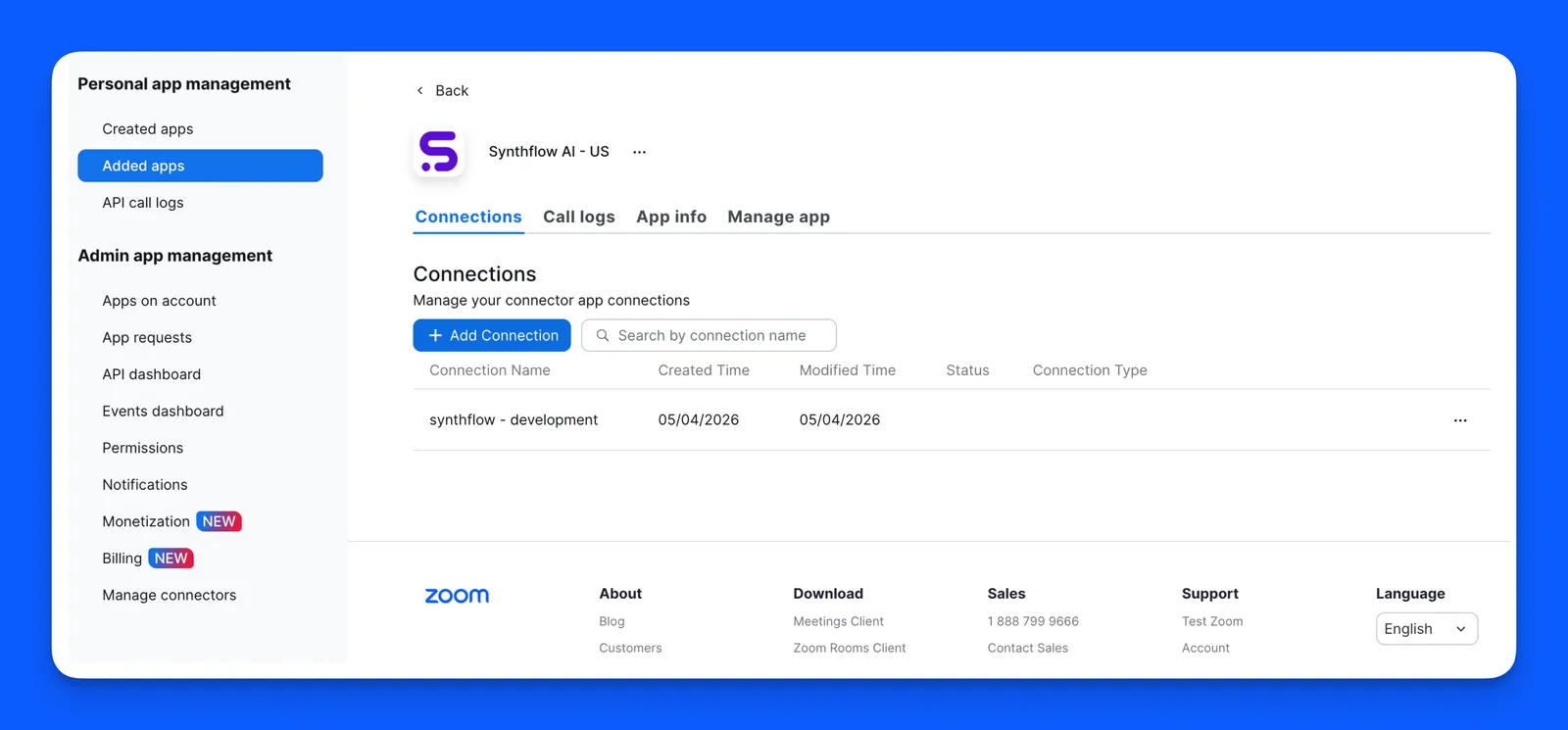
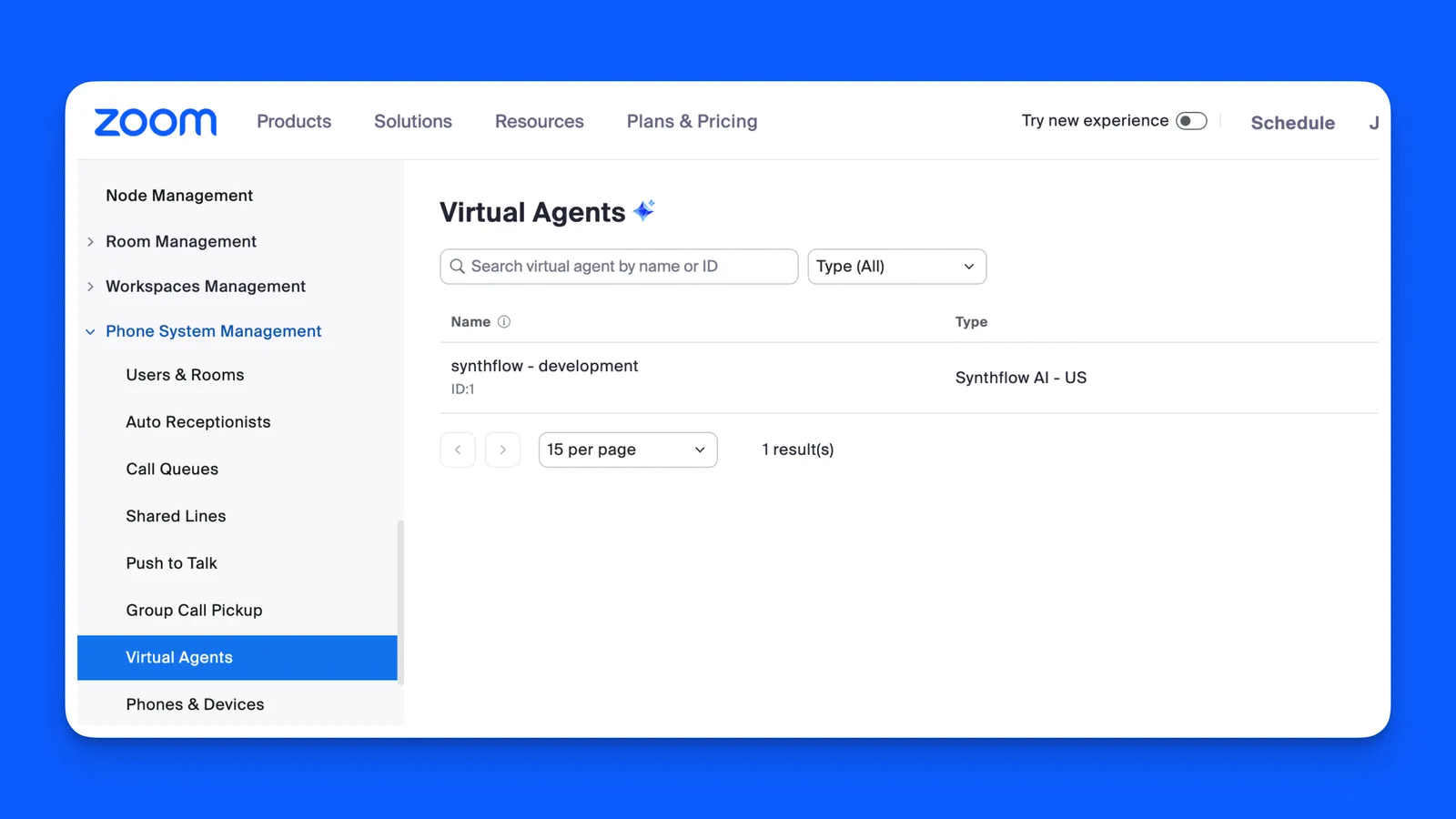
Install the Synthflow AI app in the Zoom Marketplace and authorize the requested permissions. Install it once per Zoom account, for both Zoom Phone and Zoom Contact Centre. A virtual agent entry appears in the Zoom admin portal under Phone System Management → Virtual Agents.
Integration number
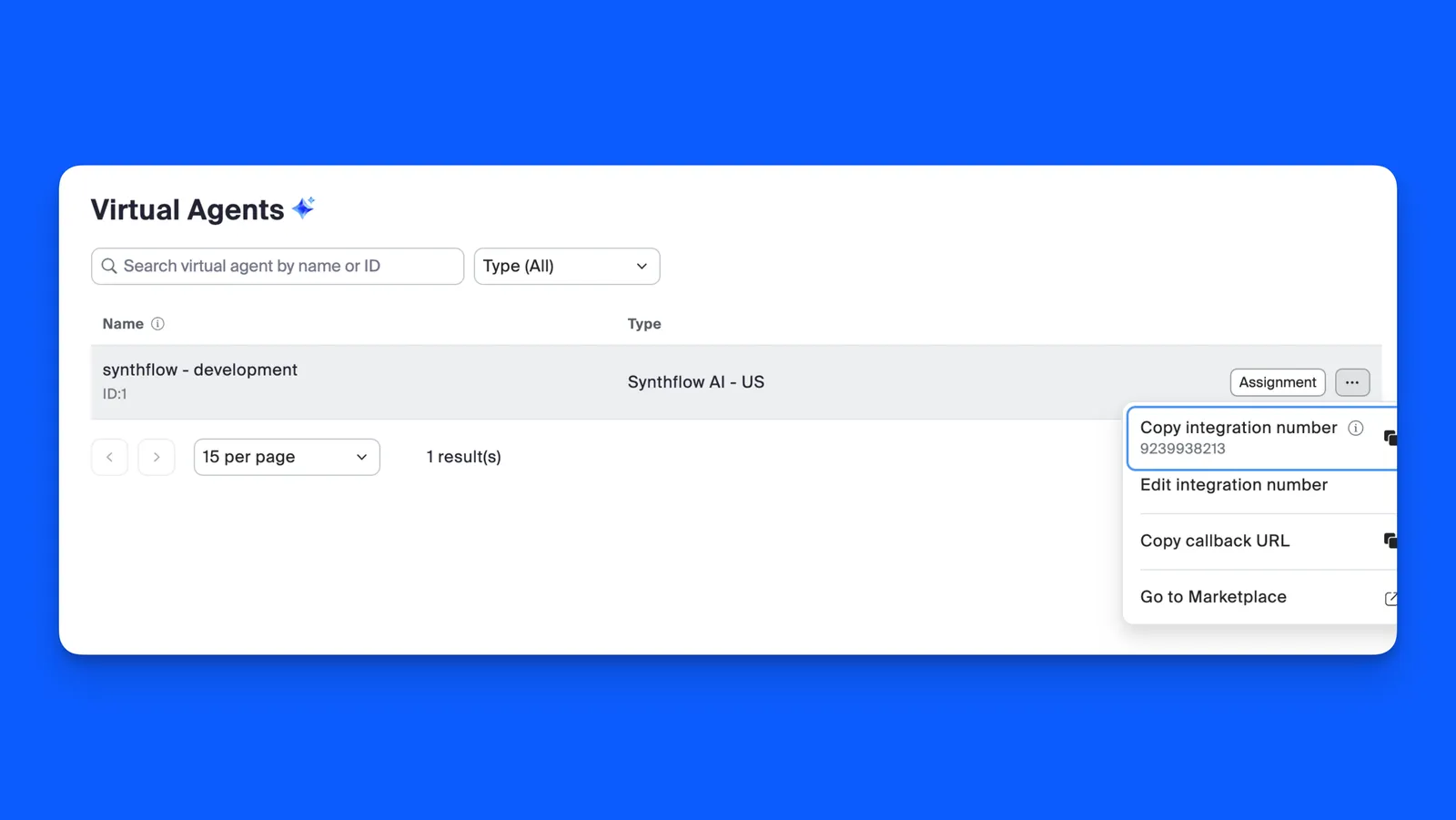
In the Zoom admin portal, go to Phone System Management → Virtual Agents. Select the three-dot menu next to your Synthflow virtual agent, then select Copy integration number.
In Synthflow, select Phone Numbers → New Phone Number → Import a Custom Number, and fill in these fields:
Zoom is IP-authenticated, so there are no SIP credentials to enter. We fill in the Zoom SIP domain automatically.
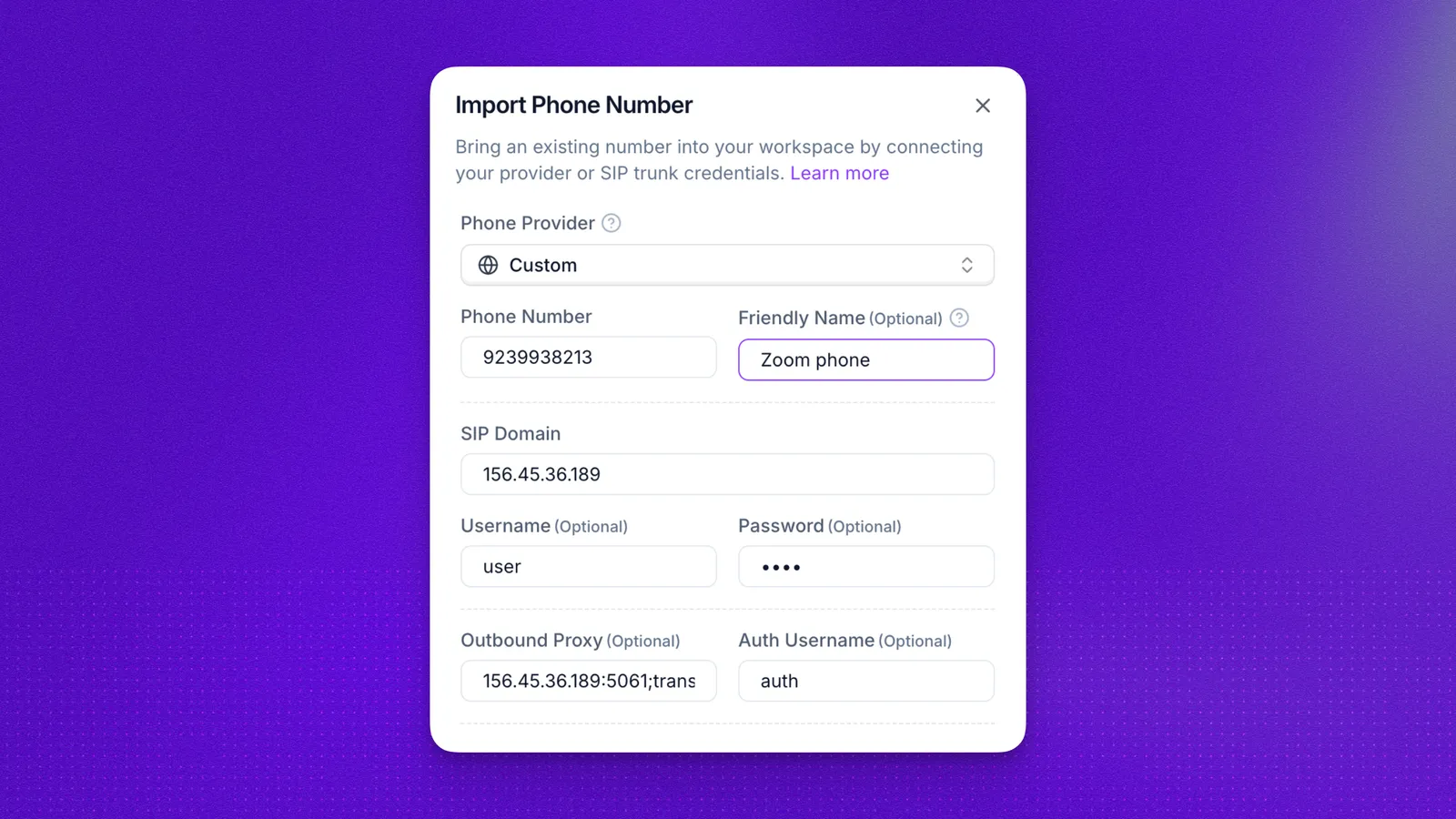
Scroll down to the Origination URI field, the inbound address Zoom sends calls to. We fill it in from your workspace region. Only the US region is supported. The region-specific SIP address is listed under IP allow lists.
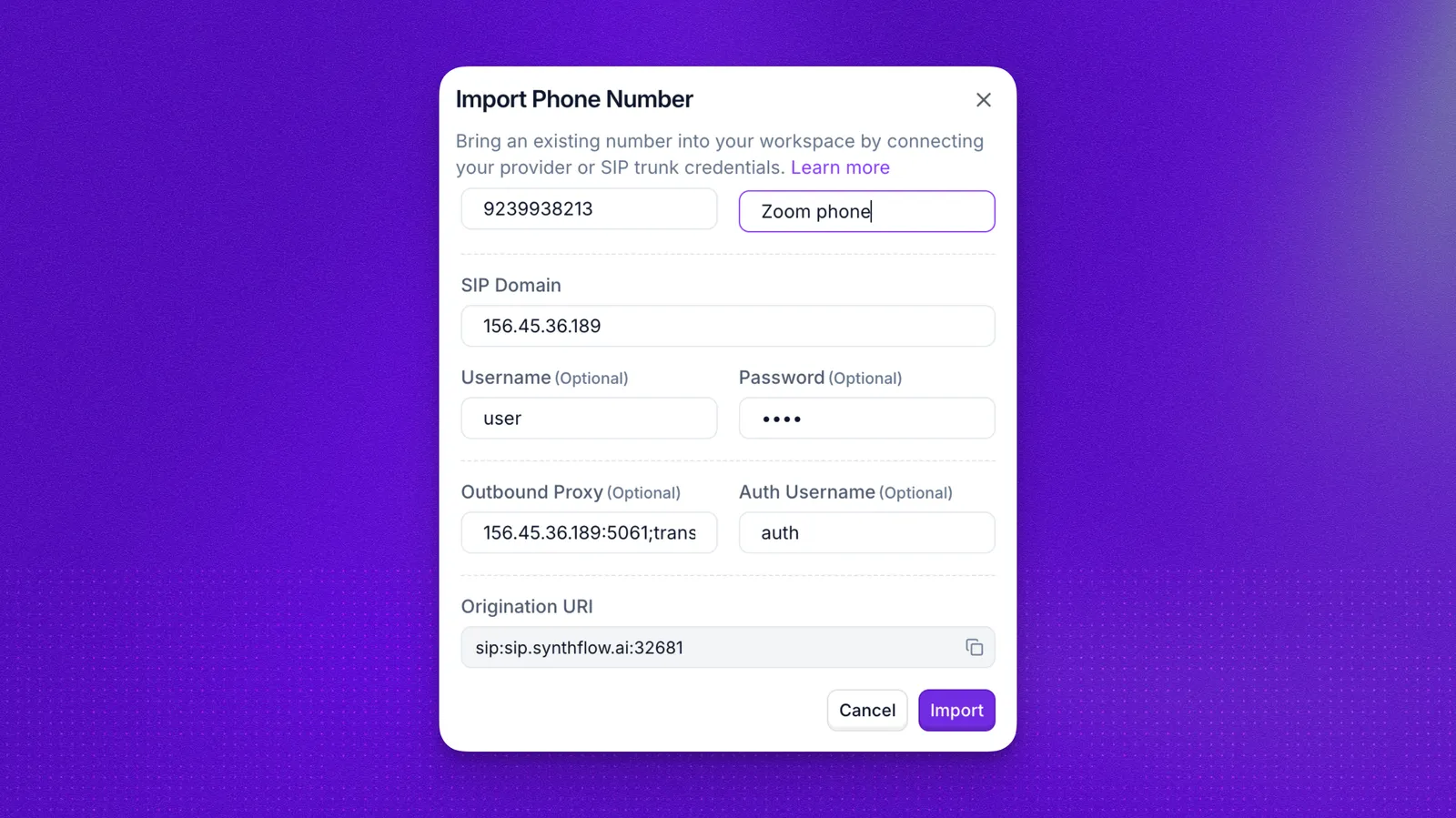
Select Import to save the number.
Agent assignment
Attach the imported number to the agent that handles Zoom calls, under Deploy in the agent editor.
One phone number can be assigned to one inbound agent at a time. To reassign the number, remove it from the current agent first. Number management is covered in Phone numbers.
Then set up routing for your product: Zoom Phone or Zoom Contact Centre.
Zoom Phone routing
Zoom Phone sends calls to Synthflow through Auto Receptionists. Complete Installation first.
In the Zoom admin portal, go to Phone System Management → Auto Receptionists. For each phone number the agent should answer:
- Open the Auto Receptionist assigned to that number.
- Edit the call routing rules.
- Set the routing destination to your Synthflow virtual agent.
- Save the changes.
Once routing is active, Zoom forwards incoming calls to those numbers to Synthflow.
Zoom Contact Centre routing
Zoom Contact Centre sends calls to Synthflow through contact centre flows. Complete Installation first.
In the Zoom admin portal, configure your Zoom Contact Centre flows to route calls to the Synthflow virtual agent. The exact steps depend on how your flows are built. In general:
- Open your contact centre flow editor.
- Add or edit a routing step that directs calls to the Synthflow virtual agent.
- Save and publish the flow.
Zoom forwards incoming calls that match the flow to Synthflow.
Call transfers
Zoom transfers reach other Zoom numbers only, through SIP URI addressing. Transfers to PSTN numbers outside Zoom are not supported. Warm transfers are supported through SIP URI.
To set up a call transfer for Zoom:
- In the Synthflow dashboard, open or create a Call Transfer action.
- Under Transfer to, select SIP URI.
- Enter the SIP URI as
sip:<number>@<X-Source>:5061.<X-Source>is a dynamic variable that resolves to the Zoom media IP at call time. - Under SIP Headers, select + Add and add a header named
X-tlswith the value1. - Save the action and attach it to your agent.
Troubleshooting
If calls do not reach your Synthflow agent after setup:
- Check that the integration number copied from Zoom matches the phone number in Synthflow exactly.
- Confirm that Zoom routes calls to the Synthflow virtual agent, through Auto Receptionists for Zoom Phone or contact centre flows for Zoom Contact Centre.
- Confirm you imported the number with the Zoom provider, so all fields are filled in automatically.
- Confirm the agent is on version 2.0 and has the imported Zoom number attached.
- If the virtual agent does not appear in Zoom after you install the app, remove and reinstall Synthflow AI, then check Phone System Management → Virtual Agents again.
Uninstallation
To disconnect Synthflow from your Zoom account:
- Open the Zoom App Marketplace and go to Manage → Added Apps.
- Find Synthflow AI and select Remove.
- Confirm the removal.
After you remove the app:
- Zoom deletes the Synthflow virtual agent entry from Phone System Management → Virtual Agents.
- Any Zoom Phone Auto Receptionist rule or Zoom Contact Centre flow that still points to the Synthflow virtual agent stops working. Route those calls elsewhere.
- The imported phone number in Synthflow becomes inactive. You can delete it from the Phone Numbers page.
- Synthflow keeps call logs and recordings made before removal under its data retention policy. To request deletion of your data, contact support@synthflow.ai.
FAQ
Which integration should I use?
Use Zoom Phone if you run business phone lines and route calls through Auto Receptionists. Use Zoom Contact Centre if you operate contact centre flows and want the agent to handle calls inside those flows.