

Freshworks

The Synthflow Voice AI Agents app is available on the Freshworks Marketplace. It lets you deploy AI voice agents inside Freshcaller, so inbound calls are answered by your Synthflow agent and handed to a live agent when the conversation needs one.
Supported Freshworks products: Freshsales Suite, Freshcaller
Freshworks or Freshcaller?
Freshworks is the parent suite. Freshcaller is the telephony product inside it, and it is the piece that carries the phone numbers, IVR, and call routing. If you are looking for the Freshcaller telephony setup, you are on the right page: Freshcaller is a Tier 1 native integration and its call connection is configured through this app rather than through a separate SIP trunk.
- Freshcaller handles inbound calls, phone numbers, and IVR routing. Calls reach your Synthflow agent over a SIP URI.
- Freshsales Suite handles CRM records. Contacts are read and updated through the default custom actions.
Prerequisites
- A Freshworks account with Freshcaller enabled
- Admin access to your Freshworks instance
You must create your Synthflow account through the Freshworks Marketplace installation process. Existing Synthflow accounts cannot be migrated to a Freshworks-type Synthflow account. Your account must be associated with the Freshworks ecosystem from the start.
Step 1: Install the Synthflow app
- Open the Freshworks Marketplace.
- Search for Synthflow Voice AI Agents.
- Click Install and follow the prompts to add the app to your Freshworks account.
Step 2: Configure the app
After installation, connect the app to your Freshworks instance.
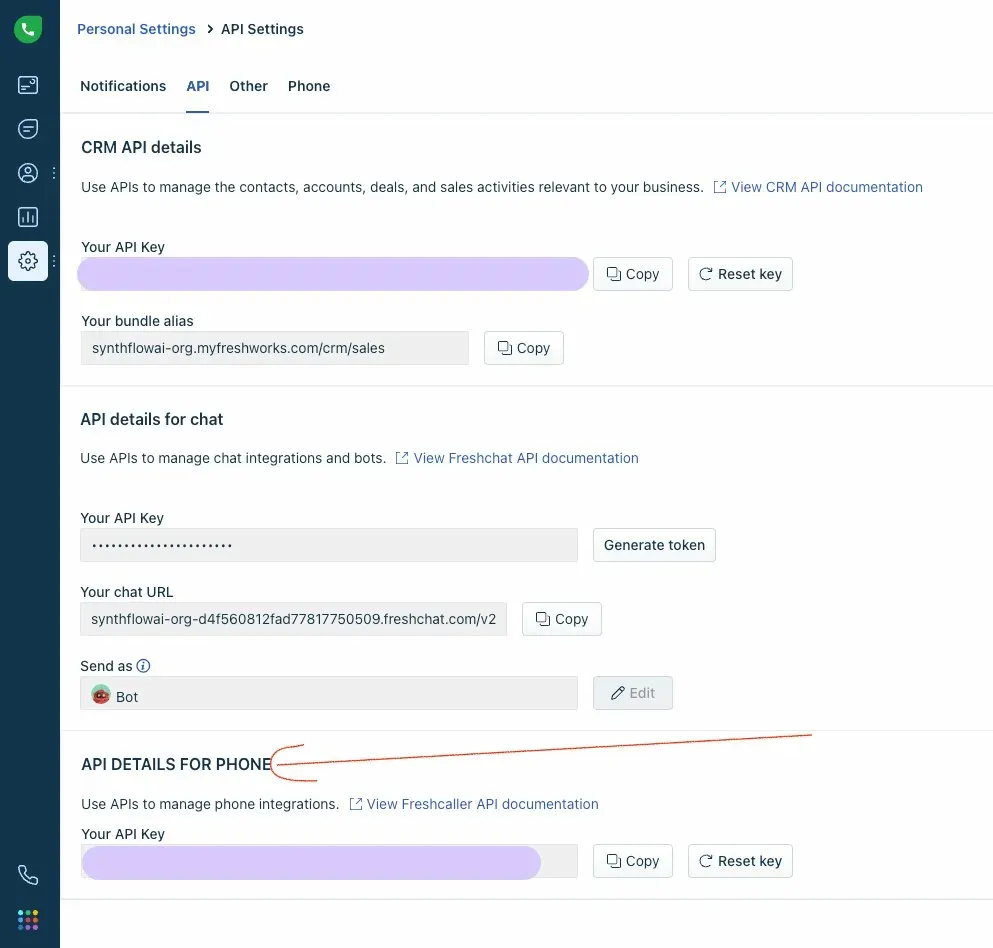
Get your Freshcaller API key
-
In Freshworks, go to Admin Settings.
-
Type
APIin the search bar and click API Settings. -
Scroll down to the API Details for Phone section.
-
Copy the API Key.
Enter your settings
- Open the Synthflow app configuration in Freshworks.
- Click Configure Settings.
- Paste your Freshcaller API Key from the previous step.
- Enter your Freshworks domain, for example
yourcompany.freshworks.com. - Click Save.
Open the Synthflow portal
After saving your configuration, click Open Synthflow Portal. This opens a dedicated Synthflow portal linked to your Freshworks account.
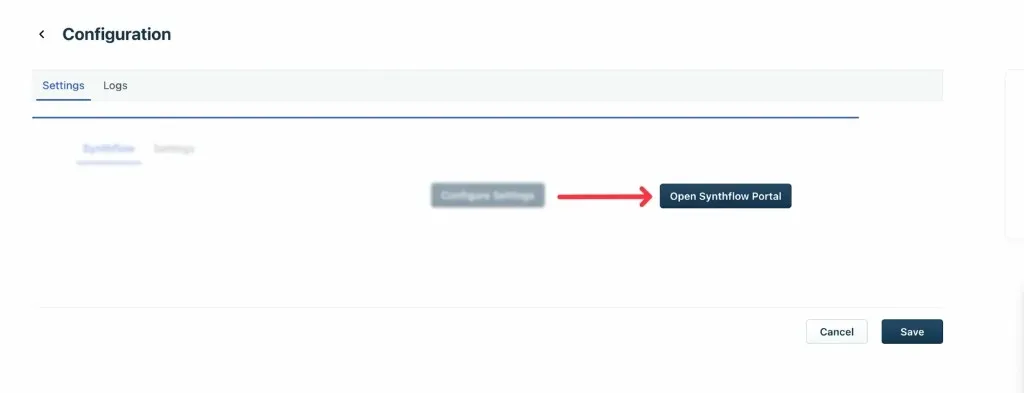
Always access Synthflow through this portal link, not through the synthflow.ai website. Using the portal keeps your account connected to the Freshworks ecosystem.
Step 3: Create your agents
The first time you open the Synthflow portal, complete the account setup steps shown for your Freshworks-connected workspace. See Billing for the plans available to Freshworks accounts.
In the portal, use My Agents to create and manage the agents that appear in Freshcaller, for example in the Voice AI Agent Handover workflow.

Default custom actions
All Freshworks-connected accounts come with pre-configured custom actions. These actions already include your Freshworks domain URL and an authentication token for the API endpoints.
Each action is pre-configured with your domain URL and authentication token. You can find and edit these values in the action settings.
Connect Synthflow to Freshcaller IVR
Synthflow integrates natively with Freshcaller’s call routing through SIP.
How SIP URIs work
Every new agent you create in Synthflow is assigned a SIP URI. You do not need to import any phone numbers into Synthflow, and you do not build a SIP trunk the way you would when you connect another phone system. The connection is handled entirely through SIP, using the URI the Freshcaller call workflow points at.
Set up Voice AI Agent Handover
-
In Freshworks, go to Admin Settings.
-
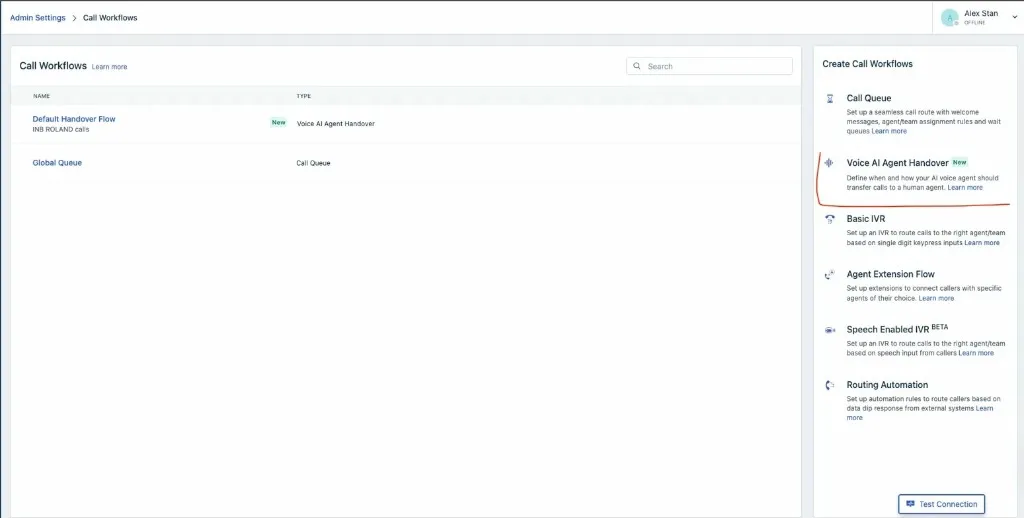
Navigate to Configuration and Workflows, then Call Workflows.
-
In the Create Call Workflows panel on the right, select Voice AI Agent Handover.
-
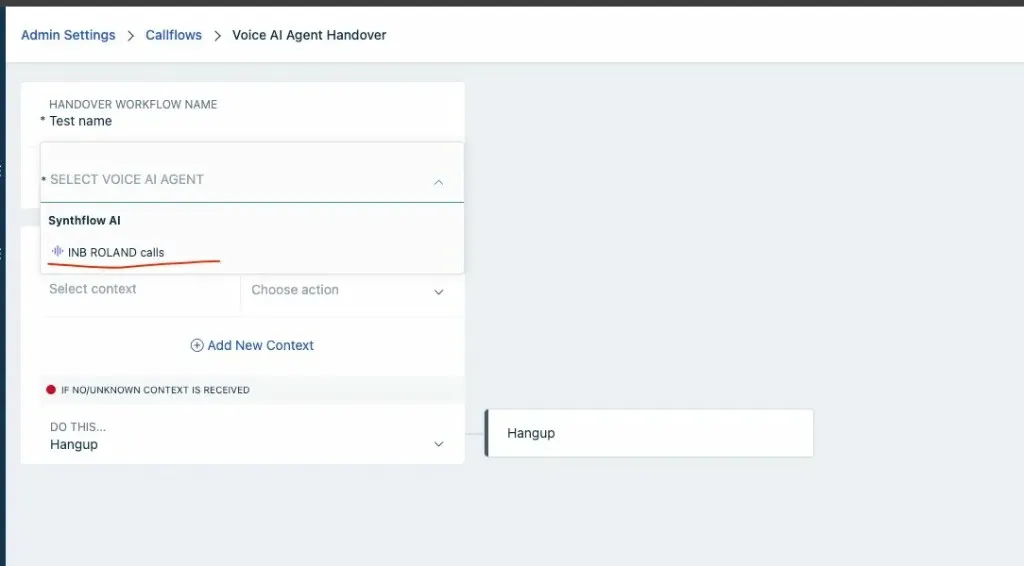
Give your handover workflow a name.
-
In the Select Voice AI Agent dropdown, choose the Synthflow agent you want to handle calls, for example your inbound agent.
-
Optionally, configure context rules and fallback behavior:
- Add New Context: Define conditions for when the AI agent should handle the call.
- If No/Unknown Context Is Received: Set a fallback action, such as Hangup or a transfer to a queue.
-
Click Save.
Once configured, inbound calls routed through this workflow are answered by your Synthflow voice AI agent. If the agent needs to transfer the call to a human, it uses the transfer_call action to hand over within the Freshcaller IVR.
Billing
Freshworks-connected workspaces can subscribe to the Pro plan, which starts with a 14-day free trial. For more capacity, custom telephony, or a security review, contact sales to scope an Enterprise agreement instead.
Minutes beyond the 2,000 included each month are billed at $0.13 USD per minute on top of the monthly fee. See Usage and Billing for how Synthflow measures call minutes, and concurrency limits for how the 25 simultaneous calls are shared across your agents.
Manage the subscription in the Synthflow portal under Settings → Workspace Settings → Plan & Billing, where you can also review invoices and update your billing details.
Troubleshooting
FAQ
Can I use my existing Synthflow account with Freshworks?
No. You must create a new account through the Freshworks Marketplace. Existing accounts cannot be migrated to the Freshworks ecosystem.
Do I need to buy phone numbers in Synthflow?
No. Synthflow agents are connected to Freshcaller via SIP URI, so all phone number management stays within Freshworks.
How do I access my Synthflow portal after setup?
Go to the Synthflow app in Freshworks, click Configure Settings, then click Open Synthflow Portal. Always use this link to access your portal.
What happens when the 14-day free trial ends?
The Pro plan continues at $400 USD per month. Review or change the subscription under Settings → Workspace Settings → Plan & Billing before the trial ends.
What happens if I use more than 2,000 minutes in a month?
Additional minutes are billed at $0.13 USD per minute on top of the monthly fee. See Usage and Billing for how minutes are measured.
Can I run more than 25 concurrent calls?
Not on the Pro plan. Contact sales to scope an Enterprise agreement with capacity matched to your call volume.