

3CX
3CX connects to Synthflow over a SIP trunk. This setup covers two call directions: from 3CX to a Synthflow agent, and from a Synthflow agent to the PSTN.
3CX only lets you add trunks from the approved providers listed under SIP Trunk in its settings. Synthflow is not a telephony provider, so it is not on that list. Instead, you create a trunk from a listed provider’s template, in this guide Twilio, and point it at Synthflow.
Prerequisites
- An Enterprise plan.
- An external number and a SIP trunk with your telephony provider.
- Access to the 3CX Admin Console.
- A Twilio account. This guide uses Twilio as the trunk template and as the provider for outbound calls.
SIP trunk to Synthflow
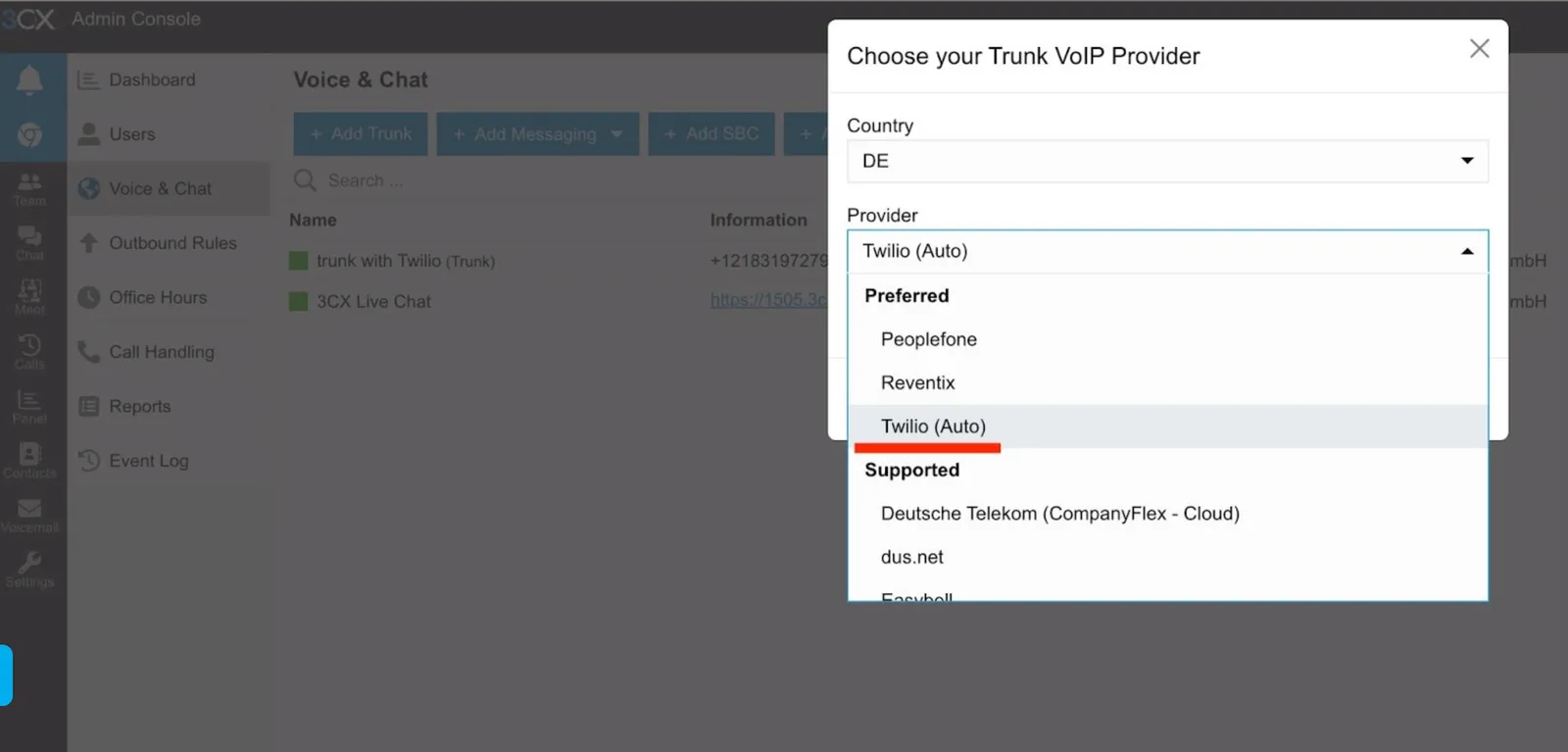
- In the 3CX Admin Console, open Add Trunk and choose Twilio (Auto) as the provider.
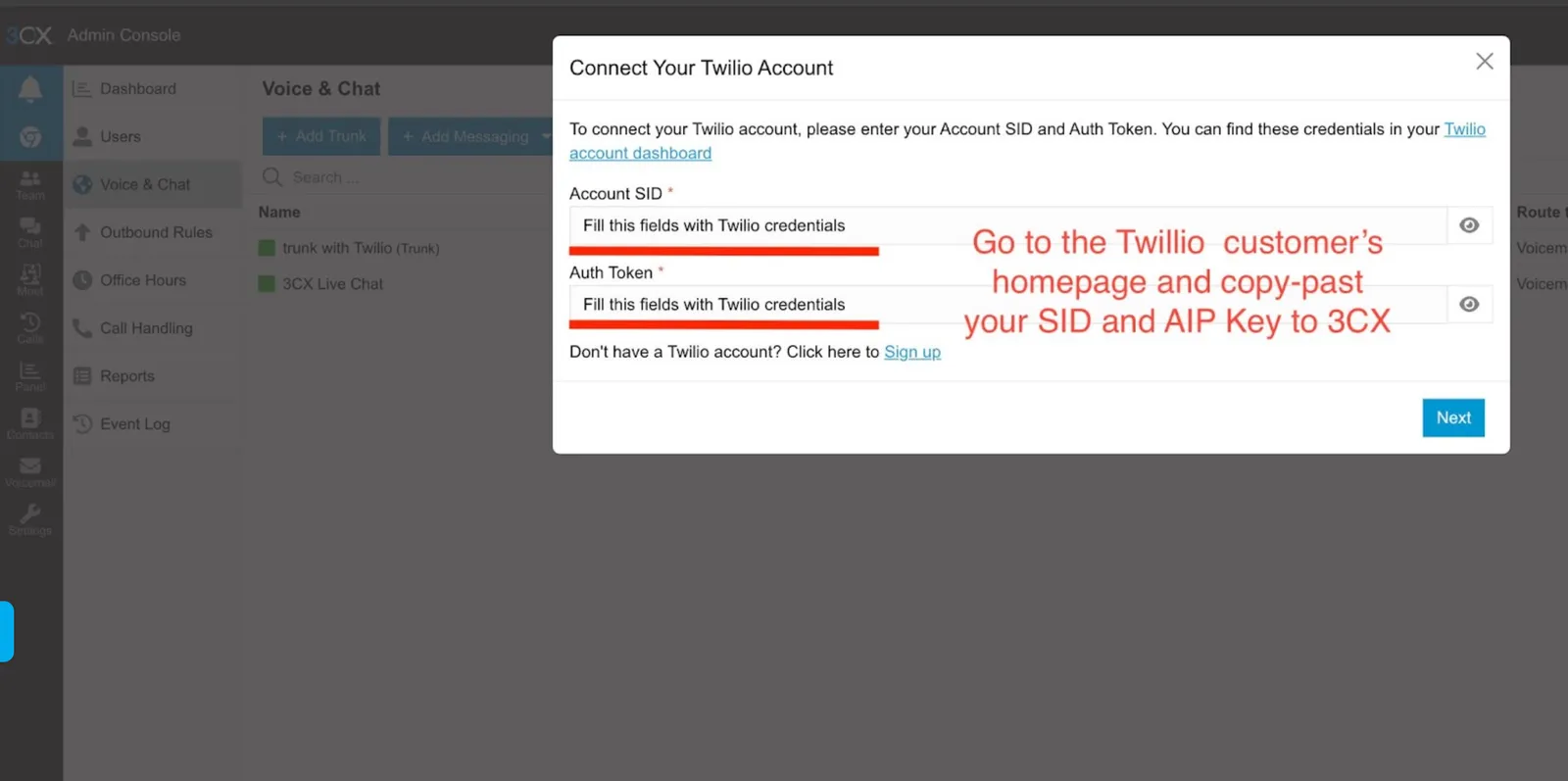
- Connect your Twilio account.
- Open Edit trunk and replace Twilio’s URI with Synthflow’s.
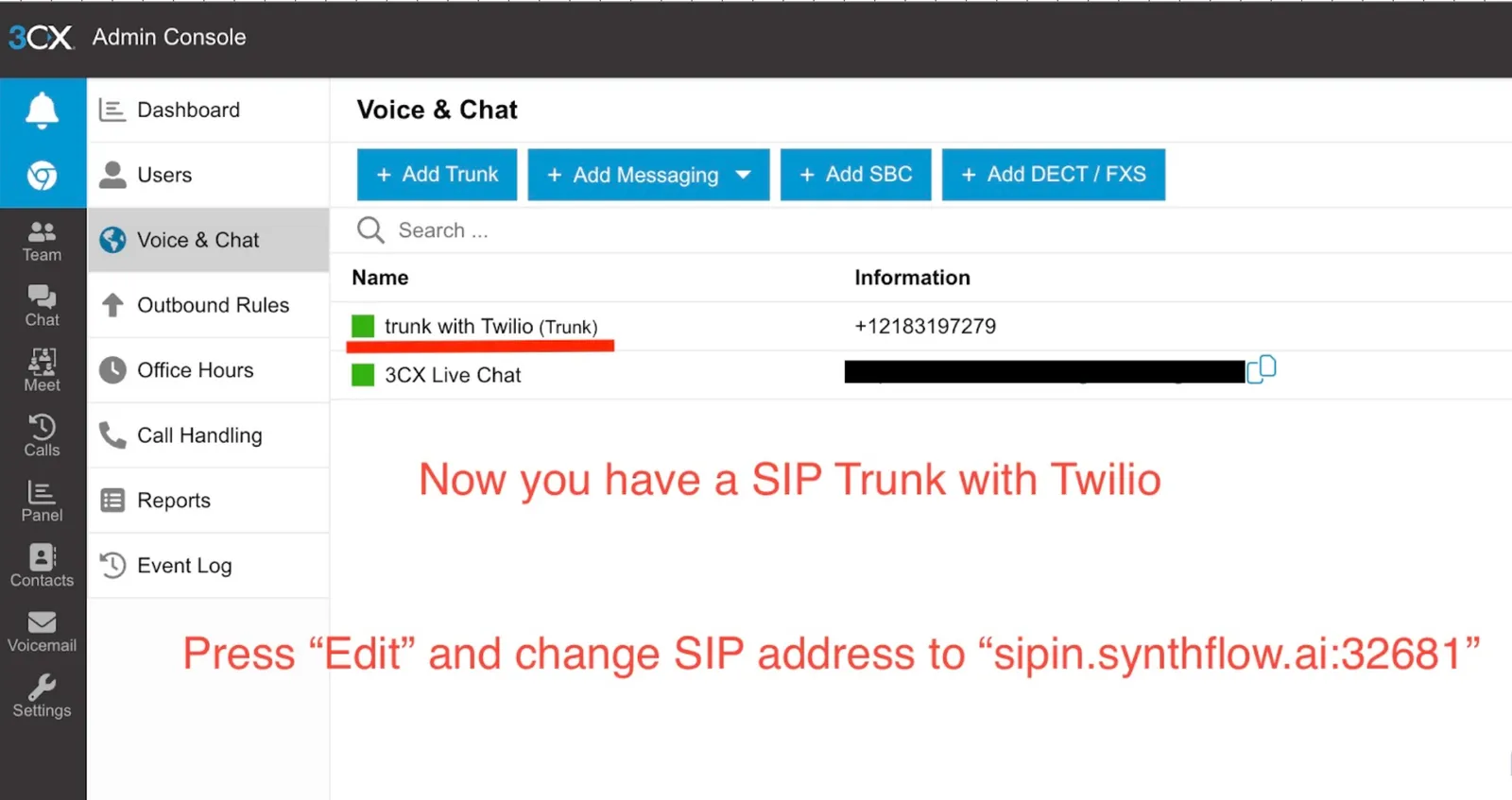
- Set Server to
sip.synthflow.aiand Port to32681. If your workspace is in the US or EU region, use your region’s SIP address instead. - Save the changes.
3CX can now send calls to Synthflow through this trunk.
Outbound rule
To reach a Synthflow agent through the new trunk, 3CX dials a real E.164 PSTN number that is attached to that agent. Buy the number from your SIP provider and assign it to an outbound rule in 3CX. You attach the same number to the agent in Synthflow later.
Create a new outbound rule. This example routes calls to extension 5555 as an external number through the Twilio trunk. Prepend the rule with the real E.164 number that you attach to the agent.
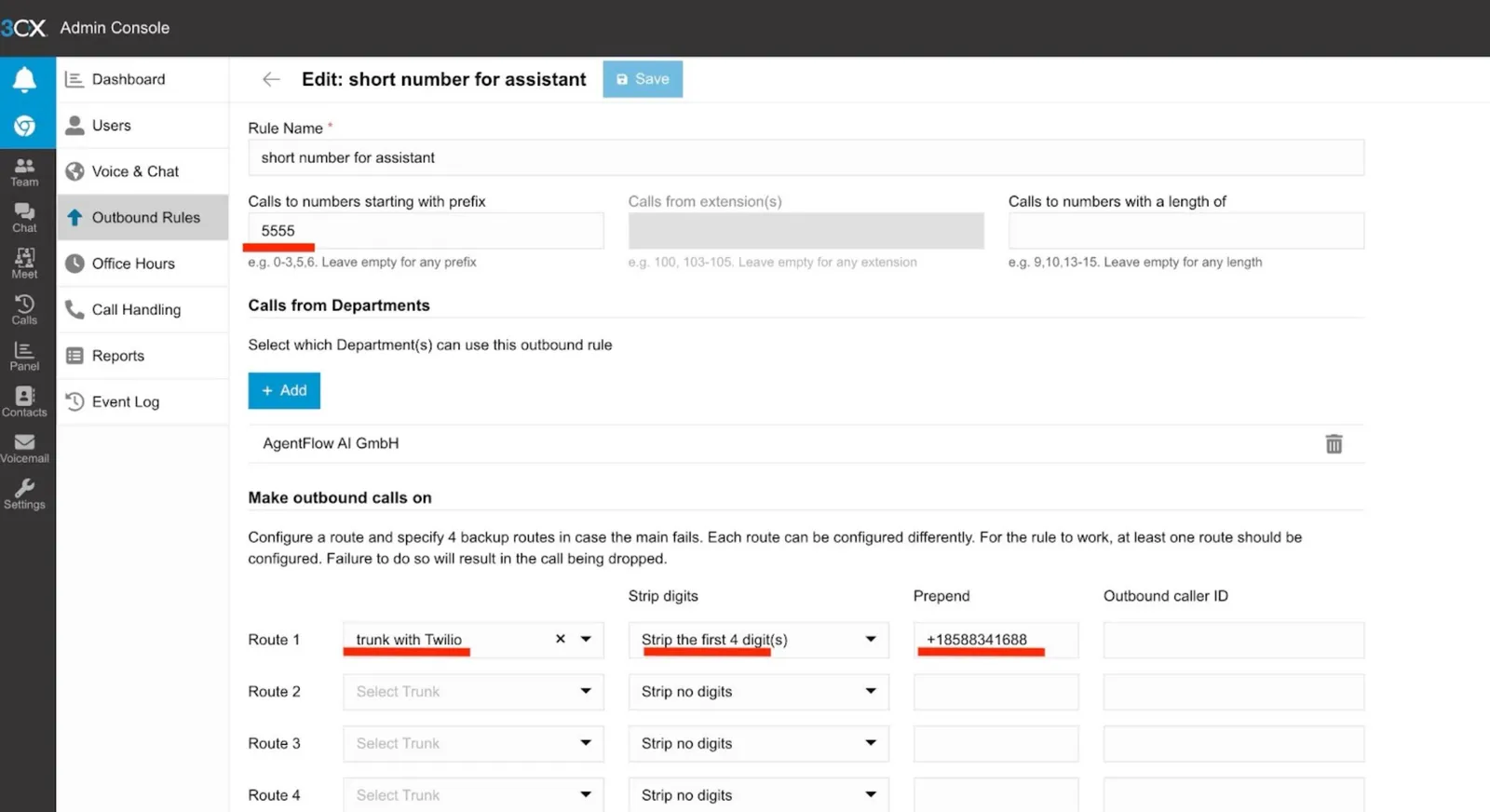
With this rule, calls from an IP phone on 3CX to extension 5555 go to sip.synthflow.ai:32681 and dial the number +14155550123. The call only reaches an agent once that number is attached to it in Synthflow.
Outbound calls from Synthflow
Calls from Synthflow to the PSTN need a termination point and SIP credentials. We recommend using your SIP provider as the terminator. This guide uses Twilio, the same provider the 3CX trunk was created from.
You can also terminate calls on your 3CX PBX’s IP address, but that setup is more complex. If your 3CX setup requires routing outbound calls through the PBX, contact Synthflow support.
3CX PBX IP address
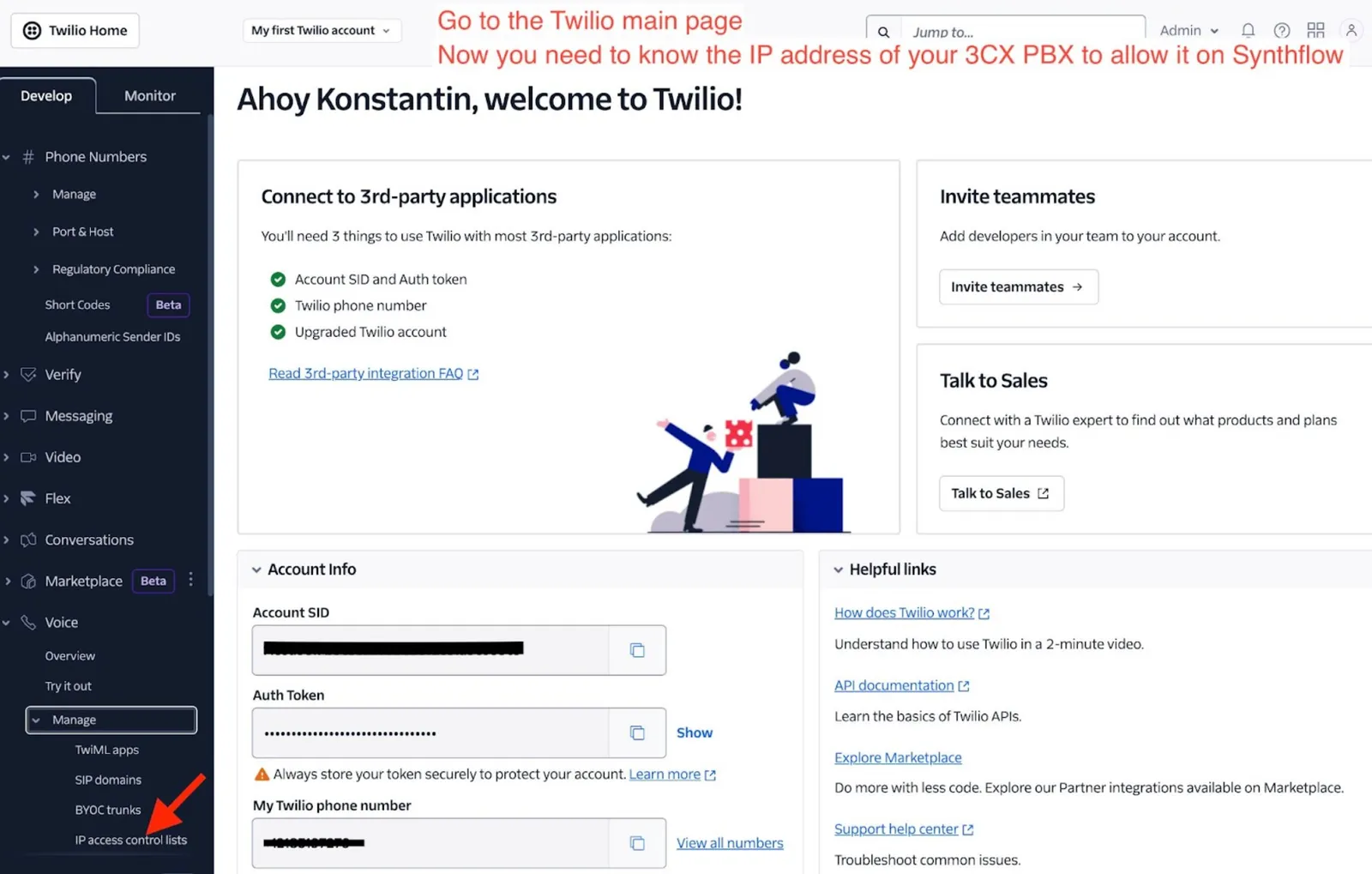
In Twilio, find the IP access control lists.
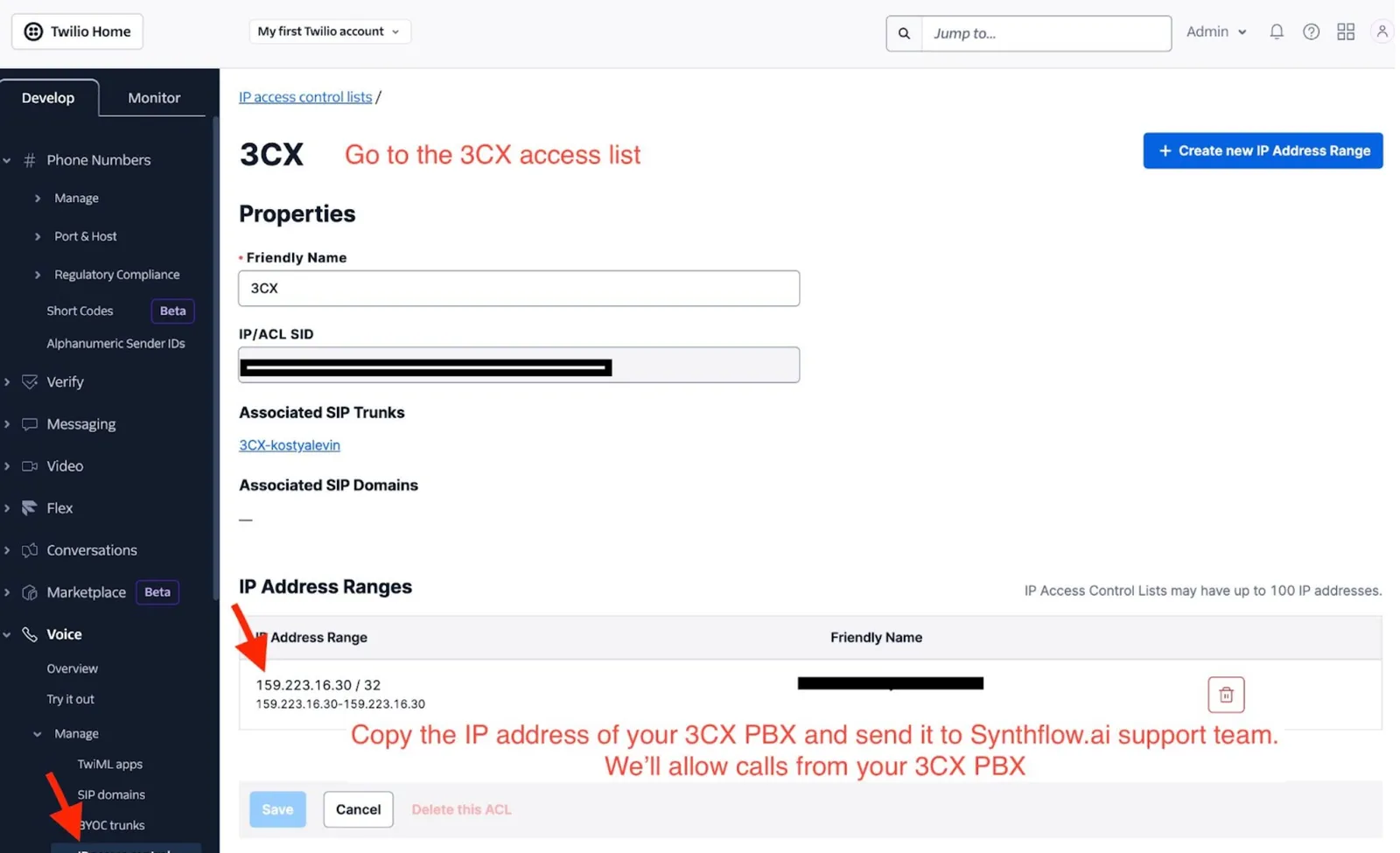
Open the 3CX access list, which 3CX created automatically when you connected your Twilio account. Note your 3CX PBX IP address.
Twilio termination credentials
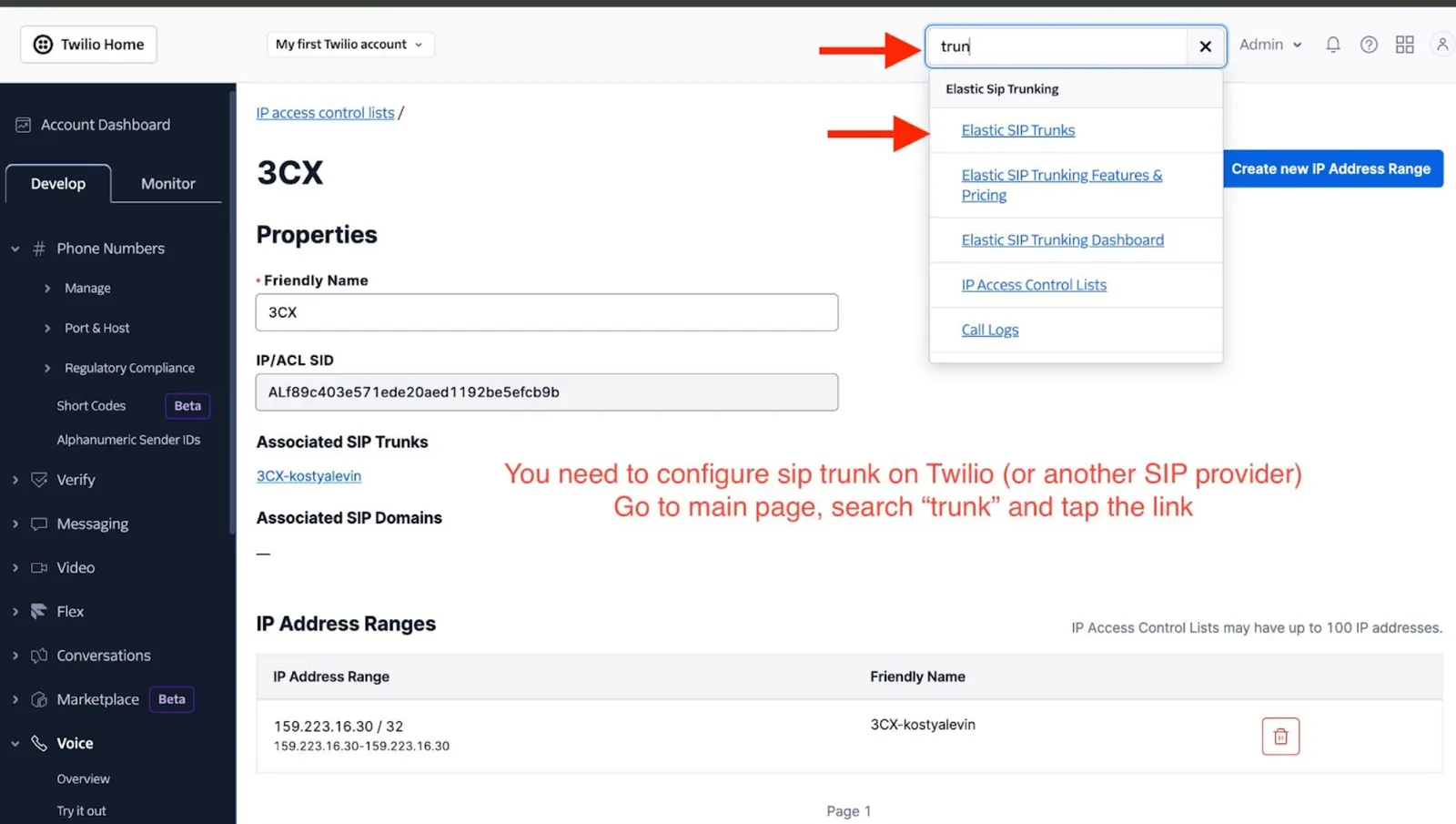
- In Twilio, open the Elastic SIP Trunk section.
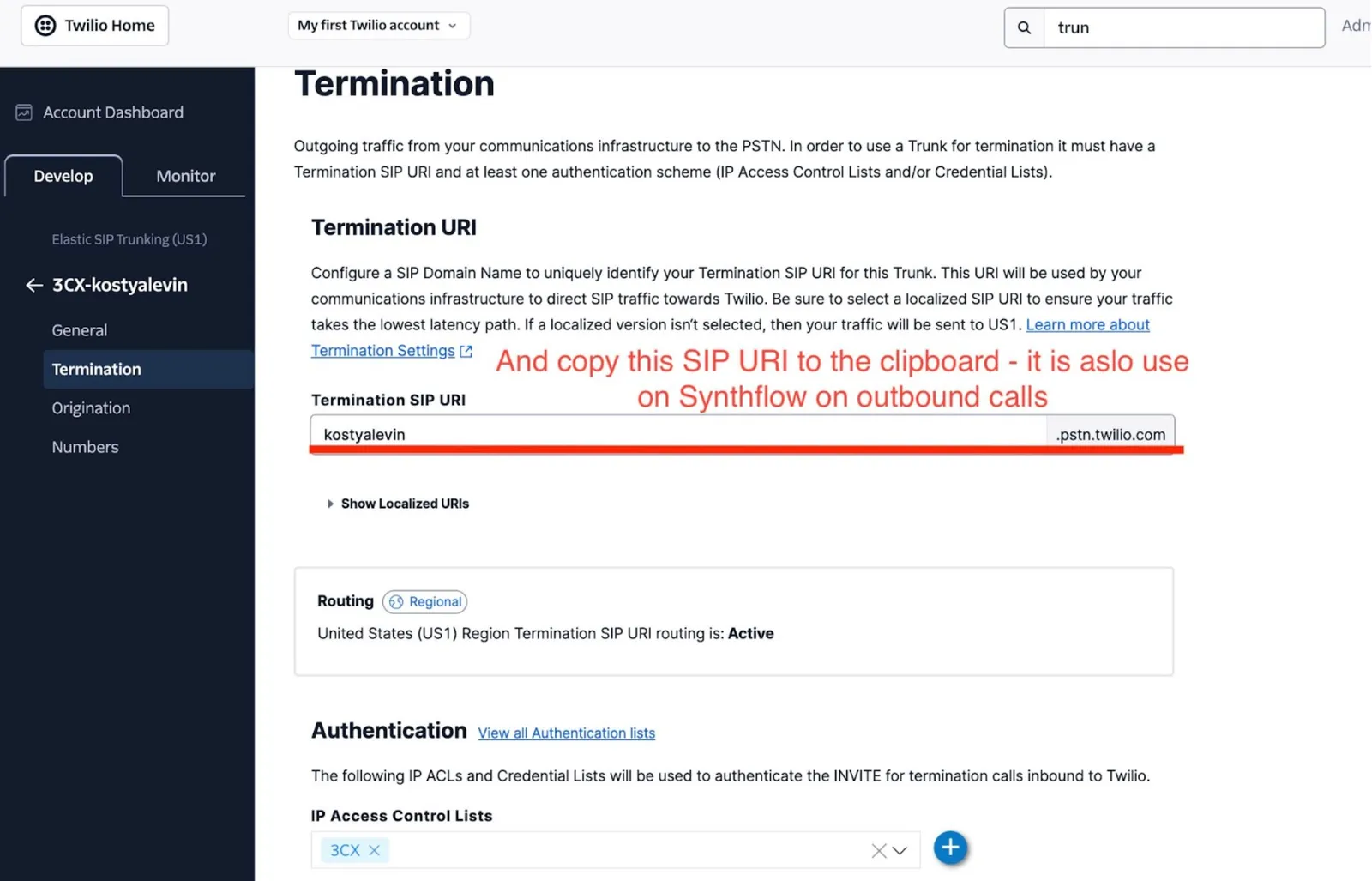
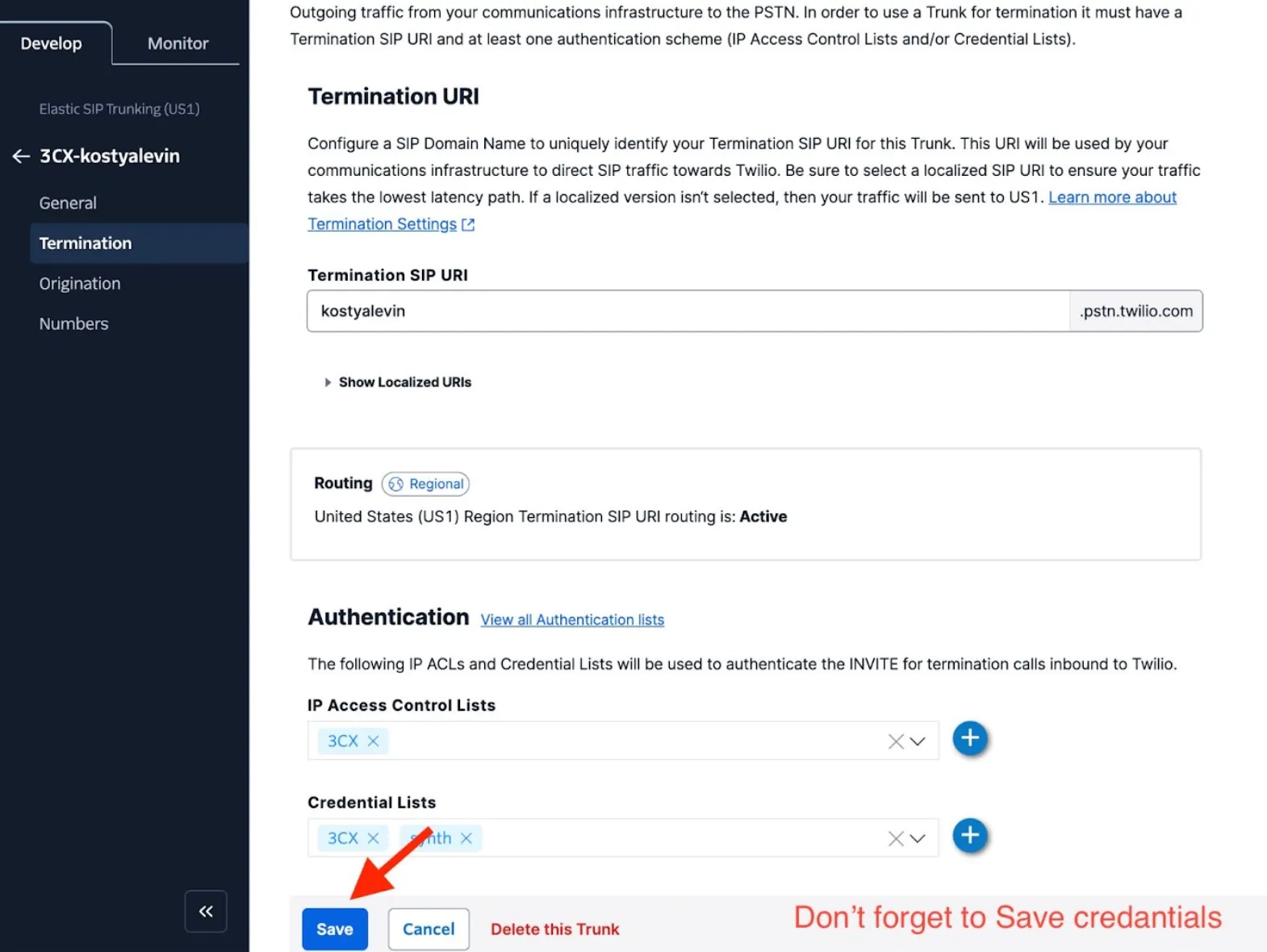
- Open the trunk and go to Termination. Under Authentication, add a new Credential List with a new SIP username and SIP password.
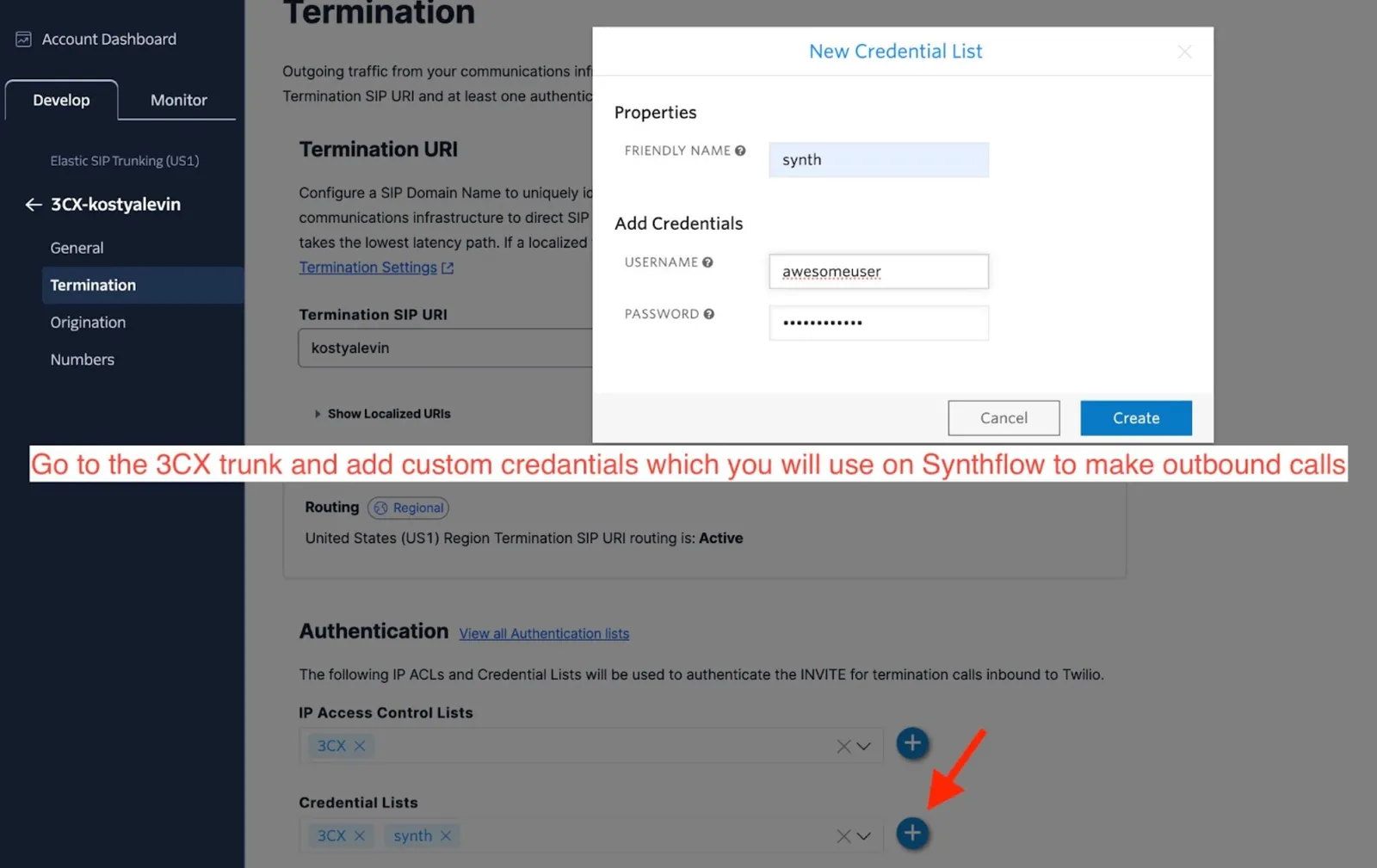
- Note the Termination URI. This is the SIP address Synthflow sends outbound calls to.
- Save the credentials.
Synthflow number and agent
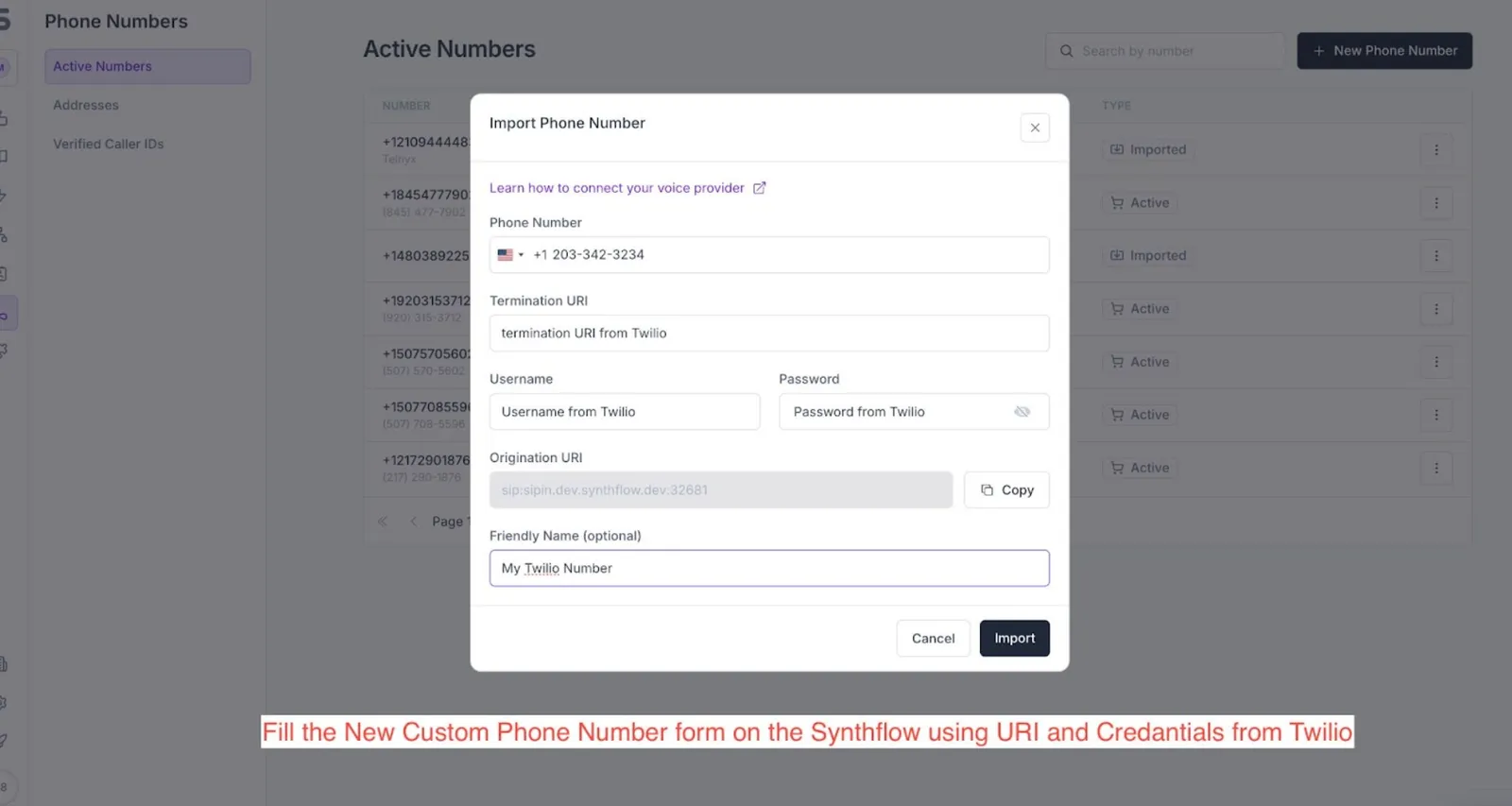
- In Synthflow, select Phone Numbers → New Phone Number → Import a Custom Number. Enter the number from your outbound rule, the Twilio Termination URI as the SIP Domain, and the credential list’s username and password. Add a custom number explains each field.
- Send your 3CX PBX IP address to Synthflow support.
- Create an inbound agent and an outbound agent, and attach the number to them.