

RingCX
RingCX routes voice queue calls to a Synthflow agent through an Intelligent Virtual Agent (IVA) integration over SIP. Calls that reach the IVA node in a RingCX workflow go to the agent, which answers, follows its prompt, and runs its actions, such as booking or data collection.
You import the RingCX workflow channel number into Synthflow, create an IVA integration in RingCX, and add the IVA to a workflow in Workflow Studio. A JavaScript node passes caller context to the agent, and the RingCX Handoff action returns the call to the workflow when the agent is done.
Prerequisites
- A RingCX account with admin access.
- A Synthflow account on the Enterprise plan with a deployed agent.
- A RingCX workflow channel number to use as the SIP URI.
Number import
Import the workflow channel number into Synthflow before you configure RingCX.
- In Synthflow, select Phone Numbers → New Phone Number → Import a Custom Number.
- Fill in the fields below.
- Select Import.
Synthflow sets the SIP domain to sip.ringcentral.com. After the import, the Origination URI field shows the address RingCX sends calls to, for example sip:sip.synthflow.ai:32681 on a Global workspace.
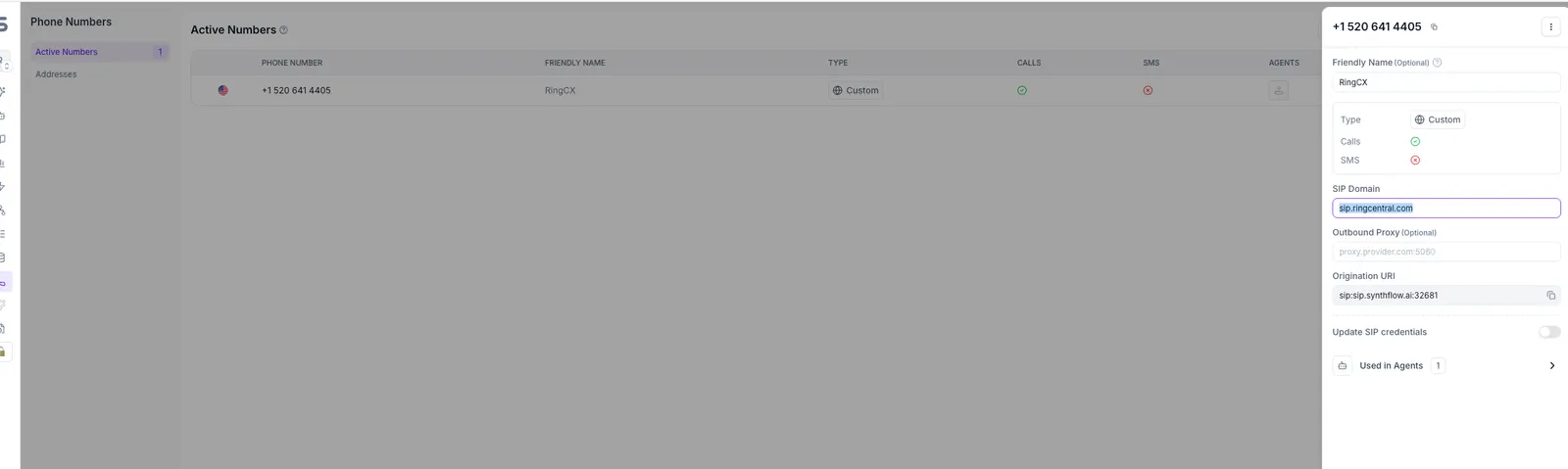
Then assign the number to the agent that should receive calls, under Deploy in the agent editor.
One phone number can be assigned to one inbound agent at a time. To reassign the number, remove it from the current agent first. For more on number management, see Phone numbers.
IVA integration
- Sign in to RingCX and select the Admin tile.
- In the left navigation bar, select AI Tools → IVA Integrations.
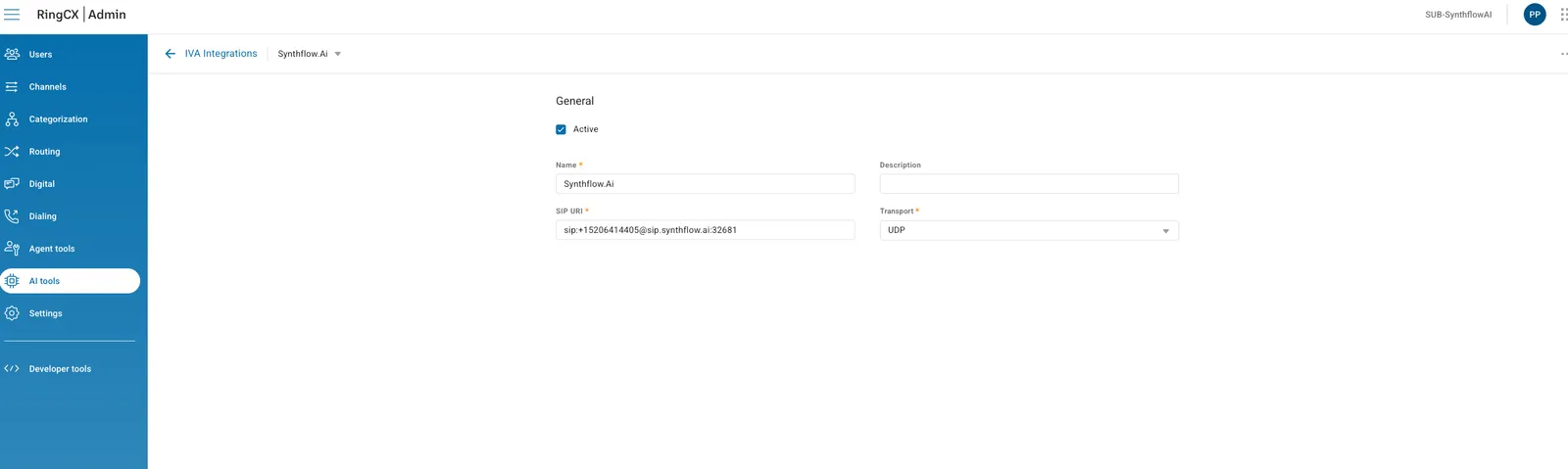
- Select New Integration and fill in the fields below.
- Select the Active checkbox to make the integration available in your workflows.
- Select Save.
Replace <workflow_number> with the channel number you imported into Synthflow, in E.164 format, for example +15206414405. For US or EU workspaces, replace sip.synthflow.ai with your region’s SIP address, the same host shown in the number’s Origination URI.
The SIP URI must include the phone number in the user part. Without it (for example sip:sip.synthflow.ai:32681), RingCX sends an IP-only Request-URI, and Synthflow rejects the call because it cannot tell which agent should handle it.
Workflow
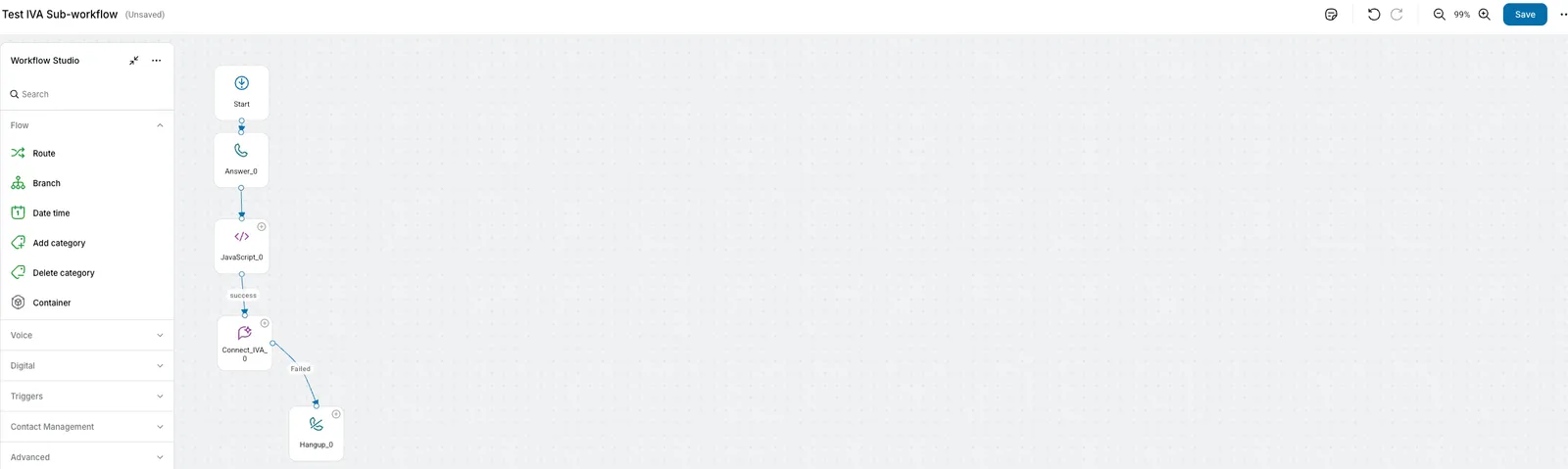
The workflow hands calls to Synthflow through an IVA node, with a JavaScript node before it to pass caller context.
- Sign in to RingCX and select the Admin tile.
- In the left navigation bar, select Categorization → Workflows.
- Expand the workflow group that contains your target workflow, then select the workflow.
- Select Workflow Studio in the left navigation panel.
- Drag a JavaScript node from the left panel onto the canvas, and add the script from JavaScript node.
- Drag the IVA node from the left panel onto the canvas after the JavaScript node.
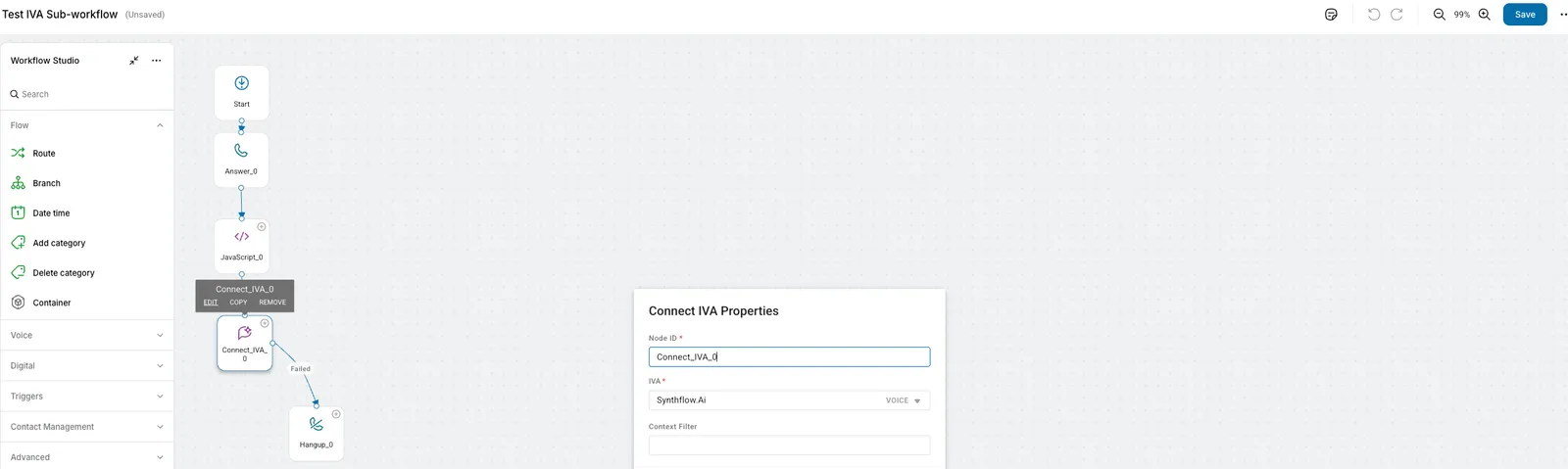
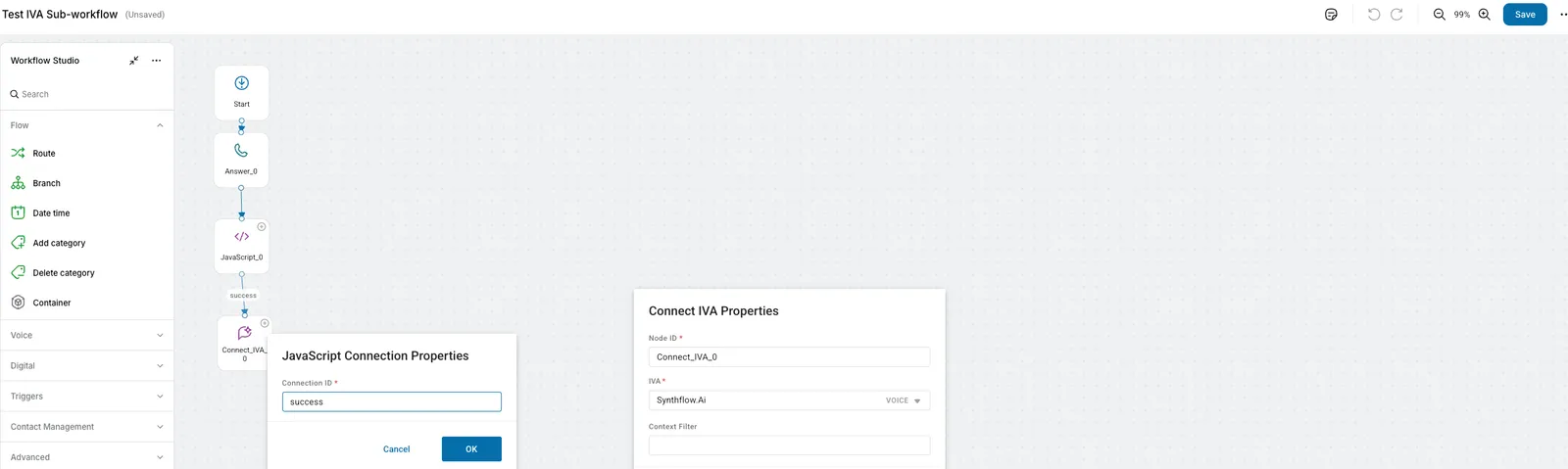
- Hover over the IVA node and select Edit.
- Select the Synthflow integration you created.
- Optionally, enter a Context Filter, such as
visibleData, to limit the session data sent to Synthflow. See Context Filter. - Select OK.
- Connect the JavaScript node to the IVA node. When prompted for a Connection ID, enter
success.
IVA connections
When the IVA session ends, the call returns to the workflow and follows one of the IVA node’s connections:
- Success: The IVA session completed and returned a result. The customer is still connected, and the workflow continues.
- Failed: The IVA session did not complete. The customer is still connected, and the workflow continues on the error handling path, for example to a queue, another IVA, or a hangup node.
- Disconnected: The customer hung up before or during the IVA session. The workflow does not continue.
Session data
RingCX and Synthflow exchange data through the workflow’s sessionData object. RingCX sends it to Synthflow in the X-Bot-Context SIP header, and Synthflow returns data to it when the IVA session ends.
JavaScript node
A JavaScript node before the IVA node is required to pass the caller’s ANI (phone number), DNIS, and other metadata to Synthflow. Without it, the X-Bot-Context header arrives empty, and the agent receives no caller information.
Hover over the JavaScript node, select Edit, and add this script. It builds sessionData with the caller’s ANI, DNIS, and call ID:
You can add other keys to visibleData besides ani, dnis, and callID. Synthflow exposes each one as a flattened variable, for example {X-Bot-Context.accountId}.
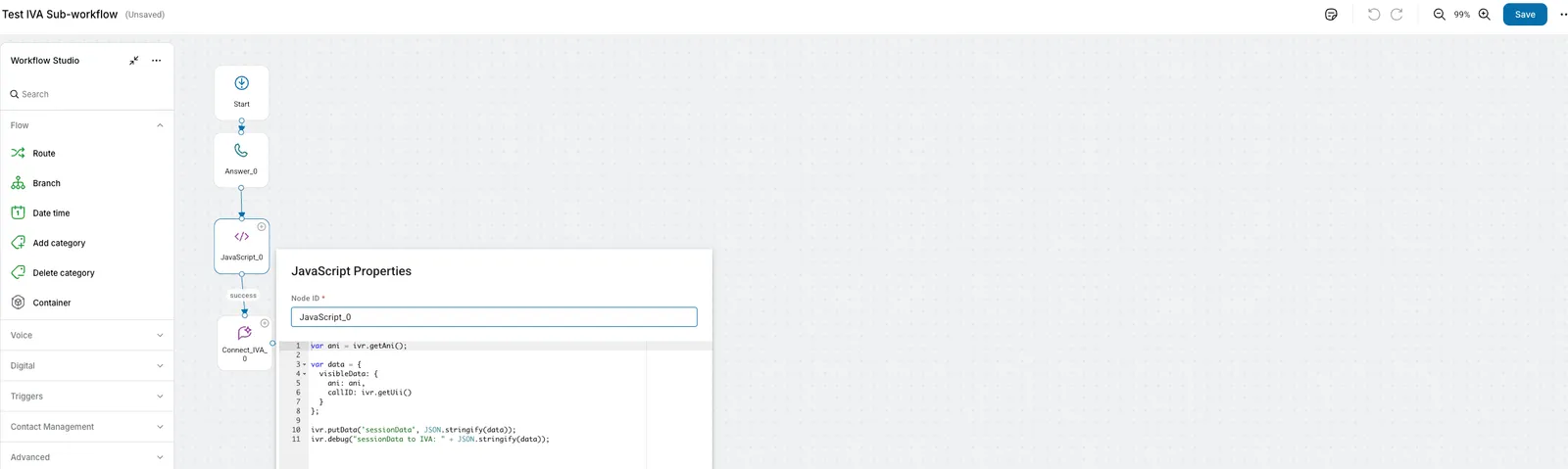
Do not declare sessionData with var. var sessionData creates a local variable that shadows the workflow-level global, so the data never reaches the IVA node.
Context Filter
The Context Filter in the IVA node properties sends only part of sessionData to Synthflow. Enter a property name, such as visibleData. The workflow searches sessionData for a property with that name and sends only that nested object.
The Context Filter is optional. If it is empty, RingCX sends the full sessionData. If the name does not match any property in sessionData, RingCX also falls back to sending the full sessionData.
Context variables
RingCX sends the filtered sessionData as a JSON-encoded string in the X-Bot-Context header. Synthflow flattens that JSON into header variables with dot notation. You can reference nested fields directly in prompts, greeting messages, custom actions (URLs and bodies), and call transfers.
With the JavaScript example above and a Context Filter of visibleData, the flattened variables are:
Example prompt:
Example before-the-call action body:
Without a Context Filter, Synthflow receives the full sessionData object, and the nested keys include the visibleData prefix, for example {X-Bot-Context.visibleData.ani} and {X-Bot-Context.visibleData.dnis}.
Custom fields follow the same {X-Bot-Context.field} pattern. Array values use 0-based bracket notation, for example {X-Bot-Context.items[0].id}.
IVA response data
After the IVA session ends and the call returns to the workflow, any data Synthflow returns is in the sessionData property. Read it with a JavaScript node after the IVA node. To send data back, add payload fields to the RingCX Handoff action.
RingCX Handoff action
The RingCX Handoff action ends the Synthflow IVA session and returns the call to the RingCX workflow. When the action fires, Synthflow sends RingCX a payload with the variables you define, and the workflow continues from the IVA node’s Success connection.
- In Synthflow, open the agent assigned to your RingCX number.
- Go to the Actions tab and select Add Action.
- Select RingCX Handoff.
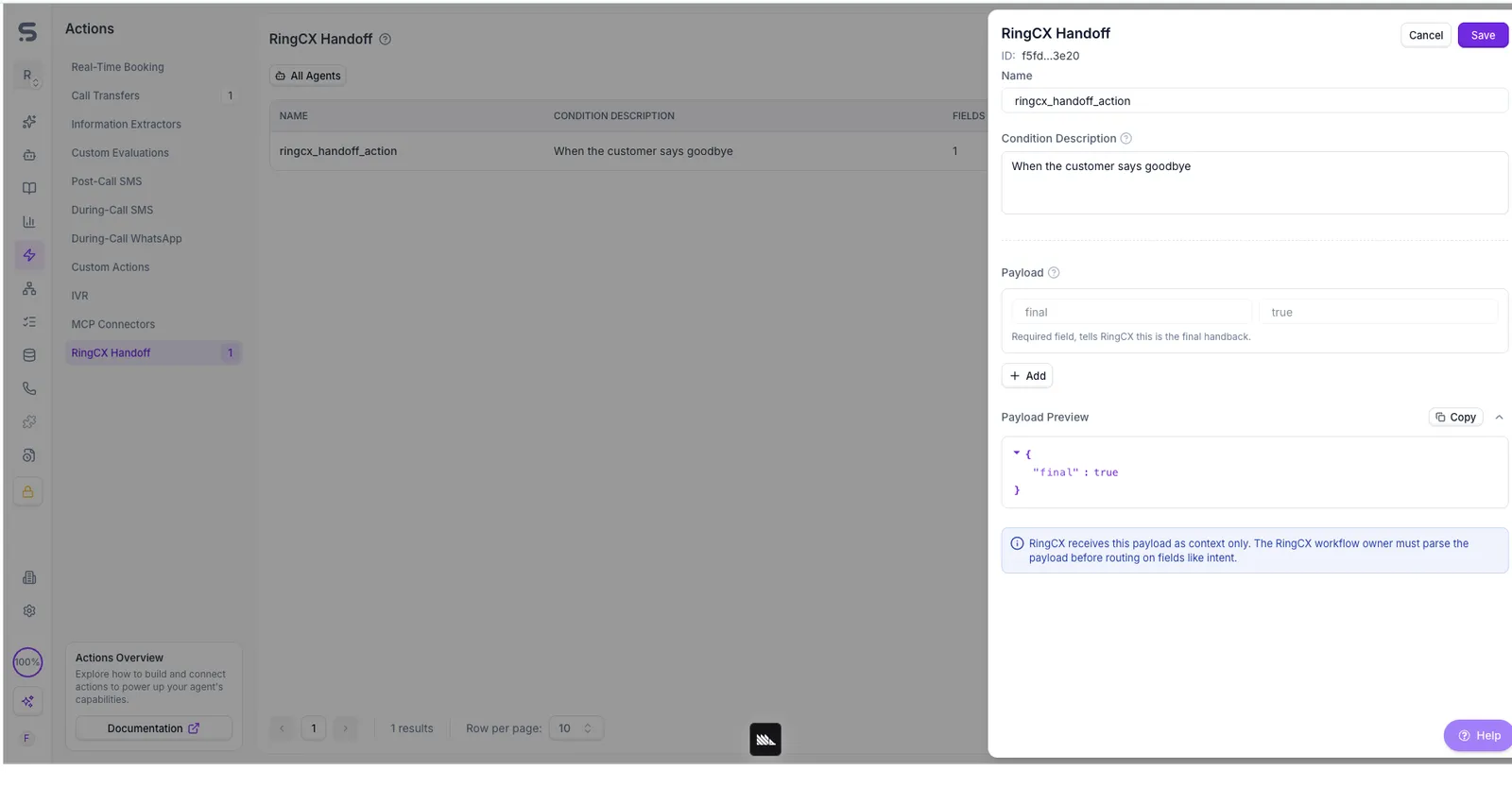
- In Condition Description, tell the agent when to hand off, for example “When the customer says goodbye”.
- In the Payload section, add the fields to send back. Each field is a key-value pair that RingCX receives as IVA response data. For example, add a
finalfield set totrueto signal that the handoff is complete.
Add a payload field for each value the agent collects that the workflow needs, such as the caller’s intent, account number, or appointment preference. The workflow can then route or act on them.
RingCX receives the payload as context only. The RingCX workflow owner must parse the payload in a downstream JavaScript node before routing on fields like intent.
Call transfers
Synthflow cannot transfer calls directly on RingCX trunks. The RingCX SIP trunk does not let Synthflow start transfers to external numbers or SIP endpoints during a call.
To send a caller to a live agent or another destination, use the RingCX Handoff action to return the call to the RingCX workflow. Then route it with RingCX’s queue, skill, or transfer nodes in Workflow Studio.
Call recordings and transcripts
Recordings and transcripts of RingCX calls appear in the agent’s call history in Synthflow, the same as any other Synthflow call.