

Getting support
Synthflow support has two paths: one for self-serve plans and one for Enterprise. Each has its own ticket form, so start with your plan.
Choosing a channel
What to include in a ticket
Include these details so we can start on the issue without asking for more:
- Your workspace ID and agent ID.
- The call ID of an affected call, if the issue is about a call.
- What you expected to happen, and what happened instead.
- Steps to reproduce the issue.
- Screenshots, logs, or a short screen recording.
Self-serve support
Self-serve plans raise tickets through the Bug Report form.
- Open the Bug Report form.
- Describe the issue, with the details listed above.
- Submit the form.
We reply to the email address you enter on the form.
Enterprise support
Enterprise customers raise and track every ticket in the Customer Portal. Your Slack channel with our team stays open for everyday conversation, product updates, and account check-ins, but tickets go through the portal so nothing gets lost in a thread.
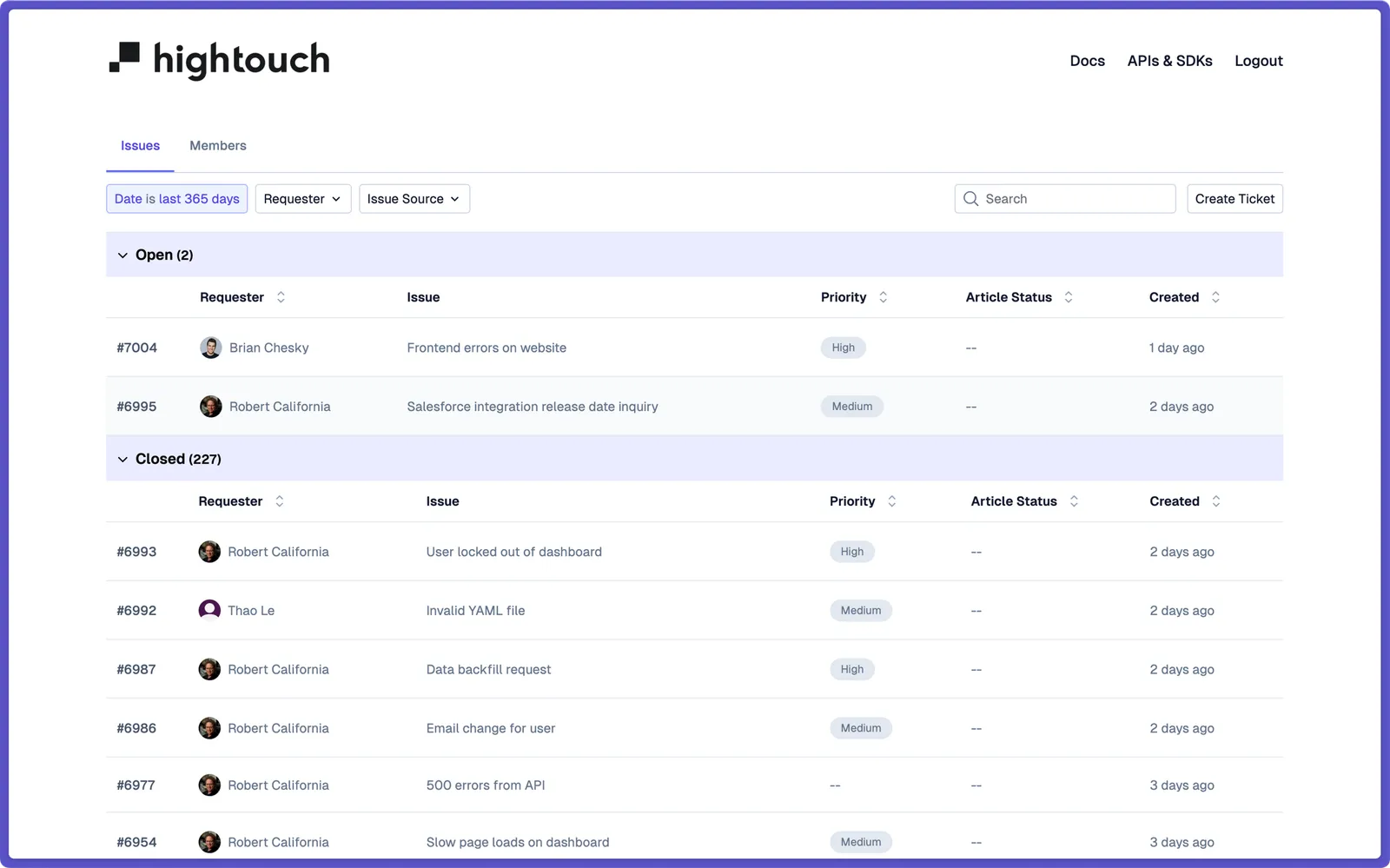
The portal lists every ticket your company raised in the last 12 months, so your whole team can see what is open and search past tickets.
Raising a ticket
- Open the Enterprise Support form, or select Create Ticket on the portal homepage.
- Describe the issue, with the details listed above. Attach screenshots, logs, or video.
- Submit the form.

The ticket appears in your team’s portal view immediately, and our support team is notified at the same time. You get an email whenever the ticket is updated.
Logging in
Most Enterprise customers are enrolled automatically.
- Open the portal link from your launch email, or the URL we shared in Slack.
- Enter your email address and select Send Code.
- Enter the one-time code we email you.
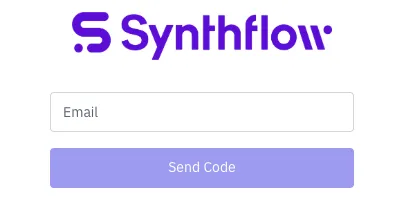
If your company has more than one Synthflow workspace, select the one to enter after logging in. If you cannot log in, message your Customer Success Manager in Slack.
Tracking tickets
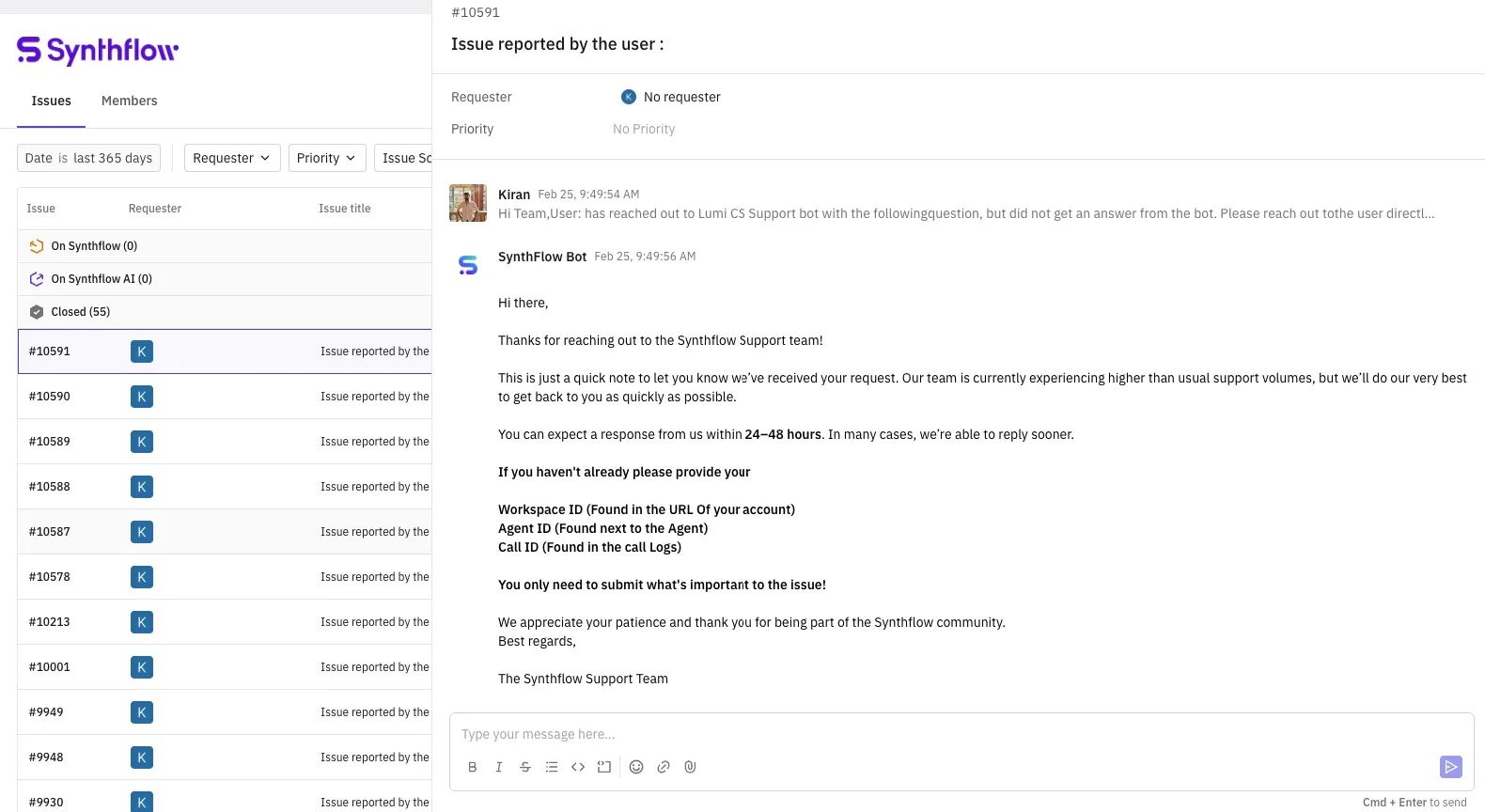
Filter the homepage ticket list by status, or search it for a past ticket. Open a ticket to:
- See the full conversation with our team.
- Reply directly.
- Update fields like status or priority, if your admin has turned these on.
- Add teammates to the ticket.
Portal access
Portal admins manage who on your team can see and act on tickets, from the Members tab.
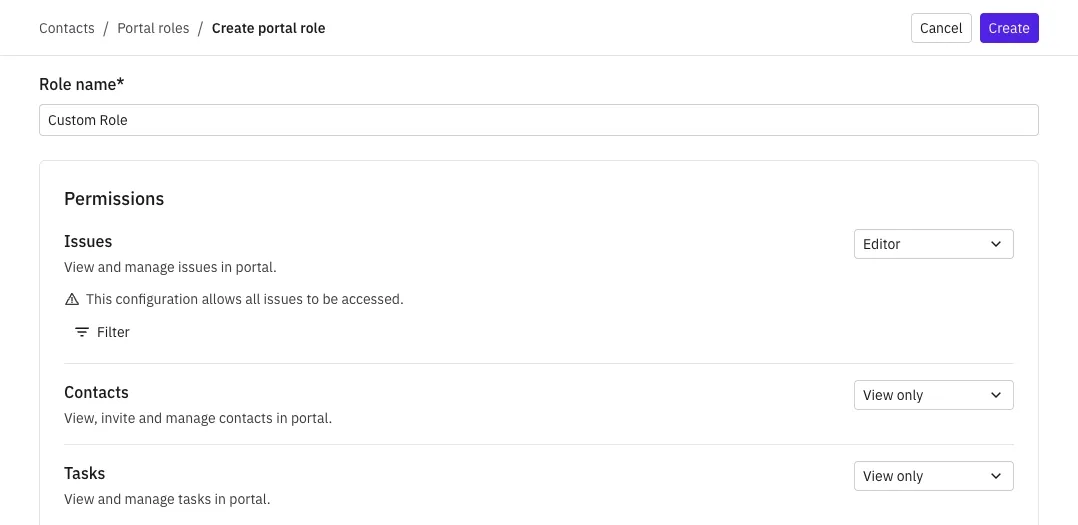
Admins can:
- Invite teammates by email. New members log in with the same one-time code flow.
- Set each member’s access to Issues, Contacts, and Tasks.
- Remove access when someone leaves your team.
Each area has three access levels:
- Editor: Read and write access.
- View Only: Read access, with no editing.
- No Access: No visibility or interaction.
FAQ
How do I know if I'm self-serve or Enterprise?
If you signed up and pay through synthflow.ai, you’re self-serve. If you have a contract with Synthflow and a Customer Success Manager, you’re Enterprise.
Can I still raise an urgent issue in Slack?
Yes, for Enterprise customers with a time-critical issue. Message your Customer Success Manager directly and we’ll triage it. Everything else goes through the portal.
Do I need to install anything?
No. The portal and the forms run in your browser.
Can I see tickets older than 12 months?
No, the portal shows the last 12 months. Your Customer Success Manager can retrieve older tickets.
Who are my portal admins?
Message your Customer Success Manager in Slack and we’ll confirm.