

Limits & Capabilities
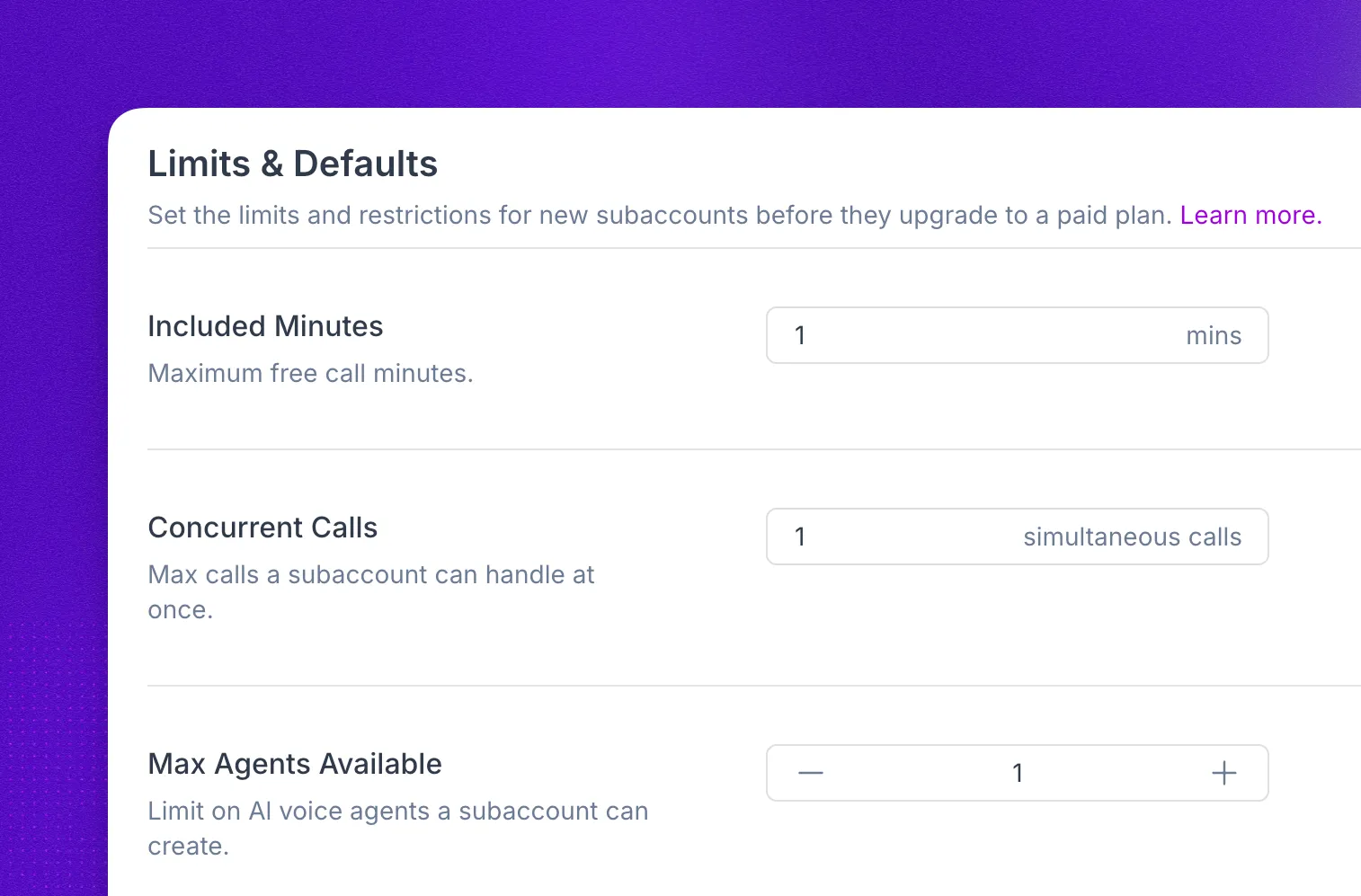
Limits & Capabilities controls how much a subaccount can use and which features it can access: included minutes, concurrent calls, agent counts and types, and workflow runs.
The same settings appear in two places, and the difference matters:
- On your parent account, under Settings → Partner → Limits & Capabilities, they are defaults. They decide what a subaccount gets at the moment it is created, and they do not change subaccounts that already exist.
- On an individual subaccount, under its Limits & Capabilities tab, they are that subaccount’s live limits. Changing them takes effect for that subaccount right away.
Parameters
The same parameters apply whether you are setting defaults, editing one subaccount, or editing several at once.
Included minutes
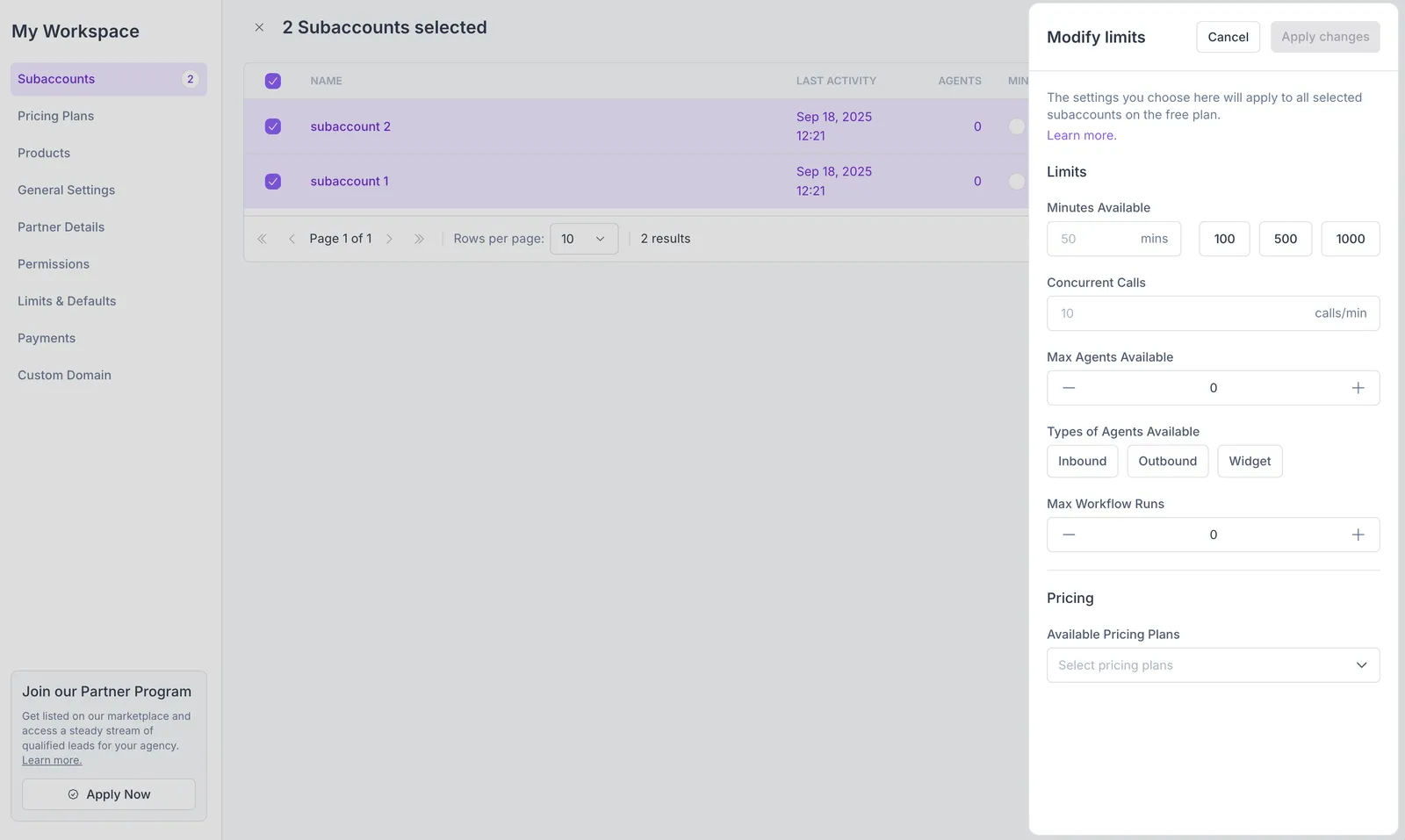
Set the call minutes a subaccount can use. Enter 0 to disable included minutes, or specify a number (for example, 100) to allow that many minutes.
The minutes you allocate here draw from your main account’s own balance, so a subaccount can’t be given more than your account’s maximum minutes. If you enter a higher value, the extra minutes aren’t allocated. To hand out more, your agency account needs a higher minute cap first: contact your account manager or our support team.
Auto-overage
Decide what happens when a subaccount uses up its included minutes. With Auto-overage off, calls stop once the allocation runs out. With it on, the subaccount keeps calling and the extra minutes are billed to your account at your per-minute rate.
Auto-overage removes the spend ceiling for that subaccount. You pay for the extra minutes at your per-minute rate. Track the usage and invoice your customer yourself.
Concurrent calls
Set the maximum simultaneous active calls (concurrency). Example: 10 allows up to 10 calls at once.
Max agents available
Limit how many AI voice agents a subaccount can create.
Type of agents available
Choose which AI agent types the subaccount is allowed to create. Available options:
- Inbound - Handle incoming calls.
- Outbound - Initiates outgoing calls.
- Widget - Designed for web widget integrations.
- Chat - Handle text conversations.
Max workflow runs
Set the maximum number of workflow runs allowed per subaccount.
Set defaults for new subaccounts
Open Settings from the main sidebar and, under Partner, click Limits & Capabilities. The values you save here apply to every subaccount created afterward, which keeps usage policies consistent without configuring each one by hand.
Set these before a batch creation run so new subaccounts land correctly configured. See Subaccounts for the creation flow.
Existing subaccounts keep the limits they already have. To change those, edit the subaccount directly or use a bulk edit.
Default permissions
New subaccounts inherit the permissions from the most recently created subaccount. To change what a subaccount can access after creation, see Permissions.
Change limits for one subaccount
Select the Limits & Capabilities tab and adjust the parameters for that subaccount.
Raising a subaccount’s included minutes draws from your parent account pool, so the same balance rule from Included minutes applies.
Change limits for several subaccounts
Use the bulk edit feature to manage multiple subaccounts at once. To access it, follow these steps:
Select the checkbox of each subaccount you wish to update. To select all, check the box in the table header.
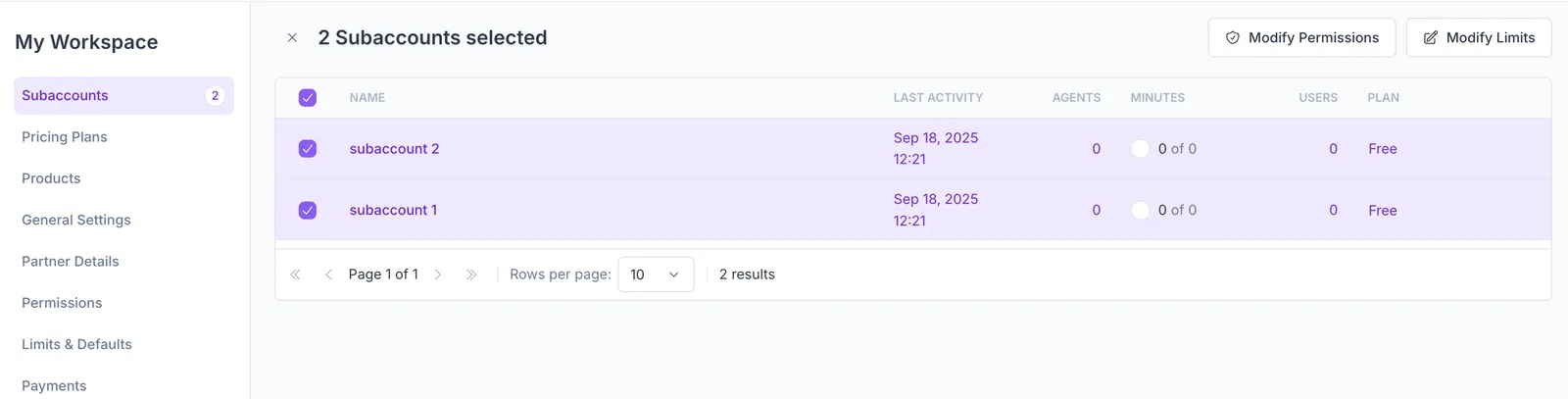
The header of the page shifts into select mode. Depending on the amount of subaccounts selected, you will be able to import products, manage permissions, and modify limits. In this section, we will only cover the latter one.
FAQ
I changed the defaults, why did nothing change for my existing subaccounts?
Defaults apply only when a subaccount is created. To change subaccounts that already exist, edit them one at a time in Change limits for one subaccount or all at once in Change limits for several subaccounts.
Where do the minutes I allocate come from?
Your parent account’s balance. Allocating minutes to a subaccount does not buy new minutes, so you cannot give a subaccount more than your account’s maximum. Contact your account manager to raise your agency cap.
How do I add minutes for a subaccount that ran out?
Raise its included minutes on the subaccount’s Limits & Capabilities tab, or turn on Auto-overage so calls continue without a manual top-up.
Who pays for overage minutes?
You do. Overage minutes are billed to your account at your per-minute rate. Track what each subaccount used with the Subaccounts API and invoice the customer yourself.
Can I set limits through the API?
Yes. The Subaccounts API exposes subaccount fields including max_minutes and minutes_used.