

Subaccounts
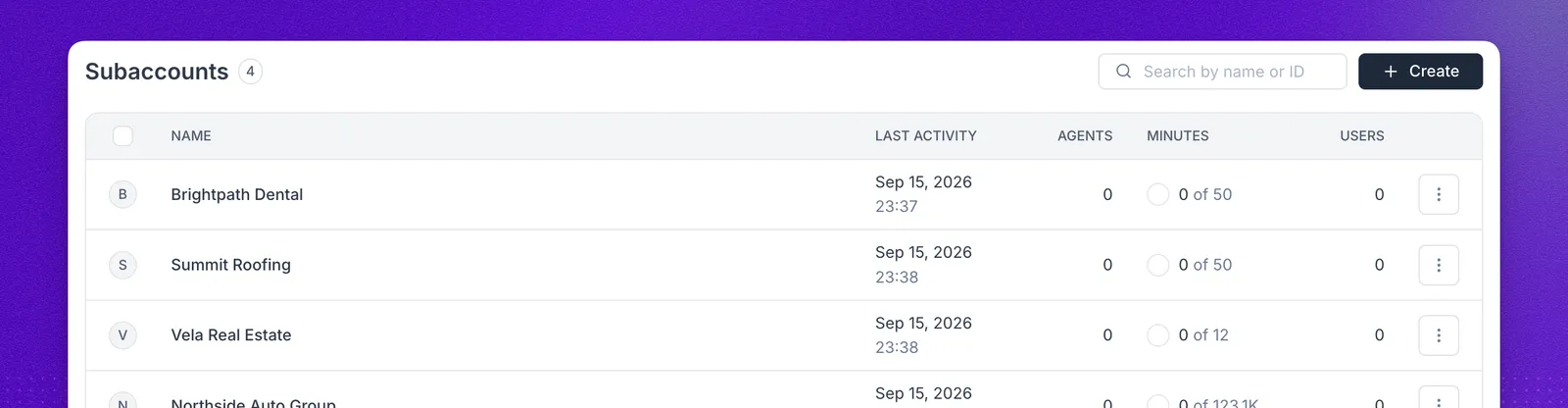
A subaccount is a separate workspace that sits under your main account. Each client gets their own agents, contacts, phone numbers, and call history, while you keep a single place to oversee them all.
Subaccounts are what make agency work practical at scale. You can hand a client a workspace under your own brand and domain, decide how many minutes and agents they get with Limits & Capabilities, restrict which features they see with permissions, push ready-made agents and workflows into their workspace with products, and compare performance across every client from one analytics dashboard. Minutes come from your agency pool, so you allocate capacity rather than asking each client to buy their own.
Everything on this page is available through the interface and through the Subaccounts API.
Find a subaccount
Open Settings from the main sidebar and, under Partner, click Subaccounts. Use the search bar to search by subaccount name or subaccount ID.
Create a subaccount
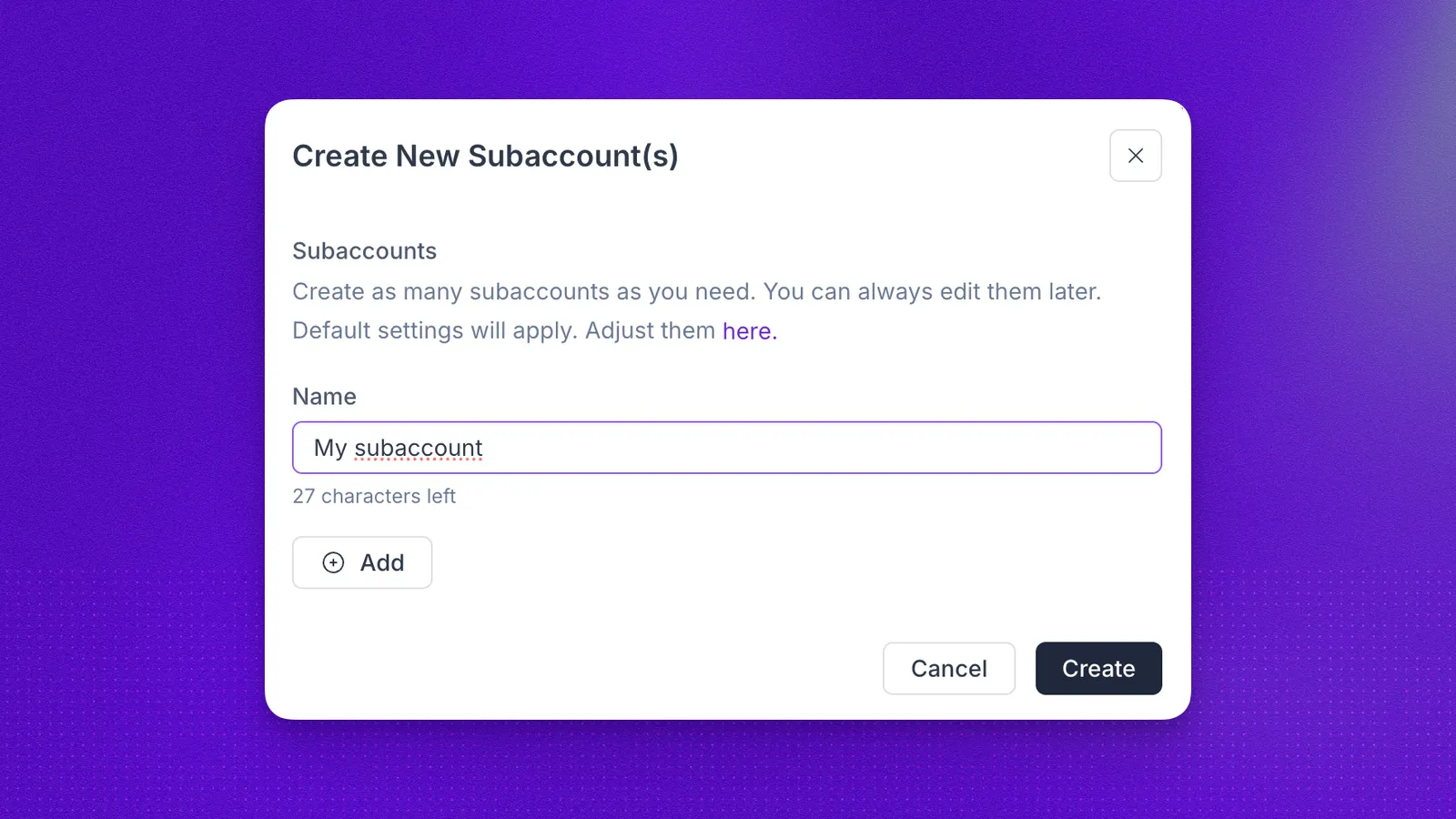
From Settings → Partner → Subaccounts, click + Create in the top-right corner, then Create New Subaccounts. Enter a name and click Create.
To create several at once, click Add for each additional subaccount before you confirm. Batch creation saves time when you onboard multiple clients, and every subaccount in the batch starts with the same defaults.
If you run an agency on GoHighLevel, + Create also lets you import your existing GoHighLevel subaccounts instead of rebuilding them by hand.
Defaults for new subaccounts
New subaccounts are not blank. They start with the values set under Settings → Partner → Limits & Capabilities: included minutes, whether auto-overage is allowed, concurrent calls, how many agents they can create, which agent types they may use, and their workflow run cap. Permissions are inherited from the most recently created subaccount.
Review those defaults before a batch creation run so new clients land correctly configured. Changing them later affects only subaccounts created afterward, so adjust an existing client on its own Limits & Capabilities tab or several at once.
Manage several subaccounts at once
In Settings → Partner → Subaccounts, select the checkbox on each row you want to change, or the checkbox in the table header to select every subaccount. The page header shifts into select mode, where you can import a product into all of them, set their permissions, and modify their limits in a single pass. Which actions appear depends on how many subaccounts you select.
A bulk limit edit requires a value for every field, so decide what each parameter should be before you apply the change.
Delete a subaccount
Deleted subaccounts cannot be restored.
Open Settings → Partner → Subaccounts, click the subaccount, select the Settings tab, then click Delete Subaccount and confirm with Permanently delete.
Phone numbers that the parent account owns return to the main workspace when the subaccount is deleted. See phone number ownership for how ownership works across accounts.
Manage subaccounts with the API
The Subaccounts API covers the same operations as the interface, which is what you want when client onboarding runs from your own app or CRM. You can create a subaccount, list the ones you manage, read a single account including minutes_used and max_minutes, update its limits or reset its usage counter, and delete it.
FAQ
Do subaccounts get their own minutes?
No. Subaccounts draw from your agency account’s minute pool. Allocate what each one may use with Limits & Capabilities.
I changed the defaults, why did nothing change for my existing subaccounts?
Defaults apply only at creation. Change an existing subaccount on its own Limits & Capabilities tab, or edit several at once with a bulk edit.
What happens to phone numbers when I delete a subaccount?
Numbers the parent account owns return to the main workspace. See phone number ownership.
Can I create subaccounts from my own application?
Yes. Use the Subaccounts API to create and configure them programmatically.
Can I move a subaccount between agencies?
No. You cannot import or export a whole subaccount from one agency to another.