

Security
This page covers workspace security: two-factor authentication, single sign-on with allowed email domains, and webhook signature validation. Use these controls to limit who can join your workspace, how they authenticate, and whether incoming webhook traffic is genuine.
For compliance documents, subprocessors, and security controls, visit the Trust Vault. Some documents are private and require Login/Get Access on the vault.
Certifications
Synthflow maintains independently verified security controls across the platform. To request certification documents, review subprocessors, or view control details, visit the Trust Vault.
Synthflow is compliant with:
- ISO 27001:2022
- SOC 2
- GDPR
- HIPAA
- PCI DSS V4.0.1
For HIPAA customers, see the Business Associate Agreement. SSO and additional enterprise security features are available on the Enterprise plan.
Two-factor authentication
Two-factor authentication (2FA) adds a second verification step at sign-in using a Time-based One-Time Password (TOTP) from an authenticator app such as Google Authenticator, Authy, or Microsoft Authenticator. When your workspace requires 2FA, you must enable it to create and view API keys.
Enable 2FA in Settings → Personal → Credentials:
If you sign in with email and password, enter your account password when prompted. If you sign in with Google, you do not need to provide a password.
After 2FA is enabled, you are prompted for a code each time you sign in. Backup codes are generated once during setup, can only be used once, and should be stored in a password manager or secure note.
In Settings → Workspace Settings → Security, workspace admins can require 2FA for all team members. Users who have not enabled 2FA must set it up at their next sign-in.
Single sign-on
Single Sign-On (SSO) is available on Enterprise plans only.
SSO lets your team sign in through your identity provider instead of separate Synthflow credentials. Only Super Admins and Admins can configure SSO. See roles for details. Synthflow uses WorkOS as the SSO infrastructure provider.
Allowed email domains
Restrict which email domains can receive workspace invitations. When one or more domains are configured, only matching addresses can be invited. If no domains are configured, invitations are open to all domains. The restriction applies to invite creation only; existing users are unaffected.
Super Admins and Admins manage allowed domains under Settings → Workspace Settings → Security → Whitelist Domains. Members cannot manage domains or invite users.
For agencies, domain restrictions apply at the agency workspace level and do not extend to subaccounts. Agency users can still access subaccounts regardless of their email domain.
Enable SSO
Navigate to Settings → Workspace Settings → Security and provide:
- Organization name (defaults to your workspace name)
- At least one domain from your whitelist policy
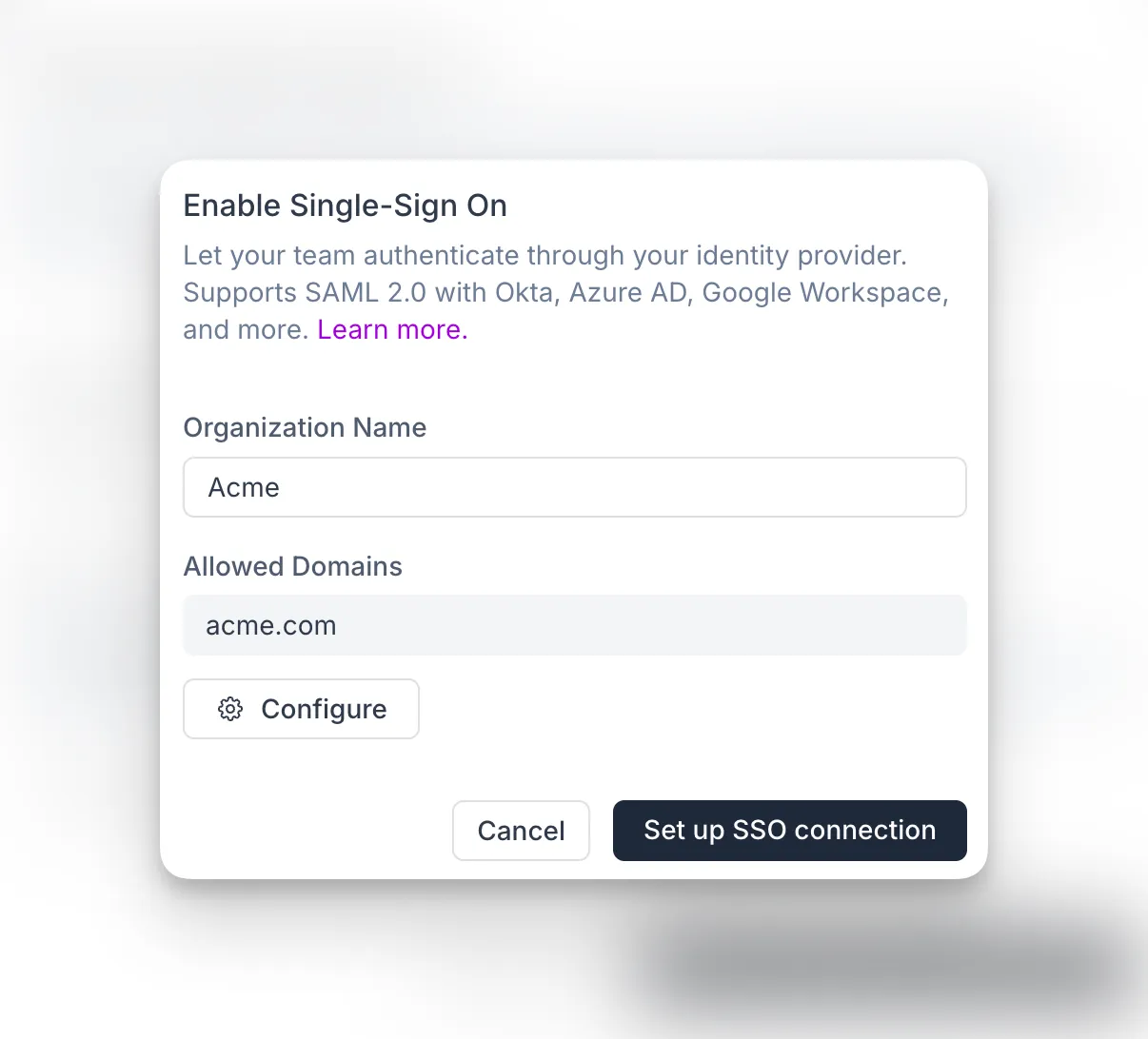
After you submit the form, Synthflow creates an organization in WorkOS and redirects you to the identity provider connection list. You can return later to finish provider setup. Until the connection is completed, SSO remains pending and inactive.
Supported providers include Okta, Entra ID, Google SAML, Auth0, and others shown in the setup flow. Each provider has different setup requirements, so follow the in-app instructions for your identity provider.
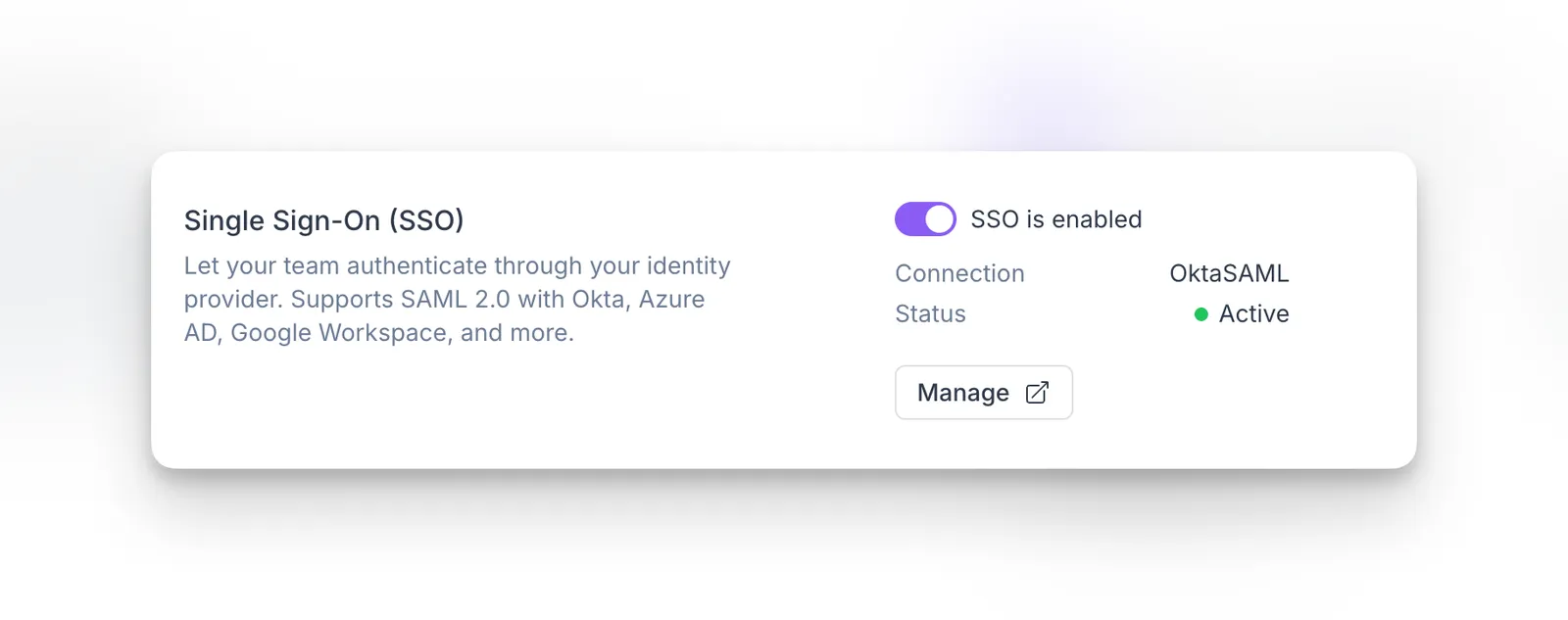
SSO sign-in
After the SSO connection is active, you do not need to invite team members. Anyone with an email on one of your SSO domains goes to the Synthflow sign-in page, selects Continue with SSO, and signs in through your identity provider. They get access to the workspace on their first sign-in.
Disable SSO
Workspace admins can disable SSO when needed. Disabling SSO blocks sign-in through your identity provider but does not remove the WorkOS organization or external provider connection.
Webhook security
Synthflow signs every webhook with an HMAC-SHA256 signature using your shared secret key. The signature is sent in the HTTP_SYNTHFLOW_SIGNATURE header so your server can confirm the request came from Synthflow and was not altered in transit. HTTPS alone does not prove the sender is Synthflow; without signature validation, anyone who discovers your webhook URL could send forged payloads.
Generate a secret key under Settings → Workspace Settings → Security → Webhooks. Synthflow signs the call_id with that key and includes the base64-encoded result on both the inbound webhook and the post-call webhook.
Verify the signature on your server using the same secret key and the received call_id:
If verification returns True, the webhook originated from Synthflow and the payload was not modified in transit. Use constant-time comparison (as shown above) to avoid timing attacks.
Subaccounts
Subaccounts can sign their webhooks with the parent workspace’s secret key. In the parent workspace, generate a key, then select Share with subaccounts under Settings → Workspace Settings → Security → Webhooks. The change applies to the next webhook.
Subaccounts cannot see the shared key or create their own. Until you share the key, subaccount webhooks are unsigned.
FAQ
Who can manage security settings?
Only Super Admins and Admins can configure SSO, allowed email domains, and mandatory 2FA. See roles for the full permission breakdown.
Does SSO replace allowed email domains?
No. Allowed email domains control who can be invited. SSO controls how users authenticate, and users on your SSO domains can sign in without an invite. Both work together.
Can I start SSO setup and finish it later?
Yes. After creating the WorkOS organization, you can return later to complete the identity provider connection. Until setup finishes successfully, the connection remains pending and inactive.
What happens if SSO is disabled?
Users who authenticate through SSO cannot access the workspace via SSO until it is enabled again. Disabling SSO does not delete the WorkOS organization or external identity provider connection.
Can I change identity providers later?
Yes. You can update or reconfigure your SSO connection from the SSO settings flow.
How do I sign in with a 2FA recovery code?
When prompted for your 2FA code, choose the option to use a recovery code, enter one of your backup codes exactly as shown, then complete sign-in. Each code works only once.
Do allowed domains affect agency subaccounts?
Domain restrictions apply to invite creation at the agency workspace level only. They do not apply to subaccounts. Agency users can access subaccounts regardless of their email domain.
Can the same domain policy exist in two workspaces?
Yes. You can configure the same allowed domains in multiple workspaces.
Which webhooks include the signature header?
Synthflow includes HTTP_SYNTHFLOW_SIGNATURE on both the inbound webhook and the post-call webhook. Generate your secret key under Settings → Workspace Settings → Security → Webhooks.