

Vonage
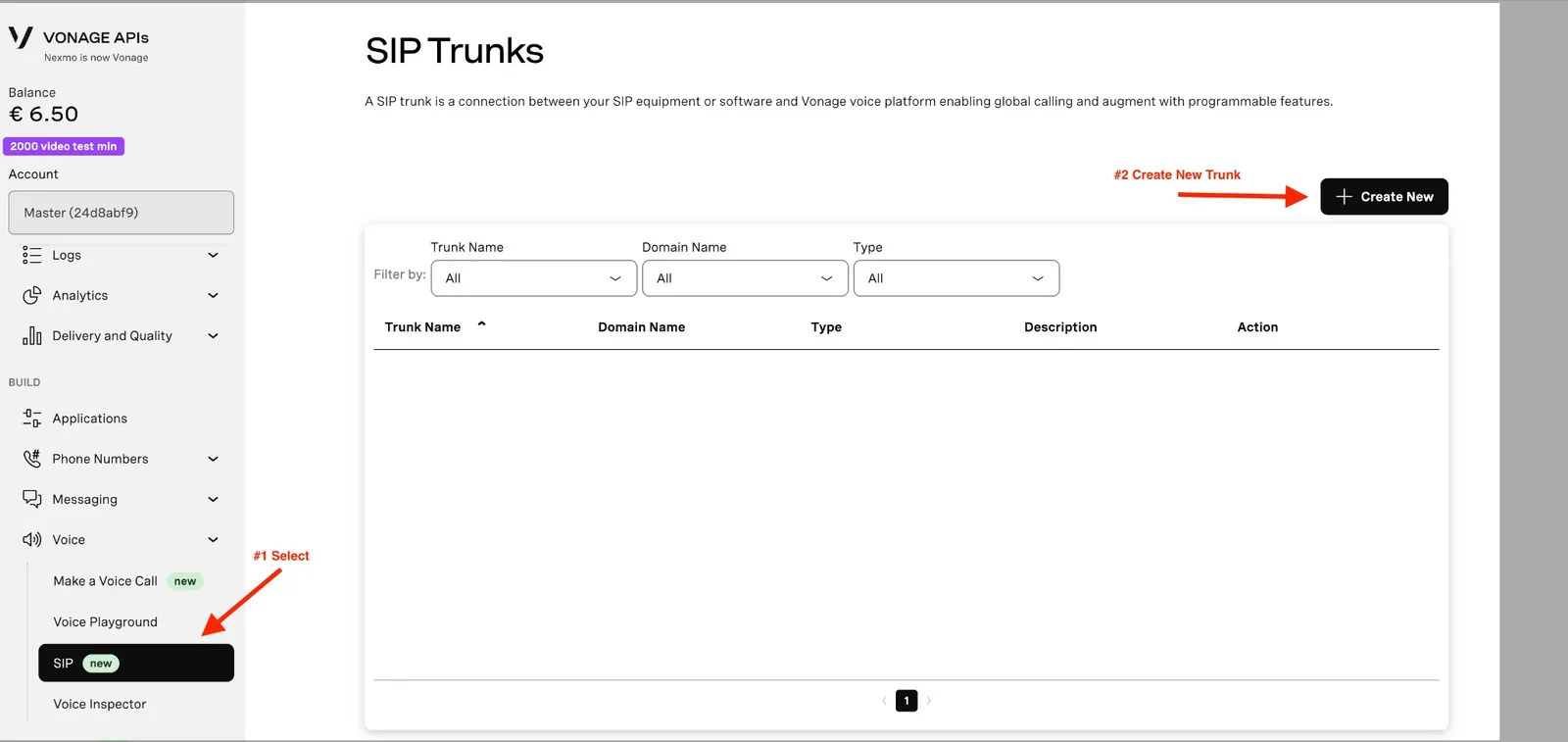
A Vonage SIP trunk connects your Vonage numbers to Synthflow, so agents place and receive calls on them. You create the trunk in the Vonage API dashboard, then import each number into Synthflow.
Vonage does not support SIP REFER, so cold transfers do not work on Vonage SIP trunks. Use warm transfers only. See Vonage’s documentation.
Vonage SIP trunk
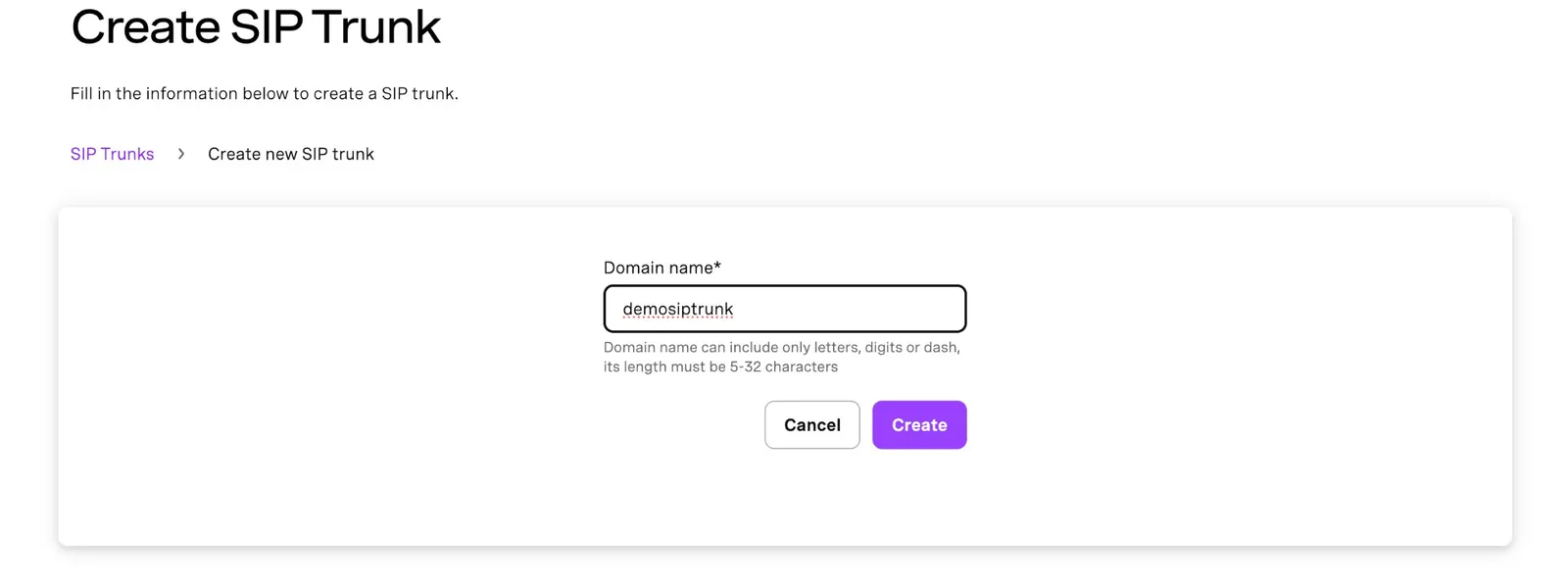
Domain name. Enter a domain name for the trunk. It must be 5 to 32 characters, using only letters, digits, and dashes.
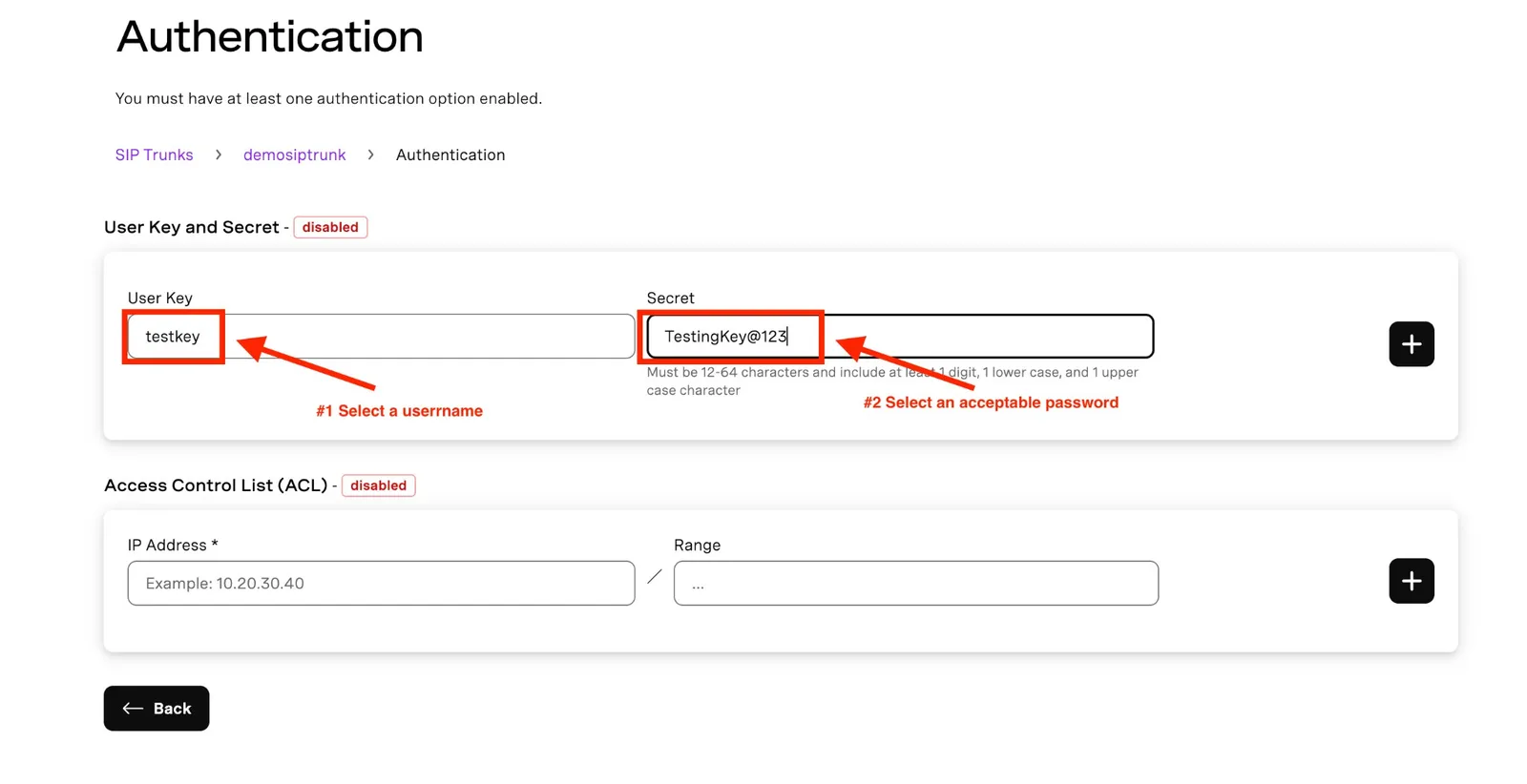
Authentication. In the trunk’s Authentication section, turn on User Key and Secret, Access Control List (ACL), or both. At least one is required.
For user key and secret:
- The User Key is the username you enter when you import the number into Synthflow.
- The Secret is the password. It must be 12 to 64 characters, with at least one digit, one lowercase letter, and one uppercase letter. Use a unique, generated password.
Once authentication is on, Vonage shows three regional termination URIs. Note the one for your region. You enter it, with the user key and secret, when you import the number.
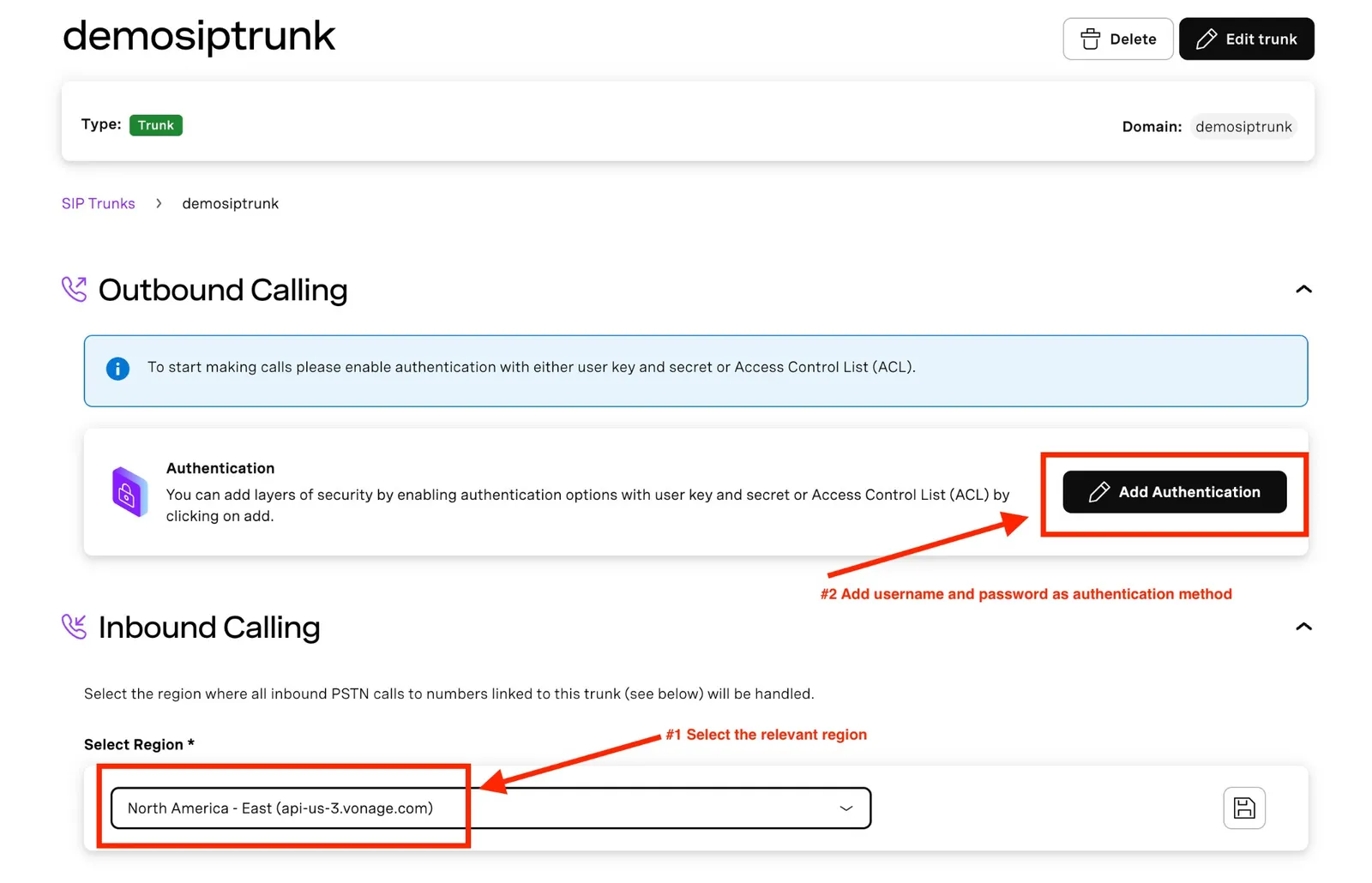
Inbound and outbound settings.
- Inbound: select the region that handles inbound PSTN calls to the trunk’s numbers, for example North America - East (api-us-3.vonage.com).
- Outbound: select Add Authentication and add a user key and secret, or an ACL.
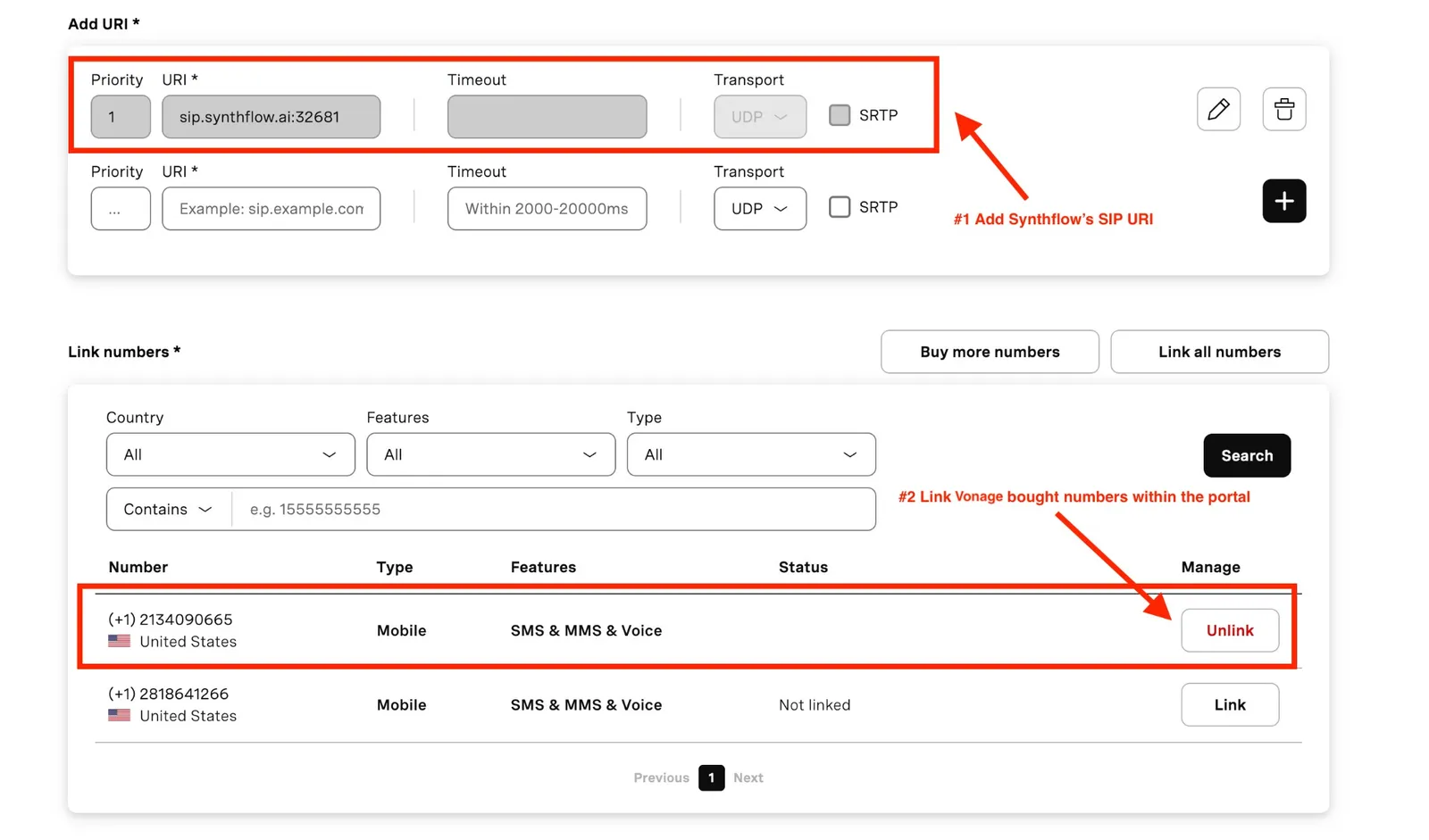
Synthflow URI and numbers. In Add URI, add Synthflow’s SIP server:
- Priority:
1 - URI:
sip.synthflow.ai:32681. For US or EU workspaces, use your region’s SIP address instead. - Transport: UDP. You can leave SRTP unchecked.
In Link numbers, filter by country, features, or type, and select Link for each number to route through the trunk.
Number import
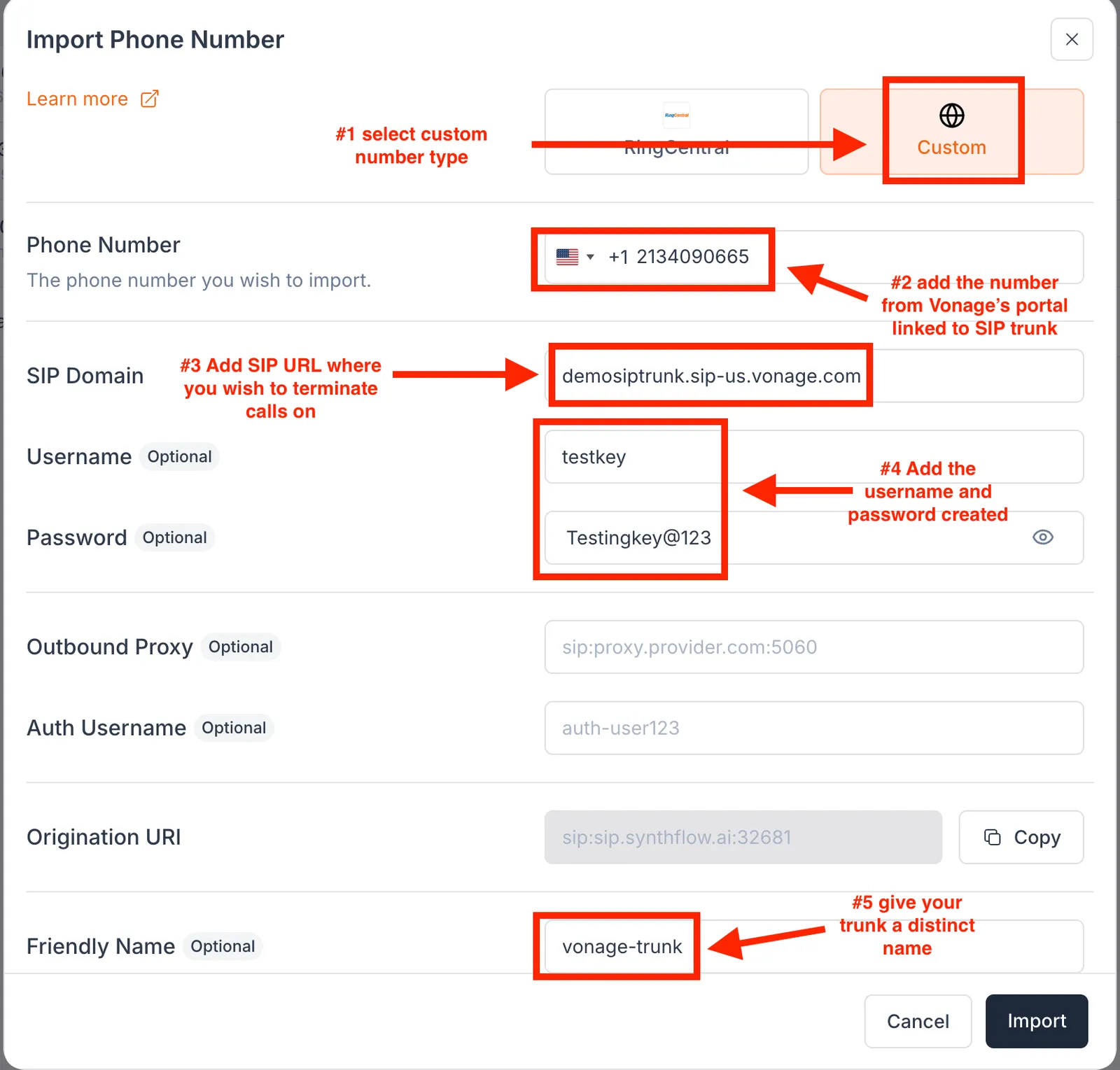
Import each number into Synthflow as a custom number, so Synthflow knows how to route its calls. In the import form:
- Select Custom as the number type.
- Enter the number you linked to the trunk in Vonage.
- In SIP Domain, enter the termination URI for your region, for example
yourdomain.sip-us.vonage.com. - Enter the user key and secret as the username and password.
- Optionally, add a friendly name for the trunk.
The imported number places and receives calls like a number bought in Synthflow. To stop using it, delete it from Phone Numbers, or with the Delete a phone number API.