

Nodes
Nodes are the building blocks of a Flow Designer agent. Each node handles one job: speaking, collecting a value, making a decision, or calling an external system. To add one, click the plus icon on the canvas and pick the node type.
Most flows follow the same shape: set agent-wide behavior in Global Settings, open with a Greeting Message, collect data with Conversation nodes, route with Branch and Jump To, call out with Custom Action, Call Transfer, or Real-Time Booking, and close with an End Call.
Global Settings
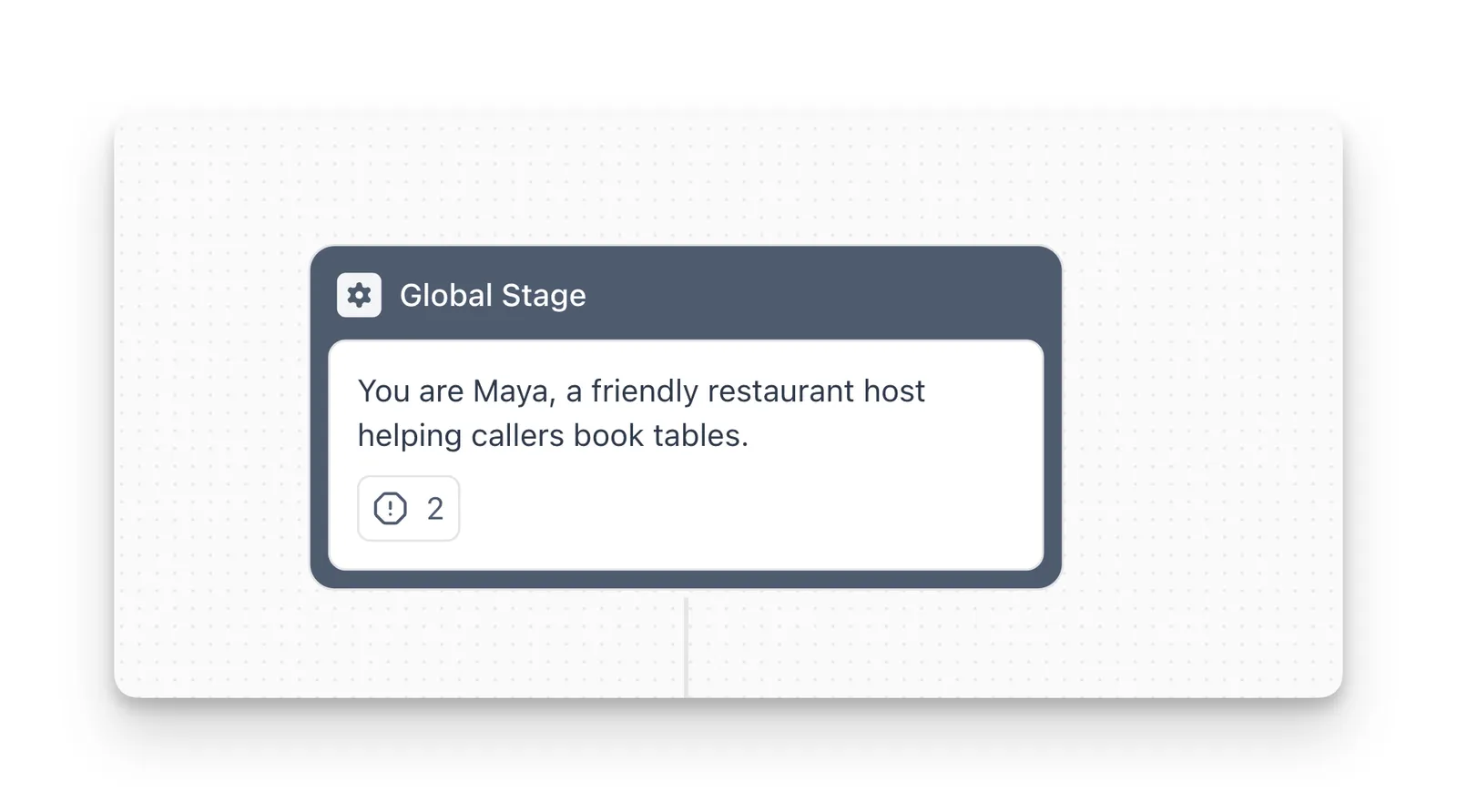
Global Settings define the agent’s personality and the special cases it handles anywhere in the call. They apply to the main flow and to every sub-agent in a Multi-Agent System. Open them from the right panel of the Flow Designer.
- Personality & Background: who the agent is, the company it represents, its goal, and its tone. Keep it under 300 words and reference variables with
{variable_name}, for exampleYou work for {company_name}. - Objections & Special Cases: select + Add Case, describe the trigger in Case (for example, “The user asks if you are an AI”), and write what the agent should do in Instructions. Start with the 3 to 5 scenarios you see most.
Put anything that applies to the whole conversation here, and keep step-specific logic in the nodes themselves. Prompting best practices apply to this text the same way they apply to a single prompt.
Greeting Message
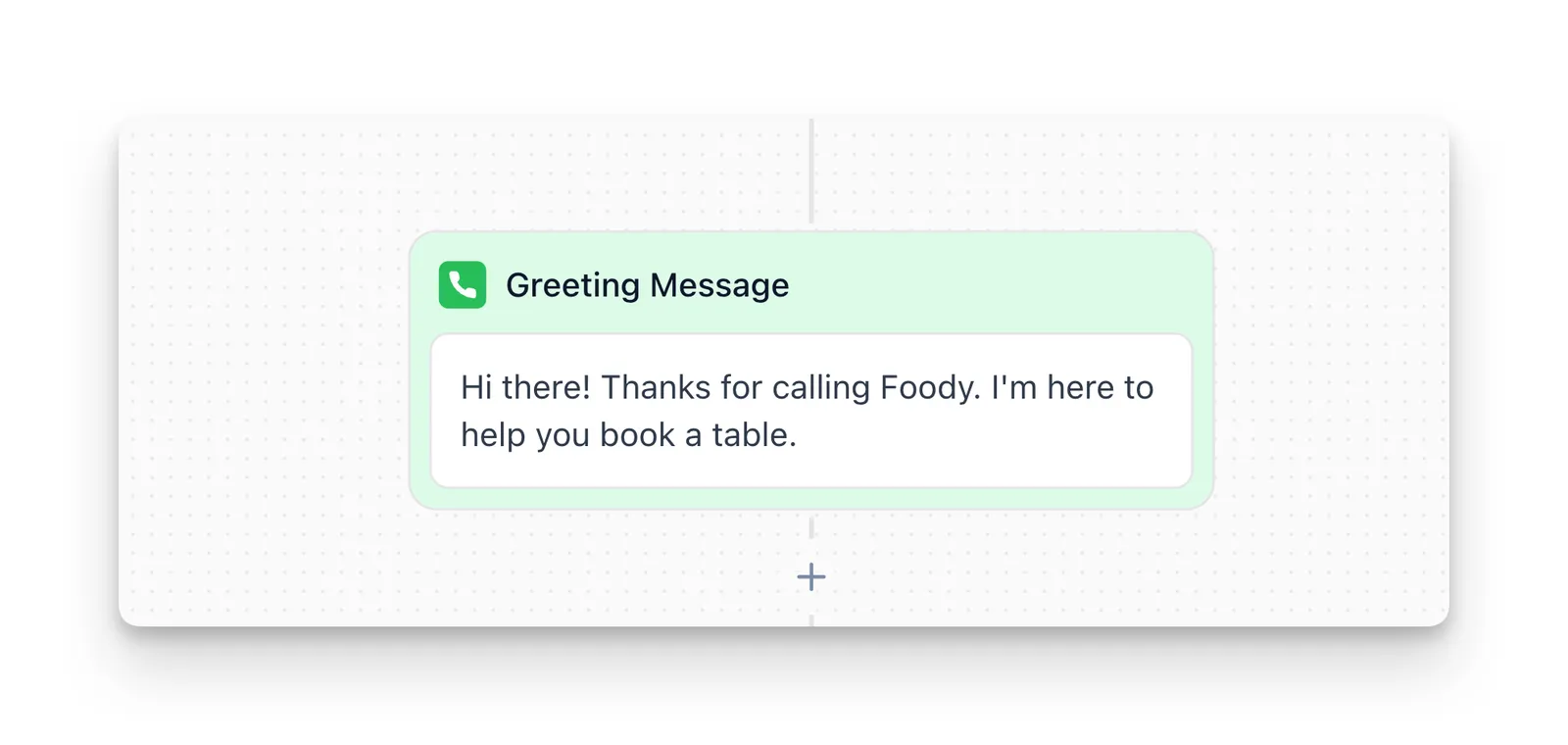
The Greeting Message is the first thing the caller hears. It is a fixed node that cannot be removed. It speaks once and moves to the next node immediately, without waiting for input.
Keep it to 5 to 15 words, ask at most one question, and personalize it with variables: Hi {lead_name}, this is Maya from Acme Corp. How can I help?
Never place a Branch node directly after the Greeting Message. The greeting does not collect input, so the branch has nothing to evaluate and the flow gets stuck. Use Greeting Message → Conversation → Branch instead.
Conversation
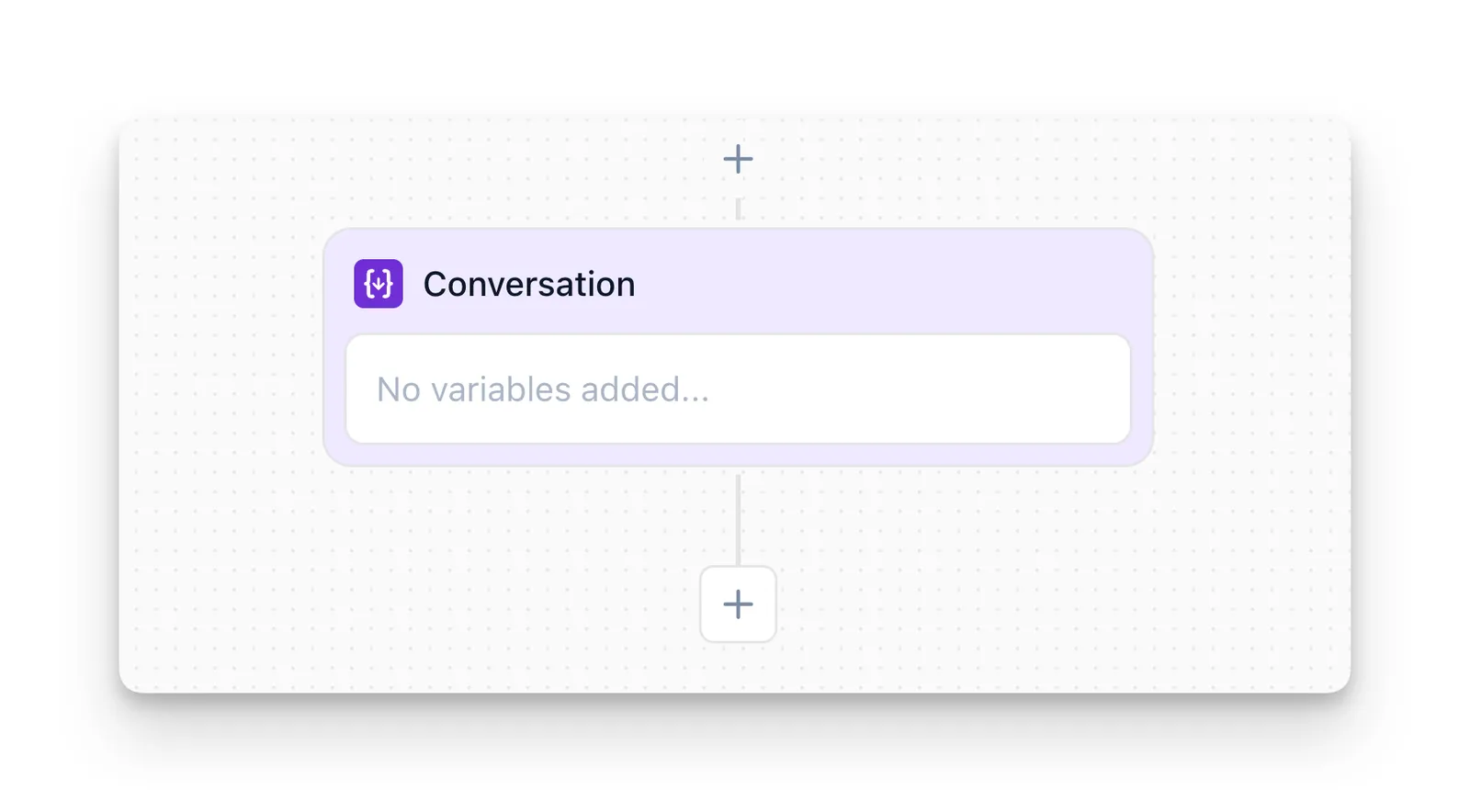
The Conversation node asks for information and pauses the flow until the user gives a valid answer, then stores it as a variable. One node can collect several variables.
For each variable, set:
- Variable Name: a descriptive snake_case name such as
user_email. You reference it later as{user_email}. - Variable Type: String for free text, Number for numeric values, List for a set of predefined options, or Boolean for yes/no answers.
- Prompt: what the agent says to ask for the value, for example
What's your email address? - Validation (optional): email, phone, or numeric range checks, and whether the value is required.
Use the optional Instructions field to control the order when collecting several values (“Ask for party size first, then the preferred date”). Collected variables are available to later Message, Branch, and Custom Action nodes, and to sub-agents. Collected variables covers how they are stored and shared.
Message
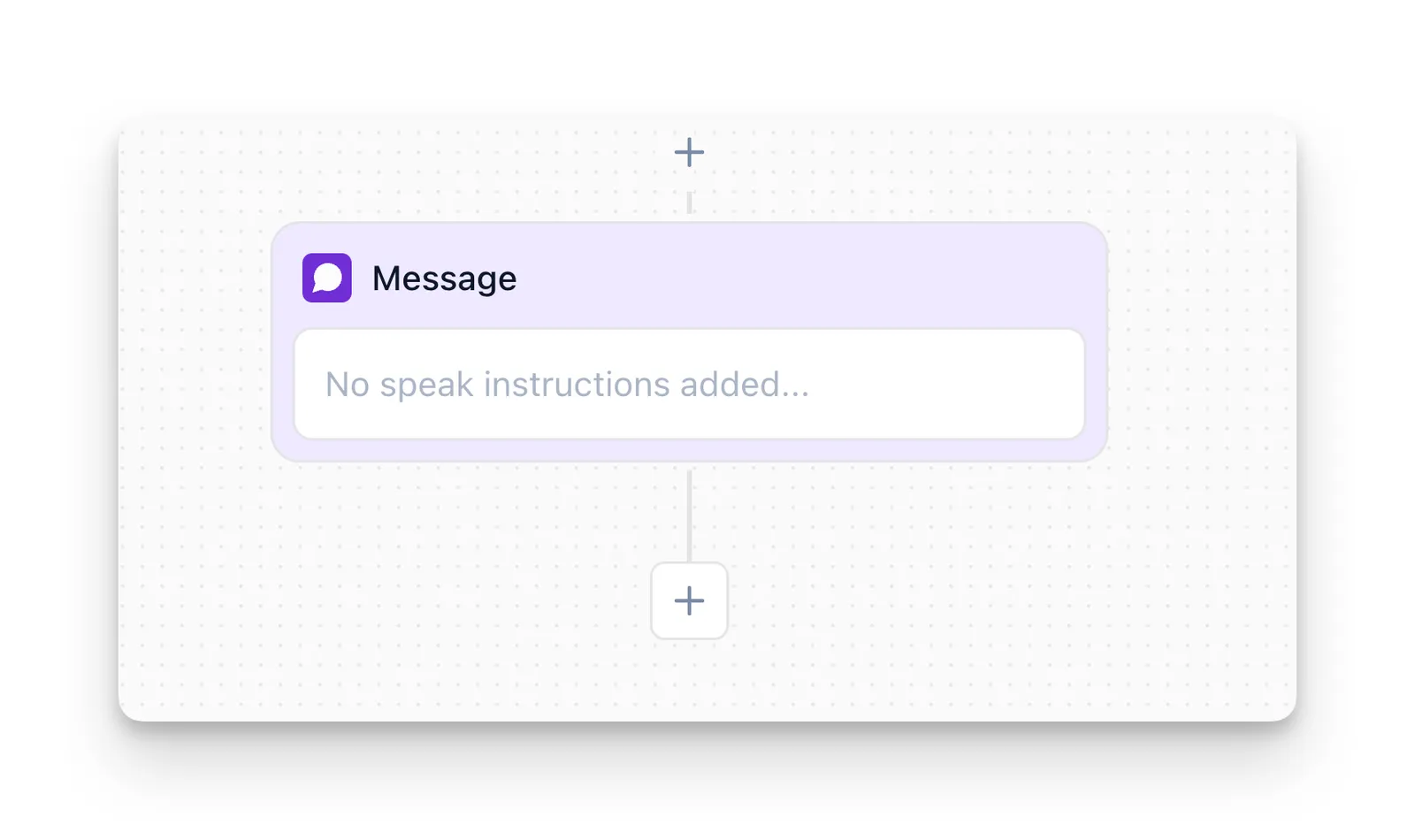
The Message node speaks a fixed message word for word and continues to the next node without waiting for a reply. Use it for confirmations, instructions, and disclaimers such as This call may be recorded for quality assurance purposes.
Insert collected values with the { Variables button and API responses with the < Action Results button, for example Perfect! We have availability for {party_size} people on {reservation_date}. A variable that was never collected resolves to an empty value.
Do not ask questions in a Message node. The agent moves on before the user can answer, so use a Conversation node whenever you need a response.
Branch
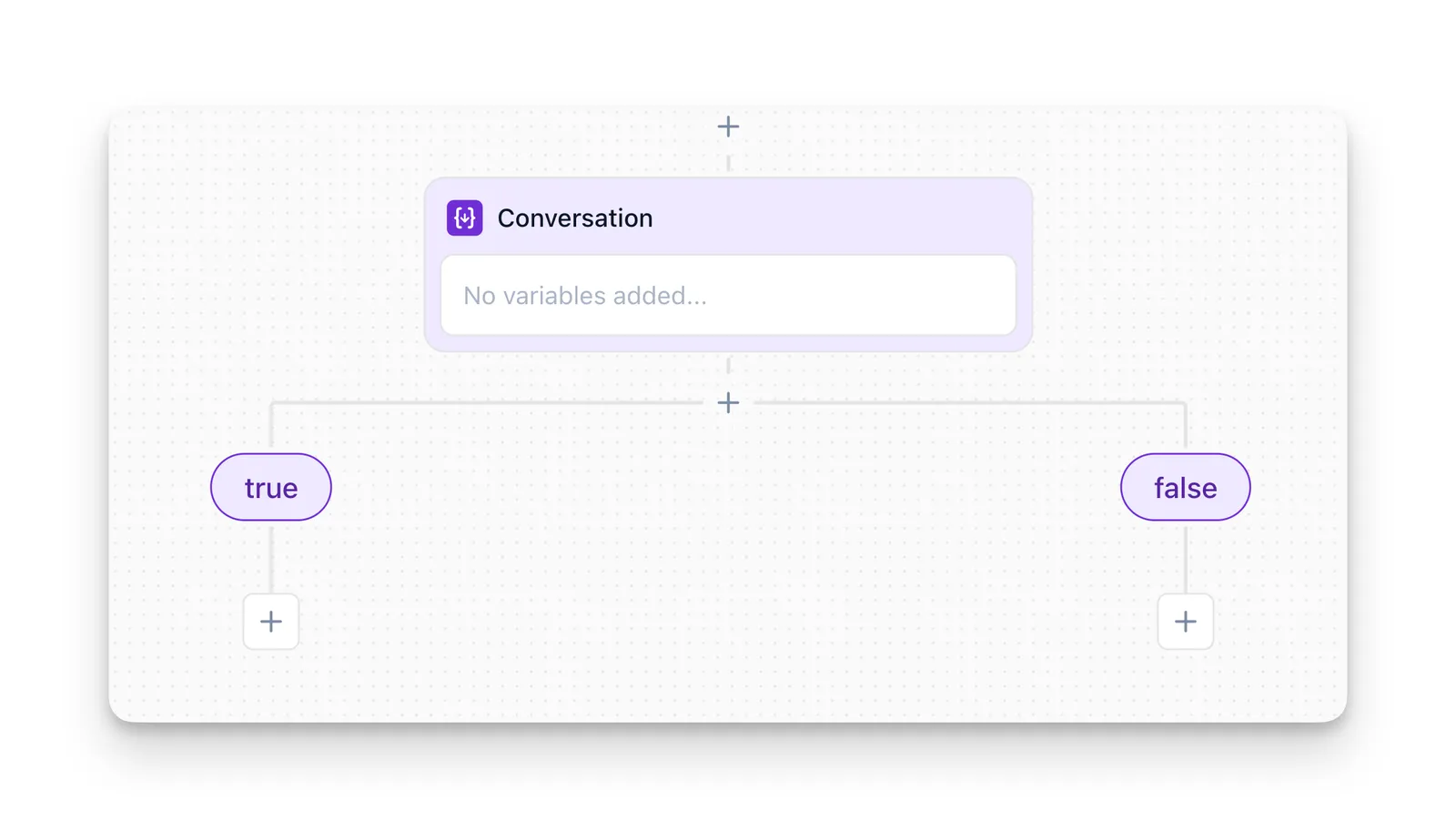
The Branch node routes the flow based on conditions. It never speaks or waits for input. Give each outgoing branch a descriptive name (for example, “Table is available”) and one of two condition types:
Branches are evaluated top to bottom and the first match wins, so put the most specific conditions first.
Always end with a fallback branch whose condition is always true (for example, “Default”). Without it, any input that matches no condition leaves the flow with nowhere to go.
When logic grows complex, chain several simple Branch nodes instead of packing every condition into one.
Jump To
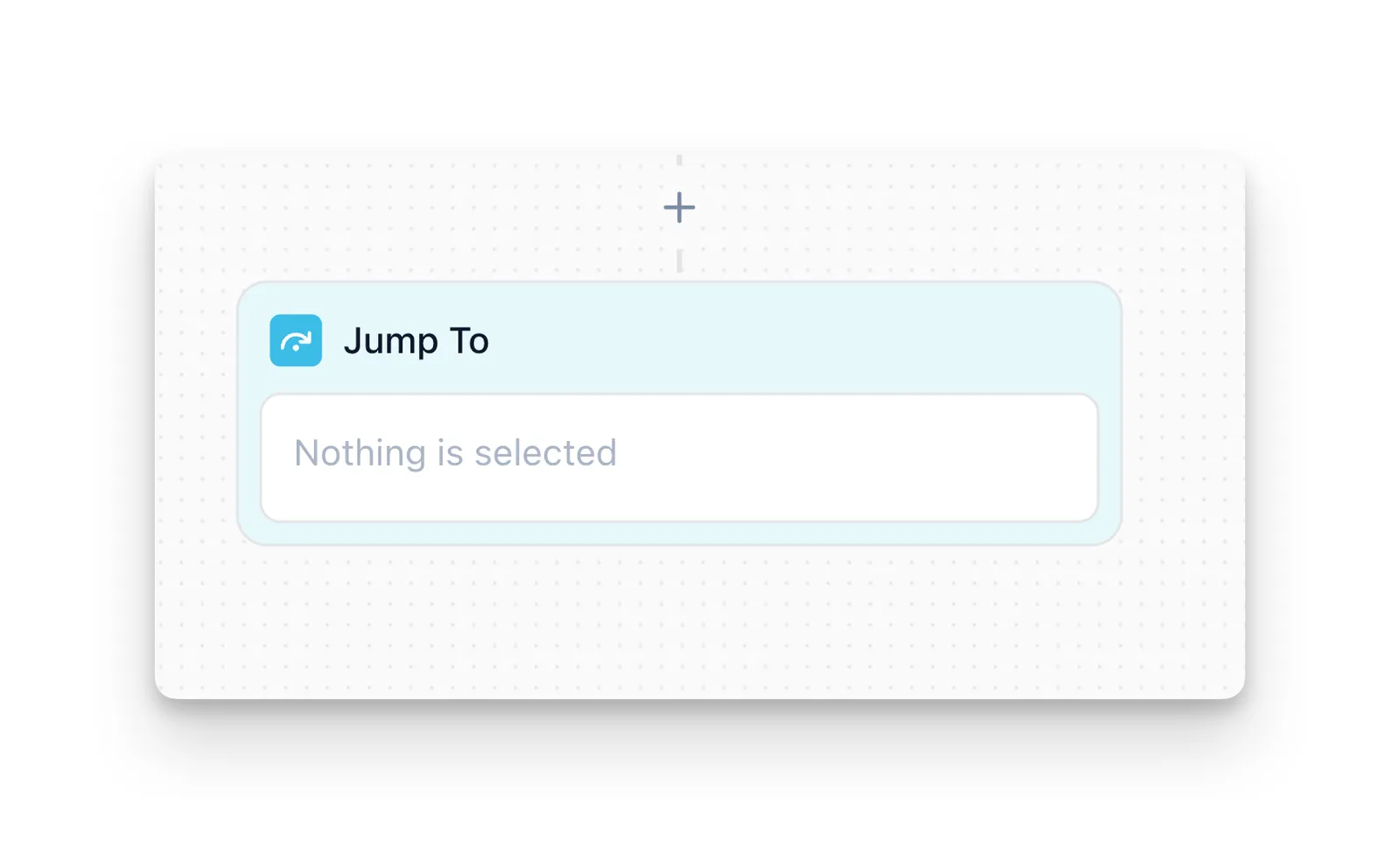
The Jump To node sends the flow straight to another Conversation or Branch node in the same flow, skipping everything in between. It does not speak, pause, or return. Select the target from the dropdown.
Use it to retry invalid input, centralize error handling or closing in one node, or skip steps for certain users. Make sure every loop has an exit, such as a Branch that checks whether retries are exhausted. For plain “if X then A, else B” routing, use a Branch instead.
Trigger Subflow
The Trigger Subflow node hands the call to a sub-agent and returns to the main flow automatically when the sub-agent finishes. Unlike Jump To, it moves to a different flow and comes back. The Multi-Agent System page covers how to build and reuse sub-agents.
Custom Action
The Custom Action node runs one of your custom actions at that point in the flow, for example an availability check or a CRM lookup. Its response fields become action result variables you can reference as <action.field> in later Message and Branch nodes, so follow it with a Branch that handles both success and failure.
Call Transfer
The Call Transfer node hands the live call to a human agent or another phone system. Call transfers covers the destination types, warm and cold transfer modes, and transfer settings.
Real-Time Booking
The Real-Time Booking node checks calendar availability and books an appointment during the call. Before adding it, connect a calendar and create a Real-Time Booking action, then select that action in the node.
Collect everything the booking needs (name, email, preferred date and time) with Conversation nodes before the booking node. Follow it with a Branch that confirms the booking on success and offers other times on failure, using a Jump To back to date collection if needed.
End Call
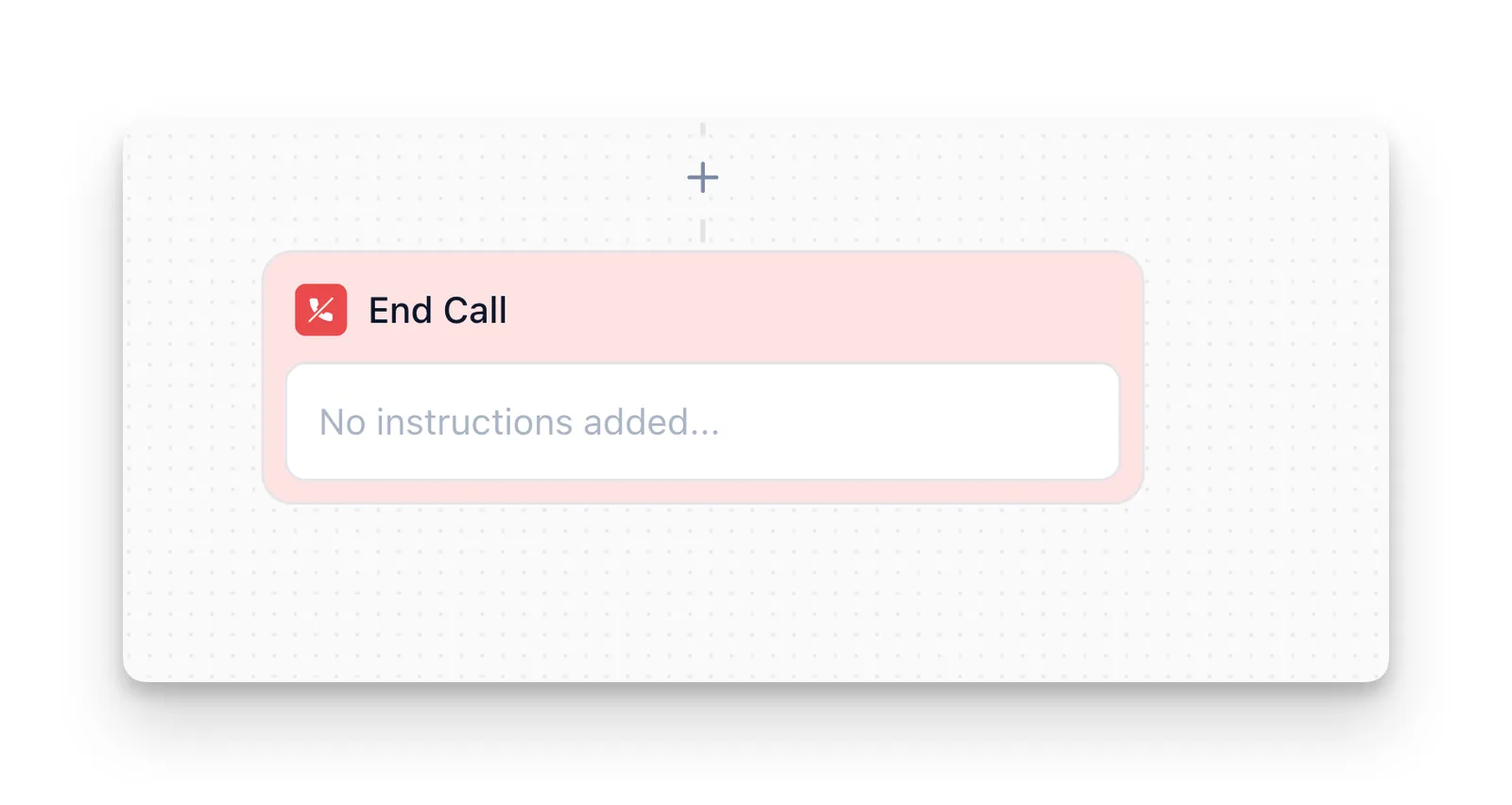
The End Call node closes the conversation. It runs any attached custom actions, speaks its final message exactly as written, and hangs up. It has no outgoing connections, and nothing the user says afterward is processed.
Keep the closing short and never end with a question: Thanks for calling! Your appointment is confirmed for {appointment_date}. You can add several End Call nodes for different outcomes, or route many paths to one shared End Call node with Jump To.
FAQ
Why can't I branch directly after the Greeting Message?
The Greeting Message speaks once and moves on without collecting input, so a Branch placed right after it has nothing to evaluate. Put a Conversation node in between to capture the user’s answer first.
When should I use a Conversation node instead of a Message node?
Use a Conversation node when you need the user’s answer, because it pauses and stores the response as a variable. Use a Message node when you only need to say something and move on.
Do I need a Conversation node for every question?
No. Use one only when you need to store the answer for later branching, API calls, or confirmation. General behavior and one-off questions can live in Global Settings.
What's the difference between Jump To and Trigger Subflow?
Jump To moves to another node in the same flow and never returns. Trigger Subflow hands off to a sub-agent and returns automatically when it finishes.
Do Global Settings changes affect calls already in progress?
No. Changes apply to new calls only. Calls in progress keep the settings that were active when they started.
Can I have more than one End Call node?
Yes. Use separate End Call nodes for different outcomes, such as resolved and unresolved, and route to them with a Branch.