

Workflows
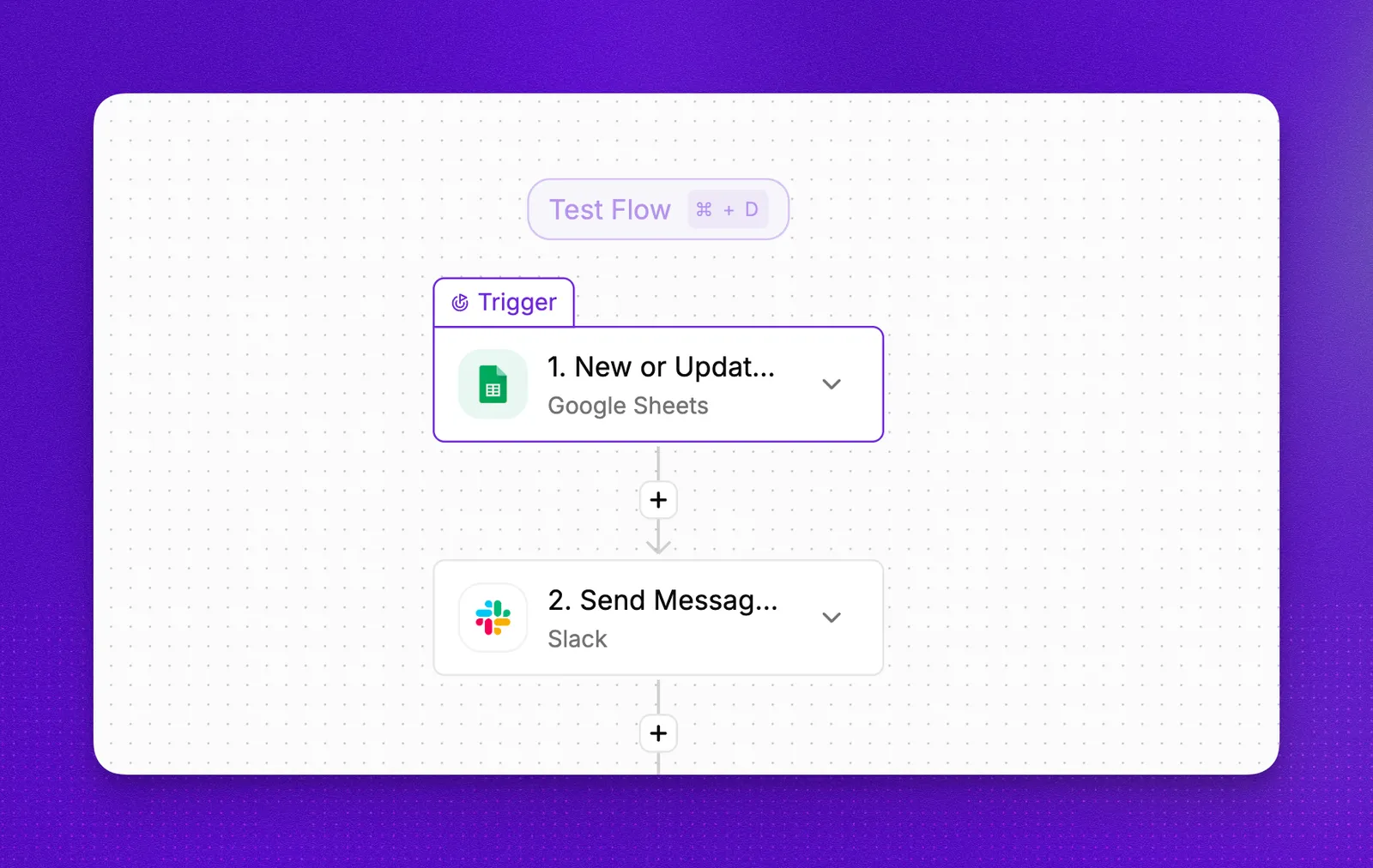
Agents handle the conversation. Workflows handle everything around it. With the visual workflow builder, you can connect your agents to CRMs, databases, scheduling tools, and external APIs — automatically reading data before a call, acting on outcomes after it ends, or triggering calls based on events in your systems. No code required.
Workflows are best for business logic that sits around the call rather than inside the agent prompt itself. Typical examples are CRM sync, scheduling triggers, outbound campaigns, enrichment before a call, and post-call follow-up logic.
Workflows are available on the Enterprise plan only and cannot be unlocked on lower plans. If you’re on a lower plan, you can still connect your agents to external services using native integrations. To get access to Workflows, contact sales or learn more about what’s included with Enterprise.
Before you build
Taking a few minutes to plan before opening the workflow builder will save you significant time and reduce complexity later.
Map out the workflow first
Write down every step the workflow needs to perform — what triggers it, what data it reads or writes, what decisions it makes, and what the final outcome should be. A clear picture of the full flow before you start building prevents you from having to rearchitect halfway through.
Use multiple small workflows instead of one large one
It’s tempting to build a single workflow that handles everything. In practice, smaller and more focused workflows are easier to debug, easier to update, and easier to reuse. If a workflow is doing more than one distinct job, consider splitting it.
Name every node descriptively
Give each node a name that clearly describes what it’s doing at that step. If you’re making an API call, use the endpoint name or a short description of its purpose — not just “HTTP call”. When a workflow has dozens of nodes, good names are the difference between understanding it at a glance and spending 20 minutes tracing logic.
Common use cases
Post-call CRM sync
One of the most common patterns is using a workflow to write call data back to a CRM automatically after a call ends.
Configure a webhook to trigger the workflow as soon as the call completes. The workflow receives the call context, uses information extractor nodes to pull out the relevant data points (outcome, contact details, notes), and then writes that data to the CRM using a native integration node like HubSpot or Salesforce.
Triggering outbound calls
Workflows can initiate outbound calls automatically based on external events, removing the need for manual intervention.
Two common trigger patterns:
- Cron-based: A scheduled trigger iterates through rows in a Google Sheet, HubSpot list, or Notion database and fires an outbound call for each contact.
- Event-based: A new row or record being added to your data source triggers the workflow immediately, launching a call to that specific contact without any delay.
Inbound caller lookup
When a call comes in, a workflow can query your CRM in real time to enrich the conversation before the agent even says hello.
The incoming phone number is passed to the workflow, which queries your CRM to check whether the caller already exists as a contact. If they do, the workflow can pull additional context — such as whether they have a recent booking, an open support ticket, or a specific account status — and make that available to the agent during the call.
Featured example
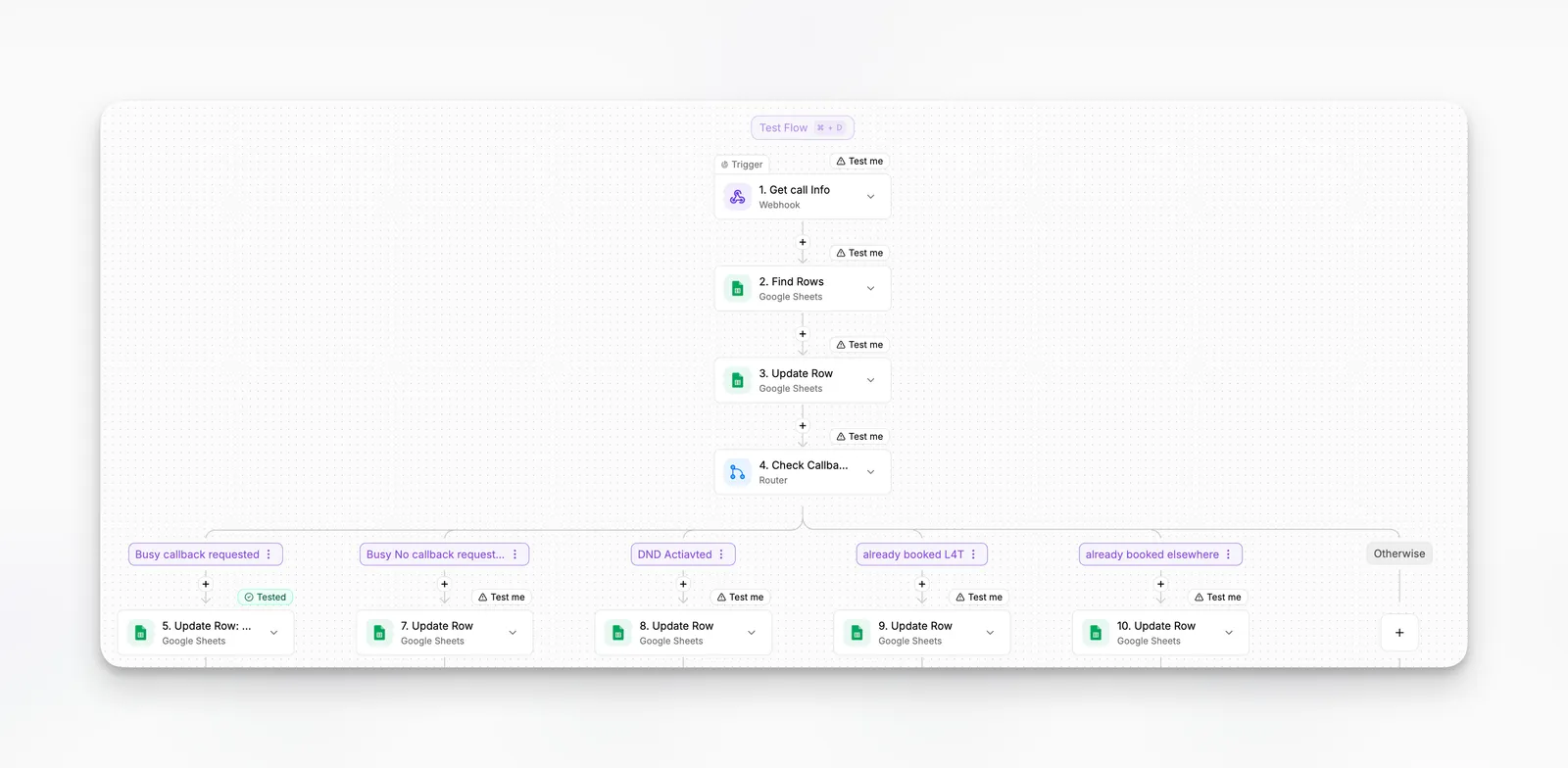
Post-call callback loop
This workflow runs after every call and handles two outcomes differently:
- If the call was successful: the workflow logs the outcome and the relevant call data to your CRM or database.
- If the call was unsuccessful: the workflow places the contact into a callback loop. The contact receives up to three follow-up calls. The loop stops as soon as they answer and the agent successfully completes the conversation. If they don’t answer after three attempts, no further calls are made.
This pattern is particularly effective for campaigns where reaching the contact is critical but over-calling is a concern.
Most-used nodes
The right nodes depend on where your data lives, but these come up in almost every workflow:
- Google Sheets — the most common choice for testing and prototyping. Easy to inspect, update, and share without any CRM setup.
- HubSpot — the go-to for teams already using HubSpot as their CRM. Used heavily for reading contact data and writing call outcomes.
- Salesforce — common in enterprise deployments where Salesforce is the system of record. Used for logging calls, updating opportunity stages, and querying account data.
FAQ
Key workflow patterns:
- Trigger after a call to sync results into external systems.
- Trigger from schedules or events to place outbound calls automatically.
- Keep workflows focused and chain them when one flow starts doing too many jobs.
Do I need to know how to code to build workflows?
No. The workflow builder is fully visual — you connect nodes by dragging and dropping, and configure each step through a form interface. No coding is required.
How do I trigger a workflow after a call ends?
Set up a webhook on your agent that fires when the call completes. The workflow receives the call context as its input payload, which you can then use in downstream nodes to extract data and write to your CRM or other systems.
Can one workflow trigger another?
Yes. You can chain workflows by using a webhook node to call a second workflow’s trigger endpoint. This is useful for keeping individual workflows focused while still orchestrating complex multi-step automations.