

Aurora
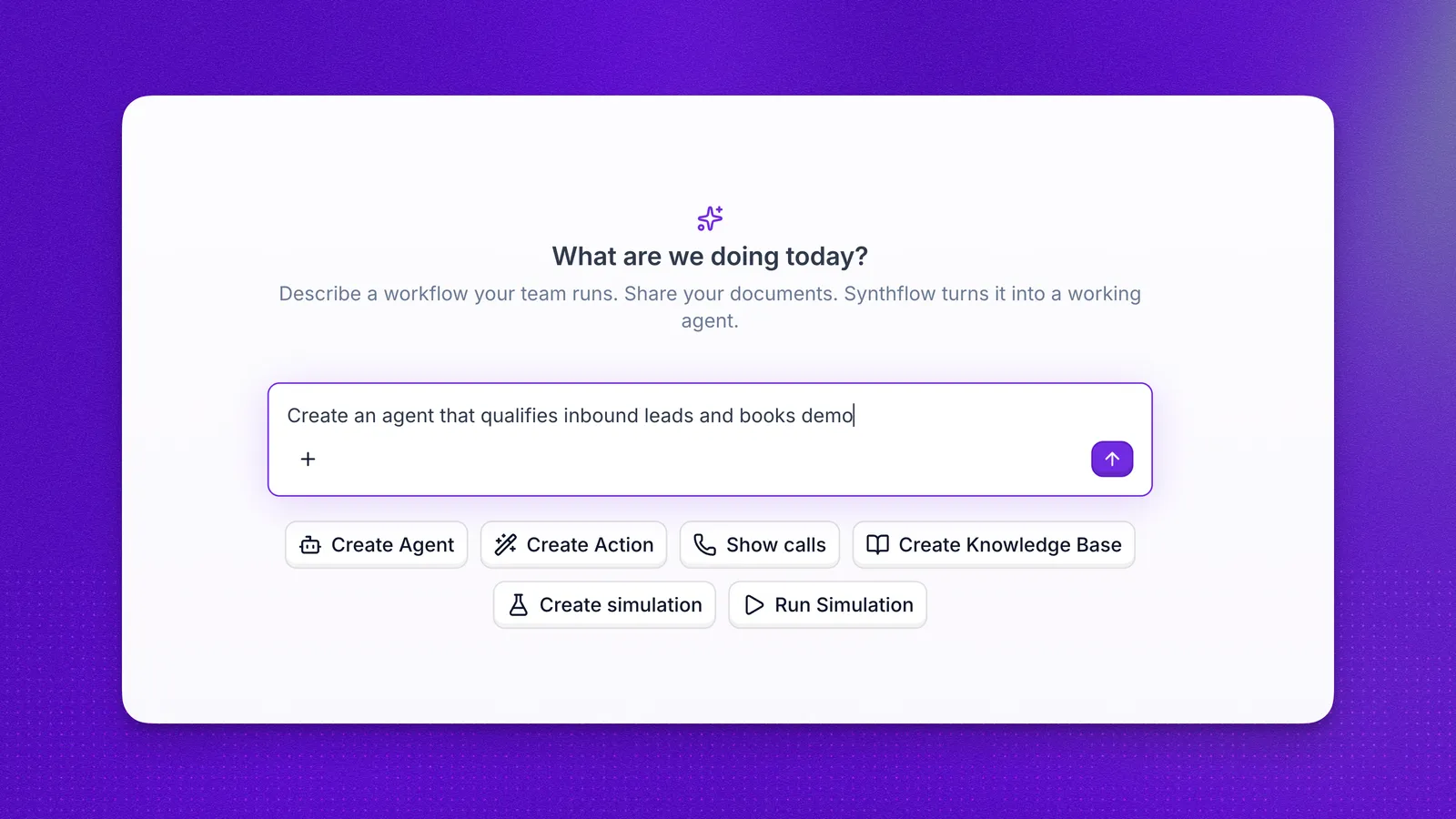
Aurora is an AI agent that works inside your Synthflow workspace. Think of it as the product analyst or forward-deployed engineer who already knows your project: unlike a general-purpose chatbot, it reads your real agents, call logs, knowledge bases, actions, and simulations, and it can change them on your behalf.
Aurora is available on the Enterprise plan only. To get access, contact sales or learn more about what’s included with Enterprise.
Open Aurora from the main sidebar. Each conversation is one thread where you type a request, attach context, and review what Aurora did. Describe what you want in plain language and Aurora can:
- Build and update agents: create agents, draft and refine prompts, work with Flow Designer flows, publish drafts, and compare versions before you go live.
- Configure actions and integrations: scaffold, create, attach, and test actions without stepping through every screen in the agent editor.
- Manage knowledge: create knowledge bases, add items from files or URLs, and attach bases to the agents that should use them.
- Analyze calls: inspect calls, pull analytics, play recordings, and surface summaries when you ask product or operations questions.
- Test before launch: create and run simulations, start test calls, and validate agent behavior from the chat.
- Answer how-to questions: search Synthflow documentation when you need feature explanations or setup guidance.
For step-by-step control over an individual setting, the feature guides on this site remain the source of truth.
Capabilities
Aurora works through the same tool set as the Synthflow MCP server, which documents every tool, including which ones write to your workspace and which ask you to confirm first. The Claude Code and Codex connectors reach that same tool set, so you can do this work from your AI tool instead of the dashboard.
Aurora adds a few tools that only make sense in-product. They render call cards, tables, charts, and version diffs inline, so results arrive as something you can read rather than raw output.
Memory
Aurora Memory keeps context inside the thread you are working in. As the conversation goes on, Aurora remembers details from earlier messages, such as which agent you are changing, the files you attached, or how you want a task handled, so you do not have to restate the same setup in every reply.
Memory belongs to a single chat, and a new conversation starts fresh. For preferences or facts that should survive across chats, use Learnings.
Memory is on by default. There is no settings screen to edit or clear it today.
Aurora Memory is not the same as Memory of past calls for voice agents, which stores contact summaries and injects them into phone conversations.
Learnings
Learnings are saved at the workspace level. They carry across Aurora conversations, not only the thread where they were created. Aurora can store preferences, naming conventions, or setup details you want available the next time you or a teammate opens Aurora in this workspace.
Learnings are enabled by default. They are not configurable in the dashboard today.
Skills
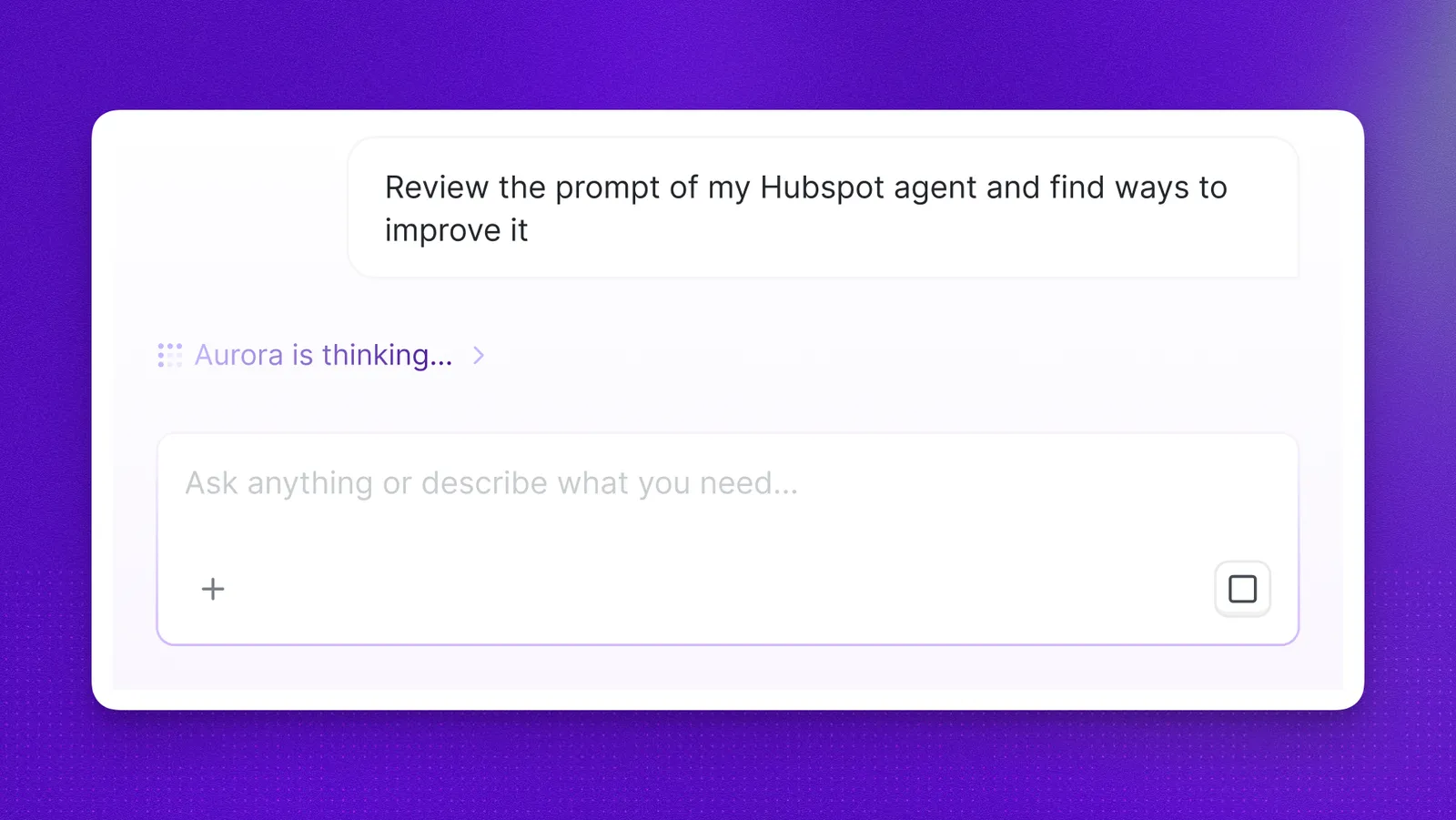
Aurora includes built-in skills that review and improve your agents for you. Two are available today:
- Prompt review: checks an agent’s prompt for clarity, missing guardrails, and conflicting instructions, then suggests improvements based on Synthflow best practices.
- Call analysis: reviews previous calls for an agent and identifies patterns, failure points, and concrete prompt or configuration changes that could improve outcomes.
Run either one by asking for it, for example “review the prompt for my sales agent” or “look at recent calls for my support agent and suggest improvements”.
Attachments
Attach images, call scripts, SOPs, and other supported text-based files to a message, or reference URLs where the product supports them. Aurora reads that material to draft prompts, populate knowledge bases, or scaffold actions that match how your team actually works.
Conversations
Your conversations are listed in the Aurora sidebar. Two controls keep that list usable as it grows:
- Rename: replace the generated name with a descriptive one, so you can find the thread again later.
- Pin: keep a conversation at the top of the list, however many new chats you start after it.
Both change the list only, not what a thread remembers.
Example prompts
Click the copy control on any prompt to paste it into Aurora, then adjust names, tools, and files for your workspace.
Agent creation
Action creation
Knowledge base
Calls and simulations
FAQ
What exactly can Aurora do in my workspace?
Whatever the tool set covers, which is most of what you would otherwise click through in the dashboard. Example prompts are a good place to start.
Can Aurora change an agent I already built?
Yes. Aurora is not only for new agents. Describe the agent and the change you want, and Aurora can update prompts, voices, actions, and other configuration on an existing agent, then publish the draft once you are happy with it.
What is the difference between Memory and Learnings?
How is Aurora Memory different from Memory Groups?
They are separate features. Aurora Memory applies only to your Aurora chat thread. Memory of past calls stores summaries of voice agent interactions with contacts and injects them into phone conversations. Changing one does not change the other.
What can I attach to a message?
You can attach images, call scripts, SOPs, and other supported text-based files, or reference URLs where the product supports them. See Attachments. If a format is not accepted, Aurora will tell you in the thread.
Can I turn off or edit Memory and Learnings?
No. Memory and Learnings are enabled by default for Aurora. There is no settings screen to disable them or edit stored Memory or Learnings in the dashboard today.
Do I still use the dashboard for detailed settings?
Yes. Aurora orchestrates work across the product, but dedicated pages such as voice configuration, the agent editor, actions, and simulations remain where you review and tune every setting manually.
How is Aurora different from the Claude Code and Codex connectors?
Aurora runs in the Synthflow dashboard with Memory, Learnings, and UI cards for calls and tables. The Claude Code and Codex connectors let you manage the same workspace from your AI tool instead. Both draw on the same tool set, but Aurora is in-product while the connectors run where you already work.