

Post-Call SMS
Enable your agent to send a follow-up text message after the call ends
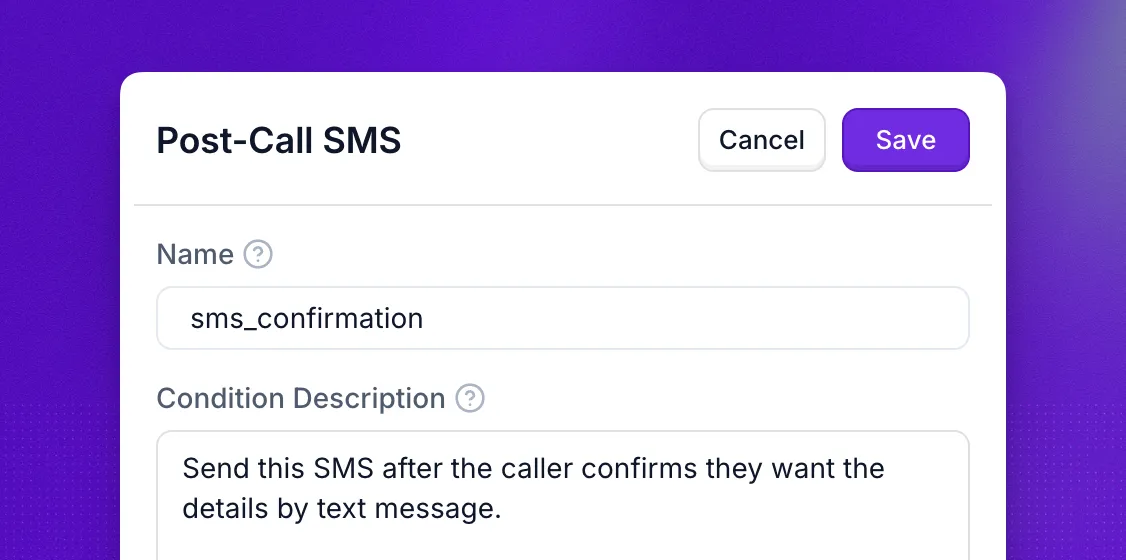
Post-call SMS actions enable your AI agent to automatically send a follow-up text message to customers after a phone conversation ends. This is useful for sending confirmation codes, appointment details, links, or follow-up information.
Twilio Required: Post-call SMS actions are only available when using Synthflow’s Twilio integration or your own Twilio account. Other telephony providers do not support SMS functionality.
Need to send a message during a live call and react to the customer’s reply? See In-Call Messaging. This page covers post-call SMS follow-ups.
Overview
Post-call SMS actions are reusable components that you create once and can attach to multiple agents. Each action defines the message content and the conditions during the call that determine whether the follow-up SMS is sent after the call ends.
Common use cases include:
- Sending appointment confirmations with date and time
- Sharing links to resources or booking pages
- Providing verification codes or reference numbers
- Sending follow-up information after a call
- Delivering promotional offers or discounts
Create a Post-call SMS action
Describe the trigger condition that determines when the SMS should be sent. Be specific about the circumstances that should activate this action.
Example conditions:
- “When the customer confirms they’re interested in the offer”
- “After scheduling an appointment”
- “When the customer requests more information”
- “If the customer agrees to receive promotional messages”
Attach to an Agent
Once created, attach the Post-call SMS action to your agent so it can send the follow-up message after qualifying calls.
Your agent will now send the configured SMS message after the call when the specified trigger conditions are met.
Variables
In the SMS message body (the template that is sent), type placeholders with angle-bracket names—for example <customer_name> or <confirmation_code>—where you want text to be filled in at send time. Each distinct name becomes an input variable on that Post-call SMS action.
After you attach the Post-call SMS action to an agent, open it from the agent’s Actions tab and map each input: bind it to a fixed value or to any variable your agent or flow already provides (collected during the call, system fields, pre-call data, another action’s results, and so on).
For example, a template like Hi <customer_name>, your appointment is confirmed for <appointment_date>. defines two inputs, customer_name and appointment_date, which you wire up when the action is attached to the agent.
Best Practices
- Keep messages concise: SMS has a 128-character limit per message; longer messages may be split
- Be clear about sender: Include your business name so recipients know who sent the message
- Test thoroughly: Make test calls to verify messages are sent correctly after the call ends
- Check trigger conditions: Make sure the conditions you describe reliably reflect when the follow-up should go out
FAQ
What happens if the SMS fails to send?
Failed SMS attempts are logged in your call details. You can review these in your call logs to identify and troubleshoot any delivery issues.
Are there character limits for SMS messages?
Yes, standard SMS messages are limited to 128 characters. Messages longer than this will be split into multiple SMS segments, which may incur additional charges from Twilio.
How do I track SMS delivery?
SMS delivery status is included in your call logs and can also be tracked through your Twilio dashboard. You can view delivery status, timing, and any errors that occurred.