

MCP Connectors
MCP actions connect your Synthflow agent to an external MCP server, giving the LLM access to tools hosted on that server. During a call, the agent decides when to invoke these tools based on the conversation context, similar to custom actions, but using the open MCP standard instead of a hand-configured HTTP request.
You can configure MCP servers in the UI or manage them through the MCP configuration API.
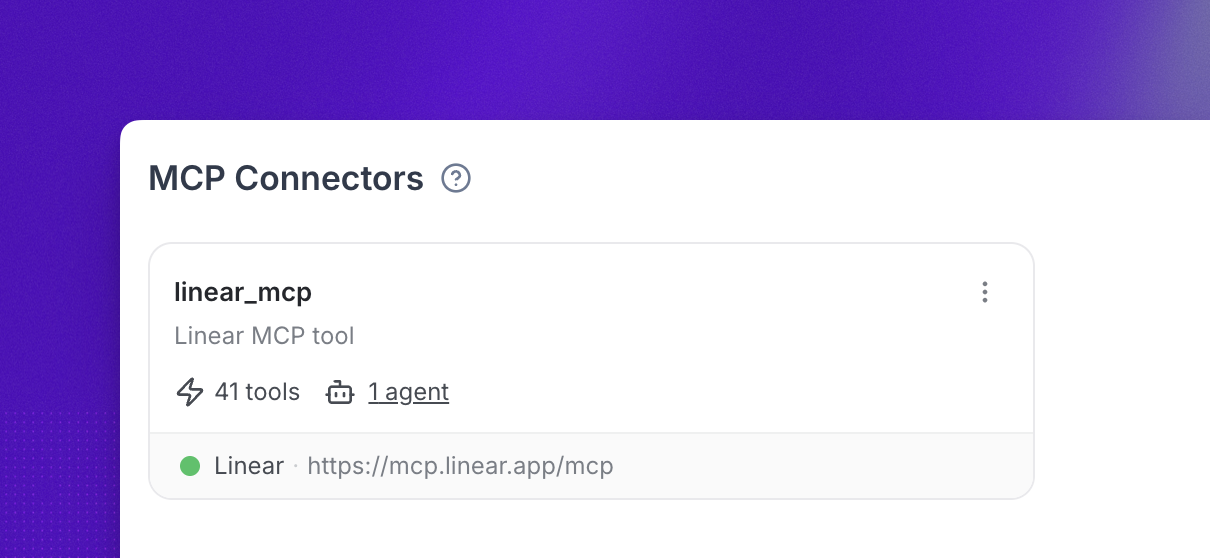
MCP actions are currently supported on Prompt Builder agents. Flow Designer support is not yet available.
This page covers connecting your voice agent to external MCP servers during calls. To manage Synthflow from an AI tool instead, see the Claude Code or Codex connectors.
How it works
- You create an MCP server in your workspace with its URL and credentials, then discover its tools.
- You attach the MCP server to an agent and select which tools the agent can use.
- During a call, the LLM sees the selected tools and invokes them when the conversation calls for it.
Each workspace can register multiple MCP servers.
Step 1: Create an MCP server
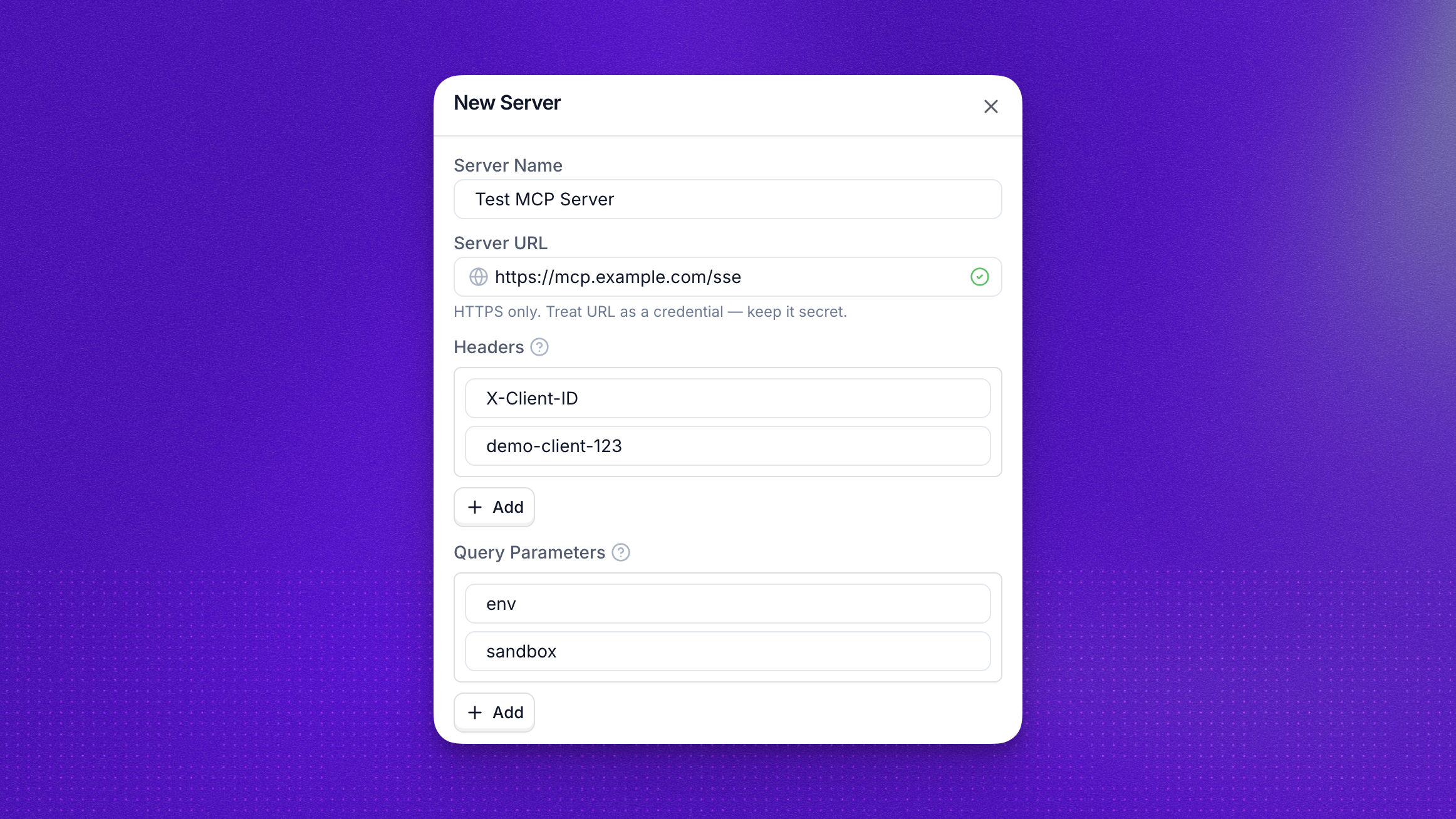
- Go to Actions in the sidebar.
- Select MCP Connectors and create a new one.
- Enter the Server URL, the HTTPS endpoint of your MCP server.
- Optionally add Headers and Query parameters as key-value pairs for values your server expects on every request, such as API keys, tenant IDs, or version flags.
- Choose an authentication method, No Auth or Bearer Token, and provide the credentials.
- Click Discover Tools. Synthflow connects to the server and lists the available tools.
The server URL must use HTTPS. Plain HTTP endpoints are rejected.
Tools are not synced automatically. If your MCP server adds, removes, or updates tools, click Discover Tools again.
Step 2: Attach to an agent
- Open your agent and go to the Actions tab.
- Click Add Action during the call and select your MCP server.
- Select which tools the agent should have access to. Fewer tools means a smaller context window and better LLM performance.
The agent now has access to the selected MCP tools. During calls, the LLM will invoke them based on the conversation context.
If your MCP server exposes many tools, only select the ones relevant to this agent’s purpose. Large tool lists can degrade response quality and increase latency.
Play audio while an MCP tool runs
Action audio gives callers feedback while an MCP tool is working. When the LLM invokes a tool during a live voice call, the selected sound loops until the tool returns or fails.
To configure action audio:
- Open your agent and go to the Actions tab.
- Open the attached MCP connector.
- Enable the tool you want the agent to use.
- Under that tool, set Action Audio to None, Typing, Ambient, Modern Jazz, or Classical.
Action audio is configured separately for each enabled tool, not once for the MCP connector. This lets you use different sounds for different tools. None is the default and plays no background audio.
Error handling
Synthflow cannot guarantee the response time of your MCP server. If your tools involve slow operations, such as database queries or third-party API chains, the LLM will handle the wait and continue the conversation.
Limitations
- MCP actions are supported on Prompt Builder agents only. Flow Designer agent support is planned.
- Streamable HTTP is the preferred transport. SSE (Server-Sent Events) is supported as a fallback for backward compatibility. stdio-based MCP servers are not compatible.
FAQ
Can I use MCP actions with Flow Designer agents?
No. MCP actions are currently supported on Prompt Builder agents only. Flow Designer support is planned.
Are MCP tools synced automatically?
No. If your MCP server adds, removes, or updates tools, open the MCP action and click Discover Tools again.
Can I configure MCP servers through the API?
Yes. Use the MCP configuration API to manage workspace MCP servers programmatically.
How is this different from the Claude Code and Codex connectors?
MCP Connectors let your voice agent call tools on an external MCP server during a live call. The Claude Code and Codex connectors are the opposite direction: an AI tool you work in calls tools to manage your Synthflow workspace.
Can each MCP tool use different action audio?
Yes. Configure Action Audio separately for each enabled tool. A tool set to None runs without background audio.