

Additional Settings
Fine-tune transcription, latency, interruption handling, and vocabulary
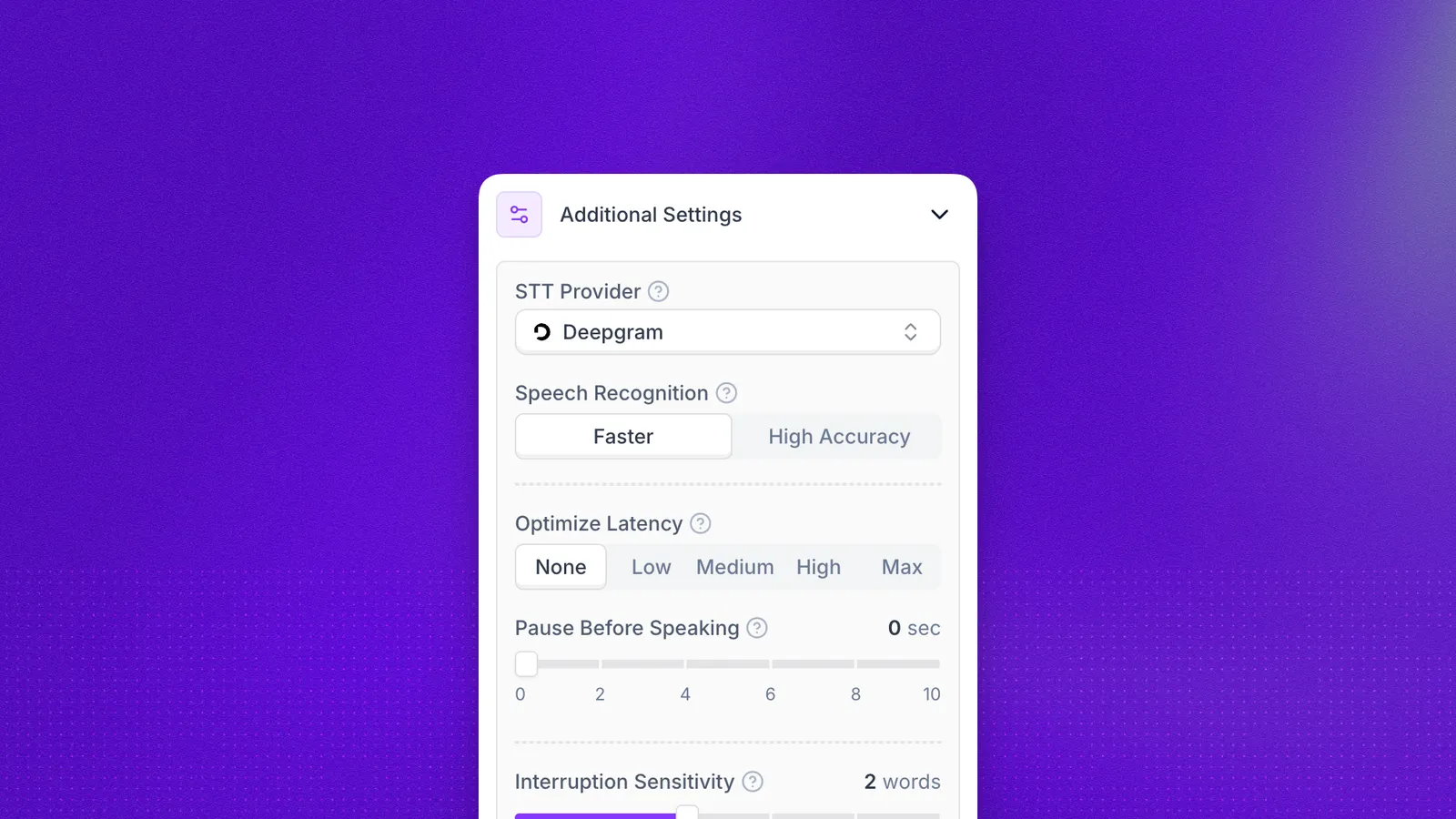
The Additional Settings panel of the agent editor houses lower-level controls that fine-tune how your agent listens, responds, and handles speech. These settings are collapsed by default. Expand them when you need to adjust transcription quality, latency, or interruption behavior.
STT provider
The STT Provider dropdown selects the speech-to-text engine used to transcribe caller audio. The default is Deepgram, which offers strong English support. For non-English languages, switching to Synthflow STT can improve transcription accuracy.
Speech recognition
Choose between Faster for the lowest-latency transcription or High Accuracy for more precise results. Faster suits most real-time conversations. High Accuracy is better when the agent needs to capture numbers and exact wording reliably, such as phone numbers, order IDs, account references, names, and addresses. It costs some latency in exchange.
Optimize latency
Optimize Latency balances voice quality against response speed. The scale ranges from None (highest quality, no optimization) through Low, Medium, High, to Max (fastest responses, some quality trade-off). For most use cases, leaving this at None or Low provides a good experience.
Response time also depends on your prompt: long prompts cause higher latency.
Pause before speaking
Pause Before Speaking adds a delay (in seconds) before the agent begins talking at the start of a call. A short pause can make the opening feel more natural, especially for inbound calls where the caller expects a brief ring-to-answer transition.
Interruption sensitivity
Interruption Sensitivity controls how easily the caller can interrupt the agent mid-sentence. The value represents how many words the caller must speak before the agent stops and listens. Setting it to Off disables interruptions entirely; lower values make the agent yield quickly, while higher values let it finish longer phrases before pausing.
Fade out at interruption
Fade Out at Interruption sets how many frames the agent’s voice takes to fade out once an interruption is detected. A lower value cuts the agent off sharply; a higher value produces a smoother, more natural fade.
Custom vocabulary
Custom Vocabulary lets you add domain-specific terms (brand names, product codes, technical jargon) so the speech recognition engine can identify and transcribe them correctly. Type each term and press Enter to add it.
Filter words
Filter Words strips unwanted tokens from the transcription output. This is useful for removing filler sounds, profanity, or placeholder characters that the STT engine may produce. Existing filter words appear as tags that you can remove individually.
Use realistic filler words
When enabled, the agent inserts natural filler words (like “um” or “uh”) into its responses, making the conversation feel more human and less robotic.