

In-Call Messaging
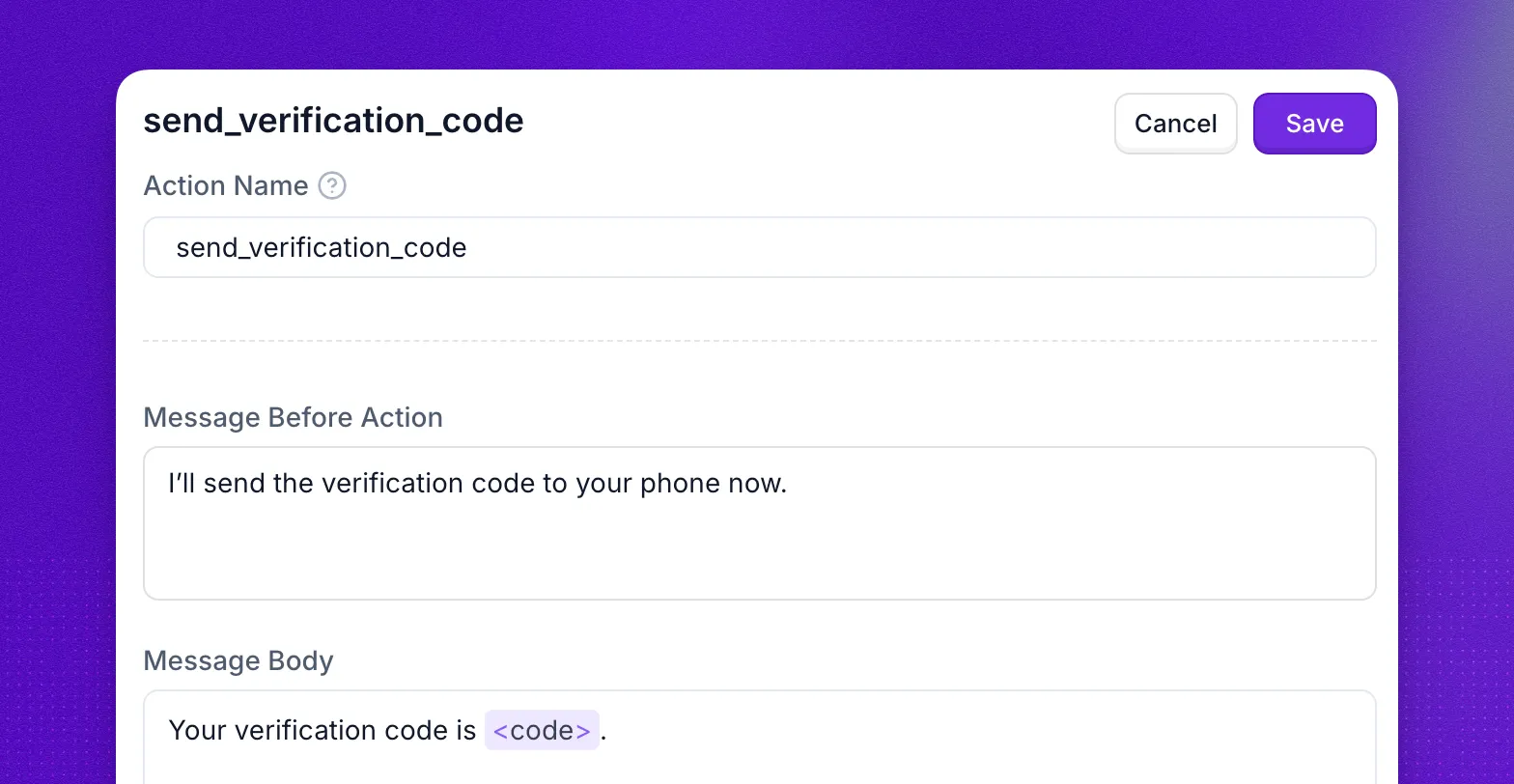
In-call messaging lets a voice agent send an SMS or WhatsApp message while a call is live, then continue the conversation using the customer’s reply. Use it to capture or convey information that is hard to relay by voice alone — one-time passcodes, email addresses, invoice IDs, confirmation links, or a menu of options the customer can pick from.
Twilio Required: In-call messaging relies on your connected Twilio account. Connect one under Integrations › Twilio before configuring these actions. In-call WhatsApp also needs a WhatsApp sender linked to the agent.
In-call vs. post-call SMS
This guide covers messages the agent sends during a live call. If you want the agent to send a follow-up SMS after the call ends — for example a booking confirmation or a recap link — use the Post-call SMS action instead.
How it works
When the agent triggers an in-call messaging action:
- Synthflow dispatches the SMS or WhatsApp through your Twilio account to the caller.
- The customer can respond in one of two ways:
- Speak the answer back on the call. Works naturally for short codes like an OTP — the voice transcriber picks it up without any special handling.
- Reply by text. The reply is detected, added to the call transcript as
[SMS Reply]: ...or[WhatsApp Reply]: ..., and stored in a variable the agent can reference.
- The message itself can still include links or instructions, but the built-in reply path for Omnichannel Stage 2 is the customer’s SMS or WhatsApp text reply.
- The agent either pauses for the reply (blocking mode) or keeps talking while it waits (non-blocking mode).
Create an in-call SMS action
Enter the message body. Reference placeholders with angle brackets — for example Hi <user_name>, your verification code is <otp_code>.
Optionally set the message before action — a short sentence the agent says out loud before firing the SMS, e.g. “I’m texting the link to you now.” This keeps the caller informed while the message is being delivered.
Choose whether the agent should wait for a reply.
- Wait for reply (blocking): the agent pauses until the customer replies, the timeout elapses, or the call ends.
- Do not wait (non-blocking): the call continues naturally; the reply is injected into the transcript whenever it arrives.
Create an in-call WhatsApp action
WhatsApp outbound messages sent mid-call require a pre-approved Twilio Content template. WhatsApp’s 24-hour session window blocks free-form messages until the customer has messaged you first, so the first message of any conversation has to be a template.
Paste the Content SID of your approved Twilio template. Content SIDs start with HX followed by 32 hex characters (for example HX1234567890abcdef1234567890abcdef). You can find them in Twilio under Messaging › Content Template Builder.
Fill in the template variables. Each key matches a numeric placeholder in the template body ({{1}}, {{2}}, …). Values can reference Synthflow placeholders — for example <user_name>.
Attach to an agent
Referencing the reply in your agent
When the customer replies, the reply text is stored as a variable:
Reference the variable in a later prompt or action to keep the conversation natural:
See the Variables guide for the full variable syntax.
Best practices
- Announce what you are about to do. Set message before action to something like “I’ll text that to you now” so the caller knows why there is a brief pause.
- Keep SMS bodies short. Long messages are split into multiple segments and may arrive out of order.
- Use non-blocking mode when the agent can keep talking. Blocking mode is best for must-have answers like an OTP.
- Pick realistic timeouts. 30–60 seconds is usually enough for OTPs and simple confirmations.
- Pre-approve WhatsApp templates early. Utility templates approve faster than marketing templates; approval can still take hours to days.
FAQ
Do I need my own Twilio account?
Yes. In-call messaging uses your Twilio credentials to send and receive messages. Set one up under Integrations › Twilio. In-call WhatsApp additionally needs a WhatsApp sender linked to the agent.
Why does WhatsApp need a template?
WhatsApp allows free-form outbound messages only inside a 24-hour session that the customer opens by messaging you first. Outside that window, only pre-approved templates are allowed, so the first mid-call WhatsApp message from your agent must always be a template.
What happens if the customer doesn't reply?
If wait for reply is on, the agent speaks the fallback message once the timeout fires and carries on. The variable ({sms_reply} / {whatsapp_reply}) stays empty. If wait for reply is off, the call just continues — if a reply arrives later during the same call it is still injected into the transcript.
Can the agent send more than one in-call message per call?
Yes. Attach multiple in-call messaging actions and the agent will fire each one based on its trigger conditions.
How do I use the reply in a follow-on action?
Reference it by variable. A Custom Action can include {sms_reply} in its URL, headers, or body; a prompt can include it inline. See Variables.
Does this work for inbound calls, outbound calls, or both?
Both. By default, the message is sent to the caller’s phone number ({user_phone_number}), but you can override the destination with to_phone_number in the action configuration. When provided, to_phone_number takes precedence.