

Knowledge Base
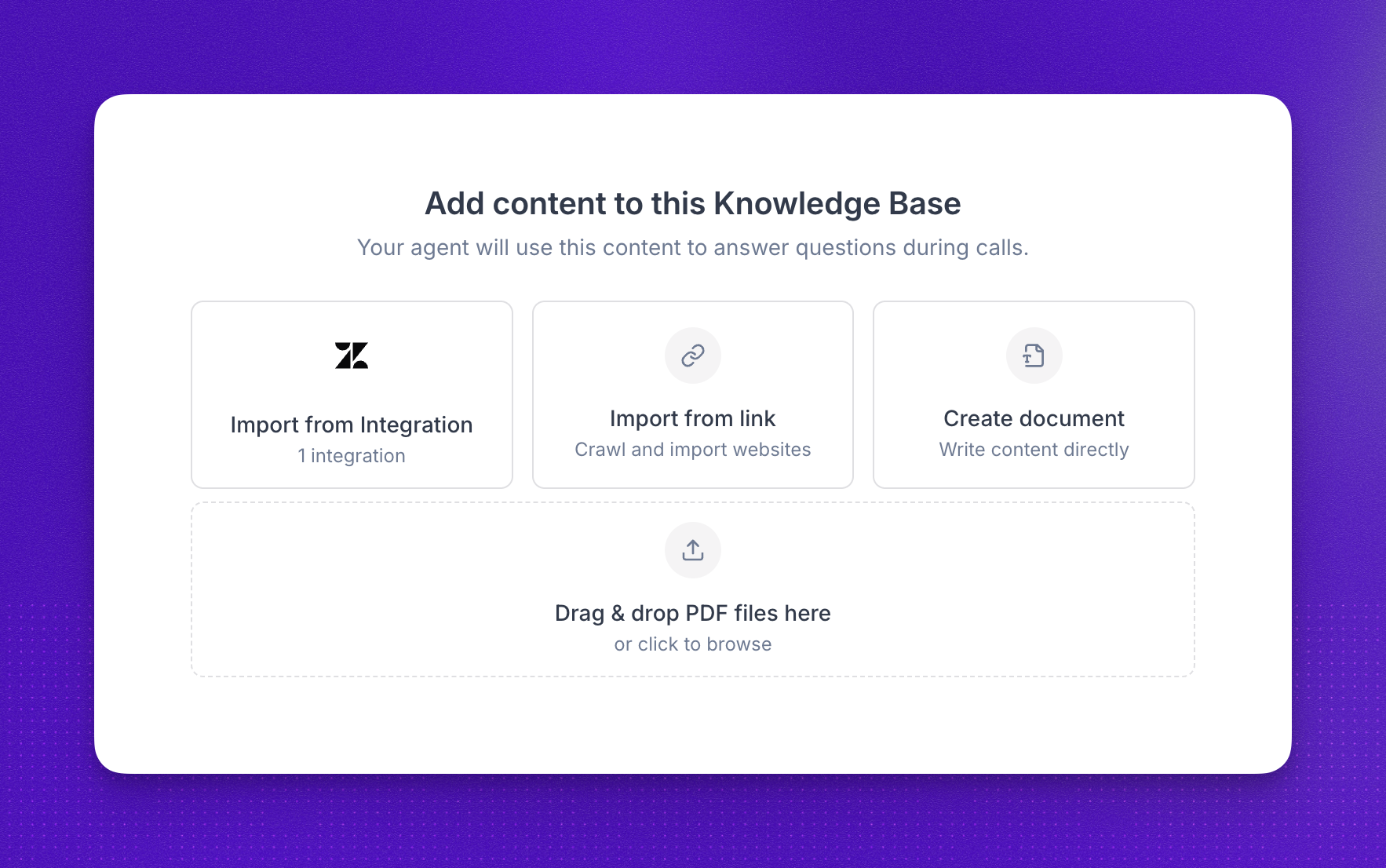
A knowledge base holds documents and pages your agents can query during calls using retrieval-augmented generation (RAG). This page covers how to create a knowledge base, describe when the agent should search it, add sources (including scanning URLs and connecting external knowledge such as Zendesk), attach a base to an agent, and review searches in call logs.
How to create a knowledge base
In the dashboard, open Knowledge Bases and create a new knowledge base. Give it a clear name, then define when the agent should search the knowledge base.
That condition should describe the situations or user questions that should trigger a lookup—for example, when the caller asks how to use your product or requests policy details. Do not use this field for general prompting (such as objection-handling or tone instructions); it only controls when a search runs, not how the agent speaks.
Best practices:
- Be explicit about the scenarios that should trigger a search.
- Keep each source focused on a single topic; split large PDFs when it helps retrieval.
- Review and update content regularly so agents do not rely on outdated material.
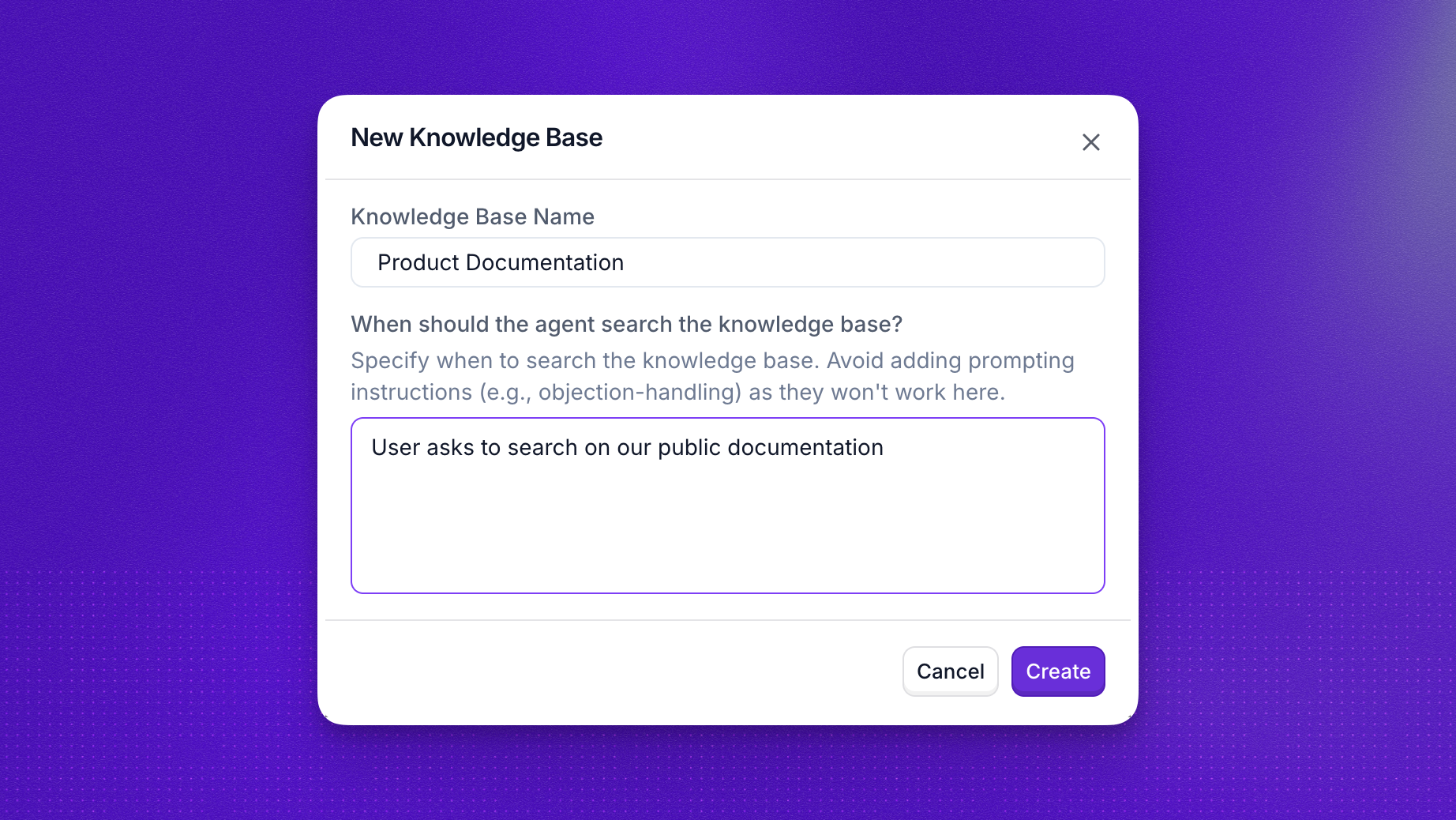
After you save the knowledge base, add sources (see below), then attach it to an agent.
From the knowledge base screen, add any combination of:
- PDFs from your device.
- Blank documents to type or paste content when you add the source.
- URLs to fetch and analyze your webpage.
- Integrations to import from a connected service.
Scan websites
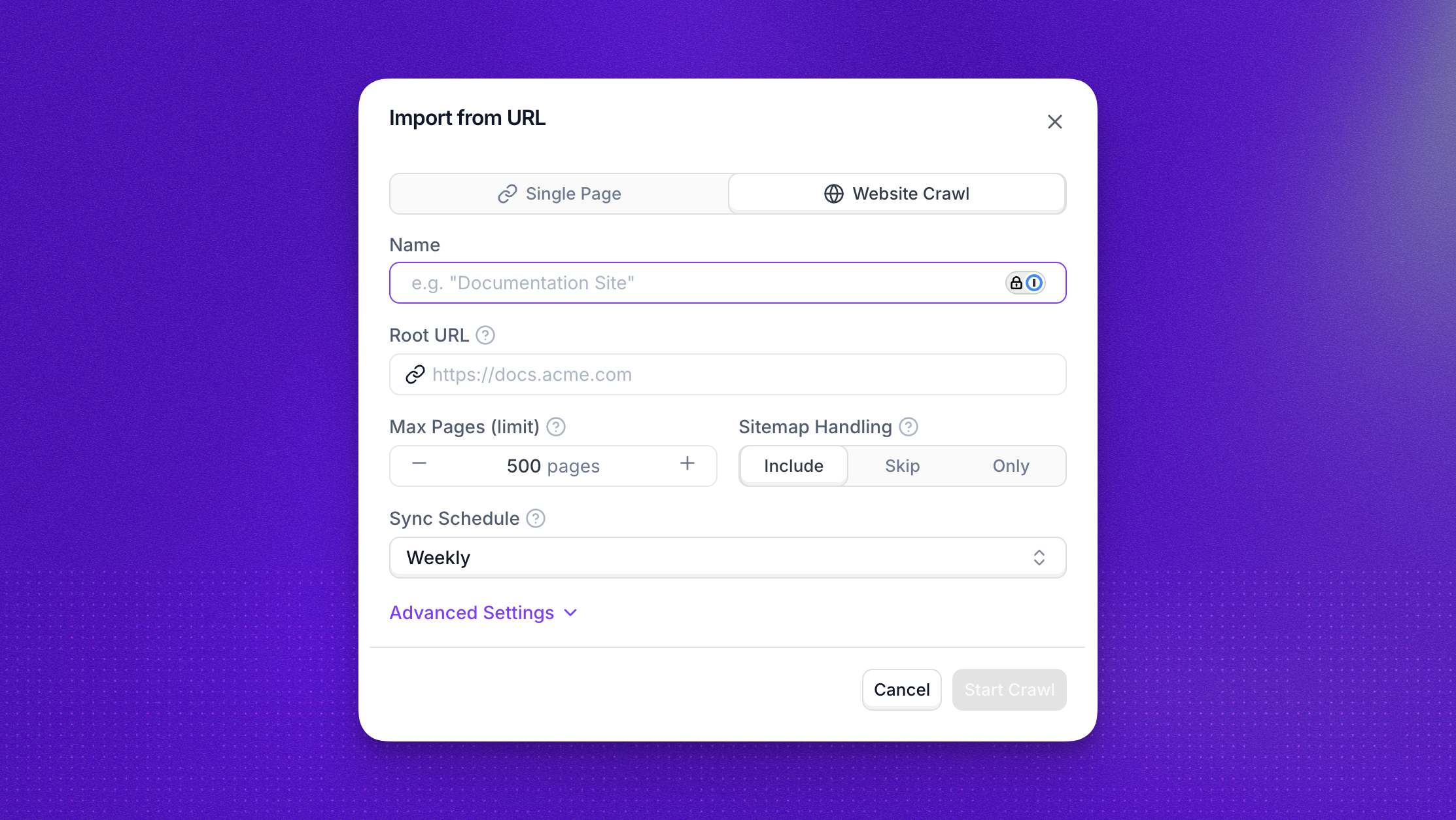
Here you’ll bring public web pages into a knowledge base: each page is fetched, analyzed, and stored for retrieval. Stop at one URL (single page) or use Website crawl with a root URL and crawl settings to add linked pages too.
How to scan multiple pages
From your knowledge base, click Add item → Paste from URL → Website Crawl. Use the table below to understand what each field is for and how it can help you. Once ready to scan, the import runs in the background and may take a few minutes depending on site size and your crawl settings; when it finishes, open that source to review imported pages and extracted text.
Best practices
- Start with a lower page limit while testing, then increase gradually.
- Use include/exclude rules to avoid irrelevant sections (for example
/blogor/changelog). - Keep URL-parameter ignoring enabled to reduce duplicate page imports.
- Use a lower crawl depth for focused imports and higher depth for full-site coverage.
Connect external knowledge bases
Synthflow can pull content into a knowledge base from supported integrations. Available integrations:
- Zendesk
Zendesk
Use the Zendesk integration to import your Help Center articles directly into a knowledge base. This is useful when your support documentation already lives in Zendesk and you want your agent to answer from the same source of truth.
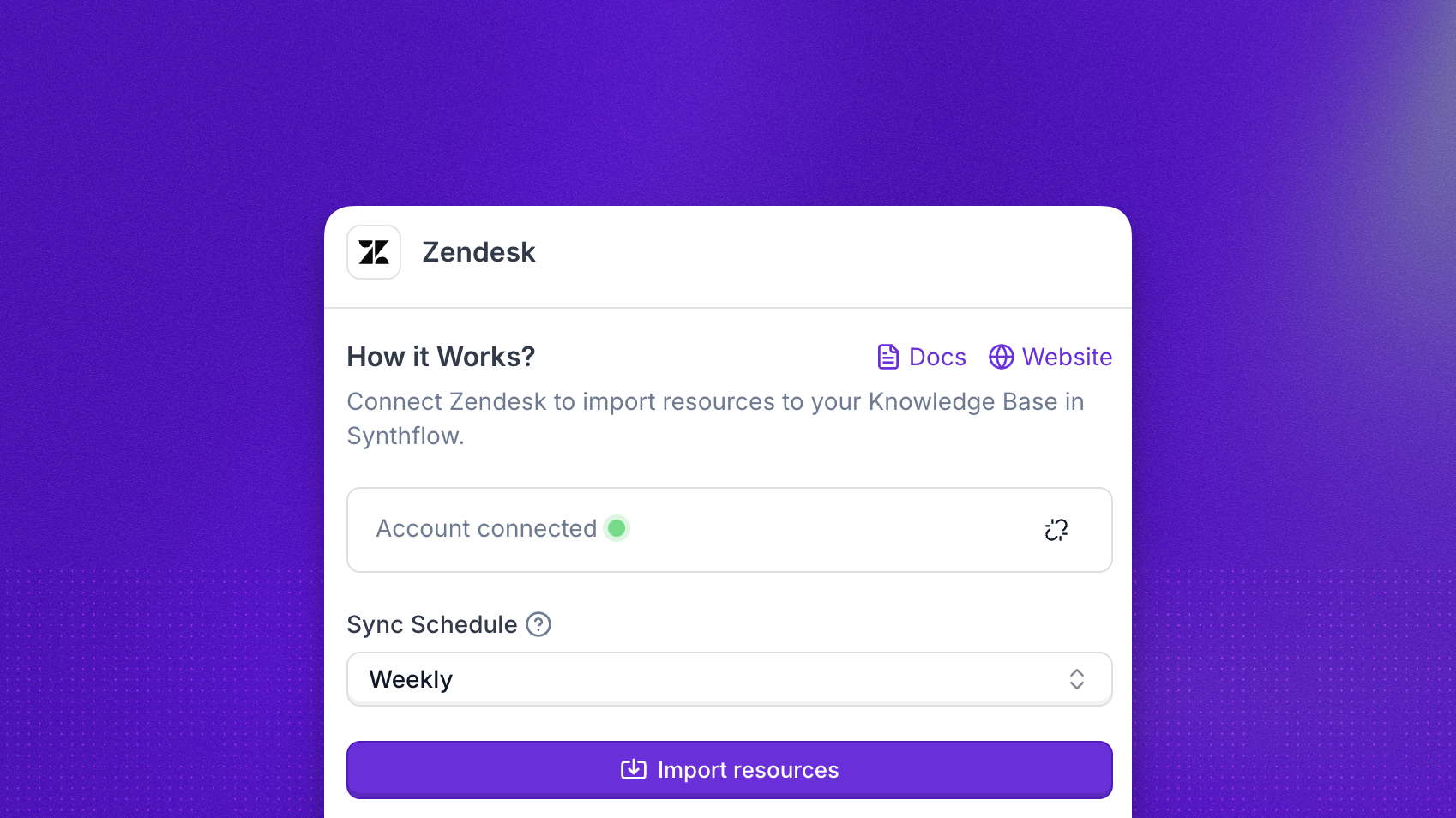
The import runs asynchronously. Depending on the number of Zendesk articles, syncing can take a few minutes.
In your knowledge base, choose Add item → Import from Integration, or start from the Import from Integration tile on the empty state. Select Zendesk, then sign in with OAuth using your Client ID, Client Secret, and Subdomain.
Once the connection succeeds, pick how often to sync (Daily, Weekly, or Monthly) and click Import resources. The source shows In Progress while Help Center articles are indexed, then Synced when the run finishes.
The Zendesk integration crawls your Zendesk Help Center articles and imports them into your knowledge base. Once synced, your agent can retrieve this content during RAG search.
Attach to an agent
An agent only runs knowledge base searches when a knowledge base is attached to that agent. Bases you create elsewhere in the workspace are not used until you link them.
To attach one, open the agent in the agent editor, go to Knowledge & Memory, and choose the knowledge base you want. Save your changes, then publish a new version so that agent can retrieve from it on live calls.
Track activity in call logs
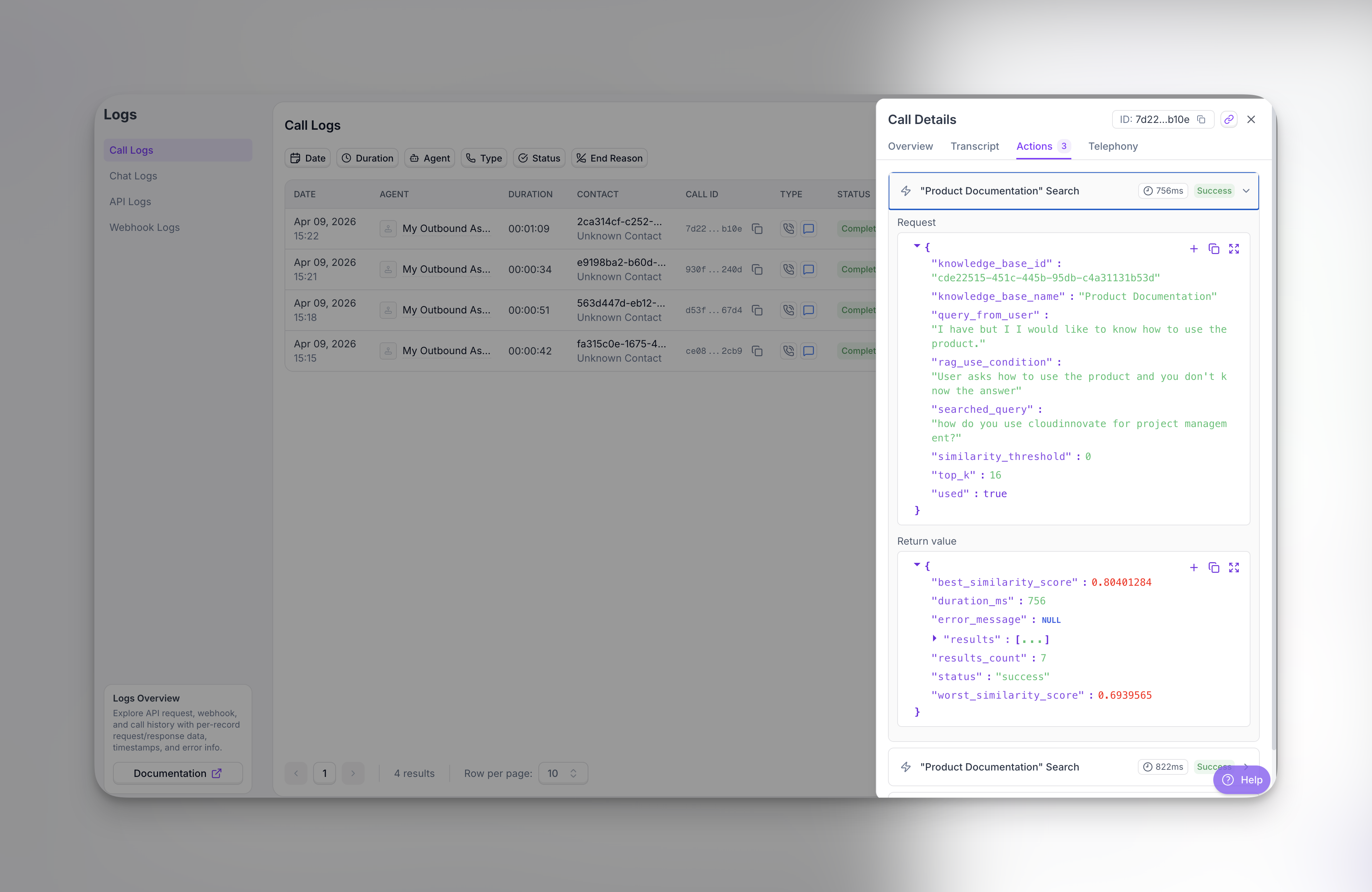
When an agent looks up your knowledge base during a call, open your call logs to see the lookup.
Some relevant information you may find interesting:
- Which knowledge base was used
- The situation you set for when the agent should search
- How the caller’s wording compares to the search the agent actually ran
- How many matches came back and how long the lookup took
- Whether the lookup succeeded
Together, this helps you confirm a search ran when you expected and spot problems early.
FAQ
How does the Knowledge Base work?
The knowledge base stores information the agent can reference during a conversation. It suits large or changing content you do not want to paste into the prompt. At answer time the agent searches for relevant snippets; it does not load the entire knowledge base into context at once.
What is RAG?
Retrieval-Augmented Generation (RAG) lets the model use your uploaded or linked content when generating a reply, instead of relying only on built-in training data.
How does the agent choose what to retrieve?
The agent matches the conversation to content in the knowledge base using semantic search over the material you added.
Will the agent quote the Knowledge Base verbatim?
Usually the agent paraphrases. If a passage is clear and well structured, it may repeat short phrases exactly when appropriate.
What if the Knowledge Base has conflicting info?
If conflicting information exists across multiple documents (e.g., different figures in different files), the agent’s response may be inconsistent and depend on which document it selects.
To prevent this, you can:
- Remove or update outdated content on a regular basis.
- Ensure consistency across documents.
- Test agent responses to verify accuracy.
How do I add documents to the Knowledge Base?
You can add Knowledge Base content by uploading PDFs, creating documents directly, pasting a single URL, running a website crawl, or importing from supported integrations (for example, Zendesk). See Scan URLs and Connect external knowledge bases on this page.
Can I add multiple Knowledge Base sources?
Yes, you can mix sources such as PDFs, single-page URLs, website crawls, integration imports, and documents created in Synthflow. The agent will search through all available content regardless of source.
Does the agent scrape my entire website?
Paste from URL can import a single page from one URL, or you can switch to Website crawl to index multiple pages—see Scan URLs on this page.
Will every PDF upload process correctly?
Complex layouts (columns, heavy images, unusual formatting) may not extract cleanly. If uploads fail or look wrong, try a simpler PDF or plain text.
How does the agent handle large documents?
The agent retrieves relevant sections rather than reading a file end to end. Clear headings and smaller, topic-focused files improve results.
Can I control which documents the agent uses?
You cannot manually rank documents. Improve outcomes with clearer writing, tighter scope per file, and removing noise.
How can I tell if an agent used the knowledge base on a call?
Open the call in your call logs and select the Actions tab. If the agent ran a lookup, you will see an action for that knowledge base search (often titled like your knowledge base). If nothing appears there, no knowledge base search was recorded for that call.
What if the agent ignores the Knowledge Base?
Refine the search condition, improve source structure and headings, and test alternate caller phrasing. Use call logs to confirm whether a search ran and what query was used.