Verify Knowledge Base Trigger in Calls
If you are asking, “How do I know if the Knowledge Base was triggered?”, the fastest way is to inspect the call’s action logs.
Check in Call Details
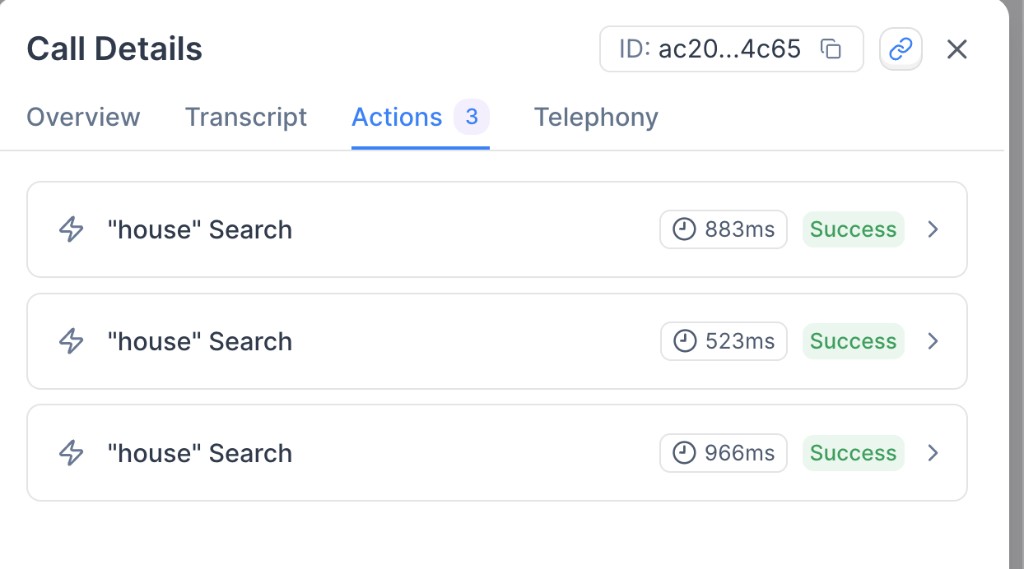
Open the call and go to Actions
Open the relevant call, then go to Call Details > Actions.
You should see one or more <knowledge-base-name> Search actions if Knowledge Base retrieval was triggered.
Open a KB Search action and inspect the request
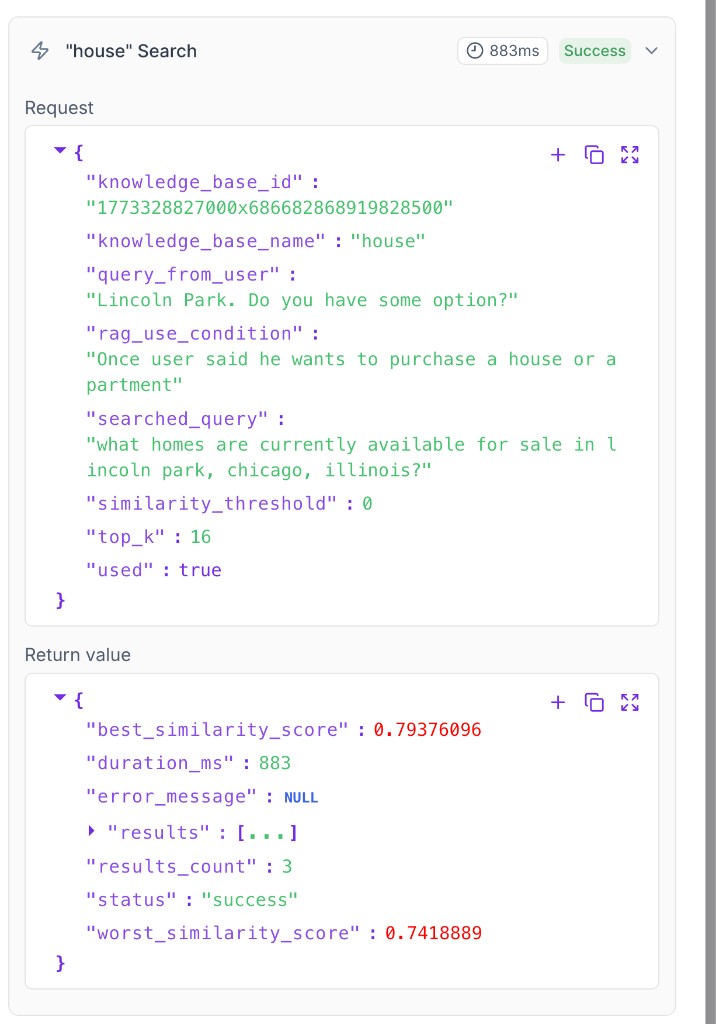
Click one search action to open details. In the Request payload, confirm fields such as:
knowledge_base_idandknowledge_base_namequery_from_userrag_use_conditionsearched_query
These fields show which knowledge base was queried and why search was executed.
How to interpret what you see
- If there is no KB search action, the trigger condition was likely not met.
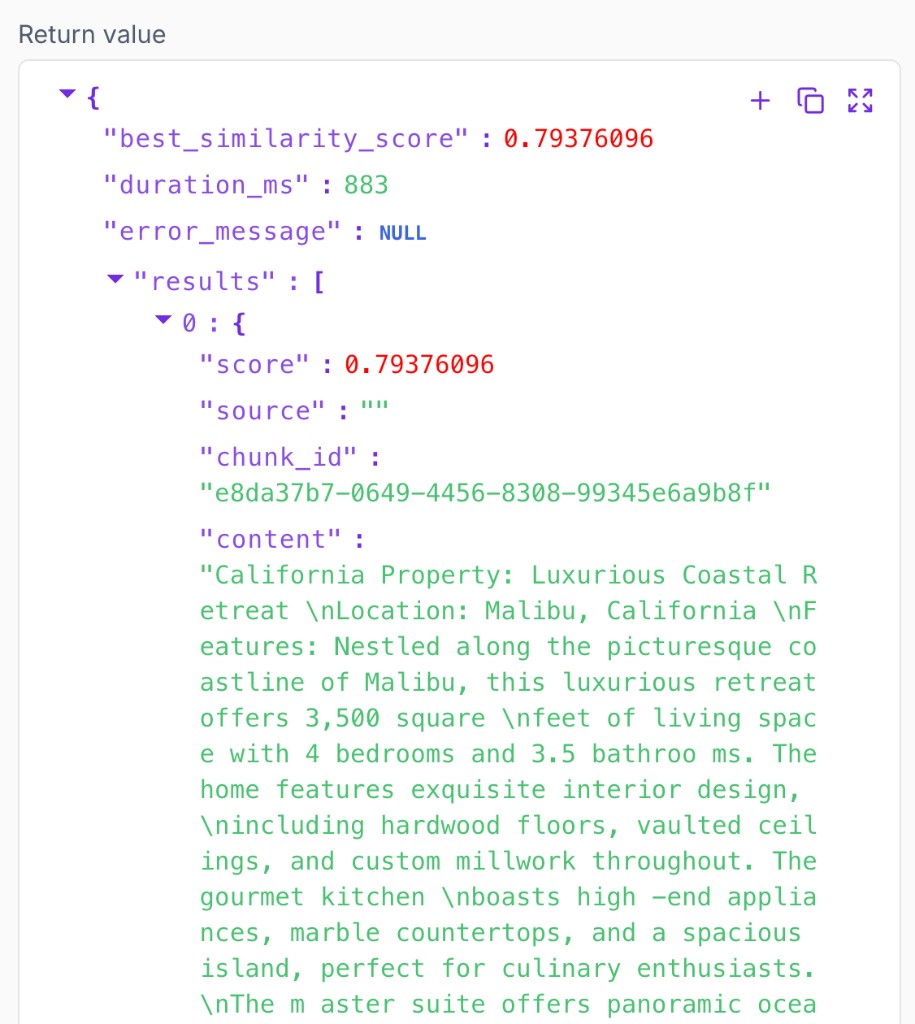
- If search runs but
results_countis0, retrieval executed but no relevant chunk matched strongly enough. - Multiple KB search actions in one call are expected when the agent evaluates several user turns.

