

Custom Actions
Custom actions are HTTP requests your agent can run before or during a call. Use them when you need live data from an external API or when the agent must trigger a workflow outside Synthflow, such as creating CRM records, checking an order status, or sending structured data to another system.
Configuration
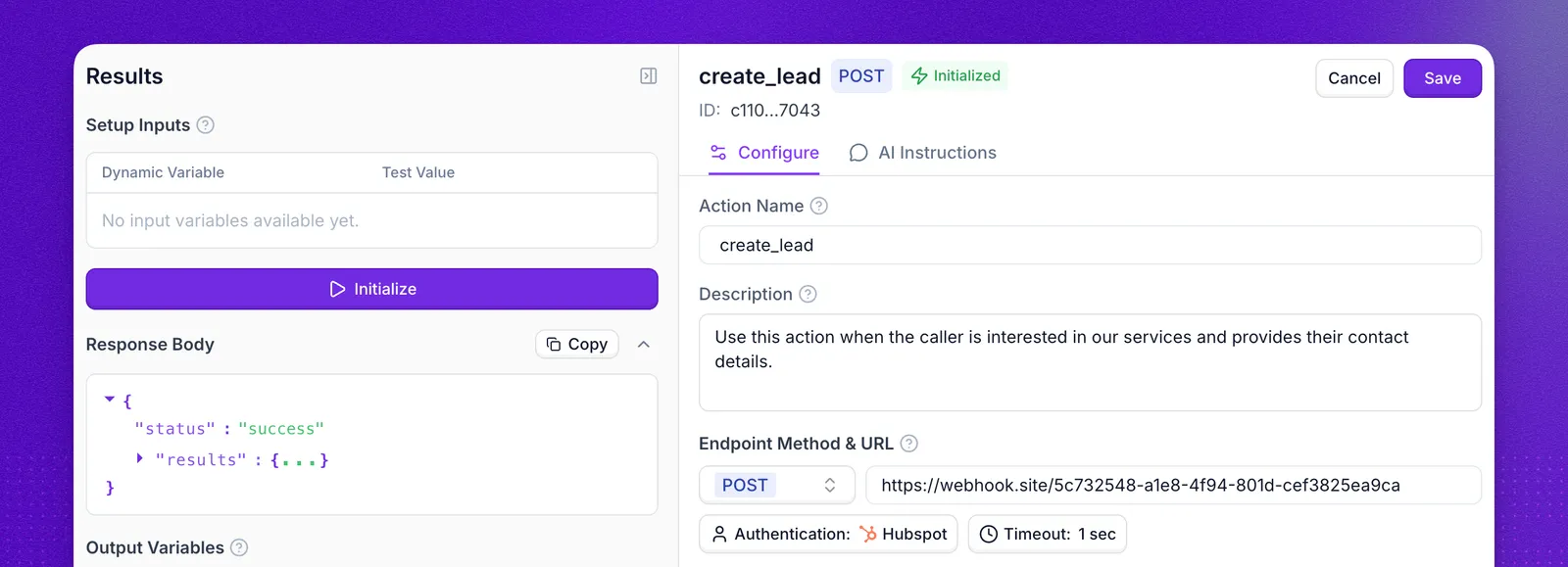
Open Actions → Custom Actions and create an action. The editor has two tabs, Configure and AI Instructions, and a Results panel where you test the request.
The Configure tab holds the request:
Use the request method that matches the API operation you want to run:
Variables
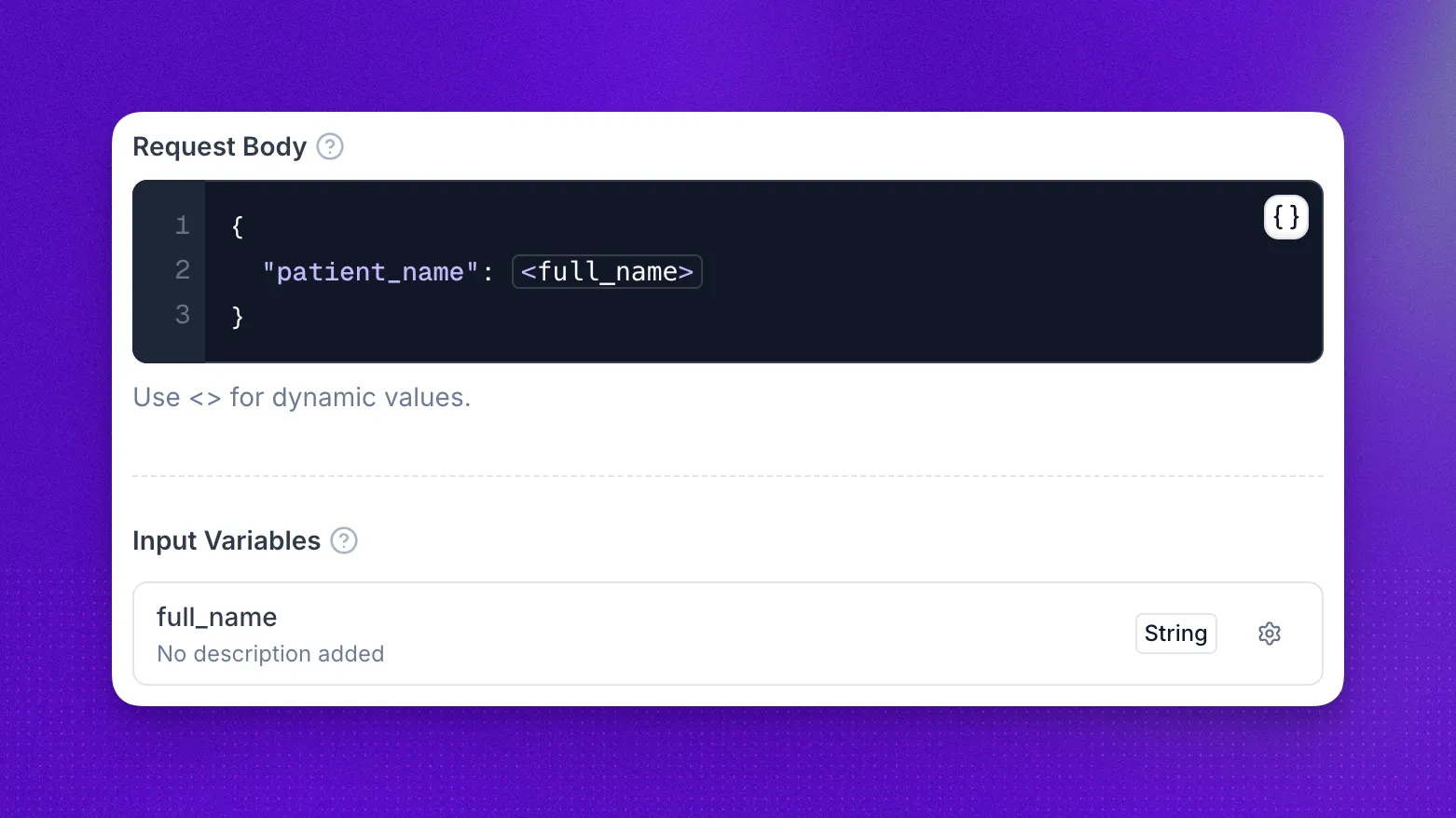
Write <variable_name> in the URL, a header, or the request body for a value that changes on each call. In the request body, type < or select to pick a variable from a list.
- System variables, such as
<call_id>, are highlighted in blue and filled in automatically. They do not appear under Input Variables. - Any other name becomes an input variable and appears under Input Variables. Select the gear next to it to set its Type (String by default, or Integer, Float, Boolean, or List) and a Description that tells the agent how to collect the value.
A variable exists only while its placeholder is in the URL, a header, or the body. Remove the placeholder and the variable disappears from Input Variables.
When you attach the action to an agent, you choose where each input variable gets its value: from the caller, another action’s output, a system or pre-call variable, or a fixed value. See Action placeholders and mapping.
Authentication
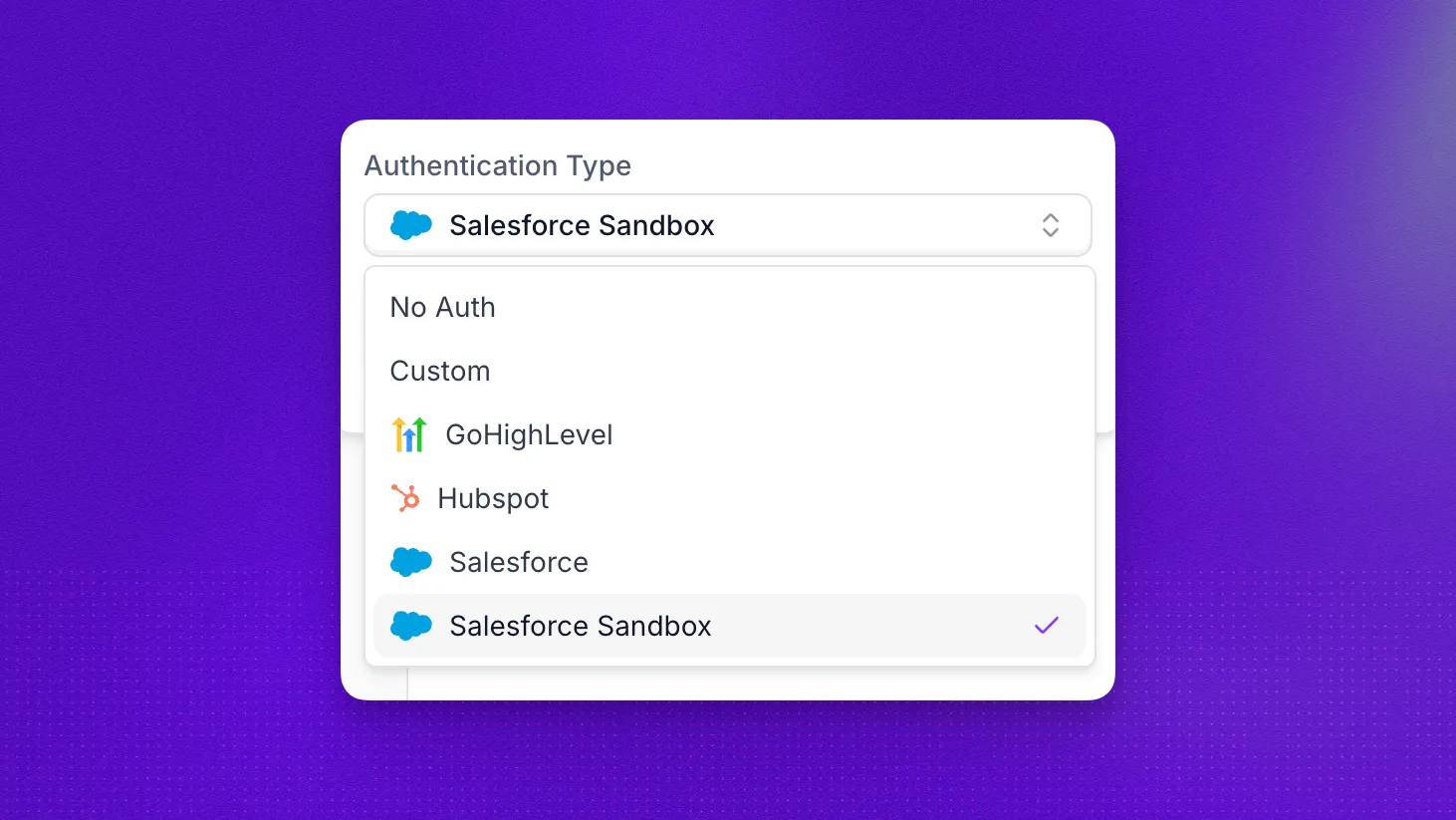
Choose the authentication mode your endpoint expects in the Authentication Type menu. Available built-in connections include:
Match the action configuration to your provider’s required header format and environment.
AI Instructions
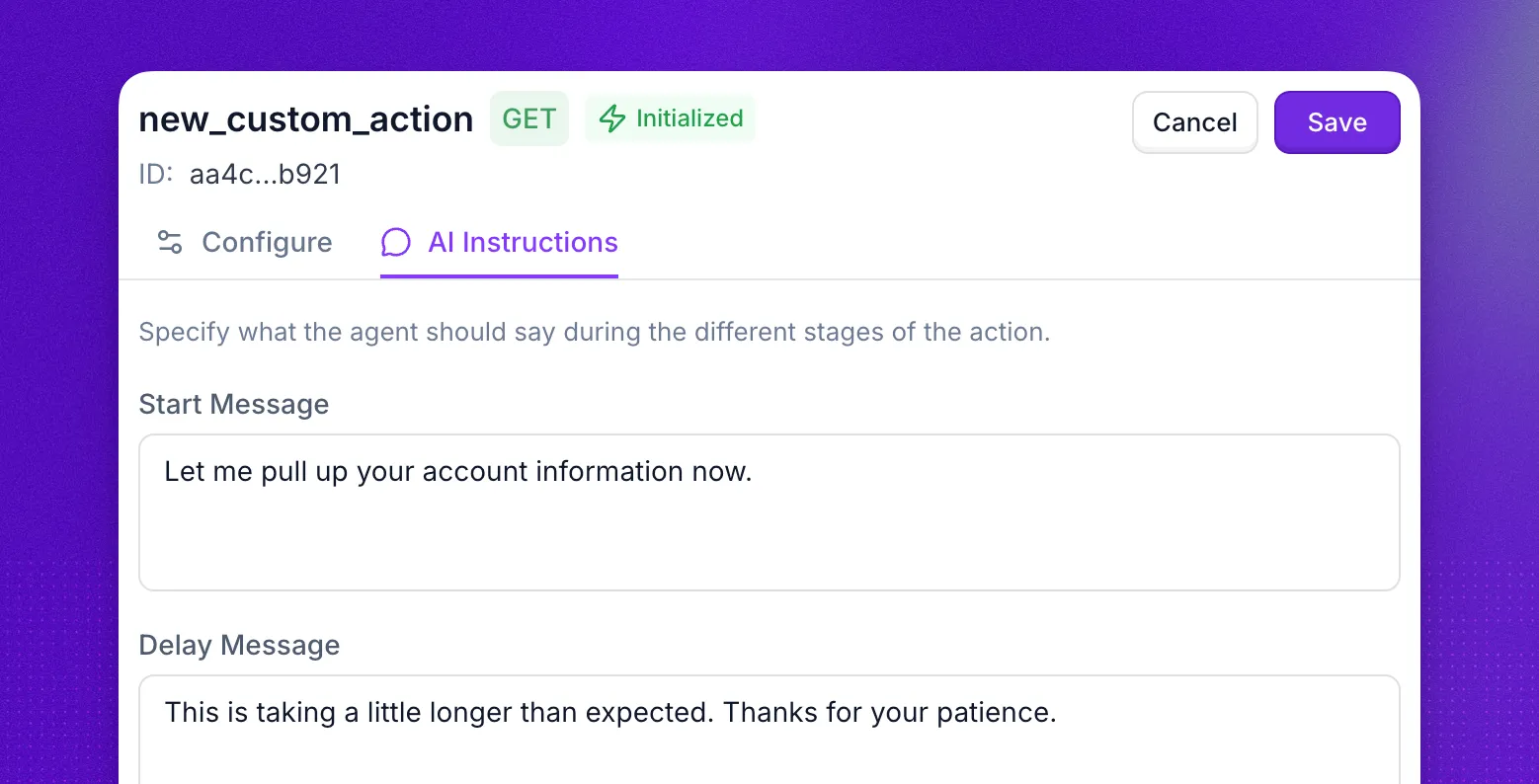
The AI Instructions tab sets what the agent says while the action runs:
- Start Message: said when the action starts.
- Delay Message: said when the action is still running after the Delay Threshold, which goes from 0 to 30 seconds and defaults to 0.
- Failure Message: said when the action fails.
Let the Agent speak naturally is off by default, so the agent says only your messages. Turn it on to let the agent say something that fits the conversation. It falls back to your messages when it cannot.
Action Audio
Action audio gives callers feedback while a custom action waits for an external API. During a live voice call, the selected sound starts when the action begins, loops while the request runs, and stops when it finishes. The agent can speak the start and delay messages over the sound.
- Open Actions and select your custom action.
- On the Configure tab, choose a sound under Action Audio.
- Select Save.
To set the sound through the API, see Create an action.
Use action audio for requests that can leave a noticeable pause. Keep None for actions that usually finish immediately.
Initialize
The Results panel runs the request once, so you can choose which response fields the agent can use later in the call.
- Under Setup Inputs, enter a Test Value for each input variable.
- Select Initialize. The response appears under Response Body.
- Under Output Variables, select the fields the agent should use.
- Select Save.
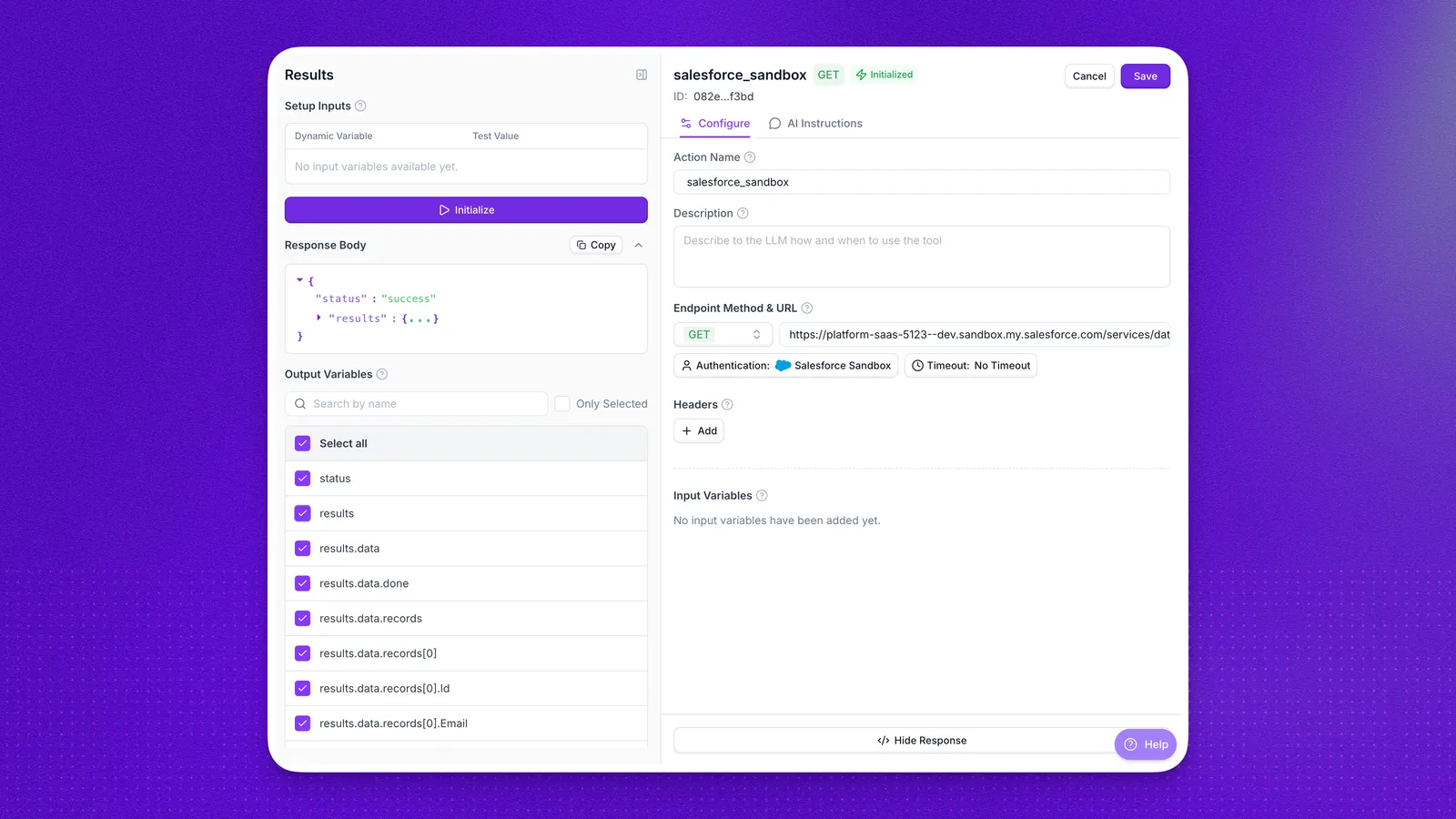
Only the fields you select become action result variables. The header next to the action name shows Initialized after a successful run and Not Initialized otherwise.
When the request fails, the panel shows Failed to initialize action with the error from your endpoint, the response body shows "status": "failed", and there are no fields to select. Check the URL, authentication, and test values, then select Initialize again.
To set the output fields from an example response instead of a live request, use Create an action or Update an action.
Request logs
Every time your custom action runs during a call, the request and response are recorded in API logs. Open the matching entry to inspect the request URL, headers, body, response payload, and timing details for that specific call.
Examples
Retrieve date and time
For the current time in the agent’s own timezone, use the agent_current_time system variable rather than an action. Synthflow fills it on every call: write <agent_current_time> in action fields and {agent_current_time} in prompts.
If you need the time in a different timezone, create a GET custom action that runs before the call starts, then use its result in prompts. Call https://timeapi.io/api/Time/current/zone?timeZone=America/Chicago and replace the timezone with the one you need. For the full timezone list, call https://timeapi.io/api/TimeZone/AvailableTimeZones.
Send email
To email the call summary after the call, use the post-call email action.
To send an email during the call, for example a confirmation once the caller gives their address, create a POST custom action pointed at your email provider’s send endpoint, such as SendGrid or Mailgun. Set the authentication your provider requires and put the variables in the request body:
Only values available during the call can go into the body, such as collected variables and earlier action results. The transcript and call summary do not exist yet.
Run several custom actions
You can chain actions so one response feeds the next step. For example, one action fetches a customer email from your CRM, and a second action uses that email for a booking.
When you attach the second action, set its input to Action Output and pick the first action’s field. See how an input variable gets its value. Describe the order in your prompt so the agent runs the first action before the second.
FAQ
When should I use a custom action instead of prompt-only logic?
Use a custom action when your agent needs live external data or must trigger a system outside Synthflow. Prompt-only logic is enough for static conversational behavior.
Why does my variable not appear under Input Variables?
Its placeholder is not in the URL, a header, or the request body, or it is a system variable. System variables are filled in automatically, so they are not listed.
Can my agent send an email?
Yes. The post-call email action sends the call summary after the call. To send an email during the call, use a custom action that calls your email provider. See Send email.
Can I run multiple custom actions in one call?
Yes. Map an input of one action to the Action Output of another, and describe the order in your prompt. See Run several custom actions.
Can I use both Salesforce Production and Sandbox in one workspace?
Yes. Connect both and select the matching authentication per action.
Do I need different URLs for Salesforce Production and Sandbox?
Yes. Each environment has its own Salesforce domain, so each action should use environment-specific endpoints.
Can custom actions run before the call starts?
Yes. Attach the action to run before the conversation when you need context ready in advance, such as account details or time data.
Which variables are available by default in custom actions?
The system variables, such as call_id and user_phone_number, on every call. Write them as <call_id> in the URL, headers, or body.
How should I name custom actions so the model uses them correctly?
Use clear, task-oriented names and descriptions that describe one outcome. Good naming helps the model pick the right action in the right context.
What should I do if a custom action fails during a call?
Set a Failure Message on the AI Instructions tab, and add prompt guidance for fallback behavior so the agent can continue the conversation. To diagnose the failure, open the call in API logs and inspect the request and response that the action made.
Does action audio replace the start or delay message?
No. Action audio plays in the background while the action runs. The agent can still speak the start and delay messages set on the AI Instructions tab.
Should I keep one action per workflow or reuse one action for many tasks?
Use one action per business task whenever possible. Smaller, focused actions are easier to test, safer to maintain, and easier for the model to choose.