

Customer Portal
TL;DR From your cutover date, all Synthflow support requests are submitted through your Customer Portal, not Slack. Your Slack channel stays open for everyday conversation. Tickets move to the portal so nothing gets lost in chat threads.
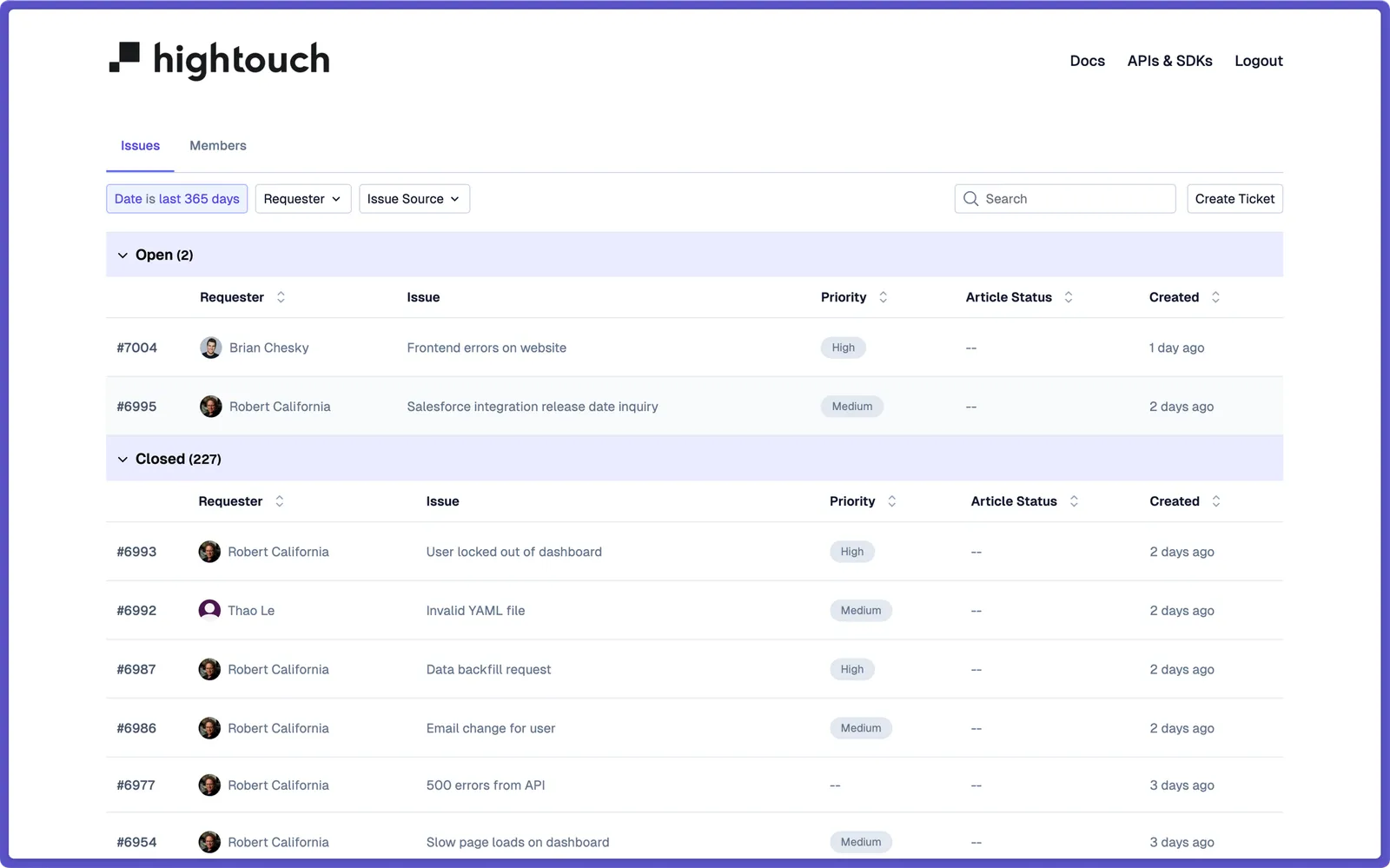
Reference view. Your portal is Synthflow-branded with the same features.
Why we built this
We listened. The themes were the same across every customer:
- Important tickets get buried in Slack threads.
- Multiple team members on your side can’t see what’s in flight.
- It’s hard to find historical context six weeks later, let alone six months.
- Status updates aren’t centralised. They’re scattered across whoever happened to be in that conversation.
The Customer Portal fixes all four. One place. Full visibility. Searchable history. Your whole team, not only whoever happened to be in Slack at the time.
What you can do in the portal
Accessing your portal
Most customers are auto-enrolled. If you are not enrolled yet, you see an Email field on the login screen. Enter your email and click Send Code to get a one-time login code. If you get stuck, flag it in your dedicated Slack channel and we’ll help.
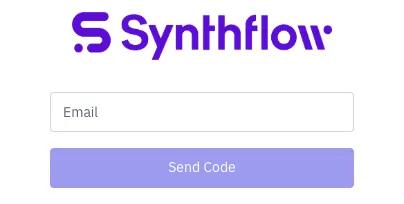
This is your login screen.
How it works:
- Click the portal link in your launch email, or the bookmarked URL we shared in Slack.
- Enter your email address.
- We send you a one-time login code.
- Enter the code.
You’re in. Each session is verified through your email, with no setup required.
If your company has access to multiple Synthflow workspaces, you can select which one to enter after logging in.
Raising a ticket
This is the workflow that replaces Slack ticketing from your cutover date forward.

You can select your form from the page header, shown above.
Three steps:
- From the portal homepage, click Create Ticket.
- Fill in the form. Describe what’s happening. Attach screenshots, logs, or video if it helps us help you.
- Submit.
Your ticket appears in your team’s portal view immediately. Our support team is notified at the same time. You get email notifications whenever there’s an update, so there’s no need to keep the portal tab open.
Tracking and responding to tickets
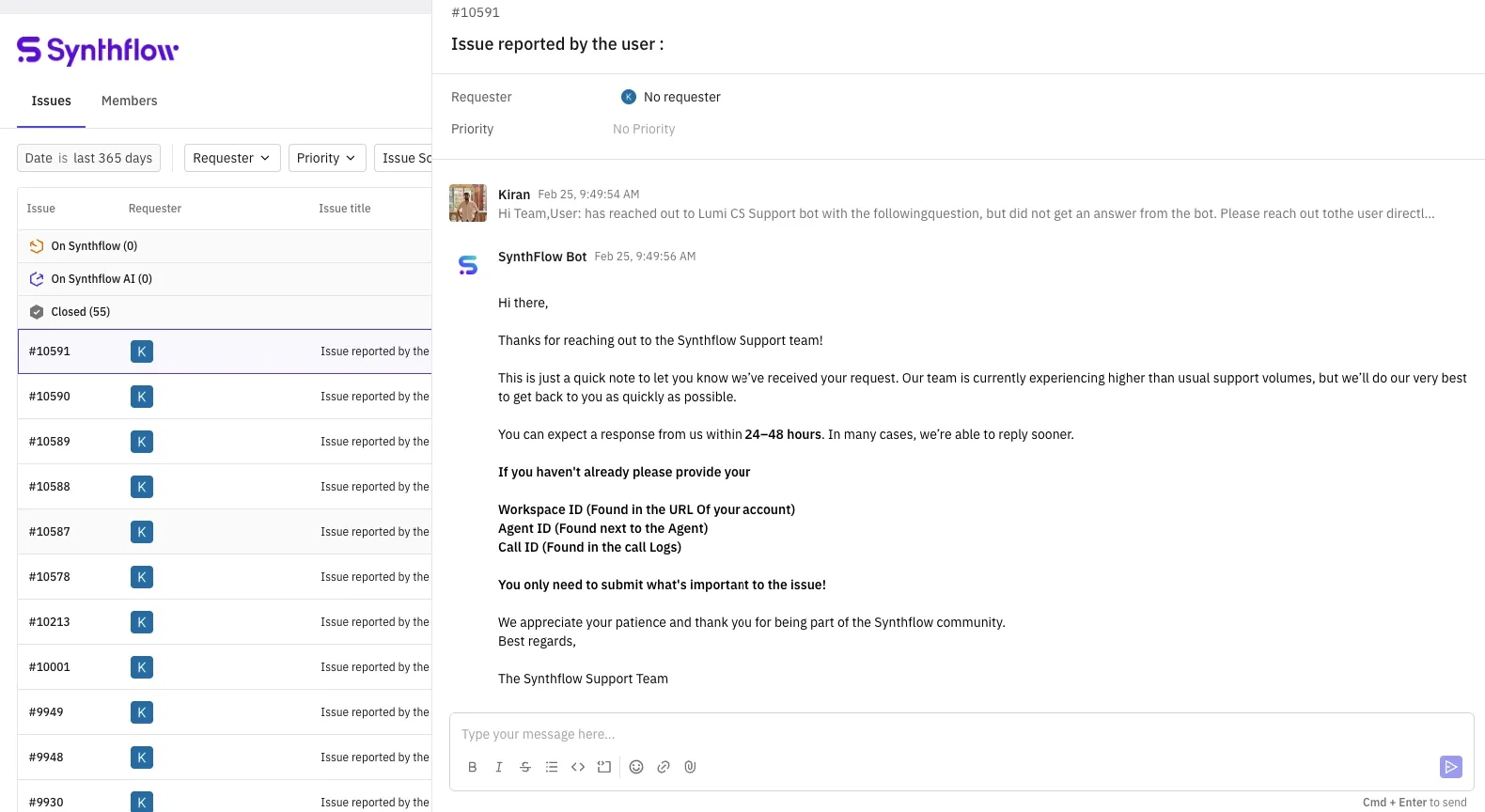
Your ticket list, with all conversations in one place.
The portal homepage lists every ticket your account has raised in the last 12 months: open, in progress, and resolved.
Click into any ticket to:
- See the full conversation history with our team.
- Reply directly.
- Update fields like status or priority (if your admin has enabled these).
- Loop in additional teammates.
Search and filter at the top of the homepage make it fast to find anything historical.
Managing portal access
If you’re an admin on your account, you have full control over who on your team can see and interact with the portal.
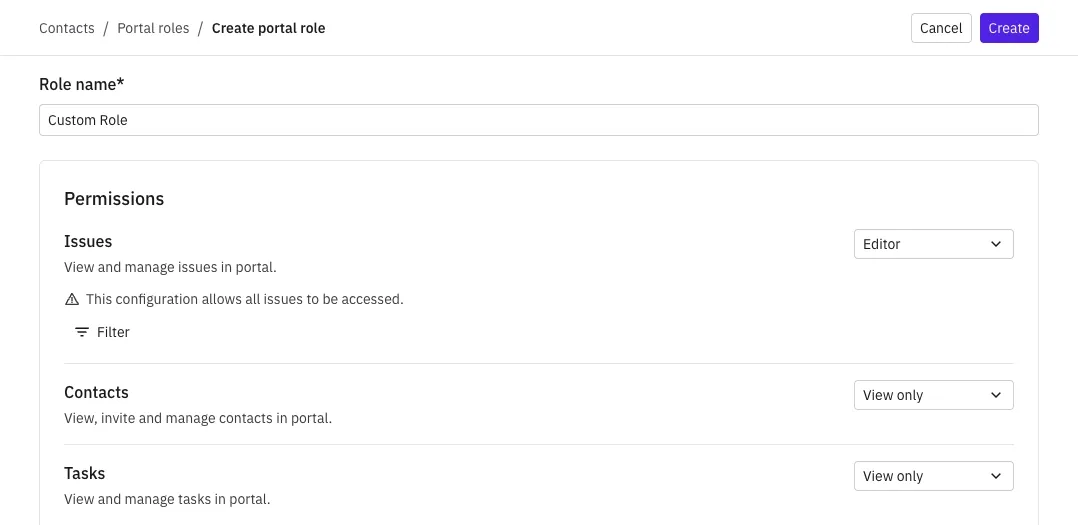
The Members tab, where admins manage who has access.
As an admin you can:
- Invite teammates into the portal by email.
- Set permissions per person (view, comment, create).
- Remove access when someone leaves your team.
New invites receive an email with a portal link. Their first login follows the same one-time code flow as yours.
Access
Each permission area supports different access levels:
- Editor: Full read and write access.
- View Only: Read access without editing capabilities.
- No Access: No visibility or interaction.
If you’re not sure who your admins are, reply to your portal-launch email and we’ll confirm.
What’s changing and what isn’t
What’s changing All new support tickets are raised in the portal. Open tickets get migrated across in the weeks before your cutover. Your team gets full visibility for the first time.
What’s staying the same Your Slack channel with our team stays open for everyday conversation, product updates, and account check-ins. Your Channel Manager and support team are the same people you already know. You don’t need to install anything. The portal lives in your browser.
FAQ
When does this start for me?
Your specific cutover date is in your portal-launch email. Until your cutover date, you can continue raising tickets in Slack as normal.
Will my Slack channel be closed?
No. Only the ticketing function moves. Your Slack channel stays open for conversation, product discussion, and account check-ins.
Do I need to install anything?
No. The portal is web-based. Bookmark the link, that’s it.
What happens to my open Slack tickets at cutover?
We’ll guide your active threads into the portal in the weeks leading up to your cutover. Nothing gets lost. We’ll bring the full conversation across.
Can I still raise an urgent issue in Slack?
For genuinely time-critical issues, message your Channel Manager directly and we’ll triage. Everything else goes through the portal.
Who do I contact if I have questions about the portal itself?
Reply to your portal-launch email or message your Channel Manager in Slack.
Can I see tickets older than 12 months?
The portal shows the last 12 months by default. If you need older history, your Channel Manager can help retrieve it.
Quick reference
Need help?
Reply to your portal-launch email or message your Channel Manager in Slack. We’ll get back to you fast, usually within the same business day.